
Getting started with CicadaChat: your first five minutes
Open CicadaChat, answer the location prompt and send your first message to the people around you. What each part of the screen does, and when an account is worth it.
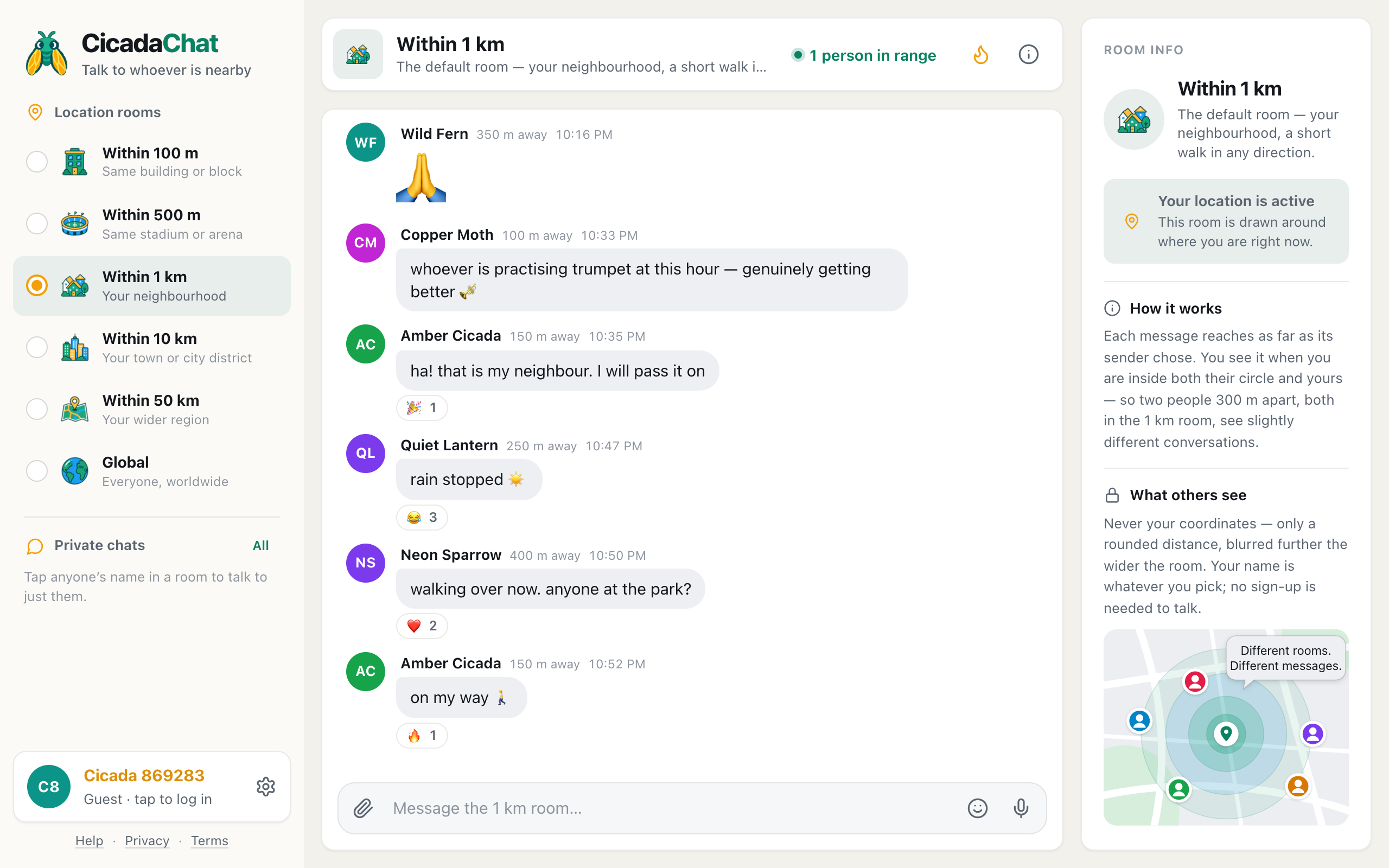
CicadaChat puts you in a chat room made of whoever is near you right now. There's no feed to fill and no followers to collect. You open it and you can chat with people nearby straight away. This guide to getting started with CicadaChat covers your first five minutes: what happens when you open the app, what the location prompt is for, how to read a room, how to send your first message, and when you might want an account.
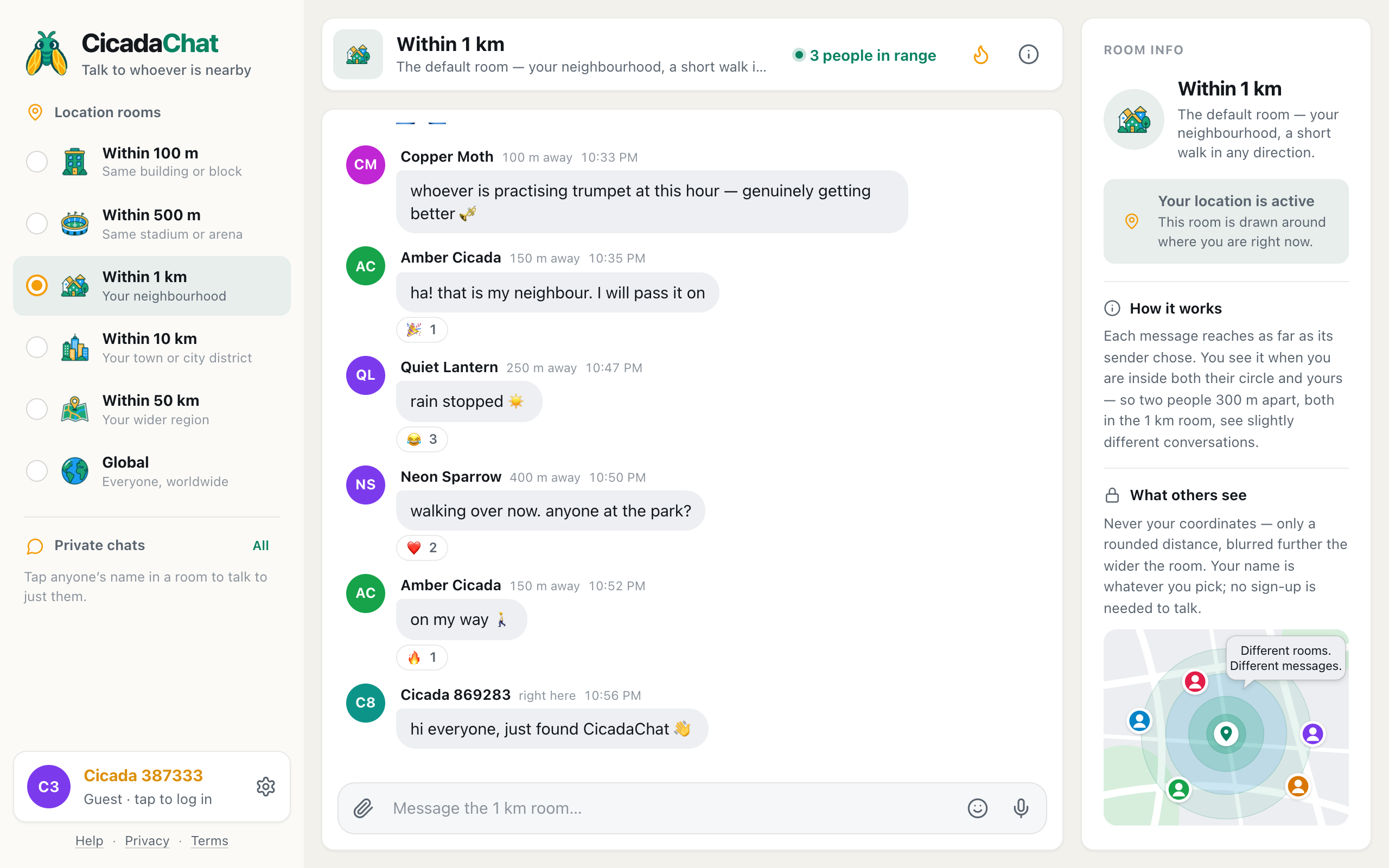
A screenshot of CicadaChat on a computer: the rooms on the left, the conversation in the middle, and Room info on the right.
Getting started with CicadaChat: what happens when you open it
Open https://cicadachat.com in the browser on your phone or computer. There's nothing to download and no form to fill in.
- Wait a second on the Warming up… screen. It says Setting up your session. No sign-up needed. While it shows, CicadaChat creates a guest account for you.
- Look at the name you've been given. Every guest gets a name like Cicada 869283: the word Cicada and six random digits, so people can tell guests apart in a busy room. You also get a coloured circle with your initials as your picture.
- Answer your browser when it asks whether CicadaChat may use your location. The next section explains both answers.
That's all the setup there is. The guest account lives in this browser on this device, so closing the tab and coming back later brings you back as the same guest, with the same name and the same private chats.
Step 1: Answer the location prompt
CicadaChat asks for your location because its rooms are distances, not places. The Within 1 km room isn't a fixed room in a fixed spot. It's a circle 1 km wide drawn around you, so the app has to know roughly where you are to know who's in it.
If you allow it
You land in Within 1 km, the room CicadaChat opens by default: your neighbourhood, a short walk in any direction. While your browser works out where you are you'll see Finding you for a moment, and the message box says Waiting for your location…. Once your position arrives, the conversation loads.
What other people learn from this is less than you might expect:
- Nobody ever sees your coordinates. Next to your name they see a rounded distance, such as right here, 150 m away or 2.5 km away.
- The wider the room, the rougher the distance. The server rounds it before it leaves, to the nearest 10 m in the 100 m room and to the nearest kilometre in the widest local room, so a stream of messages can't be used to pin you down.
- Your position follows you while the app is open. If you walk across town, your rooms move with you, and new messages reach you according to where you are now. The history already on screen catches up when you switch rooms or reopen the app. Close the app and CicadaChat stops receiving your position.
If you block it, or your device can't find you
You're not locked out. CicadaChat moves you to Global, the one room that needs no location at all, and shows a card at the top of the conversation explaining why.

A screenshot of the card CicadaChat shows when location is blocked. It tells you where the switch is on your device.
The card reads Location is off, so you are in the global room. If your browser has remembered your "Block", asking again from the page won't work, so the card tells you where the switch is on your device instead. On a computer that's Click the icon at the left of the address bar and allow Location. On an iPhone or Android phone the card gives the steps for that phone's browser. If your browser may still ask, the card has a Try again link.
Global is a complete room, not a waiting area. It's everyone on CicadaChat, wherever they are, and it's kept separate from the local rooms: messages sent in Global never appear in a local room, and local messages never appear in Global. If you allow location later, the rooms around you open without a reload, and you go back to the room you last picked.
Step 2: Find your way around the screen
The layout depends on the size of your screen, but the pieces are the same.
On a computer
The screen has three columns, as in the first picture above:
- The sidebar on the left lists the Location rooms, then your Private chats. At the bottom are your name and the settings gear, with Help, Privacy and Terms links under them.
- The room in the middle has a header with the room's name and what it reaches, the conversation, and the message box at the bottom.
- Room info on the right says whether your location is active, how the room decides what you see, and what other people see about you.
The header also holds three buttons you'll use often: 1 person in range (the number changes), which shows who's around; a flame, which switches to Hot, the most-reacted messages of the past week; and an i, which explains how rooms work.
On a phone
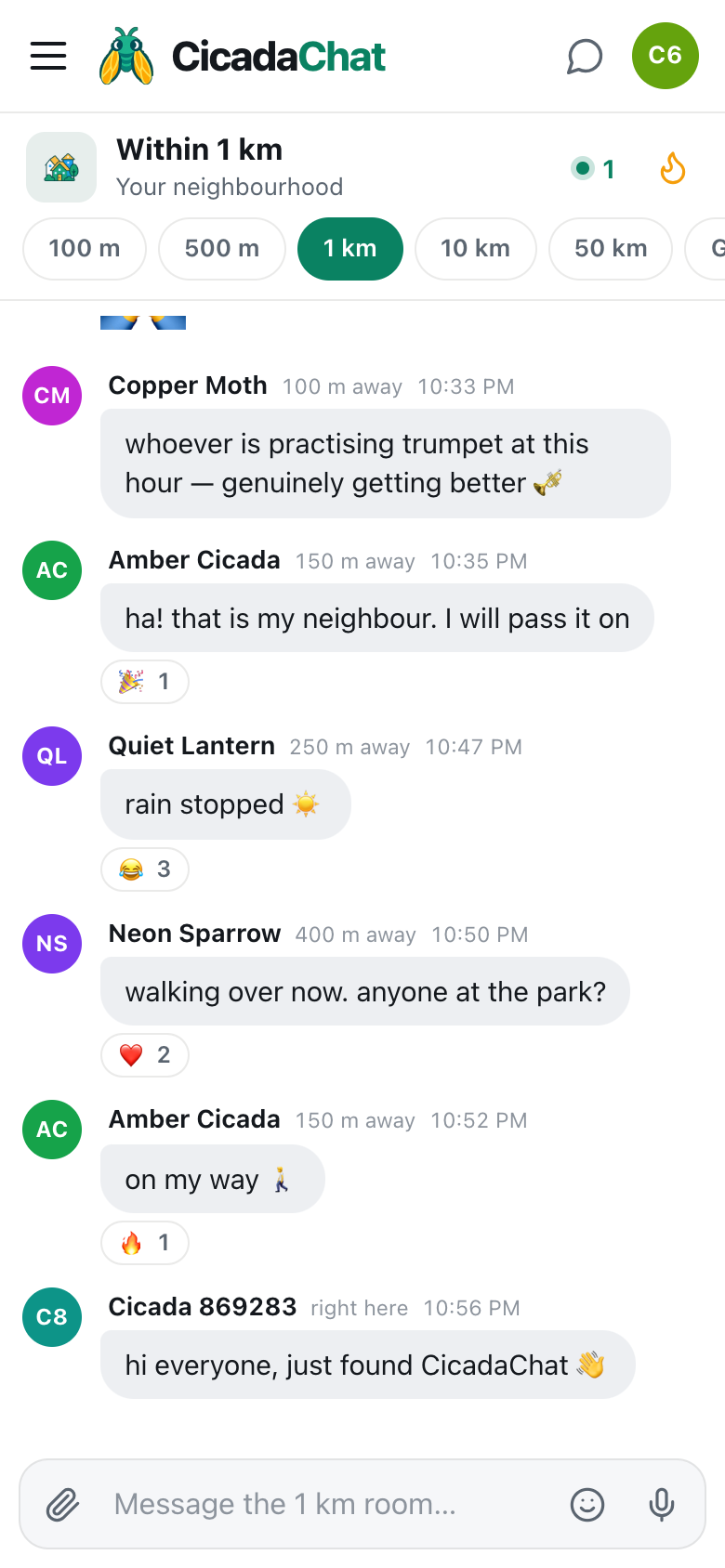
A screenshot of CicadaChat on a phone. The room tabs sit under the room name, and the menu button at the top left opens everything else.
A phone shows one thing at a time. The rooms become a row of tabs under the room name (100 m, 500 m, 1 km, 10 km, 50 km, Global), because switching rooms is what people do most. Swipe the row sideways to reach the last tabs. At the top of the screen:
- The menu button at the top left opens the sidebar, with the full room list, your private chats, your name and the settings gear.
- The speech bubble at the top right opens your private chats. A number on it counts unread messages.
- The coloured circle next to it is you. Tap it to log in or, once you have an account, to manage it.
- Tap the room's name or picture for Room info.
The phone's back button or gesture closes whatever you opened last, like an app. On the main screen, going back once shows Go back again to leave CicadaChat, so you don't leave by accident.
Step 3: Read the room
Every message shows the sender's name, how far away they were when they sent it, and the time. Distance is measured from you, so the same message might say 150 m away on your screen and right here on the screen of someone standing next to the sender. In Global, messages show no distance at all.
A few things worth knowing as you scroll:
- Newest messages are at the bottom. Scroll up to load older ones. New messages arrive live, with no refresh.
- Reactions sit under a message, with a count for each emoji. Yours are highlighted.
- When someone is typing, a line under the conversation says so, for example Amber Cicada is typing….
- A message made only of emoji is shown large, the fewer emoji, the bigger.
Don't be surprised if a friend standing a few hundred metres away sees a slightly different conversation in the same room. Each message reaches as far as its sender chose, and you see it only when you're inside both their circle and yours. Two people 300 m apart, both in the 1 km room, are standing at the centres of two different circles.
If nobody has said anything yet, the room says Nobody has said anything yet and Be the first. Anyone within 1 km will see it. That's an invitation, not an error.
Step 4: Send your first message
- Click or tap the message box at the bottom. Its placeholder names your room, for example Message the 1 km room… or, in Global, Message everyone….
- Type your message. It can be up to 2,000 characters.
- Press Enter to send it, or tap the send button that appears at the right. To start a new line without sending, press Shift and Enter together.
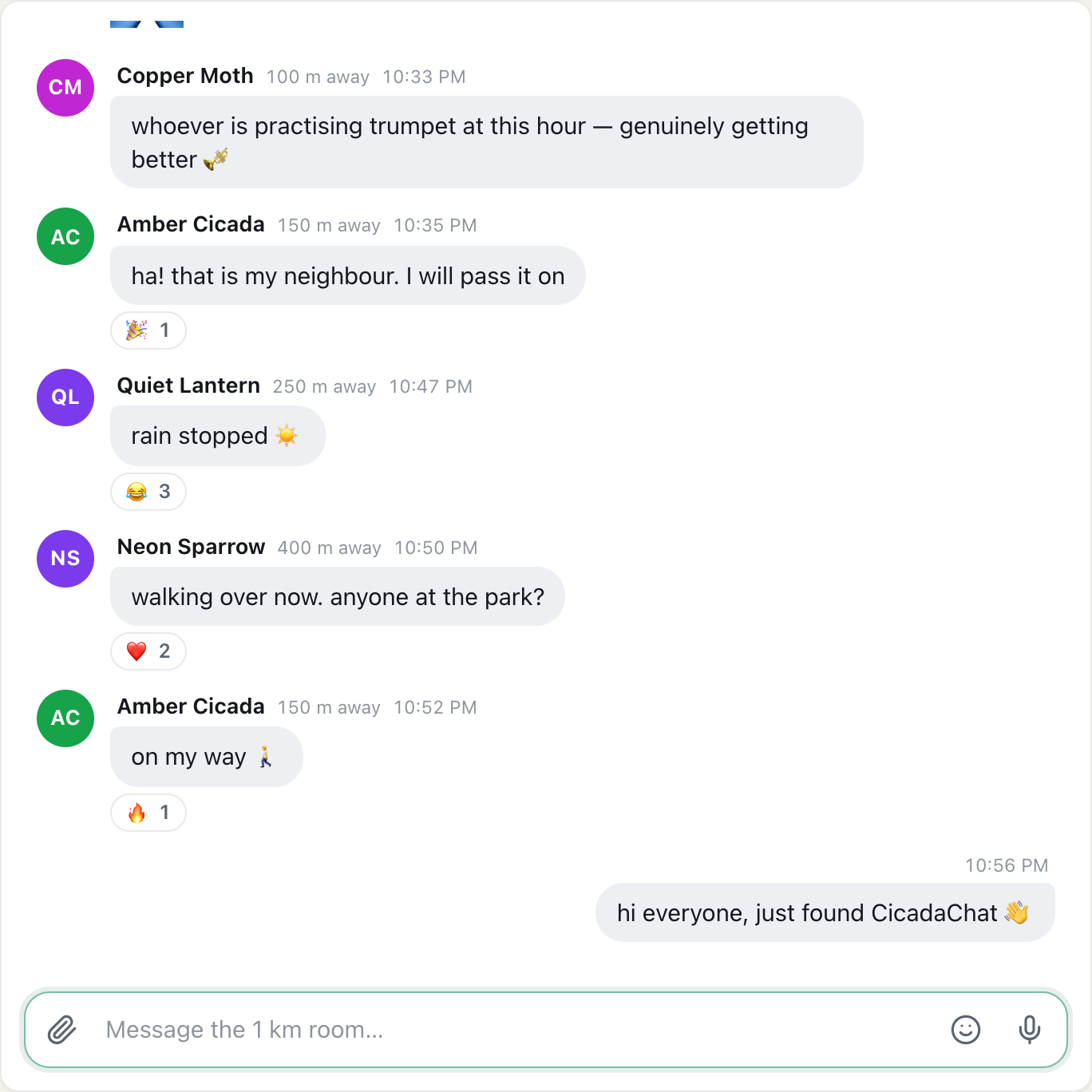
A screenshot of a first message in the 1 km room. Your own messages sit on the right, without your name.
Your message appears on the right-hand side, without your name, because the side it sits on already says it's yours. Everyone else sees it on the left with your name and a rounded distance.
Who will see it
A message reaches people within the radius of the room you send it from. Send from Within 100 m and only people within 100 m of you will see it, even someone reading the 10 km room. Send from Within 10 km and it reaches the whole district. So choose the room first, then speak. The name of the room is right there in the message box as a reminder.
More than text
The message box has three buttons besides the text itself:
- The smiley opens an emoji picker.
- The paperclip offers Photo, Document and Location. Photos are re-encoded on your device before they're sent, which also removes the GPS position that phone cameras hide inside photos. Sharing a location is the one time others see an exact spot, so CicadaChat warns you first, for example Everyone within 1 km will see this exact spot.
- The microphone records a voice message.
Each of these has its own article in Help: photos and documents, voice notes and sharing a location.
React to a message
Point at a message on a computer, or tap it on a phone, and a row of quick reactions appears: 👍 ❤️ 😂 😮 😢 🔥 🎉 👀. Pick one to add it. To join a reaction someone already added, click the reaction under the message. Click it again to take yours back. Reactions are also what feeds Hot: the more people react to a message, the higher it ranks there.
Step 5: Try a different room
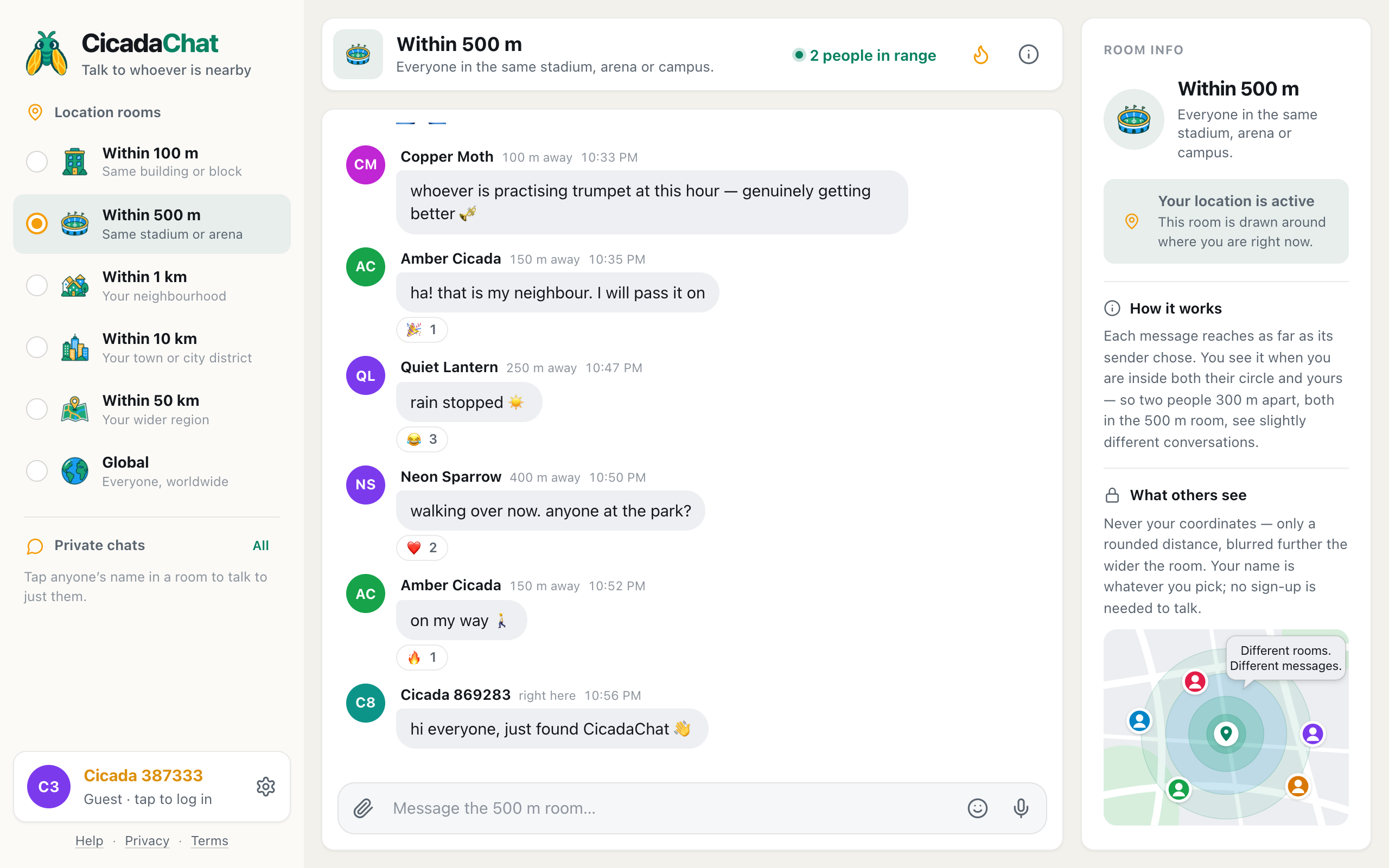
You aren't stuck with 1 km. Pick another room from the list in the sidebar, or from the tabs on a phone.
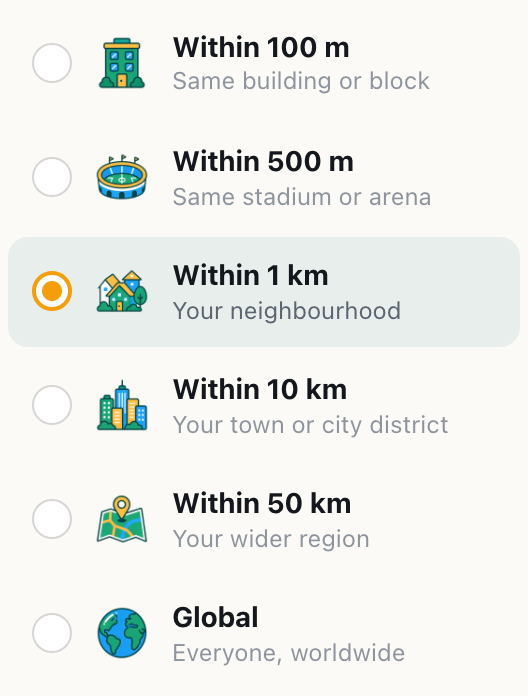
A screenshot of the room list in the sidebar. The orange dot marks the room you are in.
| Room | Who it reaches |
|---|---|
| Within 100 m | People in the same building or block as you |
| Within 500 m | Everyone in the same stadium, arena or campus |
| Within 1 km | Your neighbourhood, a short walk in any direction (the default) |
| Within 10 km | Your town or city district |
| Within 50 km | Your wider region |
| Global | Everyone on CicadaChat, wherever they are, with no location needed |
A smaller room is quieter and more local: fewer people, but they're really close. A wider room is busier. A good habit when a room feels empty is to step one rung wider, then come back later. At a concert or a match, try the 500 m room. In a big apartment block, the 100 m room is your building.
CicadaChat remembers the room you picked on this device, so next time you open the app you land where you left off. If you haven't shared your location, the five local rooms are greyed out, and pointing at one says Share your location to use this room.
To see a room's highlights rather than its latest messages, press the flame. Hot ranks the past week's messages in that room by how many people reacted to them. Press the flame again, or send a message, to go back to the latest.
Step 6: See who's around
The people in range button in the header opens a list of everyone who is online right now and would hear you if you spoke in this room. That count includes you. Each person is shown with the same rounded distance as their messages, and you're listed last.
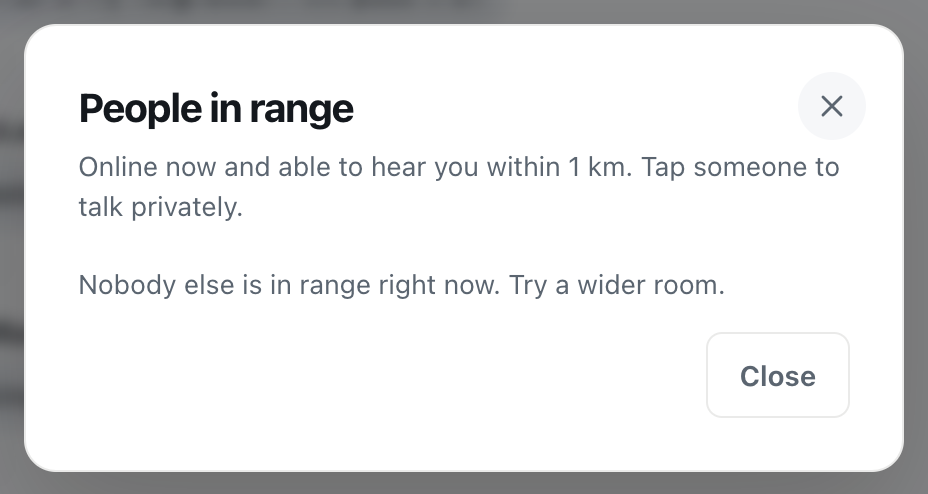
A screenshot of People in range when nobody else is online nearby. When people are, each one is listed with a rounded distance.
If you're the only one, the list says Nobody else is in range right now. Try a wider room. Remember that this only counts people with the app open at this moment. Plenty of people read a room's history later, so a message sent to an empty room still gets read.
Step 7: Talk to someone privately
Click or tap anyone's name or picture, on a message or in People in range, to open a private chat with just them. Only the two of you can read it.
- Private chats aren't tied to distance. Once you've started one, you can carry on after either of you has moved far away.
- Your conversations are listed under Private chats in the sidebar, with the newest at the top and a number for anything unread.
- Guests can chat privately too. You don't need an account for this.
Guest or account: do you need to sign up?
No. You can do everything above as a guest. Your guest name sits at the bottom of the sidebar with Guest · tap to log in under it.
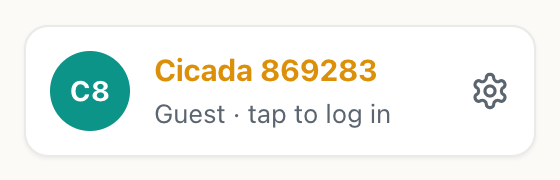
A screenshot of your guest name at the bottom of the sidebar. Click it to log in or create an account.
The catch is that a guest account belongs to this browser on this device. If you clear the browser's data, switch browsers or pick up another device, you start again as a new guest, and the old private chats stay behind. An account fixes that, and adds a few things guests can't have:
- Your conversations on any device. Log in anywhere with your username or email and password, or with Google.
- A name you choose. Pick a username and, if you like, a Full name that's shown in rooms instead of it, plus a profile photo.
- Friends, with a dot that shows when they're online.
- Private rooms: invite-only group chats for people you know.
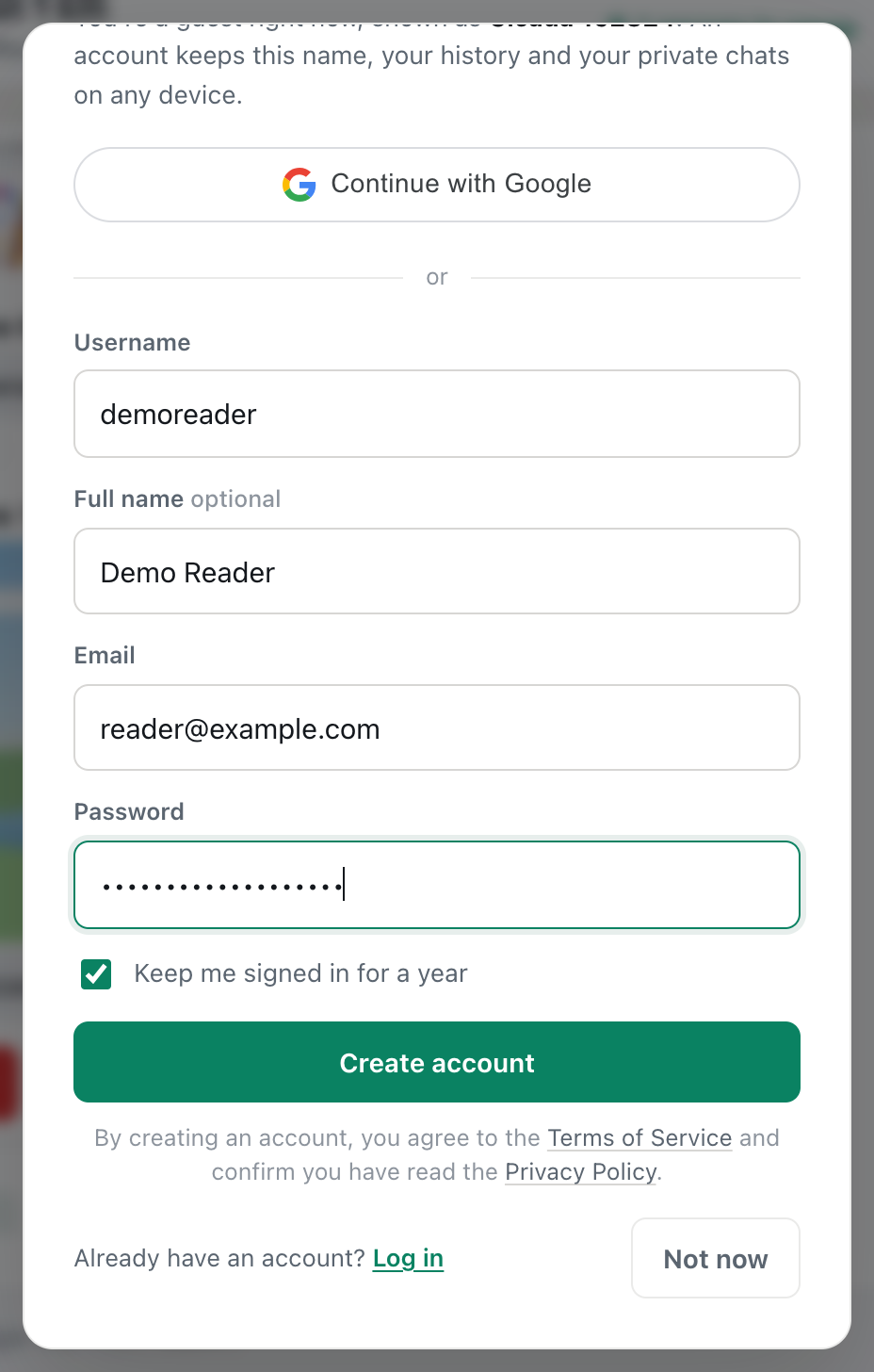
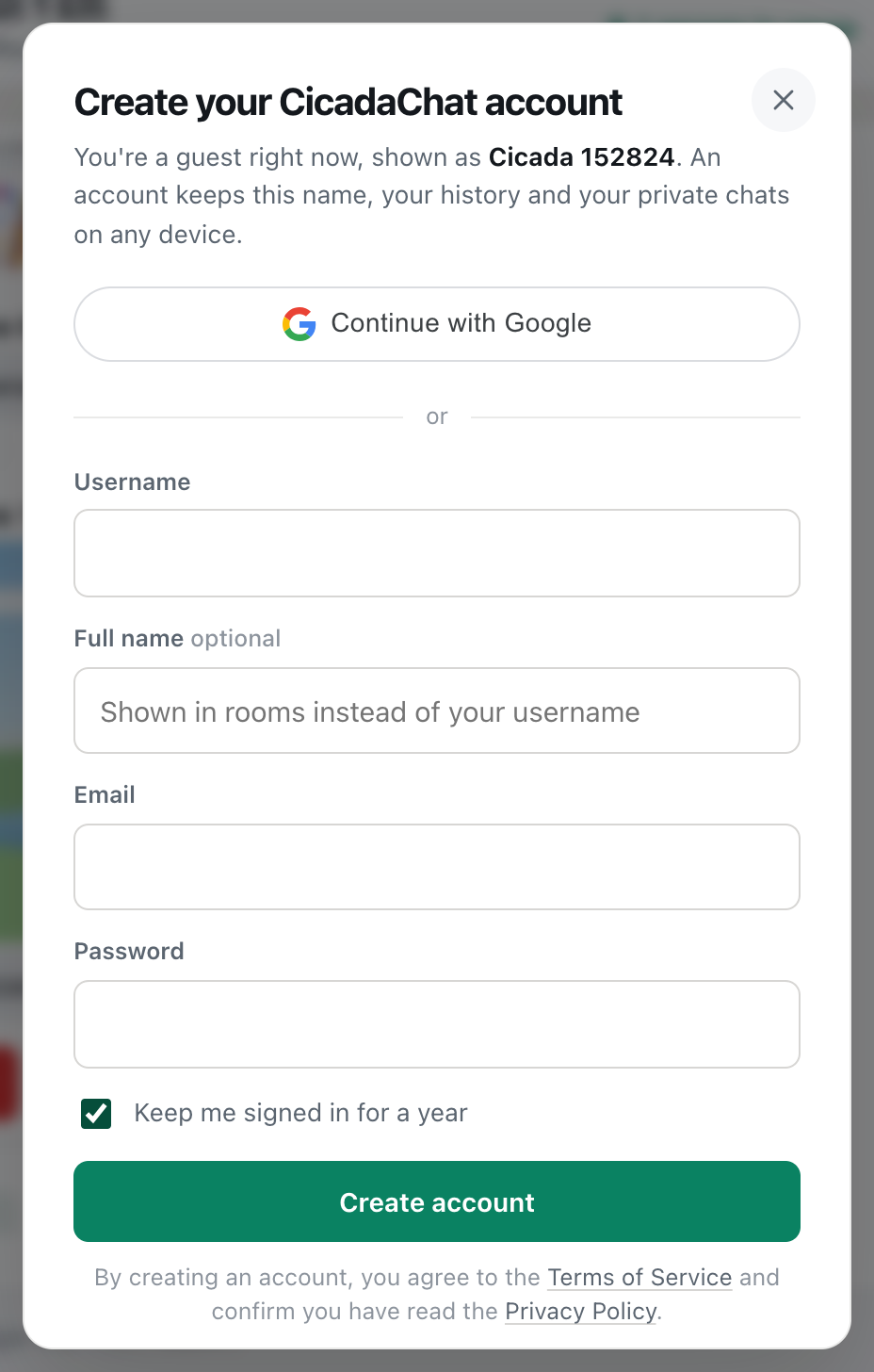
Creating an account doesn't throw away your time as a guest. Click your guest name, choose Create one, and fill in Username, an optional Full name, Email and a Password of at least 10 characters. Your guest account is turned into the new one, so your messages and private chats come with you. Tick Keep me signed in for a year on a device that's yours. Leave it unticked on a shared computer, and you'll be signed out after a day or when the browser session ends.
Settings worth knowing on day one
The gear next to your name opens Settings. As it says, These apply to this device only.
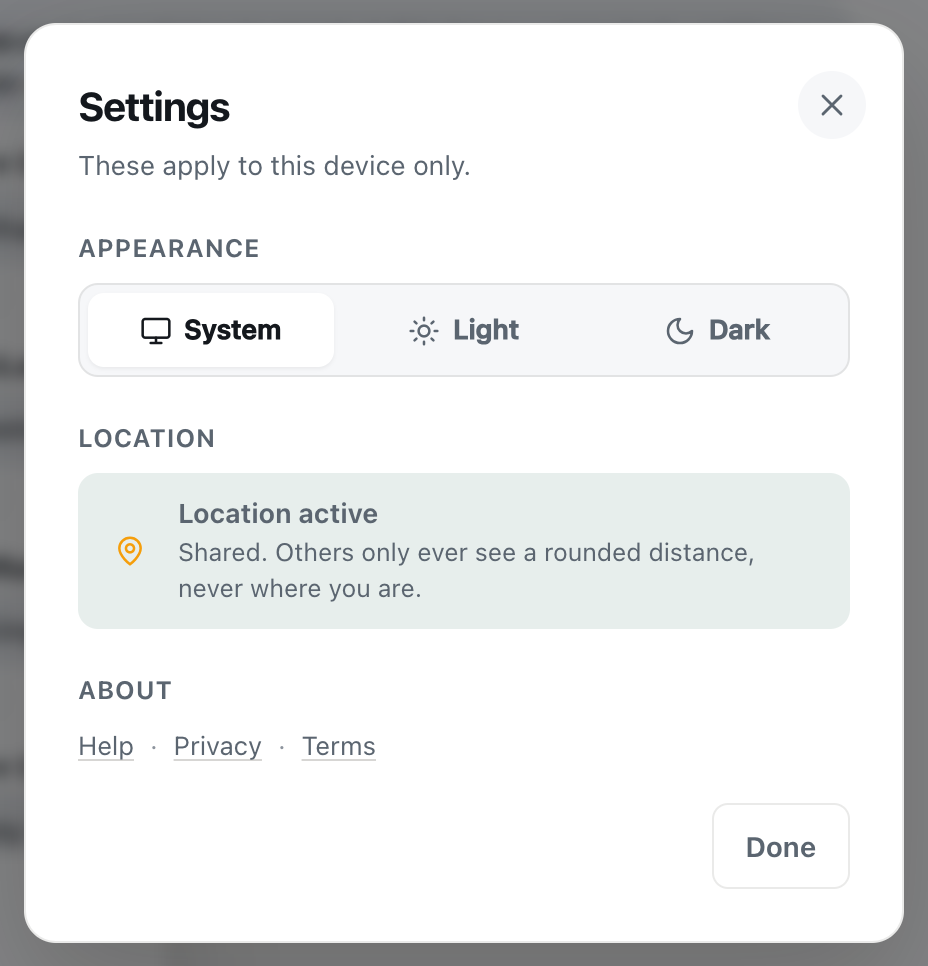
A screenshot of Settings, opened from the gear next to your name. Everything here applies to this device only.
- Appearance: System follows your device's light or dark mode, or pick Light or Dark yourself.
- Location shows whether your location is being shared. When it isn't, and your browser can still ask, a Share my location button is here. When it's blocked, you get the same directions as the card in the room.
- About links to Help, the Privacy Policy and the Terms of Service.
If something goes wrong
- "CicadaChat is not answering right now." The app couldn't reach the server, often because of a dropped connection. Check you're online and press Try again.
- Stuck on "Finding you". Your browser hasn't answered yet. Look for a permission prompt you may have missed, and on a phone check that location services are on. If no position arrives, CicadaChat says We could not work out where you are. You are in the global room. Moving near a window or turning on Wi-Fi often helps a phone find itself.
- "This browser cannot share a location." Your browser has no location support. Try an up-to-date Chrome, Safari, Firefox or Edge, or enjoy the Global room.
- The local rooms are greyed out. Location isn't shared. Open Settings to see why and how to turn it on.
- A message shows "· not sent". It didn't reach the server, usually because the connection dropped. Check your connection and send it again.
- The room is empty. You may simply be early. Try a wider room, check Hot for the week's highlights, or say hello: the next person to open CicadaChat nearby will see it.
No comments yet. Start the conversation.