
How to record and send a voice note
Record and send a voice note in any CicadaChat chat. How long it can be, how to listen to the ones you receive, and how to fix a blocked microphone.
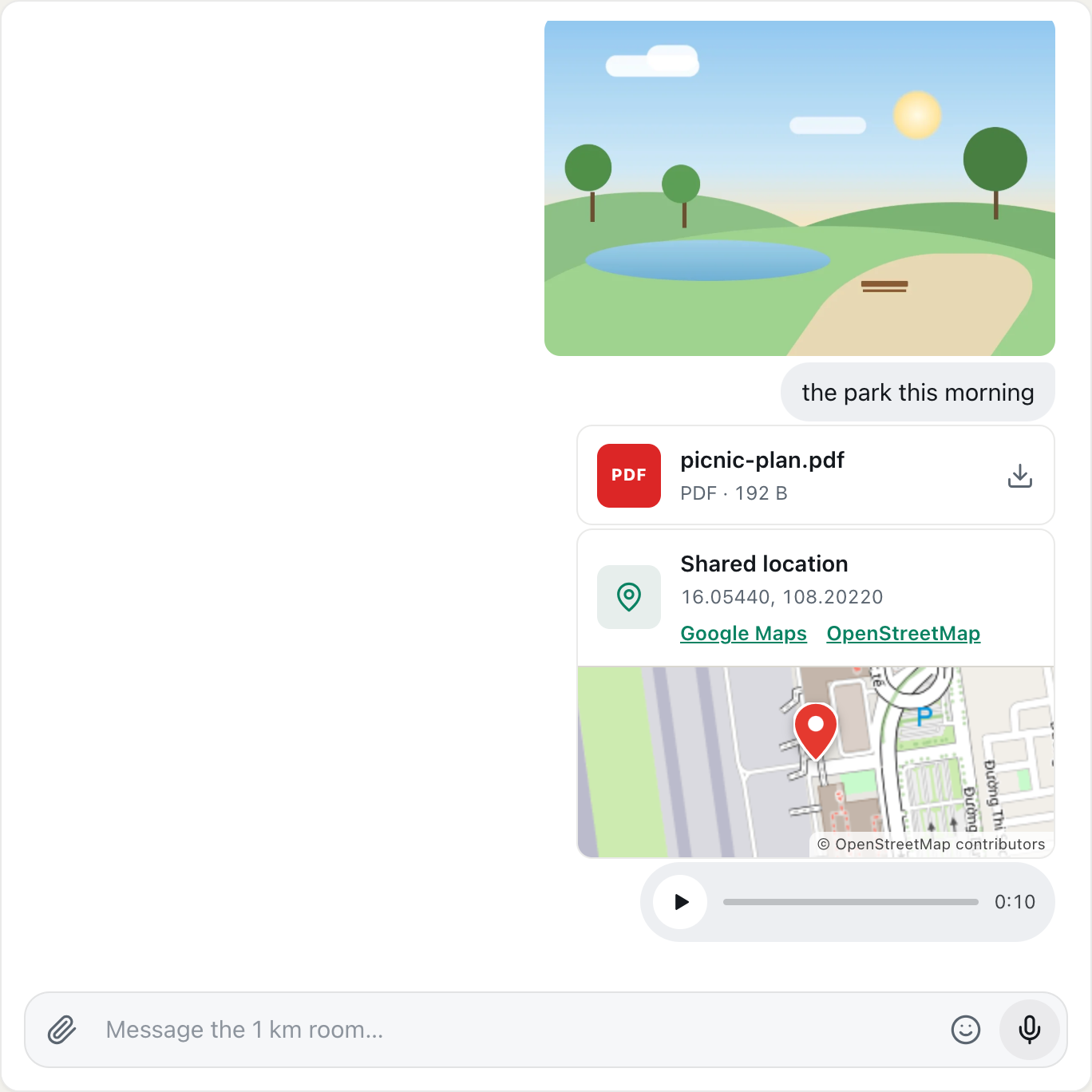
Sometimes it's quicker to say something than to type it. CicadaChat lets you record and send a voice note in any chat: a location room, Global, a private chat or a private room. This guide shows how to record a voice note, how long it can be, how to listen to the ones you receive, and what to do if your microphone or a recording doesn't work.
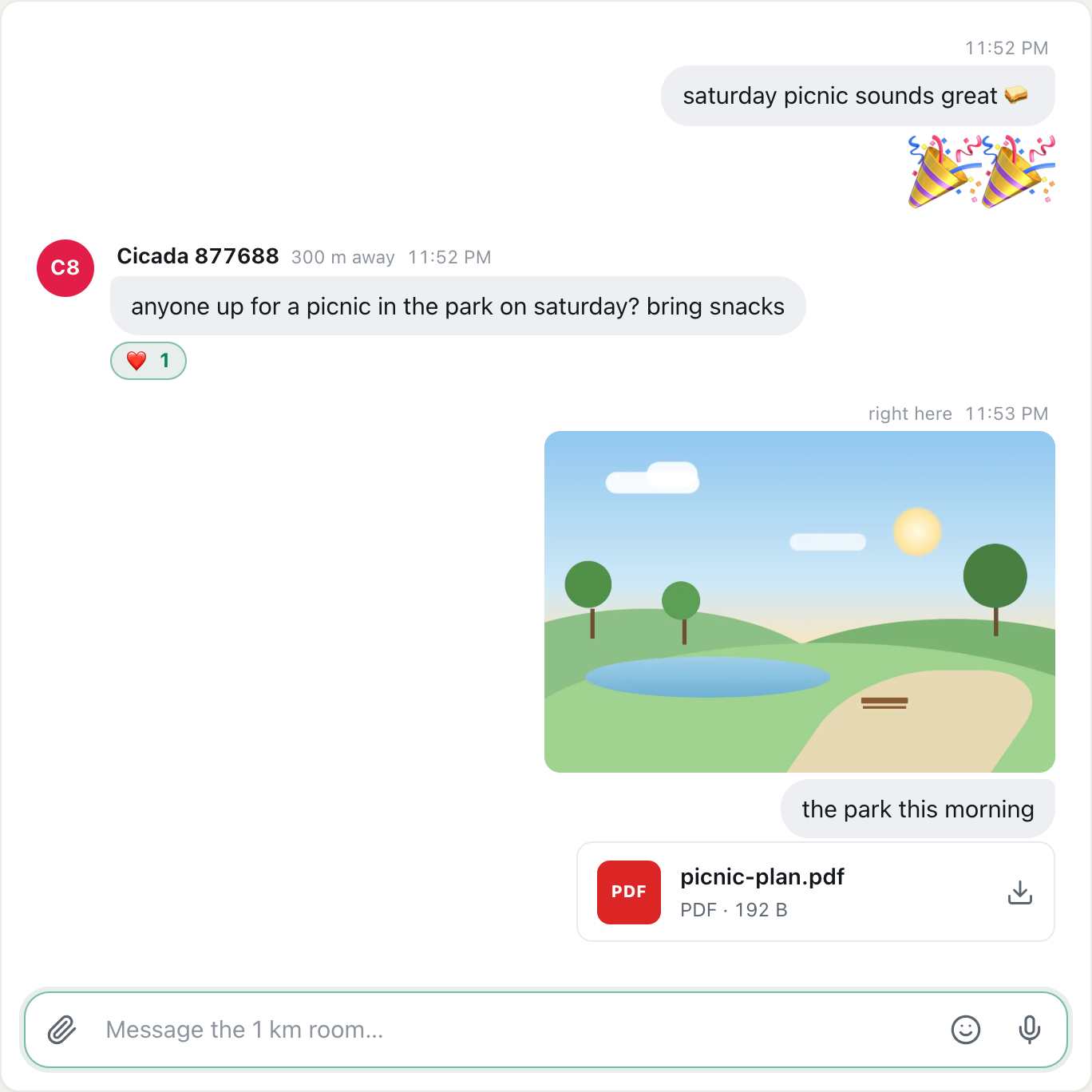
A screenshot of a sent voice note at the bottom of the conversation, under a photo, a document and a shared location.
How to record and send a voice note
- Make sure the message box is empty. The button at its right then shows a microphone. As soon as there's text in the box, that button becomes the send button instead.
- Click or tap the microphone.
- The first time, your browser asks whether CicadaChat may use your microphone. Choose Allow.
- Speak. The message box turns into a recorder with a red dot, a running timer and the word Recording….
- When you've finished, press the green send button at the right. The voice note uploads and appears in the conversation.

A screenshot of a voice note being recorded. The bin discards it, and the green button sends it.
To throw a recording away instead, press the bin at the left of the recorder, labelled Discard recording. Nothing is sent, and nothing is uploaded.
Things to know before you press record
- There's no preview. Pressing send sends the recording straight away. You can't listen back before it goes, so if you stumble, discard it and record again.
- A voice note can't carry a caption. If you want to add words, send them as a separate message.
- It reaches the same people as a text message would. In a location room that's everyone within the room's radius of you, now or later. In a private chat it's only the other person.
- Guests can send voice notes too. No account is needed.
How long a voice note can be
A voice note can be up to five minutes long. When you're in the last 30 seconds, the recorder shows (stops at 5:00) next to Recording…. If you're still talking at five minutes, CicadaChat stops and sends what you've recorded, so you never lose a long message by running out of time.
In practice, short is better. People nearby are more likely to play a 20-second note than a four-minute one, and a quick voice note works well for things that are awkward to type: directions, a tune stuck in your head, or a "you have to hear this" from a concert.
When to send a voice note, and when to type
A voice note is best when the way you say something matters, or when typing is awkward:
- Your hands are busy, or you're walking.
- You want to share a sound: a song, birdsong in the park, the crowd at a match.
- A name or a word is easier to say than to spell.
- You're telling a short story, and your tone of voice is half of it.
Typing is better when people need to find or copy what you said, or when they may not be able to listen:
- Addresses, times and prices are easier to read, and to scroll back to later, than to replay.
- Not everyone can listen. People who are deaf or hard of hearing can't use voice notes, and neither can someone reading in a library or on a quiet train without headphones.
- Busy rooms move fast. In a room full of messages, a line of text gets read at a glance, while a voice note waits to be played.
Voice notes in each kind of chat
A voice note works in every kind of chat, and it reaches the same people as a text message sent from the same place:
- Location rooms: everyone within the room's radius of you, including people who come by later.
- Global: everyone in Global.
- Private chats: only the other person.
- Private rooms: the room's members.
In your lists of private chats and private rooms, a voice note shows up as 🎙️ Voice message with its length, for example 🎙️ Voice message (0:10), so you can tell what's waiting before you open it.
Tips for a good voice note
- Find a quiet spot, or turn away from the noise, so your voice is what the microphone hears.
- Say the point first. "The market's closed today, here's why…" is easier to follow than a long lead-in.
- Keep it under a minute unless you really need longer. People are much more likely to play a short note.
- Don't cover the microphone. On a phone it's usually at the bottom edge, where your hand tends to go.
Listening to voice notes
A voice note appears in the conversation as a bar with a play button and its length, such as 0:10.
- Click or tap the play button to listen. It turns into a pause button, and the bar fills as the note plays.
- While it plays, the time counts up, so you can see how far through you are.
- Press pause to stop. Press play again to carry on from where you stopped.
- When it finishes, it goes back to the start.
Sound comes out wherever your device normally plays sound, so use headphones in a quiet place. If your phone is on silent, you may need to turn the volume up with the side buttons.
"Can’t play here"
Different browsers record in different sound formats. Chrome and Firefox record one kind, and Safari records another. Most browsers play both, but if yours can't play the format a note was recorded in, pressing play shows Can’t play here and the play button stops working for that note. Updating your browser usually fixes it. Otherwise, try another browser or device.
Your microphone and your privacy
- The microphone is only on while you're recording. CicadaChat switches it on when you press the microphone and releases it the moment you send or discard. While it's on, your browser shows its own recording indicator, usually a red dot or a microphone symbol in the tab or the status bar.
- Nothing is sent until you press send. The recording stays on your device until then. Discarding it throws it away.
- Listen to your surroundings. A voice note picks up everything the microphone hears: other people talking, a TV, an announcement at a station. In a location room, background sounds can say more about where you are than your rounded distance does.
- Anyone who can read the message can play it. A voice note in the 1 km room can be played by anyone within 1 km of you, including people who arrive later. For something personal, open a private chat first by tapping the person's name.
If recording doesn't work
There's no microphone button
- There's text in the box. The microphone only shows when the message box is empty. Clear the text, or send it first.
- A photo, document or location is attached. Send it or remove it with its ×, and the microphone comes back.
- CicadaChat is waiting for your location. In a local room, attachments and voice notes are unavailable until your location arrives. Allow location, or switch to Global.
- Your browser can't record audio. Very old browsers can't. Update your browser, or use an up-to-date Chrome, Safari, Firefox or Edge.
"Microphone access was blocked. Allow it in your browser to send voice messages."
Your browser is blocking the microphone for CicadaChat, either because you chose Block when asked or because of a setting. Browsers don't ask twice, so you need to allow it in the browser's settings for the site:
- Chrome or Edge on a computer: click the icon at the left of the address bar and set Microphone to Allow.
- Firefox: click the icon at the left of the address bar and clear the blocked microphone permission, then try again.
- Safari on a Mac: choose Safari → Settings for cicadachat.com and set Microphone to Allow.
- iPhone or iPad: tap aA in the address bar, then Website Settings → Microphone → Allow.
- Android with Chrome: tap the icon at the left of the address bar, then Permissions → Microphone, and allow it. Also check that Chrome itself may use the microphone, in the phone's settings.
On a computer, the operating system can block the microphone for the whole browser too. On a Mac, check System Settings → Privacy & Security → Microphone. On Windows, check Settings → Privacy & security → Microphone.
"The voice message did not send."
The recording couldn't be uploaded or delivered, usually because the connection dropped. Check you're online and record it again. A recording can't be retried once it has failed, so keep important messages short, or type them.
The recording is silent
The browser may be using a different microphone from the one you expect, such as a headset that isn't plugged in. Check which microphone your browser or computer has selected in its sound settings, then record again.
Voice notes on a phone
On a phone, recording works the same way: tap the microphone, speak, tap send. Hold the phone as you would for a call, a little away from your mouth, for the clearest sound. If you switch to another app or lock the phone while recording, the browser may pause the page, so stay in CicadaChat until you've pressed send.
No comments yet. Start the conversation.