
How to send photos and documents in a chat
Send photos and documents in any CicadaChat chat. Which files are allowed, size limits, how photos are resized and cleaned of GPS data, and who can open what you send.
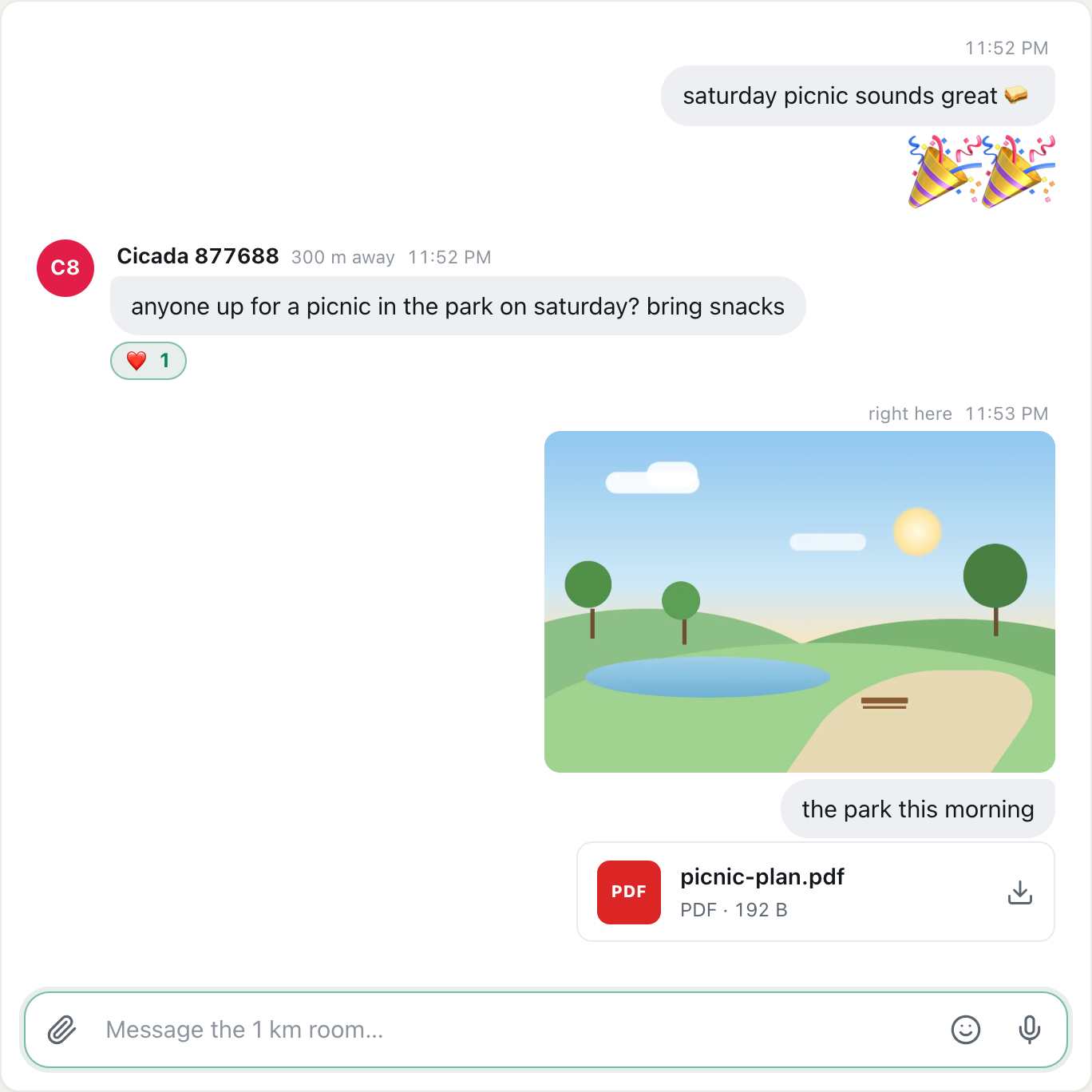
You can send photos and documents in any CicadaChat chat: location rooms, Global, private chats and private rooms. This guide shows how to send photos and documents in a chat step by step, which files are allowed, how big they can be, and what CicadaChat does to keep them safe. That includes removing the hidden GPS position that phone cameras put inside photos.
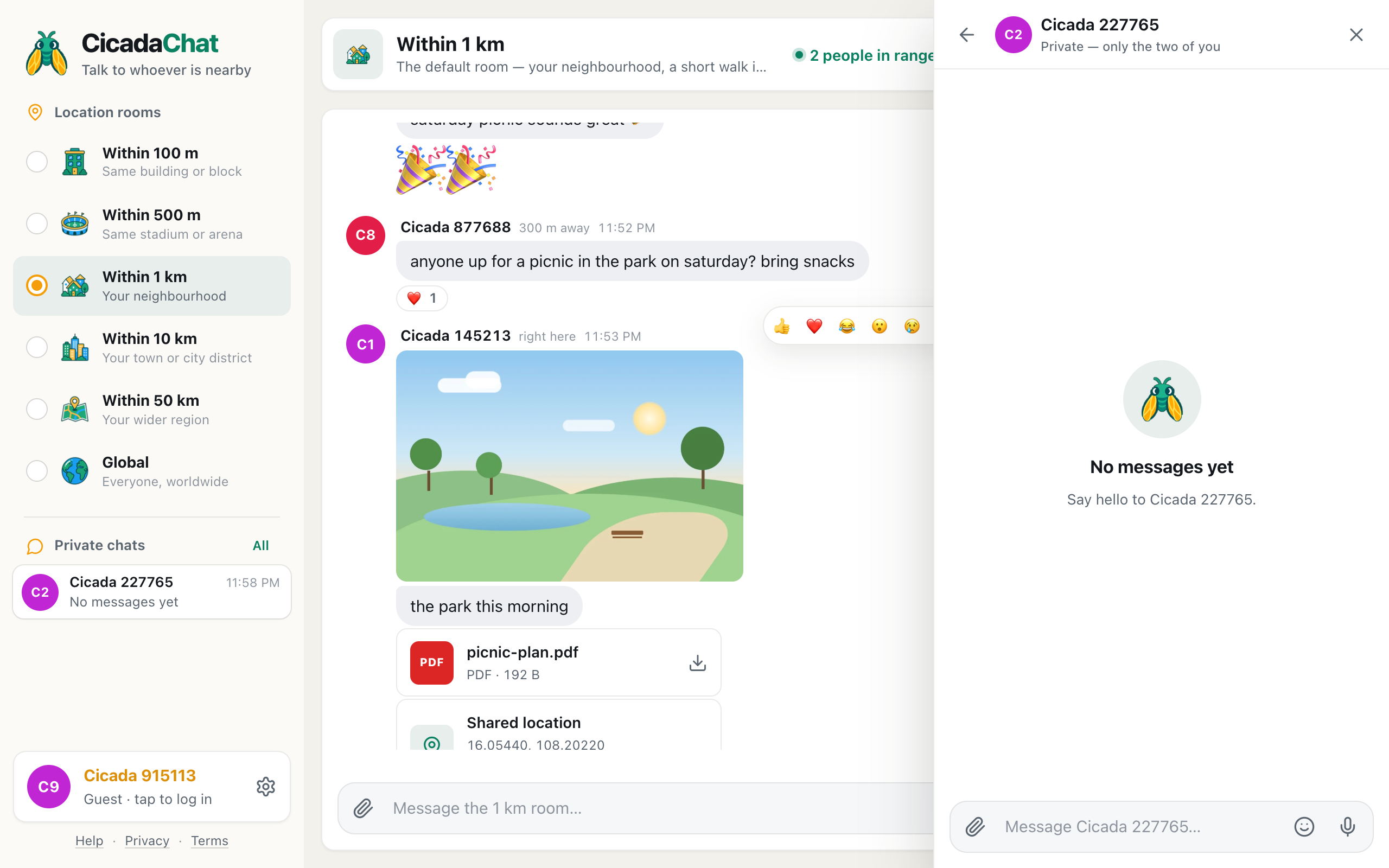
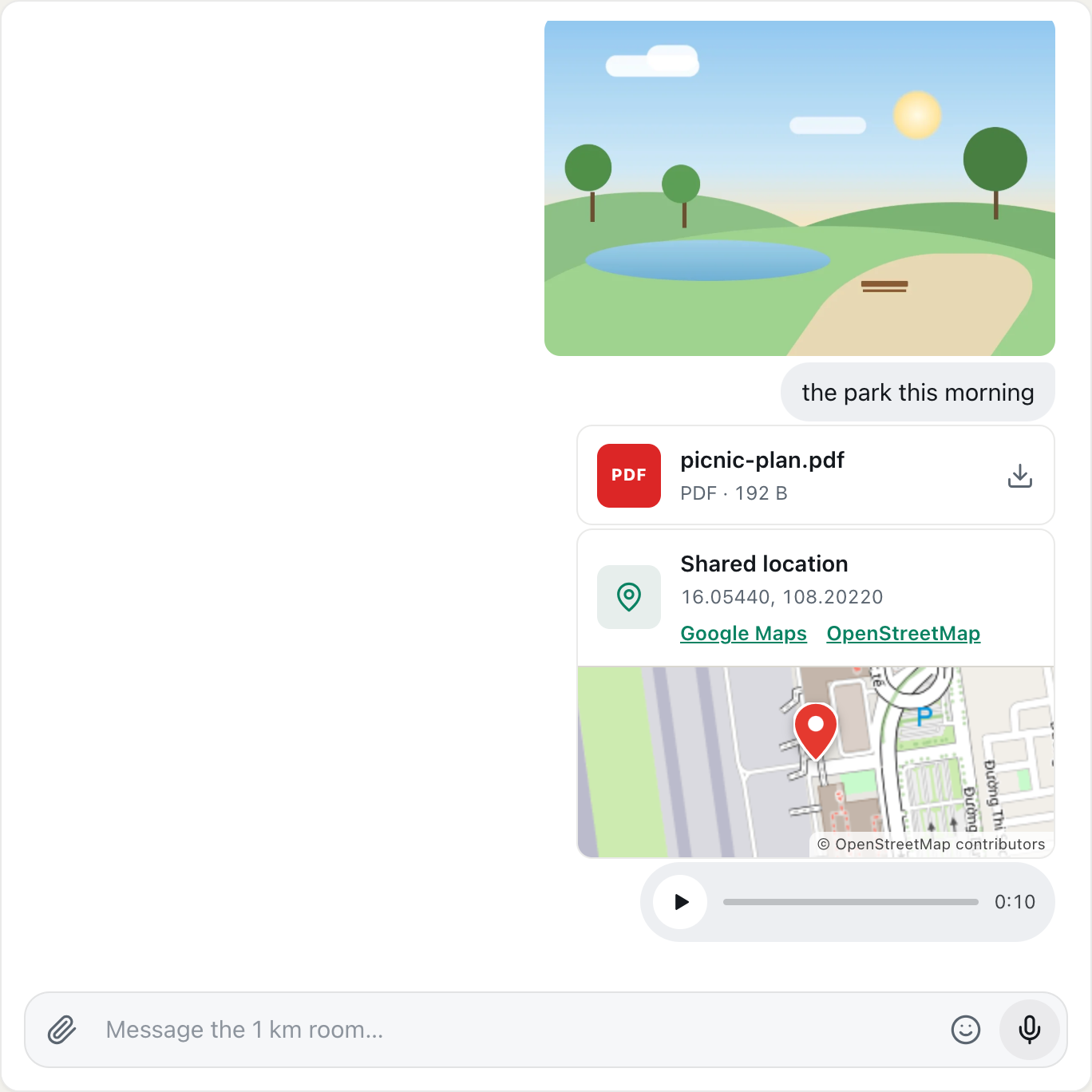
A screenshot of a photo with a caption and a PDF sent to the 1 km room.
How to send a photo
- Click or tap the paperclip at the left of the message box.
- Choose Photo.
- Pick a photo. On a phone, your phone shows its own choice of photo library, camera or files. On a computer, a file window opens.
- The photo appears above the message box as a small preview labelled Photo, with its size.
- Type a caption if you like. The box now says Add a caption….
- Press Enter or the send button.
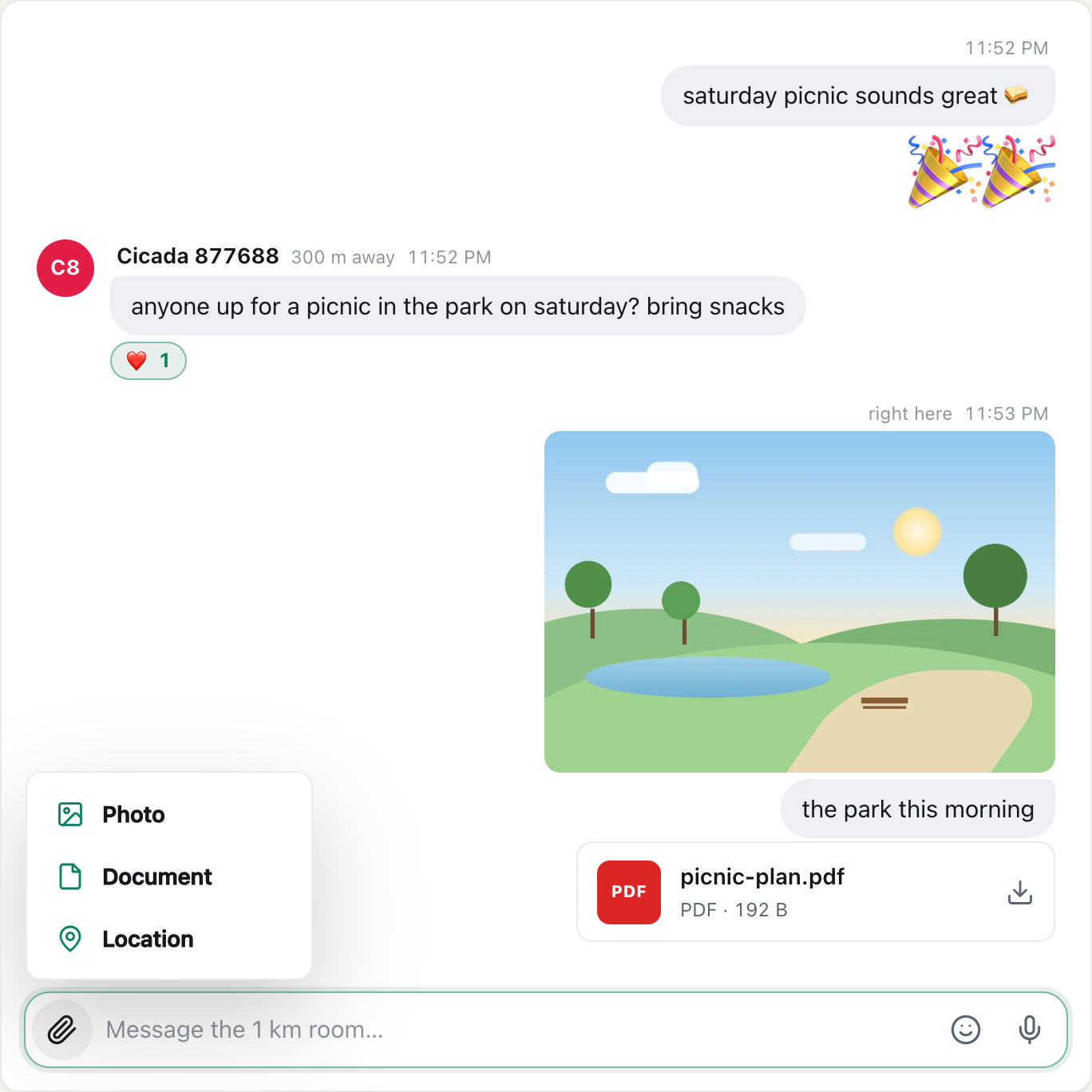
A screenshot of the menu that opens from the paperclip.
While the photo uploads, the preview shows Sending… with a percentage and a progress bar. When it's done, the photo appears in the conversation with your caption under it.
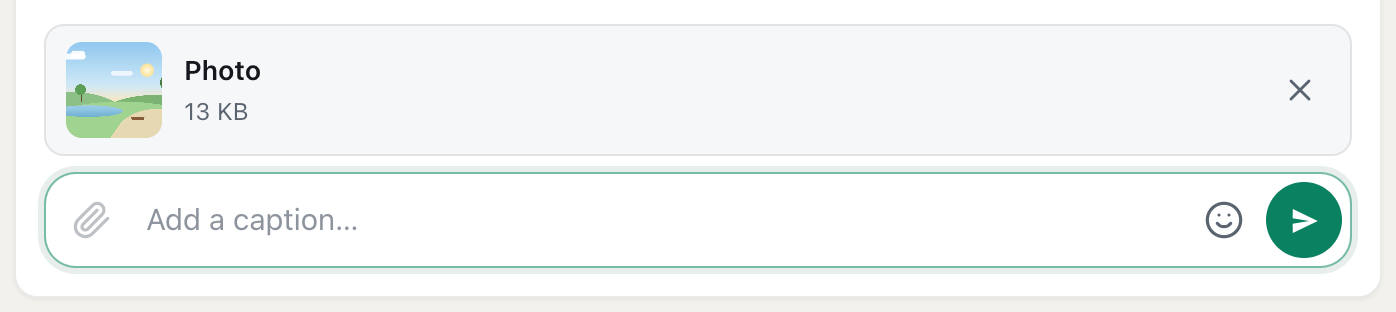
A screenshot of a photo ready to send. It stays on your device until you press Send, and the × removes it.
Nothing leaves your device until you press Send
Picking a photo only prepares it on your device. The upload starts when you press Send. If you change your mind, press the × on the preview and it's gone without ever leaving your phone or computer. Pressing × while it's uploading cancels the upload.
Which photos work
- Formats: JPEG, PNG, WebP, HEIC and GIF. SVG images aren't accepted.
- HEIC photos from an iPhone work in Safari. Some other browsers can't read them and say That photo could not be read in this browser. Try a JPEG or PNG. On an iPhone, sending from Safari avoids this.
- GIFs are sent exactly as they are, so they keep moving. A GIF can be up to 10 MB.
- Size: any normal photo is fine, because CicadaChat makes it smaller before sending (below).
Sending photos from a phone
On a phone, choosing Photo hands over to your phone's own picker, so what you see depends on your phone:
- iPhone and iPad usually offer Photo Library, Take Photo and Choose File. Take Photo opens the camera, and the picture goes straight into the message once you tap Use Photo.
- Android usually offers your gallery, the camera, and your files. The exact menu depends on the phone and the browser.
Whichever way you pick it, the photo is prepared the same way before it's sent: resized, and cleaned of its hidden location data. A Live Photo from an iPhone is sent as a still picture. Screenshots are photos too, and they go through the same preparation.
What CicadaChat does to your photos
Before a photo is uploaded, CicadaChat prepares it on your own device:
- It resizes it so the longest side is at most 2,048 pixels. That's plenty for a phone or laptop screen and makes photos quick to send and load.
- It re-encodes it as a fresh image file. The picture is the same, turned the right way up, but it's a new file.
- That removes the photo's hidden details. Phone cameras store extra information inside every photo, often including the exact GPS position where it was taken. Because CicadaChat sends a new file rather than your original, that information doesn't come with it.
This matters in an app about people nearby. Others only ever see a rounded distance from you, and a photo with GPS inside it would undo that. With CicadaChat, a photo only shows where you are if the picture itself does, for example a street sign or a recognisable view. Have a look before you send.
GIFs are the one exception. They're sent unchanged, because redrawing one would stop it moving, and GIF files don't carry camera location data.
How to send a document
- Click or tap the paperclip.
- Choose Document.
- Pick the file. It appears above the message box with its name and size.
- Add a caption if you like, then press Enter or the send button.
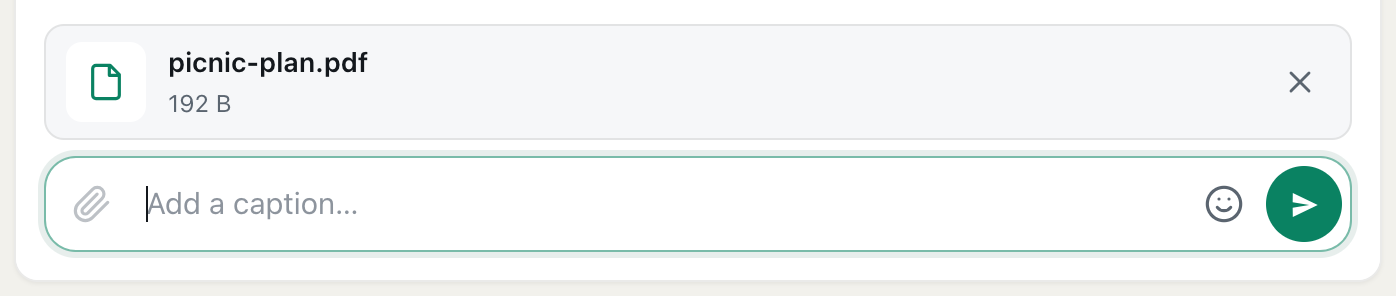
A screenshot of a document ready to send, with space for a caption in the box below.
The document appears in the conversation as a card with a coloured badge for its type (red for PDF, for example), its name, its size and a download arrow.
Which documents are allowed
CicadaChat accepts a fixed list of common document types, up to 25 MB each:
| Kind | File types |
|---|---|
| Text and data | PDF, TXT, MD, CSV, RTF, JSON |
| Documents | DOC, DOCX, ODT, Pages |
| Spreadsheets | XLS, XLSX, ODS, Numbers |
| Presentations | PPT, PPTX, ODP, Keynote |
| Archives | ZIP |
Anything else, such as programs, scripts or disk images, is refused with That kind of file cannot be shared. followed by the list of allowed types. The list is deliberately short: files in public rooms can come from strangers, and it's safer to allow a known set of document types than to try to block every dangerous one.
Before you send a photo: a quick privacy check
CicadaChat removes the location hidden inside the file, but it can't change what the picture shows. Before sending a photo to a room full of people nearby, take two seconds to look at it:
- House numbers, street signs and number plates can pinpoint a place, especially in the 100 m and 500 m rooms, where everyone is close already.
- Screenshots can include notifications, other people's names, email addresses or bank details at the edges. Crop them first.
- Letters, parcels and screens in the background can show a name or an address.
- Other people, and children in particular, may not want to be in a photo shared with strangers. Ask first.
What to share, and where
Because every room is a circle around you, the room you send from decides who can see the file. A few examples:
- Within 100 m: a photo of a parcel left in the lobby, so its owner in the building recognises it.
- Within 500 m: a photo of the queue at the stadium gate, or a PDF of the day's schedule at a festival.
- Within 1 km: a poster for a lost cat, or a flyer for a street party.
- A private room: the spreadsheet with this month's football rota, which only the team needs.
- A private chat: anything meant for one person, such as a photo of the item you're selling to a neighbour.
Opening photos and documents you receive
- Photos appear in the conversation at a comfortable size. Click or tap one to open it full size in a new tab.
- Documents always download when you click the card. They never open inside the browser. Open them with the app you'd normally use.
Be as careful with files from strangers as you would with email attachments. A document from someone you've never met in a public room can contain anything. Be wary of ZIP files and of Office documents that ask you to "enable content" or "enable macros".
Who can see your files
A photo or document can be seen by exactly the people who can read the message it's in:
- In a location room, that's everyone within the message's reach, now or later.
- In Global, everyone in Global.
- In a private chat, only the two of you.
- In a private room, its members.
Files are opened through private links that CicadaChat creates fresh each time someone reads the message. Each link stops working after about a week. So if you copy a photo's address and paste it somewhere else, it will stop working after a while. Inside CicadaChat, the message always gets a new link, so its photos and documents keep working there.
If a photo or document won't send
- "Pick a photo — JPEG, PNG, WebP, HEIC or GIF." The file you picked as a photo isn't an image CicadaChat accepts. If it's a document, use Document instead.
- "That photo could not be read in this browser. Try a JPEG or PNG." Your browser can't open that image, often a HEIC photo outside Safari. Save or export it as JPEG and try again.
- "That photo is too large to send." or "That GIF is too large to send." Even after resizing, it's over 10 MB. This is rare for photos. For a GIF, pick a shorter one.
- "Documents can be up to 25 MB." Compress the file, split it, or share it another way.
- "The upload failed." The connection dropped while sending. The attachment stays ready, so press Send again to retry.
- The paperclip is greyed out. You already have an attachment waiting. Each message carries one attachment, so send it or remove it first. If the paperclip is missing altogether, CicadaChat is still waiting for your location in a local room. Allow location, or switch to Global.
Good to know
- One attachment per message. To send three photos, send three messages. Each can have its own caption.
- Guests can send files too. No account is needed for photos and documents.
- Photos use your data allowance. Resizing keeps photos small, usually a few hundred kilobytes, but documents are sent at full size.
- Think about who's in the room. A photo in the 10 km room reaches a whole district. For a photo meant for one person, open a private chat by tapping their name.
No comments yet. Start the conversation.