
How to create a private room for people you know
Private rooms are group chats for friends you choose, wherever they are. How to create one, who you can add, what chatting in one is like, and how it compares with a private chat.
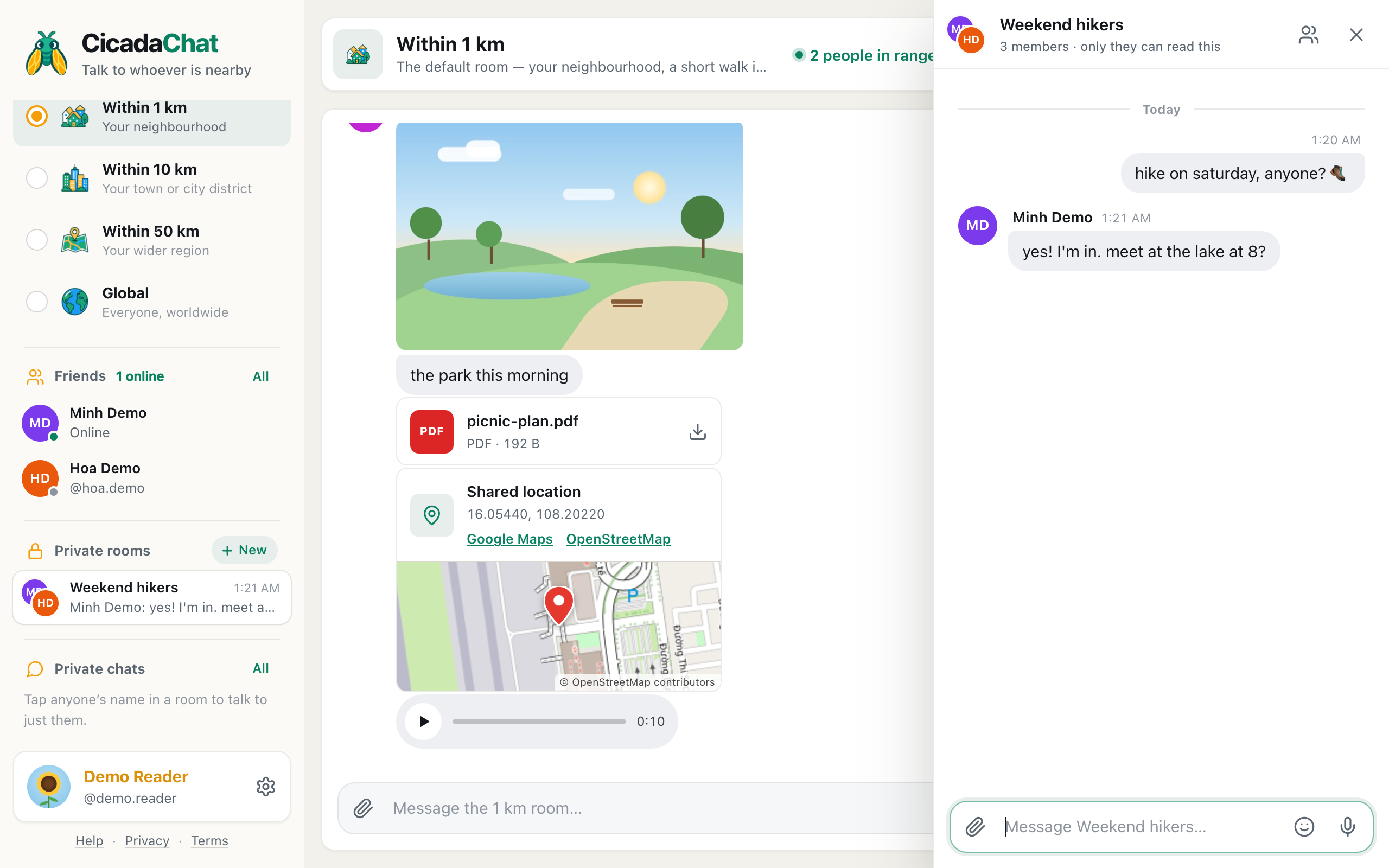
Location rooms are for whoever is nearby. A private room is the opposite: a group chat for people you choose, wherever they are. Only its members can read it, and it isn't tied to any place. This guide shows how to create a private room for people you know, who you can invite, what chatting in one is like, and how it compares with a private chat.
A screenshot of a new private room on a computer. It opens beside the location room and appears under Private rooms in the sidebar.
What you need first
- An account. Private rooms are for registered accounts. Guests don't see the Private rooms section in the sidebar. See how to create a CicadaChat account and keep your guest chats.
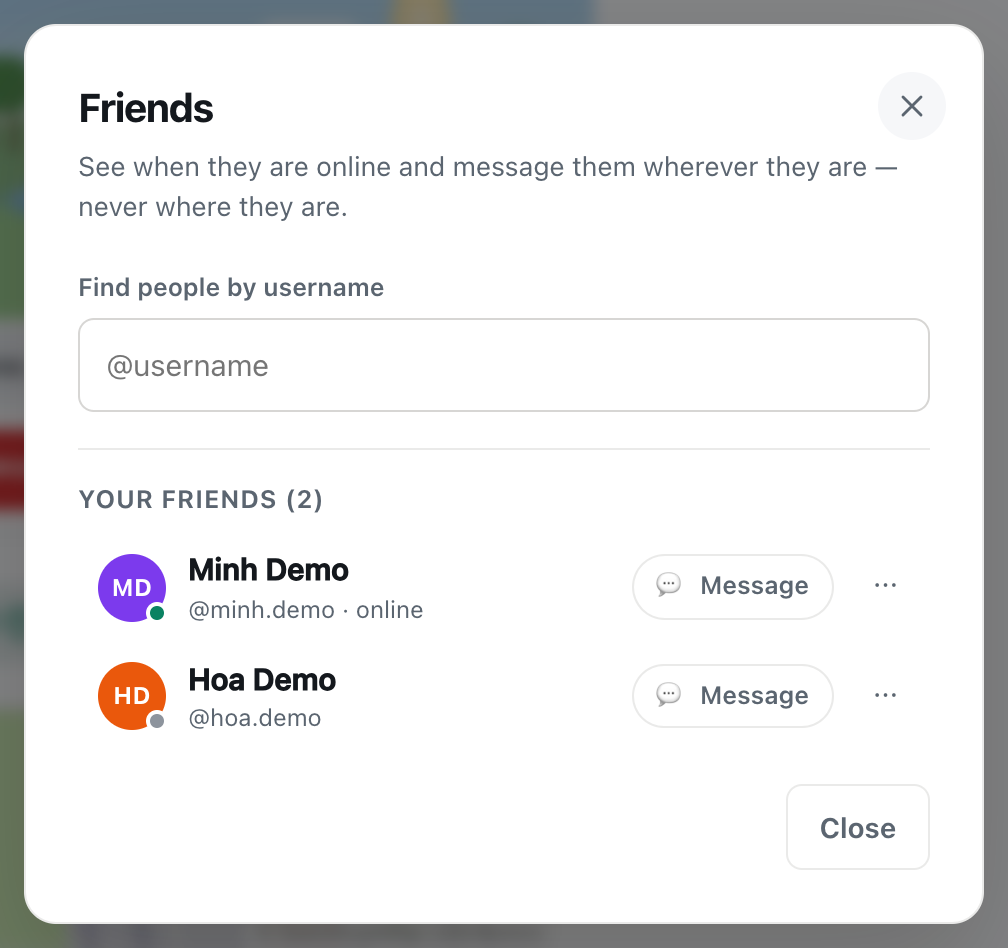
- Friends to invite. You can only add people who are your accepted friends. That way, nobody can be pulled into a room by a stranger. If you haven't added anyone yet, see friend requests: adding, accepting, declining and removing friends. You can also create the room now and add people later.
How to create a private room
- In the sidebar, find Private rooms and press New next to it. On a phone, open the menu at the top left first.
- The New private room dialog opens. It explains: A group chat for people you know, wherever they are. Only members can read it, and you choose who is in.
- Type a Room name, such as "Weekend hikers", "Flat 4B" or "Book club". It can be up to 48 characters.
- Under Add friends, tick the friends you'd like in the room. The heading counts how many you've picked.
- Press Create room.
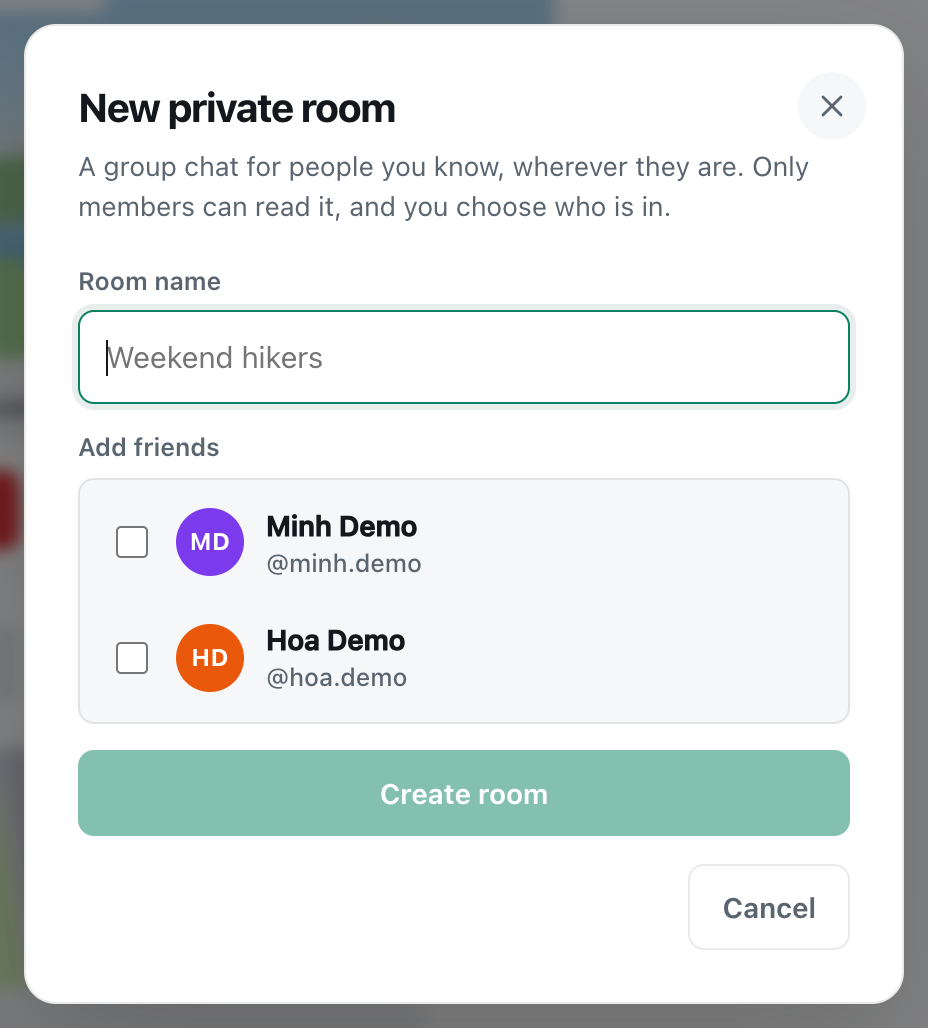
A screenshot of the New private room dialog, opened with New next to Private rooms.
The Create room button stays greyed out until the room has a name. If you have no friends to add yet, the dialog says You have no friends to add yet. Create the room now and add people once you are friends.
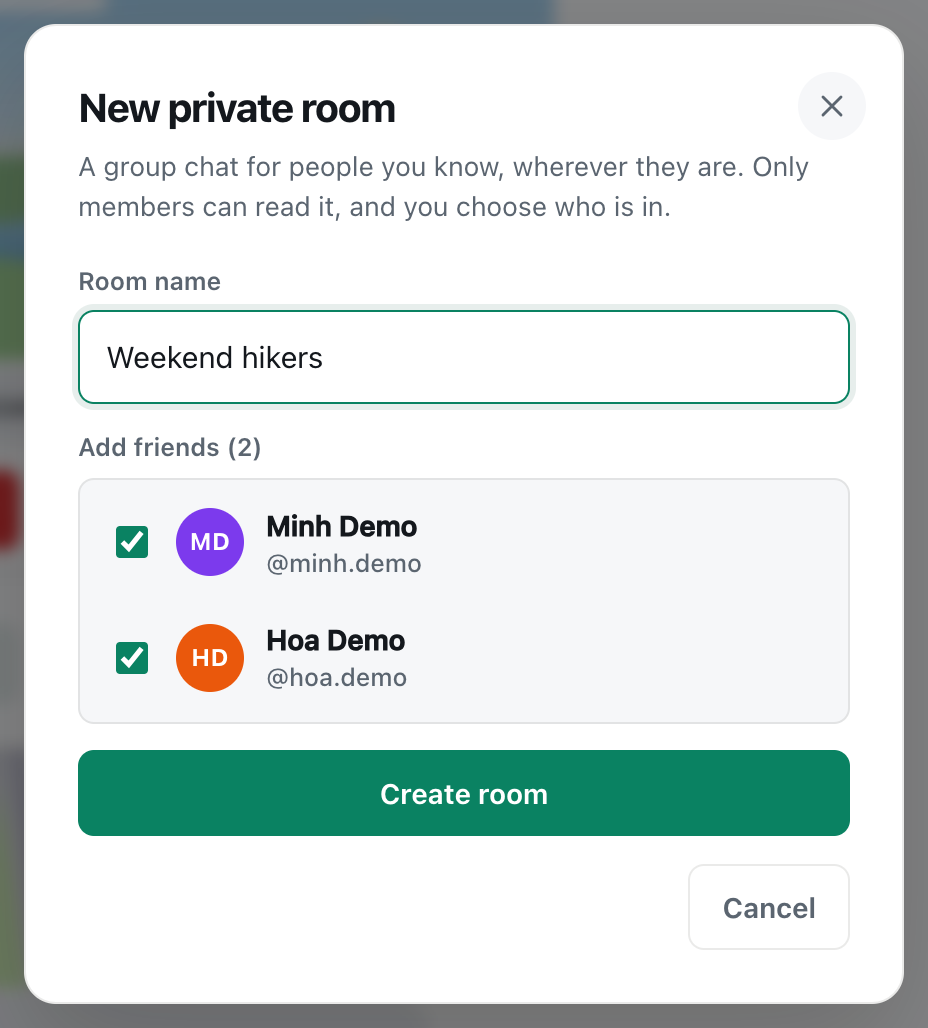
A screenshot of the dialog ready to create a room with two friends.
What happens when you create a room
- The room opens as a panel on the right of the screen, or over the whole screen on a phone. Its header shows the name and, for example, 3 members · only they can read this.
- You're the owner. That means you're the one who can add and remove people, rename the room and delete it. Everyone else is a member.
- Your friends are in straight away. There's no invitation to accept. The room appears in their sidebar under Private rooms the moment you create it.
- It starts empty. The room says No messages yet, and that only the people in it will see what you write.
Chatting in a private room
Type in the box at the bottom, which says Message followed by the room's name, and press Enter or the send button. Everyone in the room gets it live.
- Everything works that works in a room: emoji, photos and documents, voice notes and shared locations. See how to send photos and documents in a chat.
- Reactions work too. Point at or tap a message and pick a reaction, just like in a location room.
- Each message shows who wrote it, with their picture, name and the time. There are no distances: a private room isn't about where anyone is.
- Tap someone's name to open a private chat with just them.
- Older messages load as you scroll up, so the whole history of the room is there.
A shared location in a private room goes only to its members, so CicadaChat doesn't show the "everyone will see this exact spot" warning that public rooms get. It's a good place to say "we're here" when you're meeting up.
What members see
For everyone else in the room, it appears in the sidebar under Private rooms: its picture (made from the faces of two of its members), its name, the time of the latest message and a preview such as Demo Reader: hike on saturday, anyone?. A green number counts messages they haven't read yet.
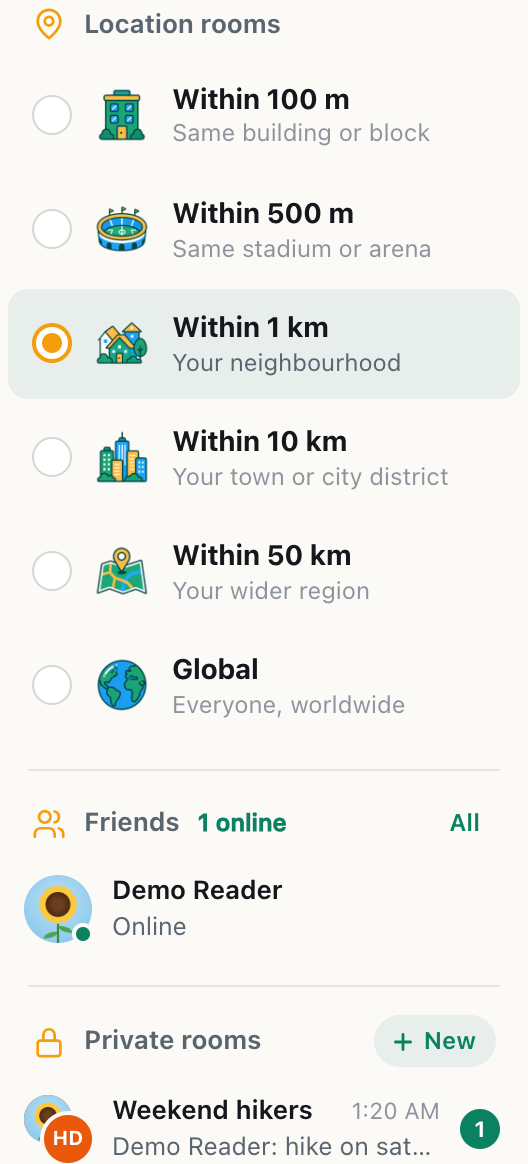
A screenshot of how the new room appears in a member's sidebar, with one unread message.
Tapping the room opens it, and the unread number goes away. Messages sent while they had CicadaChat closed are waiting when they come back.
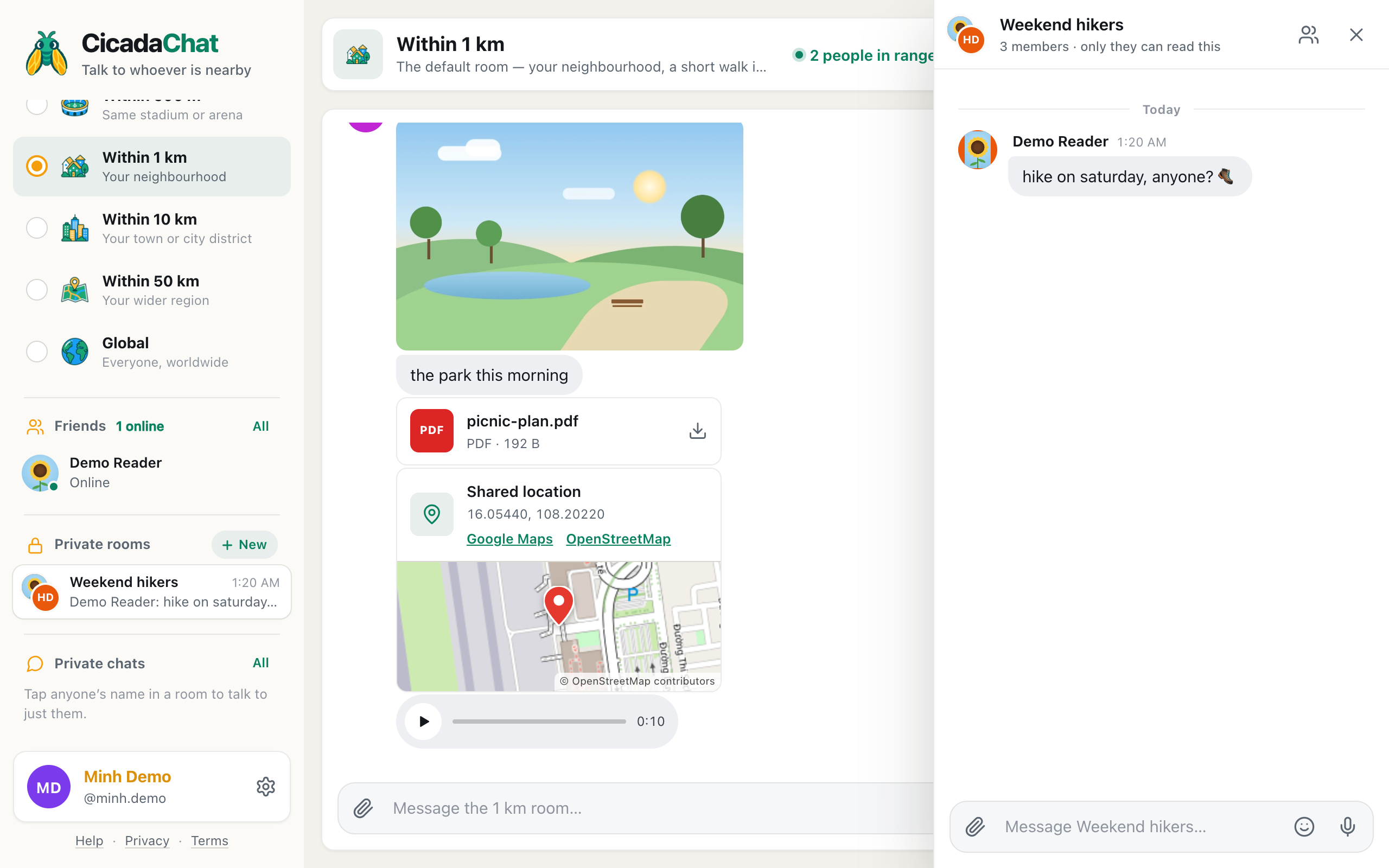
A screenshot of the room as a member sees it. Each message shows who wrote it, and there are no distances.
Finding your private rooms
Your rooms are listed under Private rooms in the sidebar, the most recently active first. The sidebar shows up to eight. Close a room with the × at the top of its panel. Nothing is lost, and it stays in the list. On a phone, the back gesture closes the room too.
Choosing a good room name
- Say what it's for. "Saturday football" or "Flat 4B" tells members at a glance which room a new message is in.
- Keep it short. Room names are shown in a narrow sidebar next to a preview of the latest message. The first few words matter most.
- Emoji are welcome. A 🥾 or 🍰 at the start makes a room easy to spot in a list.
- Remember everyone sees it. Every member sees the name in their sidebar, so avoid in-jokes that someone might not enjoy.
Only the owner can rename the room later, in its settings.
Private rooms on a phone
On a phone, tap the menu button at the top left to open the sidebar. Private rooms is below your friends, with New next to it. A room fills the whole screen when you open it. The people icon at the top shows who's in it, and the × or the back gesture takes you back to the location room you were in. New messages in your rooms show as green numbers in the sidebar, so open the menu to see what's waiting.
An example: planning a hike
- Demo Reader adds Minh and Hoa as friends, after meeting them in the 1 km room.
- Demo Reader presses New, names the room "Weekend hikers", ticks both friends and presses Create room.
- They post "hike on saturday, anyone? 🥾". Minh sees a green 1 next to the room in the sidebar, opens it and replies.
- Hoa shares the route as a PDF. On the day, Minh shares a location from the car park, so everyone can find the start.
- Afterwards, everyone posts photos and reacts to each other's best shots.
- Next month, a new friend wants to join. Demo Reader adds them in the room's settings, and they can scroll back to see how the last hike went.
Private room or private chat?
| Private chat | Private room | |
|---|---|---|
| People | Two | Up to 50, including you |
| Who can start one | Anyone, guests too | Registered accounts |
| Who can be in it | Anyone you tap | The owner's friends |
| Has a name | No, it's the other person's name | Yes, chosen by the owner |
| Reactions | Not on the web | Yes |
For one person, a private chat is quicker. For three or more, or a group that will keep talking, make a room.
Ideas for private rooms
- Your building or staircase. The 100 m room is public. A private room is just for the neighbours you already know.
- A sports team or running club. Arrange training, share photos after matches.
- Family. A room that works wherever everyone is, across towns or time zones.
- Planning an event. A room for the organisers of a street party or a picnic, with the plans as a document and the meeting point as a shared location.
- Friends you met in a room. When a good conversation in the 1 km room turns into a group of regulars, give them a room of their own.
Privacy in private rooms
- Only members can read it. Nobody else can see the room's messages, its members or even that it exists. If someone who isn't in the room tries to open it, CicadaChat tells them That room does not exist, or you are not in it.
- It isn't tied to a place. Members see no distances, and the room works just the same whether you're all on one street or on different continents.
- Everyone in the room sees everything in it, including people added later, who can scroll back through earlier messages. Keep that in mind for anything sensitive.
- Messages can't be deleted or edited once sent, so think before sharing personal details, even with friends.
If something goes wrong
- There's no Private rooms section. You're a guest. Create an account first.
- A friend isn't in the Add friends list. Only accepted friends appear. If your request is still waiting, it won't show until they accept.
- "A room holds at most 50 people." Private rooms are for groups that know each other, so they have a limit of 50 members, including the owner.
- "You can only add people who are your friends." Someone in your selection is no longer your friend. Add them as a friend again, or leave them out.
- "Give the room a name." The name can't be empty.
- A friend says they can't see the room. Check that they're logged in to the same account you added, not chatting as a guest on another device. Then open the room's settings and check they're in the member list. If they left, or were removed, add them again.
Once your room is up and running, see managing a private room to add or remove people, rename it, leave it or delete it.

No comments yet. Start the conversation.