
How to share your location in a message, and who will see it
Sharing your location sends an exact pin, the one time CicadaChat shows where you are. How to do it, who sees it in each kind of chat, and when it's wise.
Normally CicadaChat never shows anyone where you are: other people only see a rounded distance such as 300 m away. Sharing your location in a message is the one exception. It sends your exact position as a pin on a map, for everyone who can read that message. This guide shows how to share your location in a message, who will see it in each kind of chat, and when it's a good idea and when it isn't.
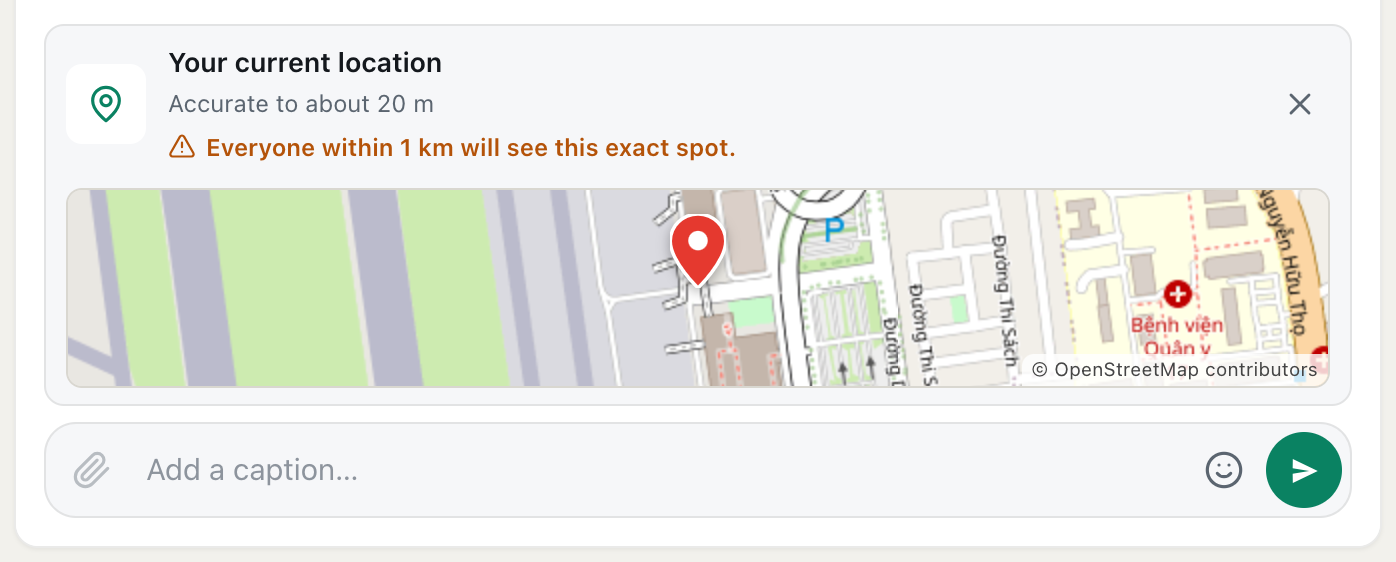
A screenshot of a location ready to send in the 1 km room. The orange line warns who will see the exact spot.
How to share your location in a message
- Click or tap the paperclip at the left of the message box.
- Choose Location.
- Your browser works out where you are right now. If it asks for permission, choose Allow.
- A preview appears above the message box, titled Your current location, with a small map and a red pin on the exact spot. Under the title it says how precise the position is, for example Accurate to about 20 m.
- In a location room or Global, read the warning under it, for example Everyone within 1 km will see this exact spot.
- Add a caption if you like, such as "we're at the north gate".
- Press Enter or the send button to share it, or press × to cancel.
Check the map before you send. It shows exactly the spot everyone will see. If the pin is in the wrong place, which can happen indoors or on a computer, cancel with × and try again once your device has a better fix.
What people see
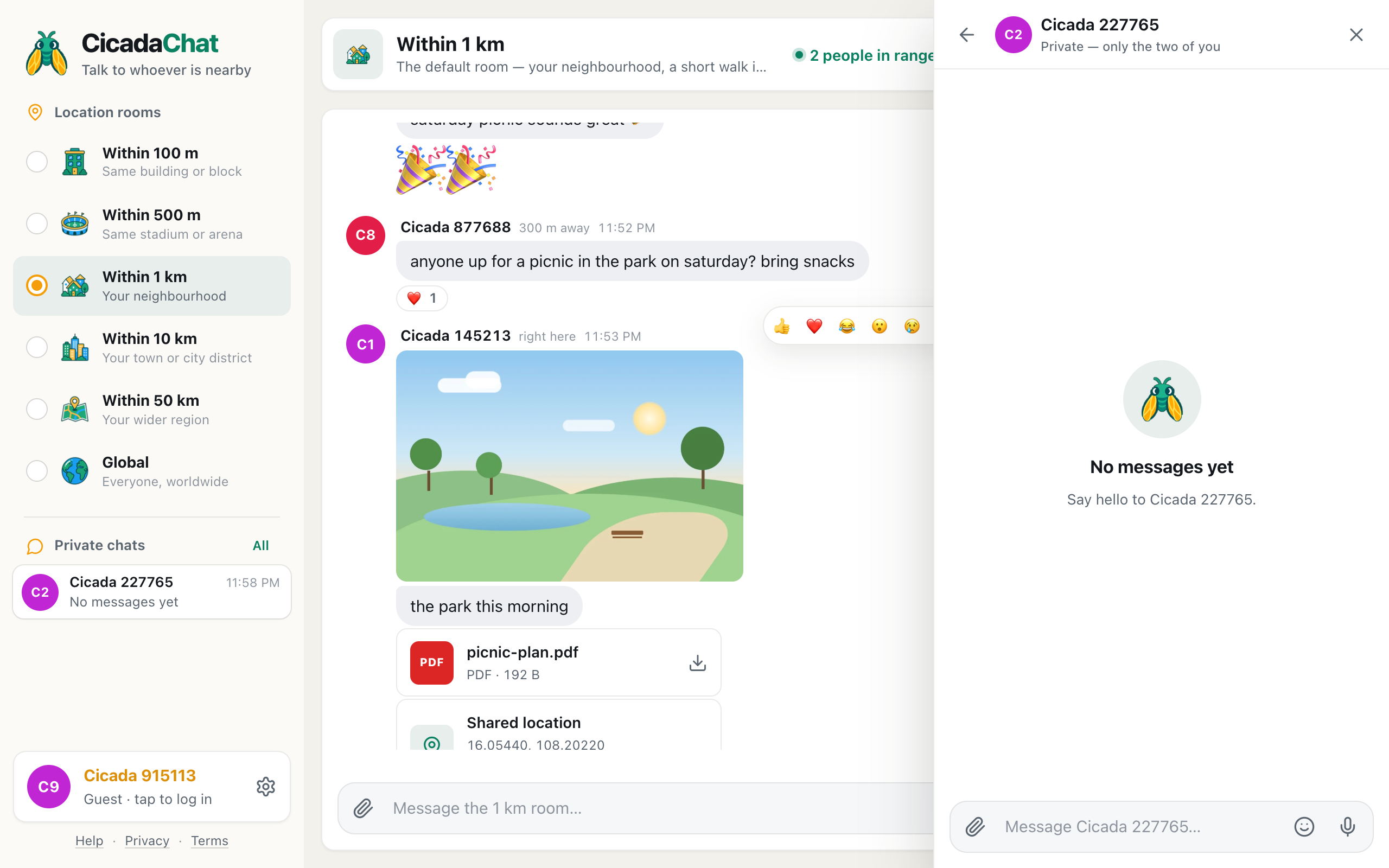
A shared location appears in the conversation as a card:
- The title Shared location.
- The coordinates, such as 16.05440, 108.20220.
- Links to open the spot in Google Maps or OpenStreetMap, for directions.
- A small map with a red pin. Tap or click the map to open it in Google Maps.
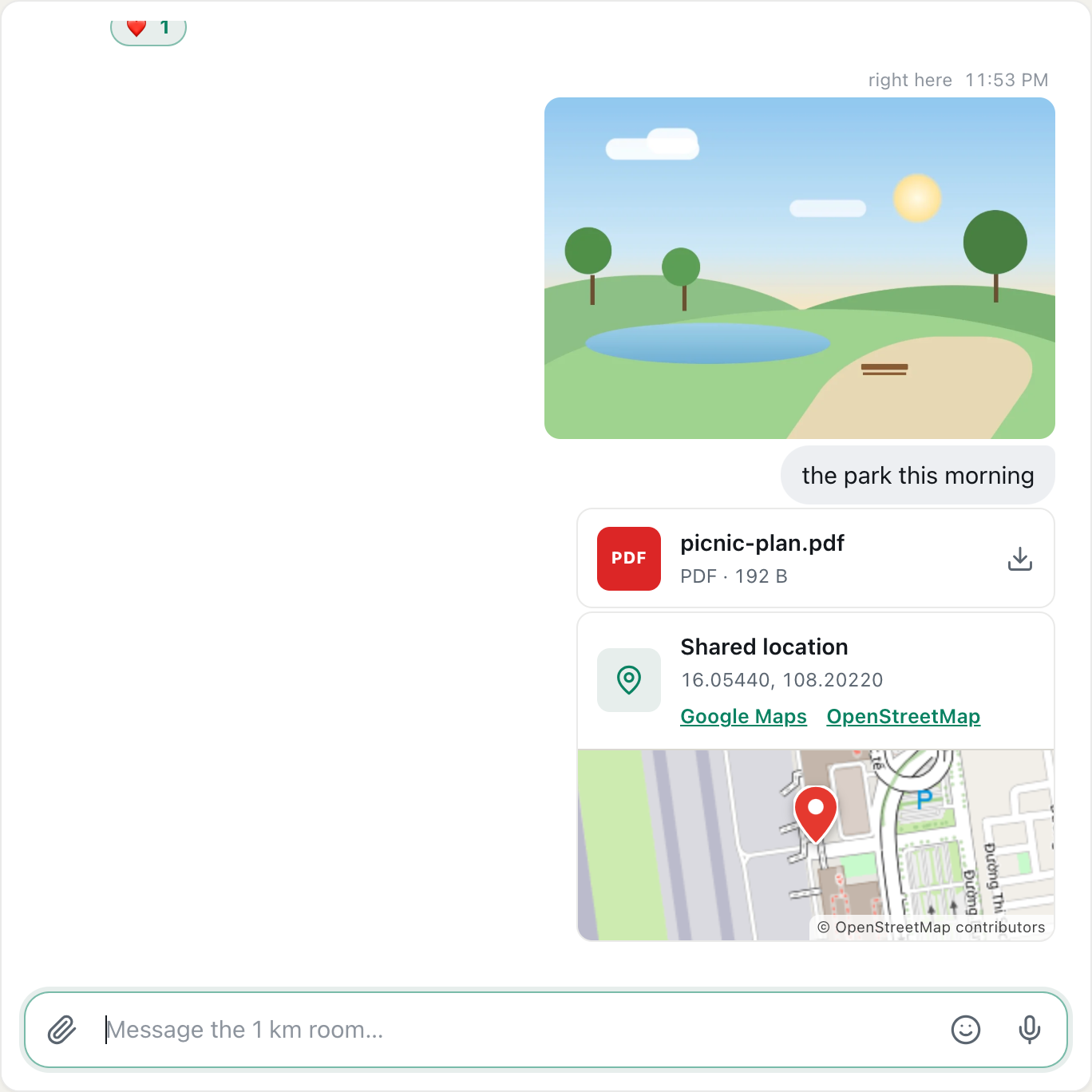
A screenshot of a shared location in the conversation, below a photo and a document.
In lists of private chats and private rooms, the message shows as 📍 Location, followed by your caption if you wrote one.
Opening a location someone sent you
- For directions, tap Google Maps, or the small map itself. On a phone, this usually opens the Google Maps app if you have it, with the pin ready for directions.
- Prefer OpenStreetMap? Tap OpenStreetMap to see the same spot on openstreetmap.org.
- Using another map app? Select and copy the coordinates from the card, such as 16.05440, 108.20220, and paste them into its search box. Almost every map app understands them.
The links are created by CicadaChat from the coordinates, not typed by the sender, so they always lead to the real Google Maps or OpenStreetMap.
How precise is a shared location?
As precise as your device's idea of where it is. The coordinates are shown to five decimal places, which is about a metre, but the real accuracy depends on how your device found its position:
- A phone outdoors with GPS is usually right to within a few metres.
- A phone indoors may be 20 to 100 m off, depending on the building and on Wi-Fi.
- A computer without GPS guesses from nearby Wi-Fi networks or its internet connection. That can be close, or several kilometres out.
That's why the preview says how accurate the position is, for example Accurate to about 20 m. If your device doesn't report an accuracy, it says Exact position instead. A large figure is a sign to check the map carefully before sending.
Who will see your location
Exactly the people who can read the message, and in location rooms that can be more people than you think:
| Where you share it | Who can see the exact spot | Warning shown |
|---|---|---|
| A location room, for example Within 1 km | Everyone within that radius of you, including people who arrive later and read the room's history | Everyone within 1 km will see this exact spot. |
| Global | Everyone in Global, anywhere in the world | Everyone in the global room will see this exact spot. |
| A private chat | Only the other person | None |
| A private room | The room's members | None |
In a location room, "everyone within 1 km" means strangers as well as neighbours. Anyone who comes within the room's radius later, even days later, can scroll back and find it. Messages can't be deleted once they're sent, so the spot stays visible to them.
How this differs from your everyday location
It helps to be clear about the two kinds of location in CicadaChat:
- Your everyday location, which draws your rooms, is never shown to anyone. People see only a rounded distance, blurred more in wider rooms: 150 m away, 2.5 km away. Even the point each message is sent from is kept private and used only for working out distances.
- A shared location is a pin you choose to send, and it's shown exactly as it is, to everyone who can read the message. CicadaChat stores it separately from your everyday location, precisely because it's meant to be seen.
So sharing a location once doesn't change anything else. Your distance in other messages stays rounded, and nobody can follow you from one shared location to the next.
A shared location is a snapshot
- It doesn't move. The pin shows where you were when you pressed Location. It doesn't follow you as you walk. Share a new one if you move somewhere else.
- It's always where you are. CicadaChat shares your current position. There's no way to drop a pin somewhere else on the map, so to point people to another place, describe it in words or share the location once you're there.
- It has no name. The card says Shared location. Add a caption if you want to say what it is: "the café with the blue sign", "gate C".
When sharing your location is a good idea
- Meeting someone you already know. In a private chat, a pin is the quickest way to say "I'm here". Only they see it.
- Finding each other at an event. In a private room with your friends at a festival, a pin beats "near the big tent".
- Pointing out a problem in the street. A fallen tree across the path or a broken streetlight, shared from the spot in the 1 km room with a caption, so neighbours know exactly where to avoid, or where to report.
- Public places, for a public reason. "Free concert starting here" from a square, or "the queue for the ferry starts here", in a room full of people heading the same way.
And when it isn't
- From home, in a public room. A pin on your front door in the 1 km room shows every stranger within a kilometre where you live, now and later.
- To someone you've just met. Talk in the room or a private chat first. Meet in a public place, and share a location there rather than from home.
- In Global. It reaches everyone on CicadaChat, and there's rarely a reason for that.
- For children and teenagers. If you're a parent, talk about this feature: an exact location should only ever go to people they know.
Meeting someone new: a safer way to share
CicadaChat is built for meeting people nearby, and sometimes a chat turns into "let's meet". If you do, here's a sensible order of steps:
- Chat in the room first, and get a feel for the person.
- Move to a private chat by tapping their name, so the details aren't in front of the whole room.
- Agree on a busy public place, such as a café, a park entrance or a station, and describe it in words.
- Share your location only once you're there, in the private chat, so the pin shows the meeting point, not your home.
- Let a friend know where you're going.
Maps and third parties
The small map in the preview and on the card is made from map images that your browser loads from OpenStreetMap's servers. That means OpenStreetMap receives a request for that part of the map, the way any website with an OpenStreetMap map works. It happens only for locations someone chose to share. The Google Maps and OpenStreetMap links open those services, which then handle your request under their own privacy policies.
If sharing your location doesn't work
- "Could not get your location. Is it allowed?" Your browser refused, or couldn't find you within about 15 seconds. Check that location is allowed for CicadaChat (the Help article How to turn on location for CicadaChat has the steps for each browser), and on a phone check that location services are on.
- "This browser cannot share a location." The browser has no location support. Use an up-to-date Chrome, Safari, Firefox or Edge.
- The pin is in the wrong place. Computers without GPS guess from Wi-Fi or their internet connection, which can be far off. Phones indoors can also be off by some distance. Cancel, move outside or near a window, and try again.
- The map is blank. The map images haven't loaded yet, or something is blocking them. The coordinates and links still work.
- There's no Location option. The paperclip is greyed out while another attachment is waiting. Send or remove that first.

No comments yet. Start the conversation.