
How to sign in to CicadaChat with Google
Sign in to CicadaChat with your Google account: what happens the first time, Google-only accounts, adding a password, linking Google to an existing account, and fixes.
If you have a Google account, you can sign in to CicadaChat with Google in a couple of taps: no new password to invent, and your email address is confirmed automatically. This guide shows how to sign in to CicadaChat with Google, what happens the first time, how Google sign-in works alongside a username and password, and what to do if the Google button doesn't work.
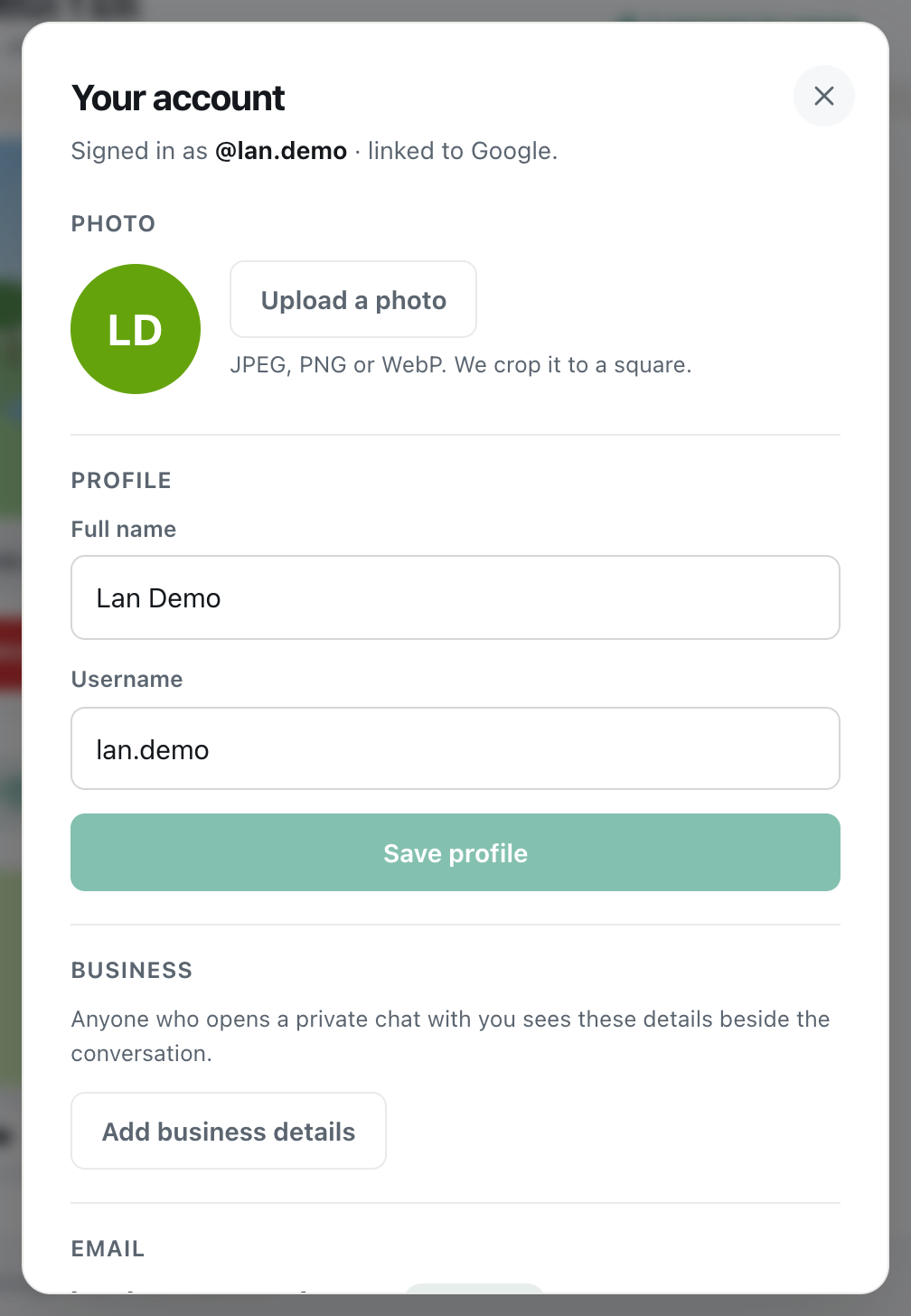
A screenshot of Your account for an account that signs in with Google. The top line says it's linked to Google.
How to sign in to CicadaChat with Google
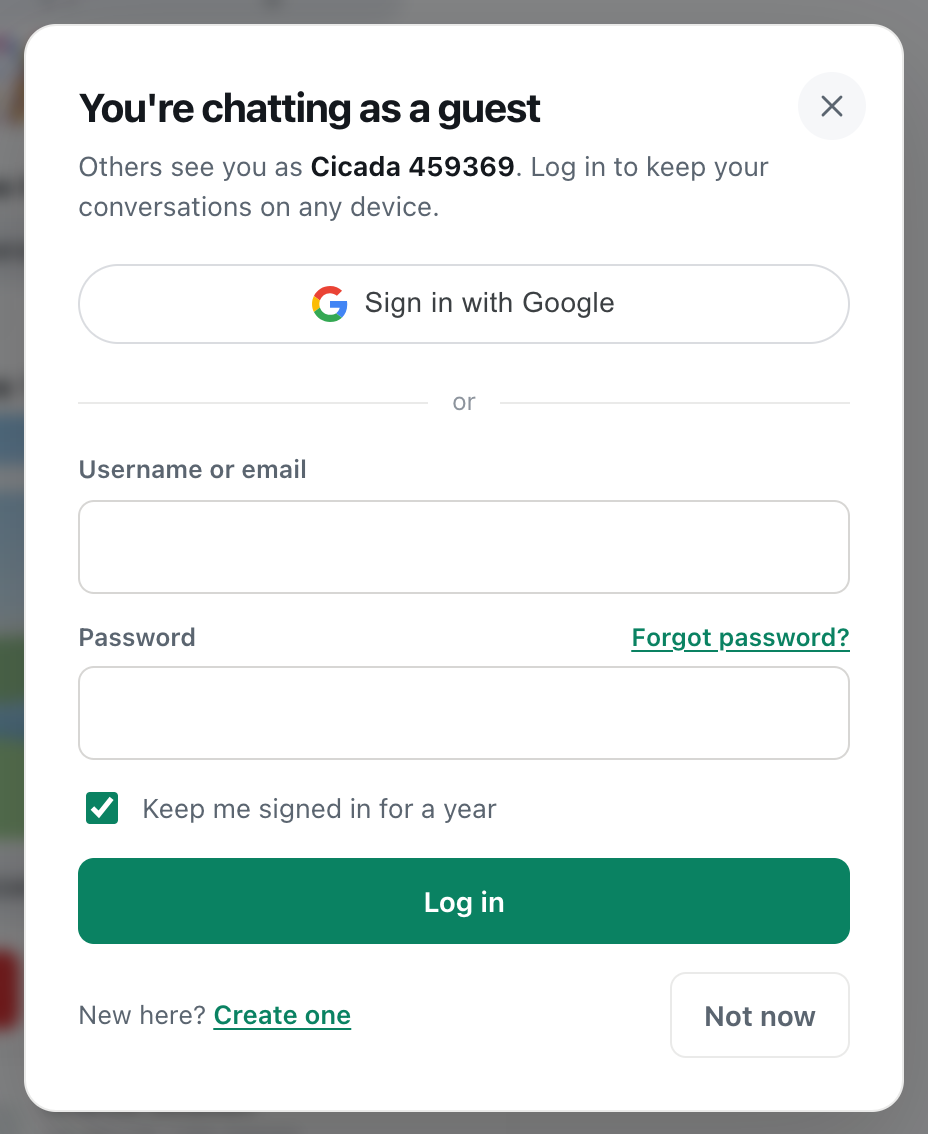
- Click your guest name at the bottom of the sidebar (Guest · tap to log in), or tap the coloured circle at the top right on a phone.
- At the top of the dialog, press Sign in with Google. In the sign-up form, the same button says Continue with Google. They do exactly the same thing.
- A Google window opens. Choose the Google account you want to use, or sign in to Google if you aren't already.
- The first time, Google asks whether to share your name, email address and profile picture with CicadaChat. Confirm to carry on.
- The Google window closes and you're signed in to CicadaChat.
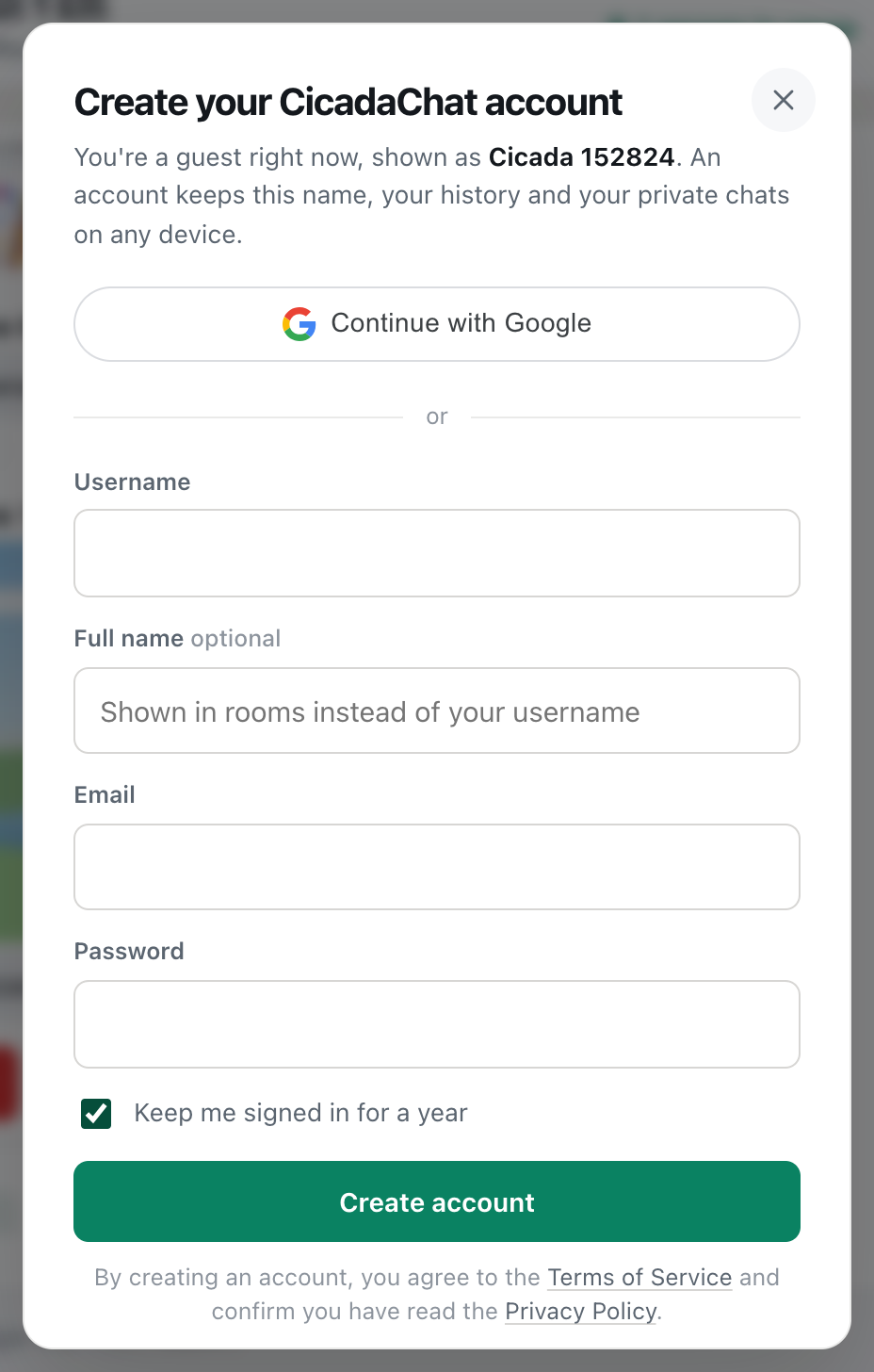
A screenshot of the sign-up form. Continue with Google here does the same as Sign in with Google in the log in form.
Keep me signed in for a year, under the form, applies to Google sign-in too. Leave it ticked on your own device.
The Google window, and the account chooser inside it, belong to Google, not CicadaChat. CicadaChat never sees your Google password, only what Google hands over once you've confirmed.
What happens the first time
When you sign in with Google, CicadaChat checks three things, in order:
- Is this Google account already linked to a CicadaChat account? Then you're logged in to that account. This is what happens every time after the first.
- Is there a CicadaChat account with the same email address? Then Google is linked to that account and you're logged in to it. Google has already confirmed you own the address, so this is safe. From then on, you can use either Google or your password.
- Neither? Then CicadaChat creates a new account for you.
A new account from Google
A new account is filled in from your Google details:
- Your Full name is your name on Google, which people will see in rooms. You can change it in Your account.
- Your username is made from the part of your email address before the @, tidied up to fit CicadaChat's rules: lowercase letters, numbers, dots and underscores. If that username is taken, a number is added. You can change it in Your account too: see how to set your profile photo, full name and username.
- Your email is your Google address, already marked Confirmed. There's no confirmation email to wait for.
- Your photo isn't copied from Google. Add one in the welcome dialog or in Your account.
Prefer to pick your own username from the start? Create the account with the sign-up form instead, using the same email address as your Google account. Then press Sign in with Google once, and Google is linked to it.
Just as when you sign up with a password, if you were chatting as a guest, the guest account becomes your new account, so your private chats come with you. You'll see the welcome dialog, Welcome followed by your name, where you can add a profile photo or Skip for now.
A Google-only account
An account created with Google has no password at first. You sign in with the Google button, and nothing else is needed. Your account shows this in two places:
- At the top: Signed in as your username, followed by linked to Google.
- In Password: You sign in with Google. Add a password to sign in with your username too.
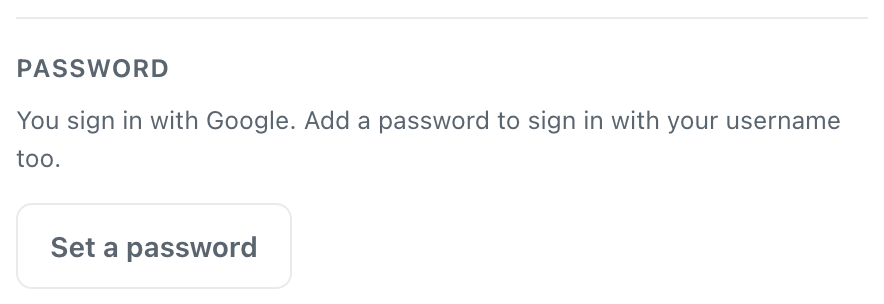
A screenshot of the Password section of a Google-only account.
Adding a password
A password is useful if you ever want to log in without Google, for example on a shared computer where you'd rather not sign in to your Google account.
- Open Your account from your name at the bottom of the sidebar.
- In Password, press Set a password.
- Type a New password of at least 10 characters. There's no current password to enter, because you don't have one yet.
- Press Save password.
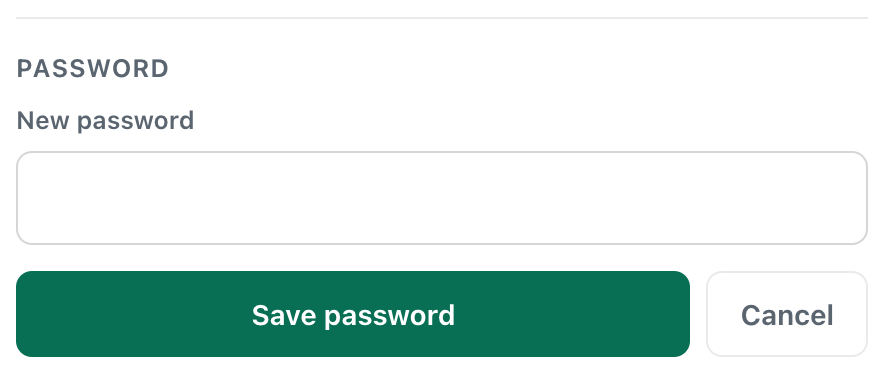
A screenshot of setting a first password. There's no current password to type.
From then on, you can log in either way: with Google, or with your username or email and the new password. Setting a password counts as a password change, so any other devices where you're logged in are signed out, and you get an email confirming it. See how to change your password and sign out of every device.
Changing your email on a Google-only account
Accounts with a password must type it before changing their email address. A Google-only account has no password to type, so Change email just asks for the New email. CicadaChat then sends a confirmation link to the new address, and nothing changes until it's clicked.
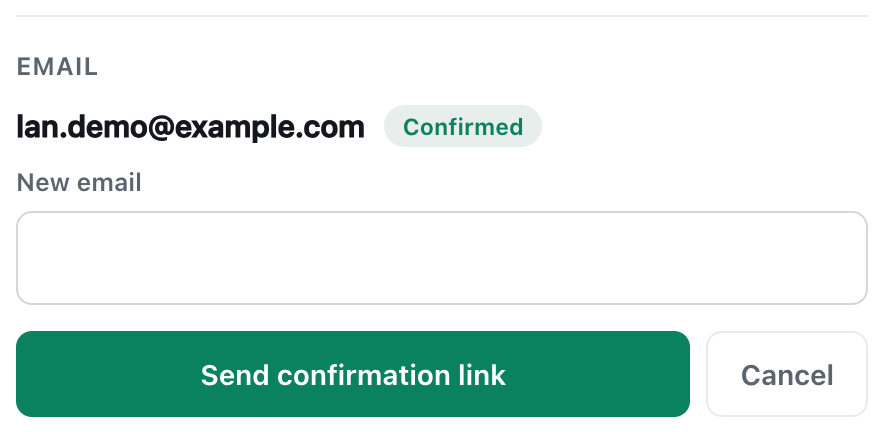
A screenshot of changing the email on a Google-only account. No password is asked for.
Your Google link doesn't depend on your email address. CicadaChat remembers which Google account you used, so Sign in with Google keeps working after you change the email on your CicadaChat account, and even if your Gmail address changes.
Adding Google to an account you already have
If you created your CicadaChat account with a username and password, you can start using Google at any time, as long as your Google account uses the same email address as your CicadaChat account. Just press Sign in with Google, and CicadaChat links the two the first time. After that, Your account says linked to Google, and your password keeps working as well.
If your Google account has a different address, signing in with Google creates a separate new account instead. To avoid that, change your CicadaChat email to your Google address first, in Your account, then sign in with Google.
There's no option in the app to unlink Google from an account once linked.
Google or a password: which to choose?
Both are equally good ways into the same kind of account. It's mostly about what's convenient for you:
- Google is quicker. Two taps, nothing to remember, and your email is confirmed straight away. If your Google account has two-step verification, your CicadaChat account benefits from it too, because nobody can sign in with Google without getting past it.
- A password is independent. You don't need to be signed in to Google, which matters on shared computers, and your CicadaChat account doesn't depend on your Google account staying available.
- You can have both. Sign in with Google, then add a password in Your account. Or start with a password and link Google later. Either way, you can use whichever suits the device in front of you.
Signing in with Google on a phone
On an Android phone, Google usually shows the Google accounts already on the phone, so you can pick one with a single tap. On an iPhone, Safari opens Google's sign-in in a new window or tab. Sign in there and it closes by itself when you're done. If nothing opens, check that Safari isn't blocking pop-ups: Settings → Apps → Safari → Block Pop-ups on recent iOS versions, or Settings → Safari on older ones.
If you use CicadaChat from an iPhone's home screen, sign in with Google there once as well. The home screen version doesn't share Safari's storage, so it starts out signed out.
If you can't remember how you signed up
Not sure whether you used Google or a password? A few clues:
- Search your inbox for Confirm your email for CicadaChat. That email is only sent to accounts created with a password. Accounts created with Google don't get one.
- Try Sign in with Google with the Google account that uses the same email address. If your account exists with that address, you'll be logged in to it, whichever way you created it.
- Or use Forgot password? with your email address. The reset link lets you set a password, which also works for accounts created with Google.
What CicadaChat gets from Google
- Your name, used as your Full name on a new account.
- Your email address, used to find or create your account. Like every email address in CicadaChat, it's never shown to other people.
- A Google account identifier, so CicadaChat recognises you next time.
CicadaChat doesn't get your Google password, your contacts, your calendar or anything else from your Google account, and it doesn't post anything to Google. The Privacy Policy, linked from Settings, lists Google sign-in among the services CicadaChat uses.
If Google sign-in doesn't work
- There's no Google button. A browser extension that blocks trackers or ads may be stopping Google's button from loading. Allow accounts.google.com for CicadaChat, or log in with a username and password instead.
- "Could not reach Google." The Google script couldn't load, because of a network problem or a blocker. Check your connection and reload.
- Nothing happens when you press the button. Your browser may be blocking the Google window as a pop-up. Allow pop-ups for cicadachat.com and try again.
- "Google sign-in was cancelled." The Google window was closed before you finished. Press the button again.
- You ended up in a new, empty account. Your Google address is different from the email on your existing account, so a new one was made. Sign out, log in to your original account with its password, and change its email to your Google address before trying Google again.
No comments yet. Start the conversation.