
How to create a CicadaChat account and keep your guest chats
Create a CicadaChat account in under a minute without losing anything from your guest account. Each field explained, the welcome photo, and confirming your email.
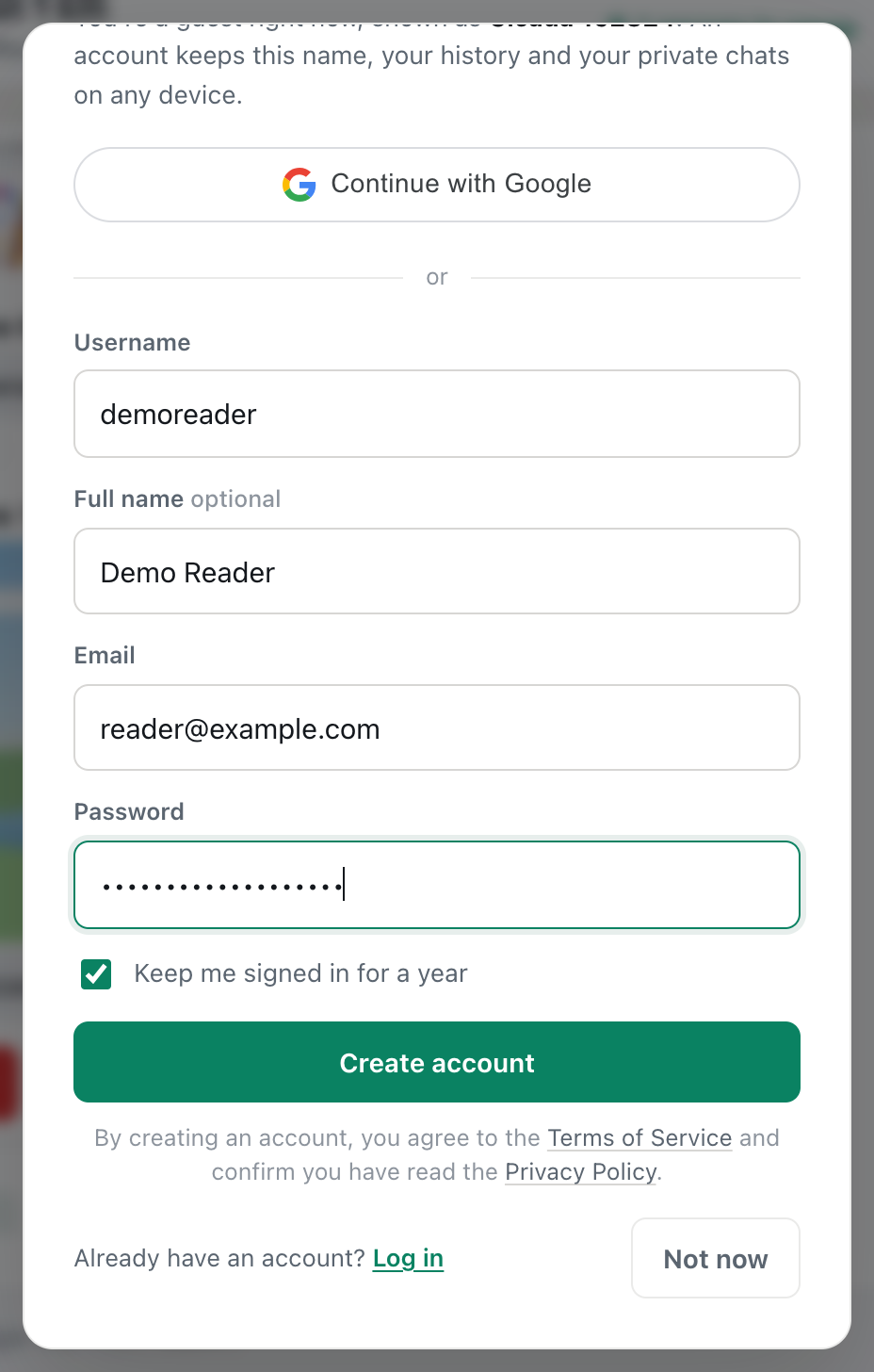
Creating a CicadaChat account takes under a minute, and you don't lose anything you did as a guest: your messages and private chats come with you. This guide shows how to create a CicadaChat account step by step, what each field is for, what happens right after, and how to confirm your email.
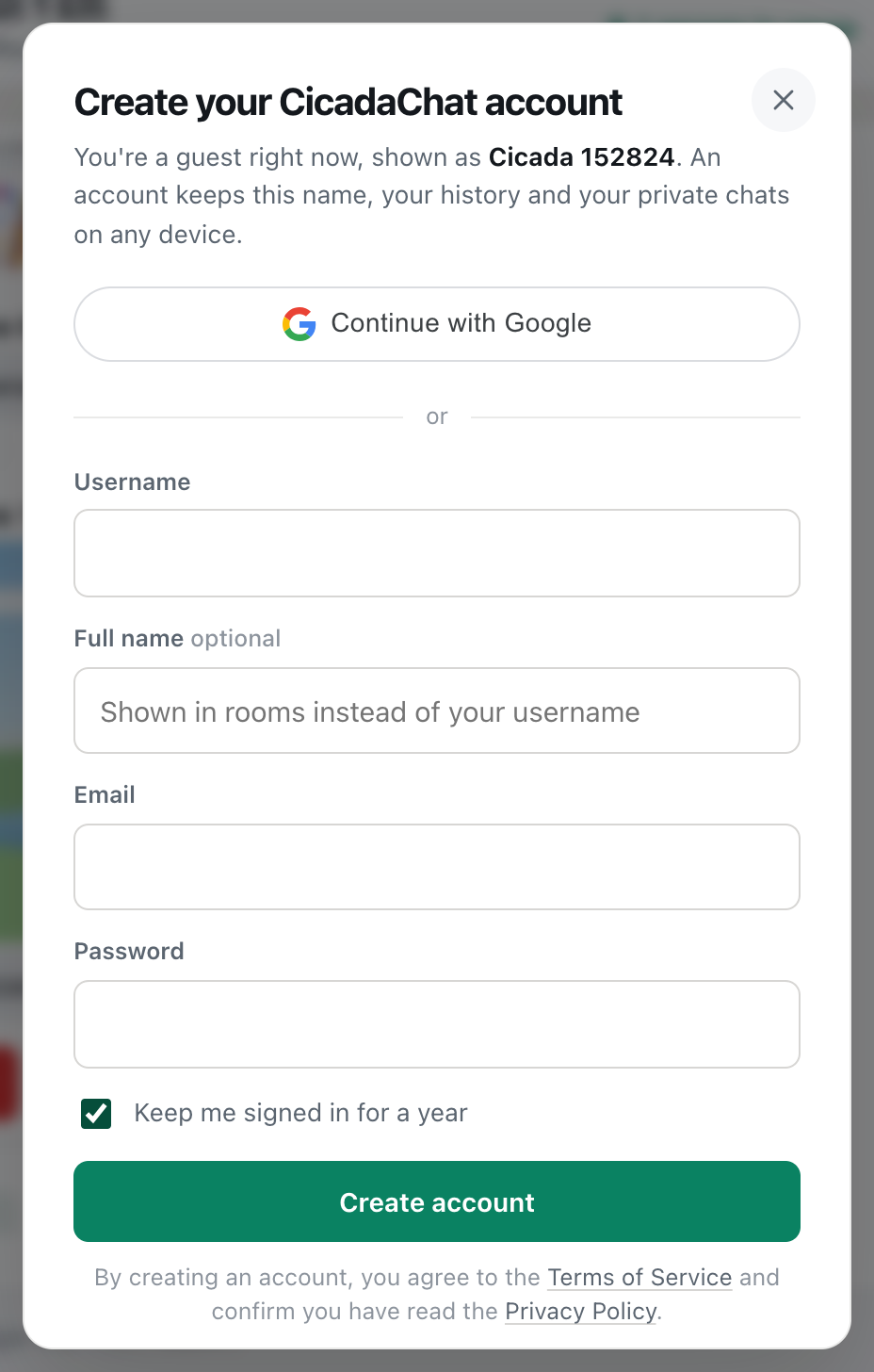
A screenshot of the sign-up form, ready to press Create account.
Before you start
You can create an account with a username, email and password, as described here, or with your Google account in one tap (see How to sign in to CicadaChat with Google). Either way, you'll need:
- an email address you can open, for the confirmation link and for password resets,
- a username you'd like to be known by,
- a password of at least 10 characters, unless you use Google.
Create the account in the browser where you've been chatting as a guest. That's the guest account that gets turned into your new one, so that's where your private chats come from.
How to create a CicadaChat account
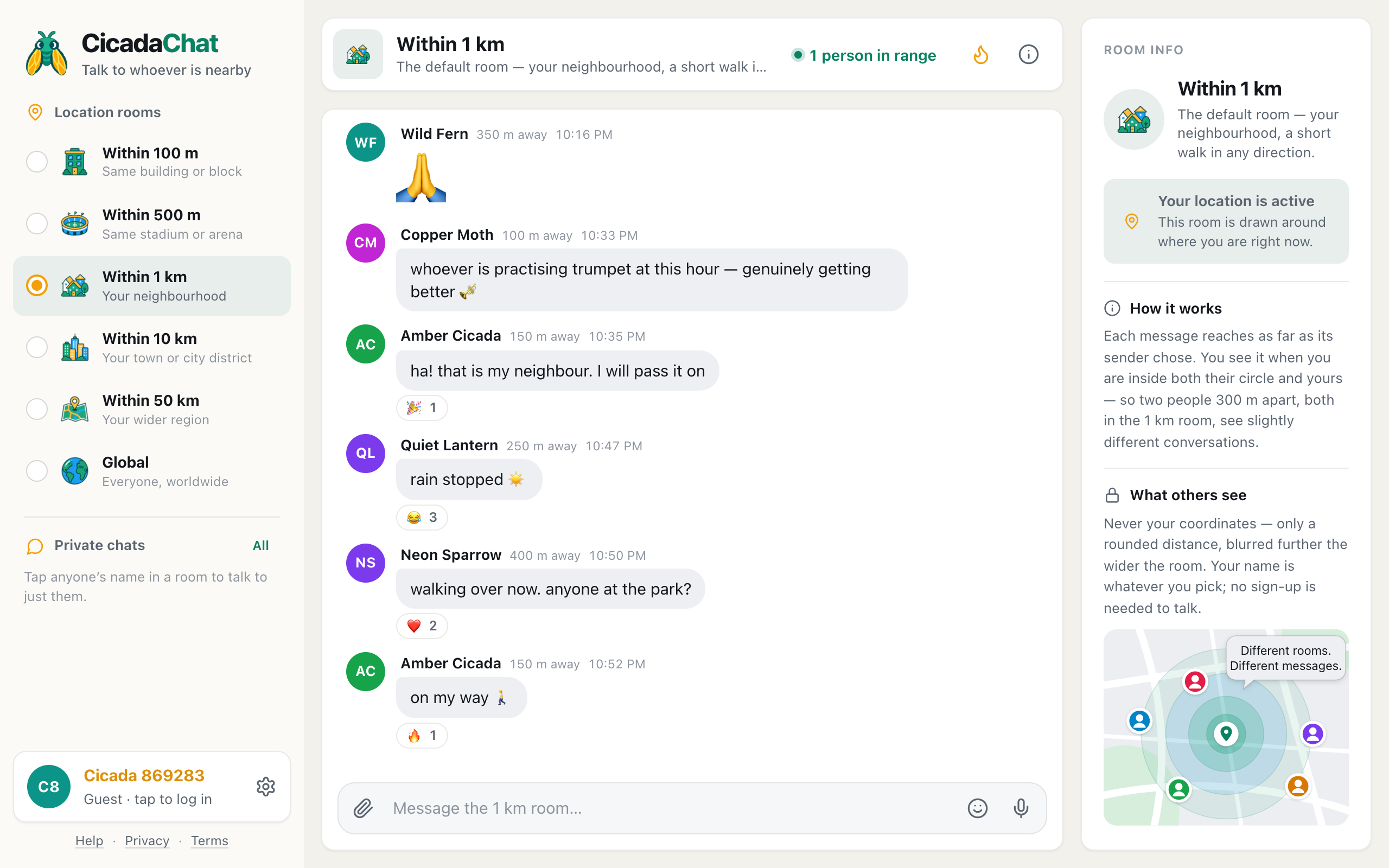
- Click your guest name at the bottom of the sidebar, where it says Guest · tap to log in. On a phone, tap the coloured circle at the top right of the screen.
- A dialog opens, headed You're chatting as a guest. At the bottom, next to New here?, press Create one.
- The dialog changes to Create your CicadaChat account. Fill in the fields, described below.
- Leave Keep me signed in for a year ticked on your own device. Untick it on a shared computer.
- Press Create account.
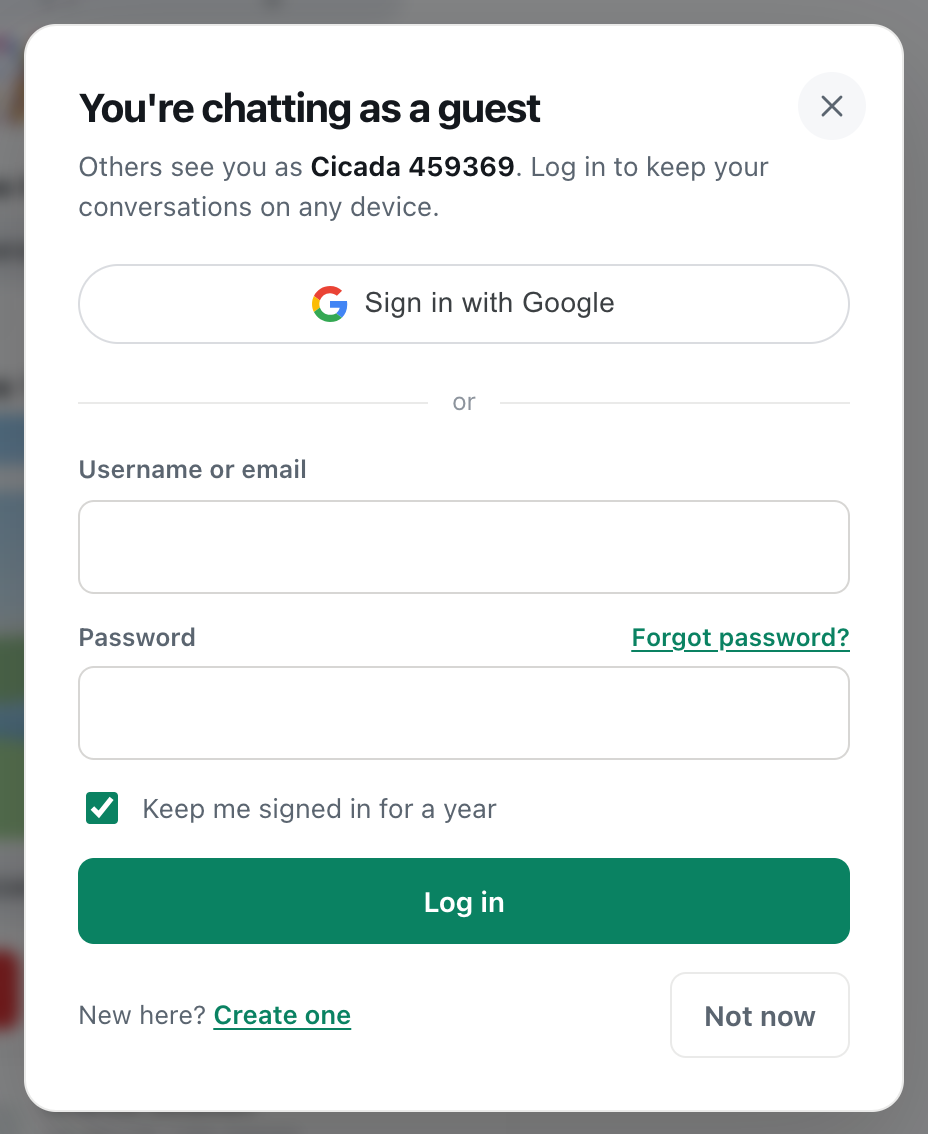
A screenshot of the dialog that opens from your guest name. Create one, at the bottom, switches it to the sign-up form.
The sign-up form, field by field
Username
Your username is what you log in with, and how friends can find you. It must be 3 to 24 characters long, made of lowercase letters, numbers, dots and underscores, and start with a letter or a number. For example, demo.reader or lan_92. Capital letters are turned into lowercase as you type. Each username can only belong to one account, so if yours is taken, CicadaChat says That username is taken. and you can try another.
Full name (optional)
This is the name people see in rooms, as the box says: Shown in rooms instead of your username. It can be your real name, a nickname or anything up to 32 characters. If you leave it blank, your username is shown in rooms instead. You can change it at any time in Your account.
Your email address is private. Nobody in CicadaChat can see it. It's used to confirm your account and to send you a link if you forget your password, so use an address you can actually open. Each address can only be used for one account. If it's already in use, you'll see That email is already registered. In that case you probably have an account already: use Log in instead, and Forgot password? if you need to.
Password
At least 10 characters. A few unrelated words joined together, like "sunflower-bridge-orange", are long, strong and easy to remember. Don't reuse a password from another site. The dialog shows dots as you type.
Keep me signed in for a year
Ticked, you stay signed in on this device for a year. Unticked, you're signed out when the browser session ends, or after a day at most. See Staying signed in: what "Keep me signed in for a year" does.
Under the button, the form notes that By creating an account, you agree to the Terms of Service and confirm you have read the Privacy Policy. Both are linked there if you'd like to read them first.
Right after you sign up
A welcome dialog opens with your new name: Welcome, Demo Reader. It suggests adding a profile photo so people nearby can recognise you.
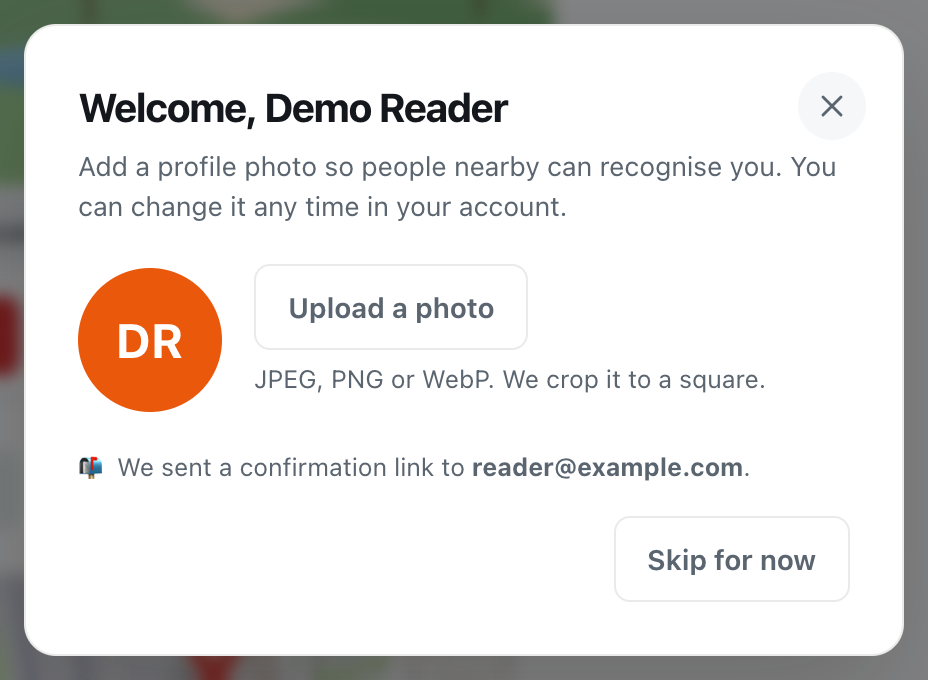
A screenshot of the welcome dialog that opens right after signing up.
- Press Upload a photo and pick a picture. JPEG, PNG and WebP all work, and CicadaChat crops it to a square.
- Your photo appears in the circle, and the button changes to Done.
- Or press Skip for now and add a photo later in Your account.
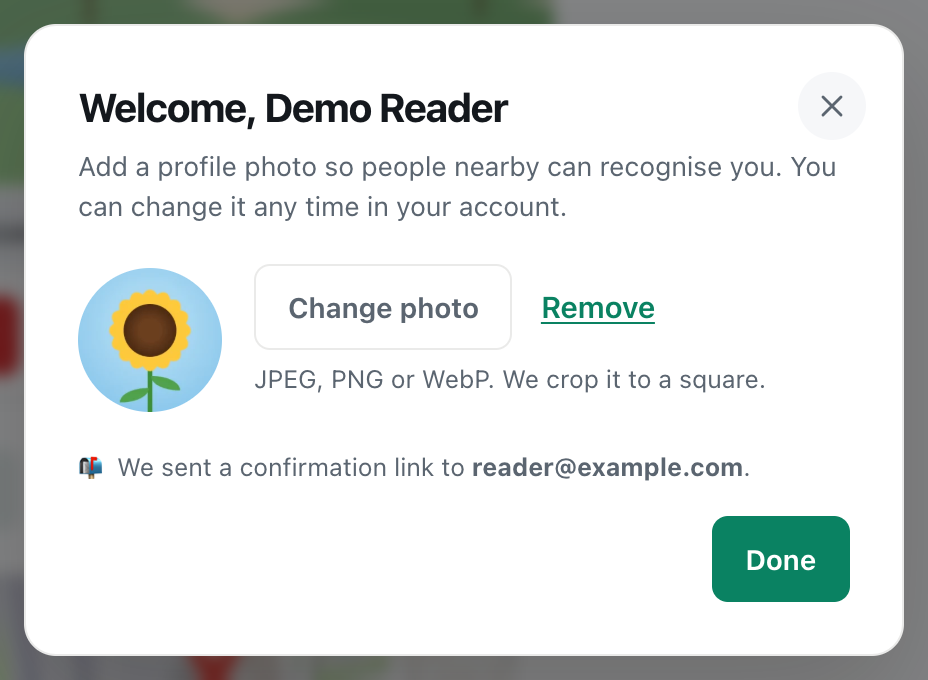
A screenshot of the welcome dialog with a photo added. The line underneath says where the confirmation link went.
The dialog also reminds you: We sent a confirmation link to your email address.
What you keep from your guest account
When you sign up while chatting as a guest, CicadaChat doesn't create a separate account. It turns your guest account into the registered one. That means:
- Your private chats are still there, with the same people, and they continue as before. The other person now sees your new name.
- Messages you sent as a guest are still yours, and show your new name.
- Your room and settings on this device stay the same.
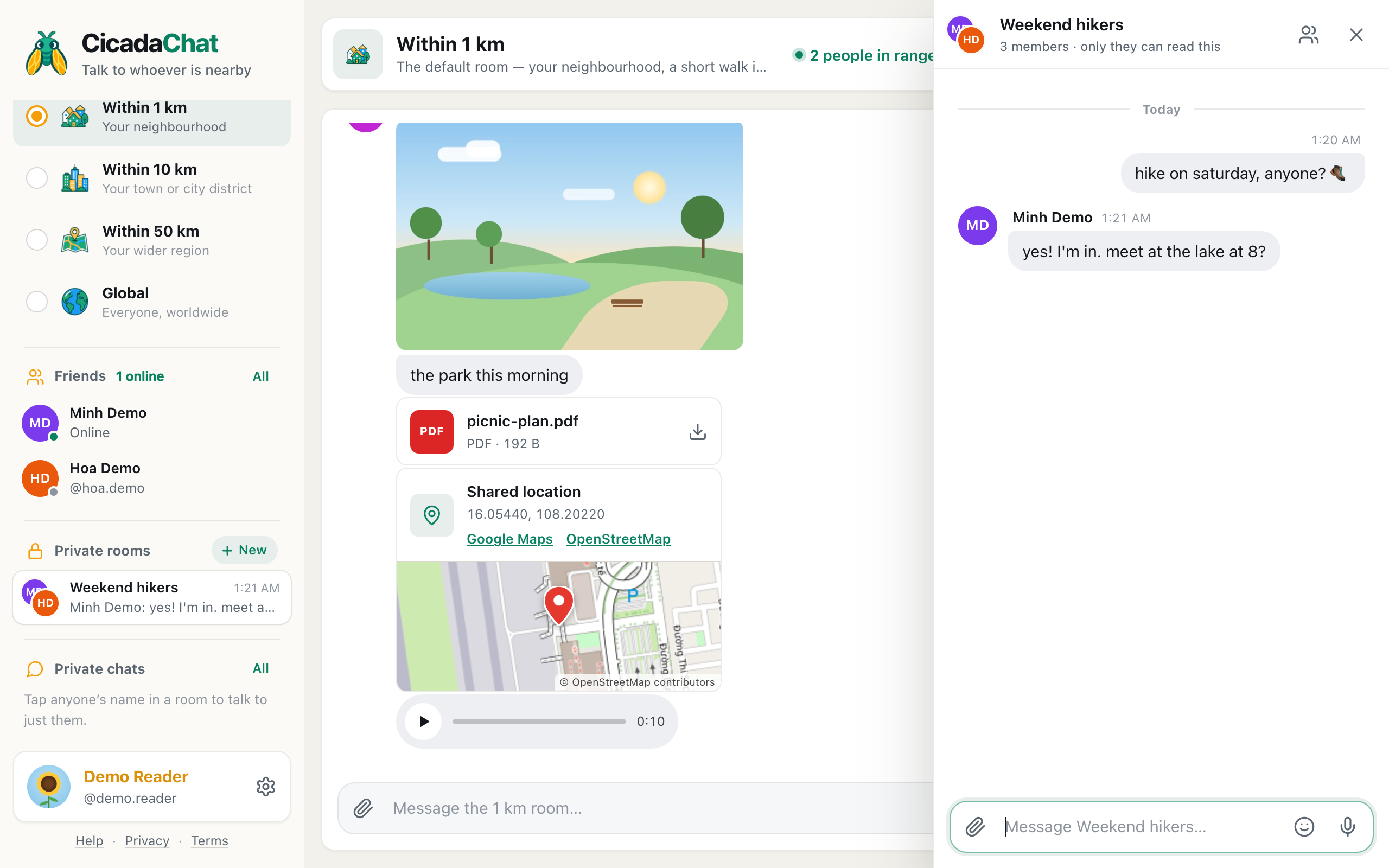
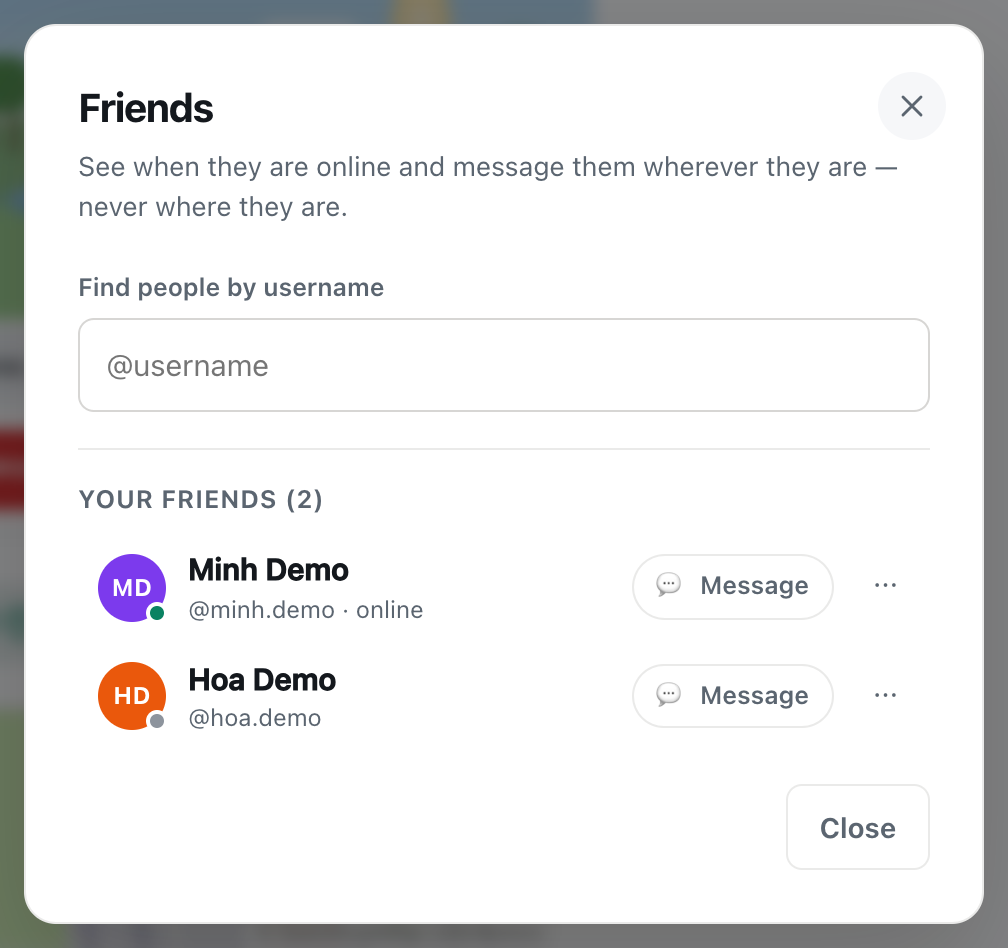
What changes is your name: instead of Cicada and a number, you appear as your Full name, or your username if you didn't give one. You also get the features only accounts have: a profile photo, friends, private rooms and a business card. Friends and Private rooms appear in the sidebar straight away.
If you already have an account
Only create an account once. If you already have one, from another device or an earlier visit, use Log in instead of Create one.
Be aware of one difference. Creating an account brings your guest's private chats with you, but logging in to an existing account doesn't. The two accounts aren't merged. The guest's conversations stay with the guest in that browser, and you see your account's own conversations. If a guest chat matters, finish it, or swap usernames with the other person so you can add each other as friends from your account.
Choosing a good username
- Think about who will see it. Your Full name is what rooms show, but your username is visible to your friends and to anyone who searches for it to add you. If you'd rather stay low-key with strangers nearby, don't use your full real name.
- Make it easy to share. Friends type it to find you, so something short and easy to spell works best.
- You can change it later in Your account, but friends who know you by the old one may not recognise the new one, and the old name becomes free for someone else to take.
Creating an account on a phone
On a phone, tap the coloured circle at the top right of the screen to open the dialog. It fills the screen, and the steps are the same. Your phone's password manager may offer to create and save a strong password for you, which is a good idea.
If you plan to add CicadaChat to an iPhone's home screen, create your account in Safari first. The home screen version keeps its own storage, so it starts as a new guest. With an account, you just log in there and everything is waiting.
Confirming your email
CicadaChat sends an email with the subject Confirm your email for CicadaChat to the address you gave. Open it and press the button. CicadaChat opens and shows Email confirmed and Thanks — reader@example.com is confirmed. (with your address).

A screenshot of the card CicadaChat shows after you open the confirmation link.
- The link works once, for 48 hours.
- It works on any device. You can open the email on your phone even if you signed up on a computer, and you don't need to be logged in there.
- Until you confirm, Your account shows your email with a Not confirmed label and the note Confirm it so password reset links can reach you.
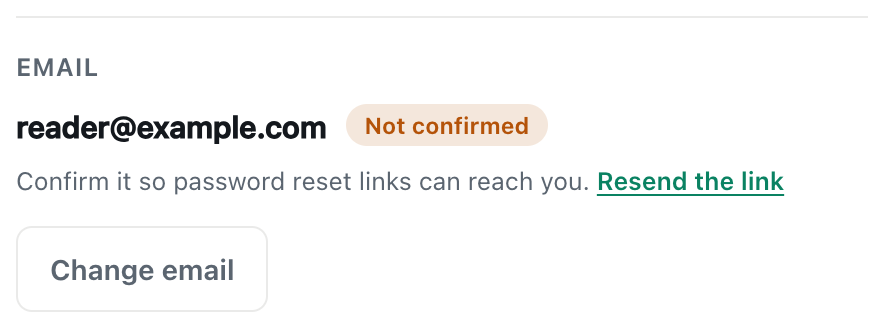
A screenshot of the Email section before the address is confirmed.
If the email doesn't arrive
- Wait a minute, then check your spam or junk folder, and any "Promotions" or "Updates" tab.
- Check the address in Your account. If there's a typo, use Change email to fix it.
- Press Resend the link next to the note. If you press it again within a minute, CicadaChat says We just sent one — give it a minute before asking again.
If a link says That link has expired or was already used., ask for a new one with Resend the link.
If sign-up doesn't work
- "That username is taken." Someone already has it. Try adding a number, a dot or an underscore.
- "Use letters, numbers, dots and underscores, starting with a letter or number." The username has a space, a hyphen or another character that isn't allowed, or starts with a dot or underscore.
- "Usernames are at least 3 characters." or "Usernames are at most 24 characters." Make it longer or shorter.
- "That email does not look right." Check for a missing @ or a typo in the address.
- "That email is already registered." You, or someone, already has an account with this address. Log in instead, or reset the password.
- "Use at least 10 characters." The password is too short.
- You're asked to wait. After many attempts in a short time, CicadaChat pauses sign-ups from your connection for a while, to stop automated abuse. Try again in 15 minutes.
After creating your account
- Log in on your other devices with your username or email and your password, to find the same conversations there.
- Add friends you meet in rooms, so you can find them again anywhere.
- Explore Your account, from your name at the bottom of the sidebar, to change your photo, name, username, email or password.
No comments yet. Start the conversation.