
How to set your profile photo, full name and username
Set your CicadaChat profile photo, full name and username in Your account. What each is for, who sees it, the rules, and what to do when a change won't save.
Your profile is how people nearby recognise you: the photo next to your messages, the name above them, and the username friends use to find you. This guide shows how to set your profile photo, full name and username in CicadaChat, what each one is for, who sees what, and what to do when a change won't save.
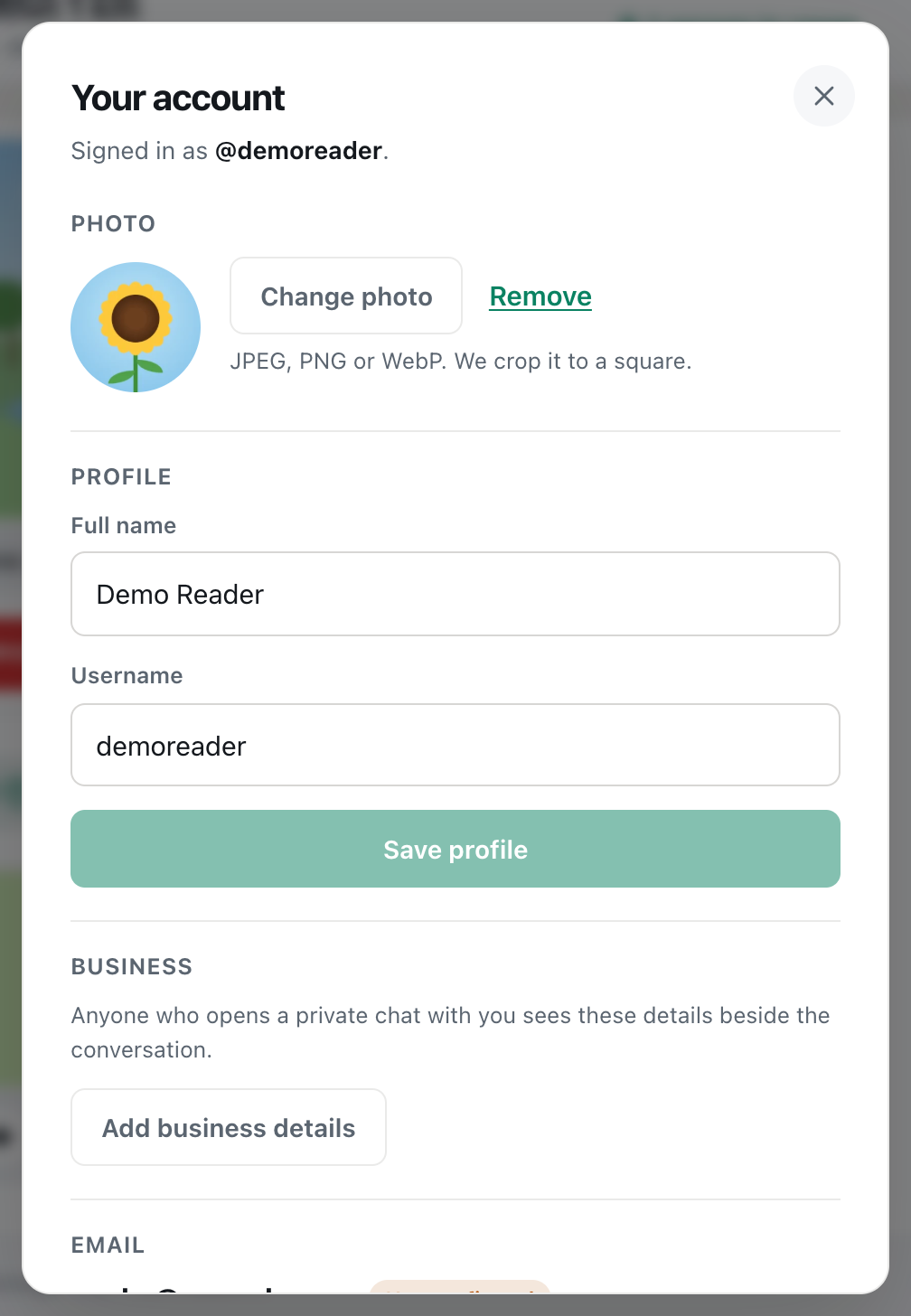
A screenshot of the top of Your account, with Photo and Profile.
Your profile at a glance
| What it's for | Who sees it | Rules | |
|---|---|---|---|
| Photo | Shown next to your name everywhere | Everyone who sees your name | JPEG, PNG or WebP, cropped to a square |
| Full name | The name shown in rooms and chats | Everyone | 1 to 32 characters, anything readable |
| Username | Logging in, and how friends find you | Your friends, and people who search for it | 3 to 24 lowercase letters, numbers, dots and underscores |
All three are for registered accounts. Guests get a Cicada number and coloured initials, and can't change them. To choose your own, create an account first: see how to create a CicadaChat account and keep your guest chats.
Where to change your profile
- Click your name at the bottom of the sidebar, or your photo or coloured circle at the top right on a phone.
- Your account opens. Photo is at the top, and Profile, with your Full name and Username, is just below it.
Each section saves on its own. Changing your photo doesn't touch your name, and a mistake in one section never loses what you typed in another.
How to set your profile photo
- In Photo, press Upload a photo. If you already have one, the button says Change photo.
- Pick a picture. On a phone you can choose from your photos or take a new one.
- CicadaChat crops it to a square from the centre and saves it straight away. There's no separate save button.
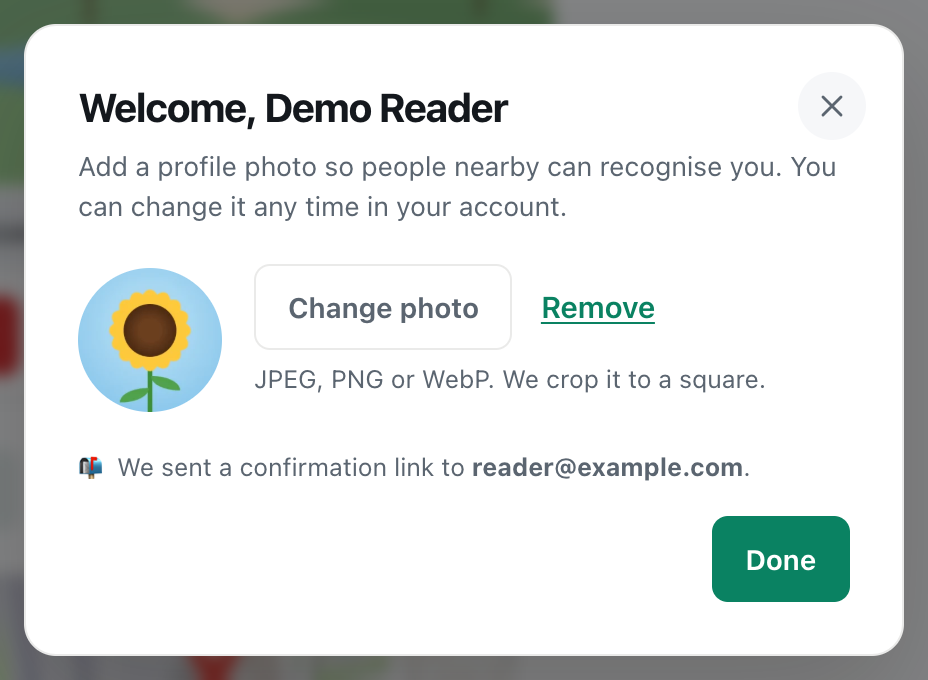
A screenshot of a profile photo after uploading, cropped to a square and shown in a circle.
Your photo appears in the circle, at the bottom of the sidebar, and next to your name on your messages, in People in range and in other people's chat lists.
You'll also be offered the chance to add a photo right after creating your account, in the Welcome dialog. If you pressed Skip for now then, this is where to add one later.
Choosing a good photo
- Keep the subject in the middle. The photo is cropped to a square from the centre, then shown in a circle, so anything at the edges is lost.
- Think small. It's usually shown about the size of a fingertip. A clear face or a simple bold picture works better than a detailed scene.
- It doesn't have to be your face. A pet, a drawing or a favourite place are all fine. People nearby recognise you by it either way.
- Remember it's public. Anyone who sees your name in CicadaChat can see your photo, including strangers in rooms near you. Avoid anything that shows your address, school or car number plate.
What CicadaChat does to your photo
Before uploading, CicadaChat prepares the photo on your own device: it turns it the right way up, crops it to a square and resizes it to 256 by 256 pixels. That makes it small and quick to load, and because it's a brand-new image, any hidden details from your camera, such as the place the photo was taken, are left behind.
Removing your photo
Press Remove next to Change photo. Your coloured circle with your initials comes back straight away, everywhere.
How to change your full name
Your Full name is the name people see: above your messages in rooms, in private chats, in People in range and in your friends' lists.
- In Profile, edit the Full name box.
- Press Save profile. The button only lights up once you've changed something.
- CicadaChat says Saved.
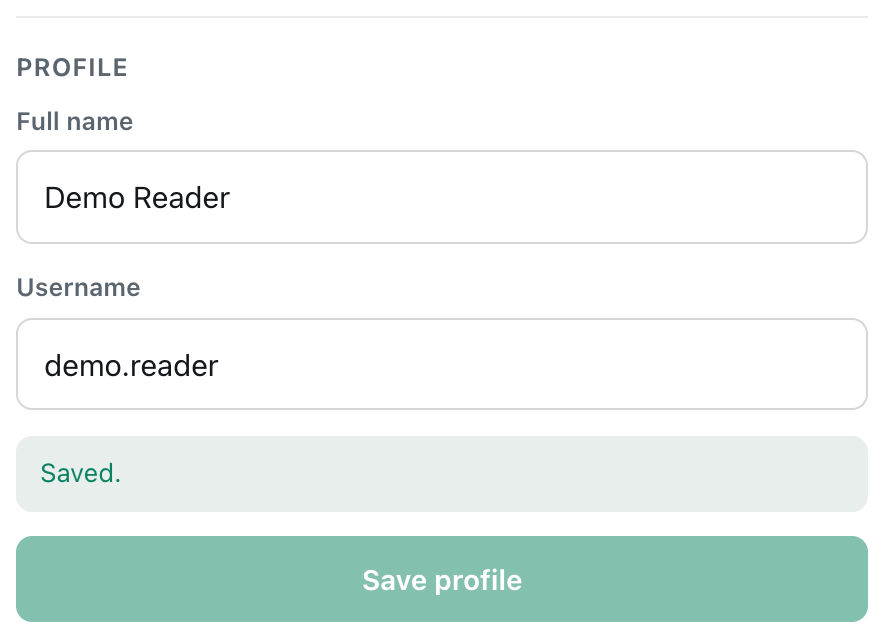
A screenshot of the Profile section after changing the username and pressing Save profile.
The new name shows up everywhere at once, including on messages you sent before the change, because messages show your current name rather than a copy of the old one.
Full name rules
- At least one character, and up to 32. Too long, and CicadaChat says Names are capped at 32 characters.
- It doesn't have to be unique, and it doesn't have to be your real name. A nickname is fine.
- It can't be empty: Pick a name with at least one character.
- Invisible control characters aren't allowed, because they could scramble how messages are displayed: That name contains characters we cannot display. Ordinary letters in any language, spaces and most emoji are fine. Some combined emoji, such as families, contain invisible joining characters and are refused.
If you left the Full name blank when you signed up, your username was used as your name. Set a Full name here any time to replace it.
How to change your username
Your username is your login name, and the handle friends use to find you. It's shown with an @ under your name at the bottom of the sidebar, and in your friends' lists.
- In Profile, edit the Username box. Capital letters are turned into lowercase as you type.
- Press Save profile, and look for Saved.
Username rules
- 3 to 24 characters.
- Lowercase letters, numbers, dots and underscores only. No spaces or hyphens.
- Must start with a letter or a number.
- Must not belong to anyone else: That username is taken.
If the browser points out the box before you've saved, with a hint like 3–24 letters, numbers, dots or underscores, the username breaks one of these rules.
Before you change your username
- Log in with the new one. The old username stops working for logging in straight away. Your email address still works either way.
- Tell your friends. They'll see your new username in their lists, but anyone who only knew the old one will need the new one to search for you.
- The old username becomes free. Someone else could take it after you change. If you want it back later, it may be gone.
- Update your password manager, if it saved your old username.
Changing your profile on a phone
On a phone, tap your photo or coloured circle at the top right of the screen to open Your account. The Photo and Profile sections are at the top, just as on a computer. Tapping Upload a photo opens your phone's own picker, where you can choose a picture from your library or take one with the camera. A selfie taken on the spot works well: hold the phone at arm's length, with your face in the middle of the frame, so the square crop keeps it all.
Profiles for businesses
If you use CicadaChat for a shop, café or service, you can use your profile in two ways at once:
- Set your Full name to the business's name, such as "Blue Door Bakery", and use its logo as your photo, so people recognise it in rooms.
- Add a business card in the Business section of Your account, just below Profile. It holds a description, address, contact details, a website and photos, and it appears beside every private chat someone opens with you.
Keep your username simple and close to the business name, so customers can find you and add you as a friend.
What other people see
Here's how your profile appears to someone in a room near you: your photo, your Full name, a rounded distance and the time. They don't see your username unless they're your friend or search for it, and they never see your email address or your location.
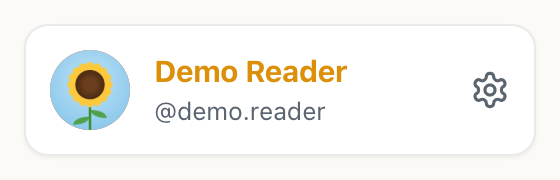
A screenshot of how the profile appears at the bottom of your sidebar.
The bottom of your own sidebar shows the same photo and name, with your username under it, so you can check how you look at a glance. For more on what's shared and what isn't, see guest or registered account: what's the difference?
If a change won't save
- "That username is taken." Try adding a number, a dot or an underscore.
- "Use letters, numbers, dots and underscores, starting with a letter or number." Remove spaces, hyphens and other symbols, and don't start with a dot or underscore.
- "Pick an image file." The file you picked for your photo isn't an image.
- "That image could not be read. Try a JPEG or PNG." Your browser can't open that image, often an iPhone HEIC photo outside Safari. Export it as JPEG, or pick another.
- "That image is too detailed to use. Try another." Even after resizing, the picture is too large to store. A simpler picture will work.
- Save profile is greyed out. Nothing has changed yet, or CicadaChat is still saving.
Questions about your profile
Can I use my Google photo?
Not automatically. Accounts created with Google don't copy the Google photo. Save it to your device and upload it here if you'd like to use it. See how to sign in to CicadaChat with Google.
How often can I change my name?
As often as you like. But people nearby get used to recognising you, so changing it often can be confusing for them.
Does changing my username sign me out?
No. You stay logged in on every device. Just use the new username next time you log in.

No comments yet. Start the conversation.