
Using CicadaChat on your phone: add it to your home screen
CicadaChat needs no app store: add it to your home screen on iPhone, Android or a computer so it opens full screen with one tap. Plus a tour of the phone layout.
CicadaChat runs in your phone's web browser, so there's nothing to download from an app store. For one-tap access, you can add CicadaChat to your home screen. It then gets its own icon and opens full screen, like an app, without the browser's address bar. This guide shows how to add it on an iPhone, an Android phone and a computer, what changes when you open it that way, and how to find your way around CicadaChat on a small screen.
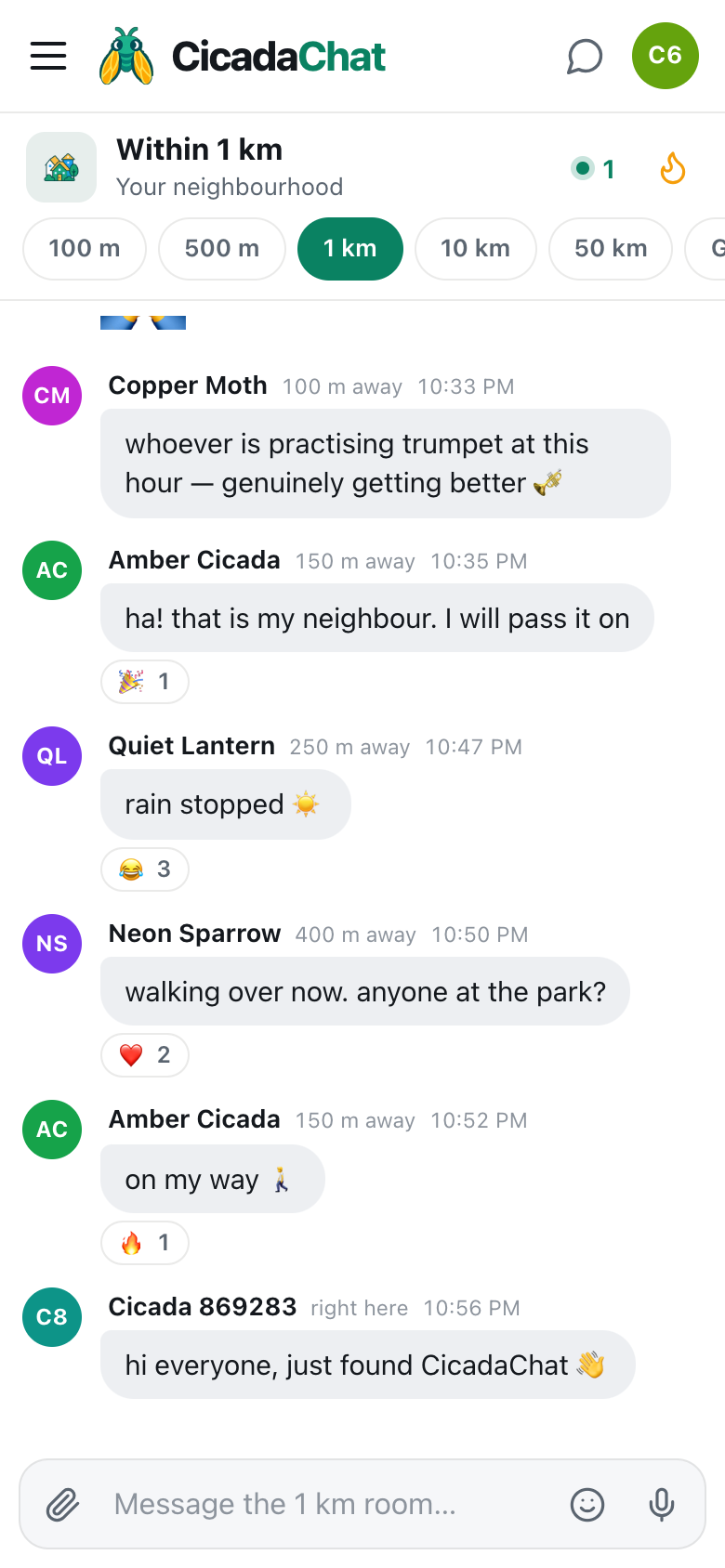
A screenshot of CicadaChat on a phone. The rooms are tabs under the room name, within reach of your thumb.
Why add CicadaChat to your home screen
- One tap to open. No typing the address, no hunting through browser tabs.
- Full screen. CicadaChat opens in its own window without the browser's address bar and buttons, so the conversation gets the whole screen.
- Its own icon. The CicadaChat cicadas sit on your home screen like any other app.
- It behaves like an app. CicadaChat's phone layout was designed for this: the rooms are tabs you switch with your thumb, and the back gesture closes whatever you opened last.

The icon CicadaChat gets on your home screen.
How to add CicadaChat to your home screen on an iPhone or iPad
- Open Safari and go to cicadachat.com.
- Tap the Share button, the square with an arrow pointing up. On an iPhone it's in the toolbar at the bottom of the screen. On an iPad it's at the top.
- Scroll down the list and tap Add to Home Screen.
- The name is already filled in as CicadaChat. Tap Add.
The icon appears on your home screen. On recent versions of iOS, other browsers such as Chrome also offer Add to Home Screen from their share menu.
On an iPhone, the home screen version starts fresh
This is the one thing to know before you add it. On an iPhone or iPad, a web app opened from the home screen keeps its own storage, separate from Safari's. CicadaChat stores your guest account in that storage, so when you first open the home screen version, you arrive as a new guest, with a new name like Cicada 710268 and no private chats.
- If you have an account, log in once in the home screen version (see how to log in to CicadaChat): tap the coloured circle at the top right, then enter your username or email and password, or use Google. Tick Keep me signed in for a year so you stay logged in.
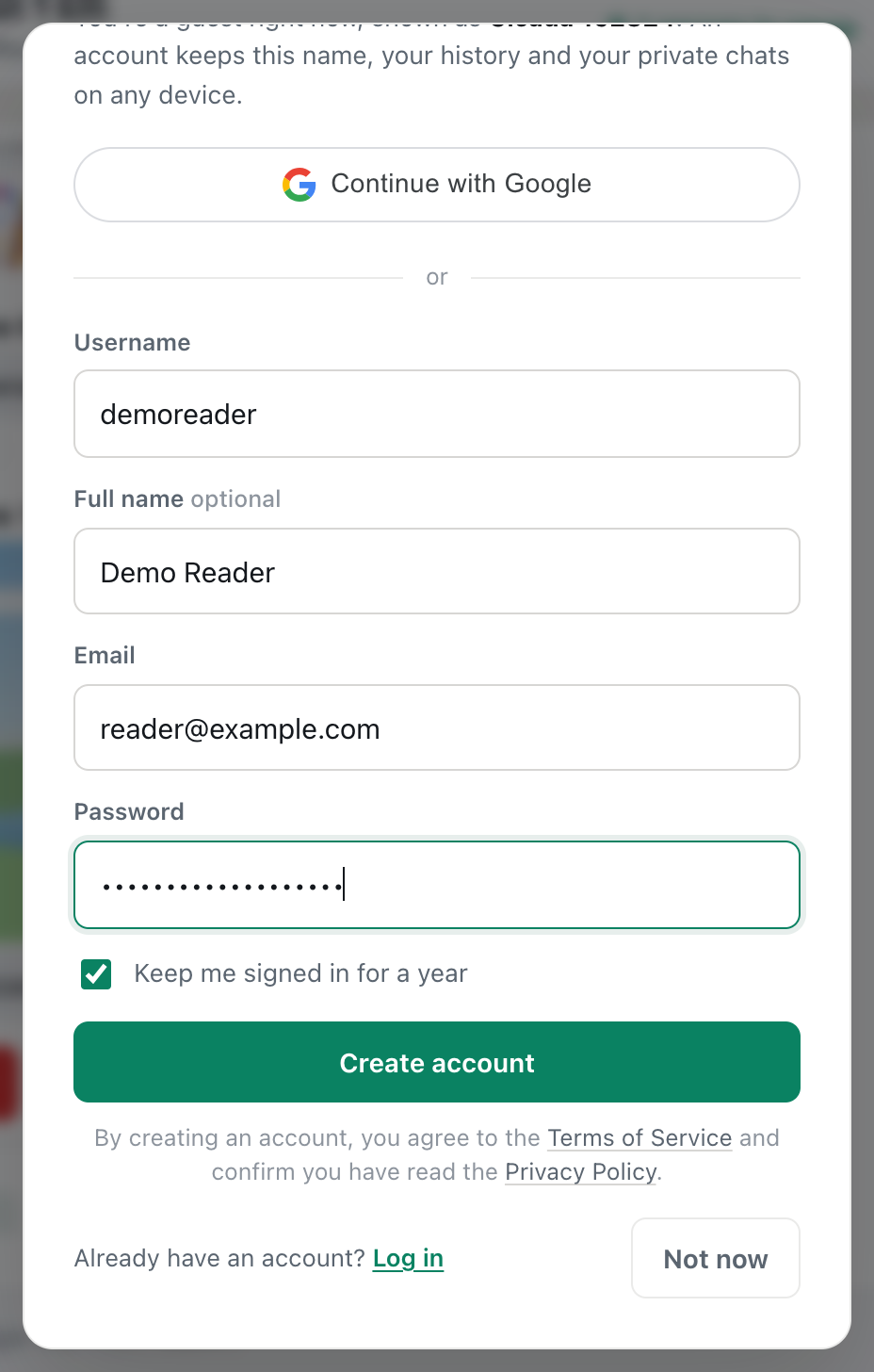
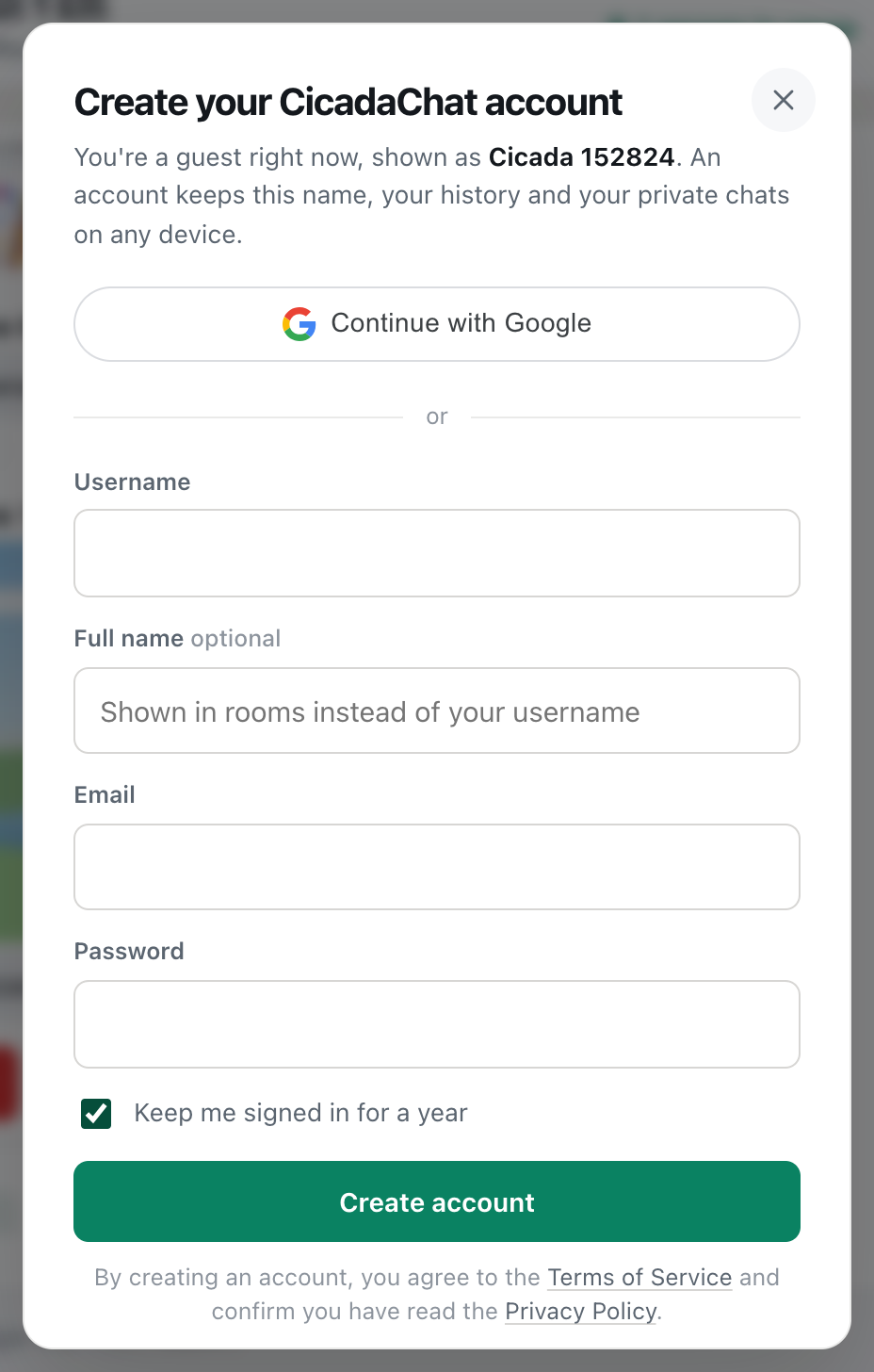
- If you've been chatting as a guest in Safari and want to keep those conversations, create an account in Safari first: tap your guest name, choose Create one and fill in the form. Your guest account becomes the new account, with its history and private chats. Then log in to it from the home screen version.
The home screen version may also ask for your location again the first time it opens. Allow it for the local rooms, or decline and use Global.
How to add CicadaChat to your home screen on Android
- Open Chrome and go to cicadachat.com.
- Tap the menu button, the three dots at the top right.
- Tap Add to Home screen. On some versions it's Install app instead.
- Confirm with Add or Install. If Android asks, drag the icon to where you want it or tap Add automatically.
In Samsung Internet, tap the menu button, then Add page to, then Home screen. Other Android browsers have a similar option in their menu.
On Android, the home screen version shares its storage with the browser you added it from, so you keep the same guest account or login, the same room and the same settings.
Installing CicadaChat on a computer
You can do the same on a computer, which gives CicadaChat its own window instead of a browser tab:
- Chrome or Edge: look for the install icon at the right of the address bar, or open the browser's menu and look for an option to install CicadaChat or to install the page as an app.
- Safari on a Mac: with CicadaChat open, choose File → Add to Dock.
What's different when you open it from the home screen
- There's no address bar. That also means there's no browser button for site settings. If you need to change CicadaChat's location permission, CicadaChat's own Settings still shows the status and the directions. You can also open cicadachat.com in the browser itself and change it there.
- The back gesture closes panels. Going back closes whatever you opened last: the menu, a private chat, Room info, a dialog. On the main screen, going back once shows Go back again to leave CicadaChat, so you don't leave by accident.
- The colours follow your phone. With the theme set to System in Settings, CicadaChat is light or dark along with the rest of your phone, and the status bar matches.
Finding your way around CicadaChat on a phone
On a phone, CicadaChat shows one thing at a time and keeps the things you use most within reach of your thumb.
The top of the screen
- The menu button at the top left opens the sidebar.
- The speech bubble at the top right opens your private chats. A number on it counts unread messages.
- The coloured circle next to it is you. Tap it to log in, create an account or, once you have one, manage it.
The room
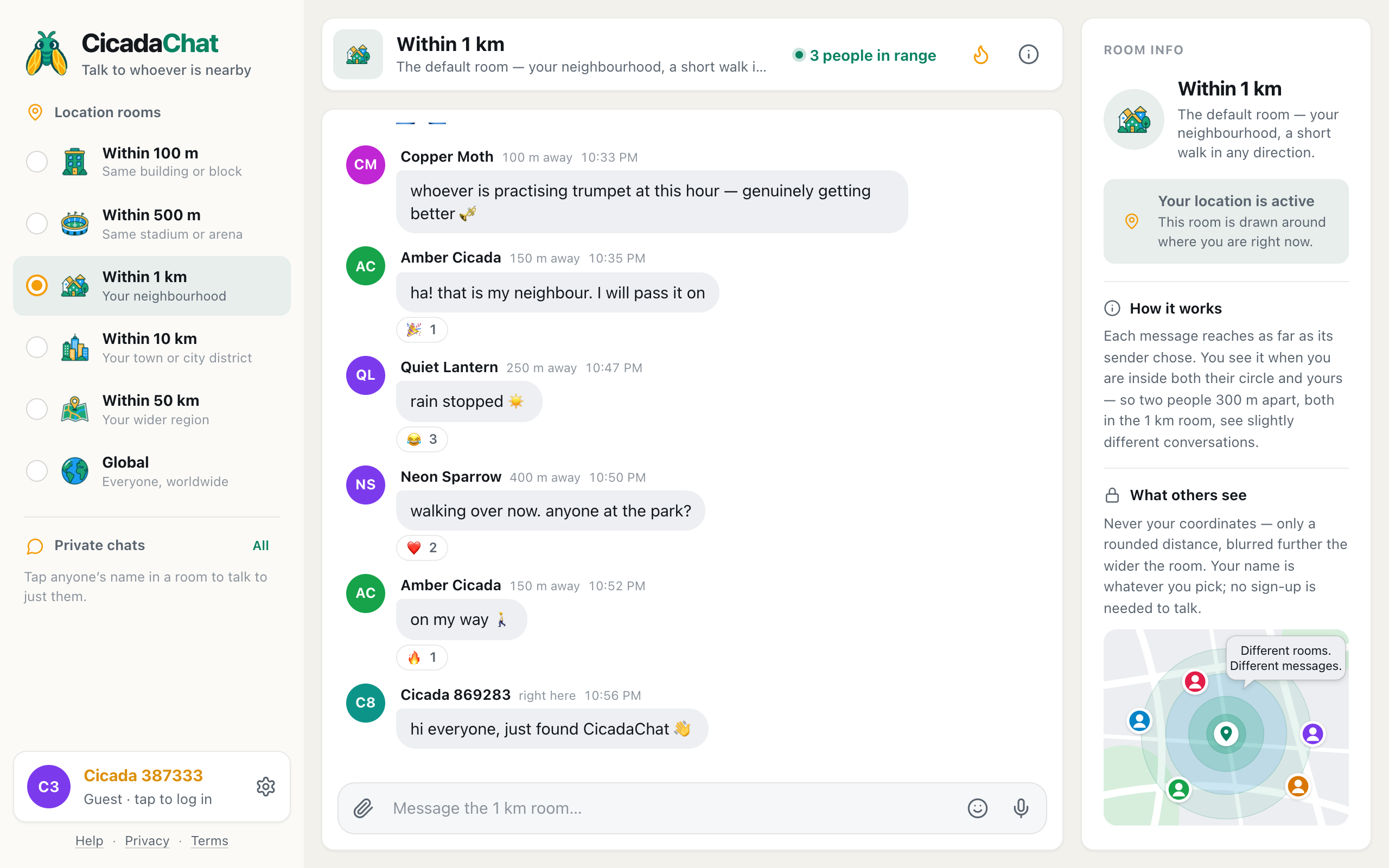
- The room name and a short description, such as Within 1 km and Your neighbourhood. Tap either for Room info, which explains how the room works.
- A green dot and a number: how many people are online and in range. Tap it for the People in range list.
- The flame switches to Hot, the past week's most-reacted messages.
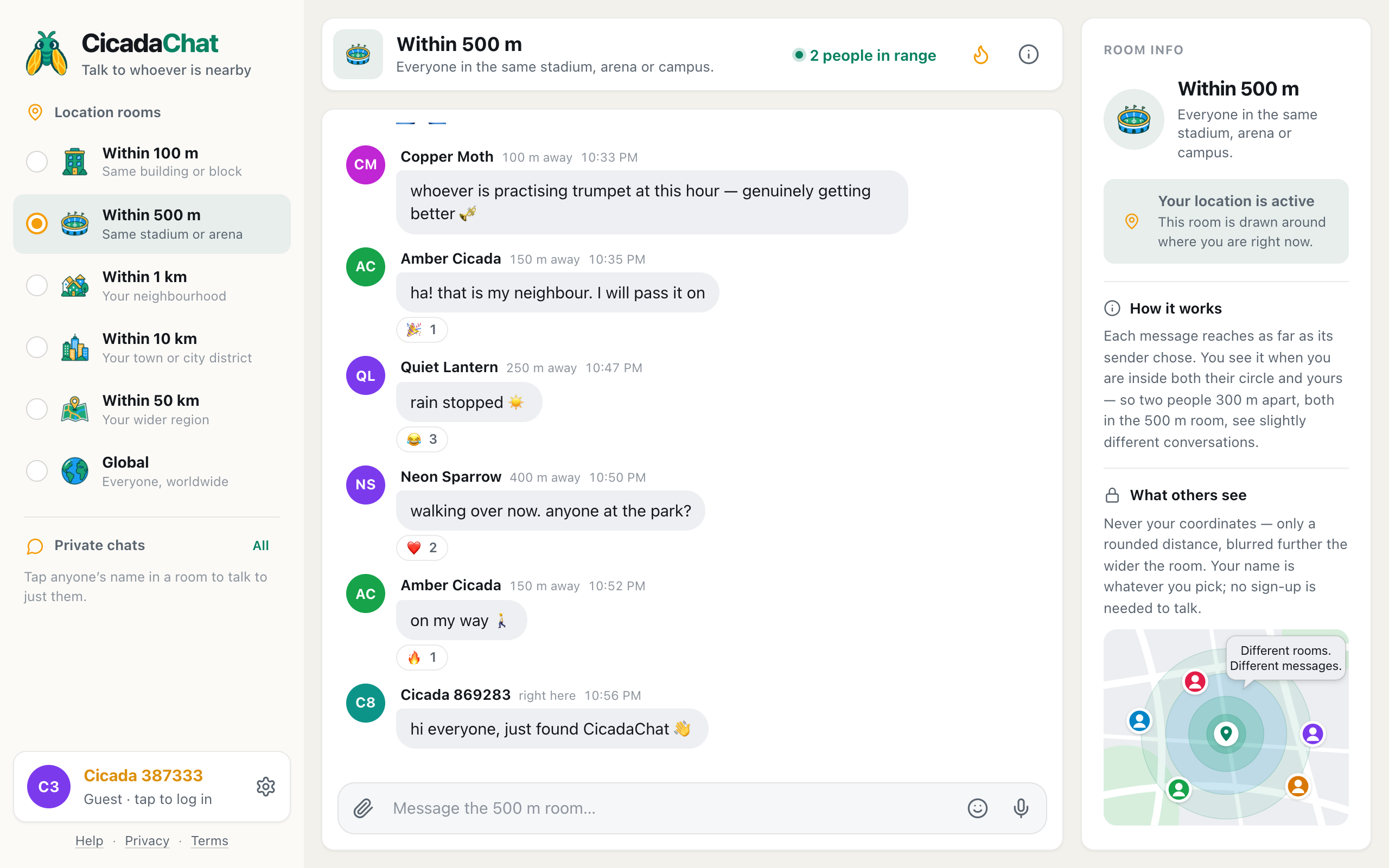
- The room tabs, from 100 m to Global. Swipe the row sideways to see them all, and tap one to switch.
- The message box at the bottom, with the paperclip for photos, documents and locations, the smiley for emoji, and the microphone for voice messages.
The sidebar
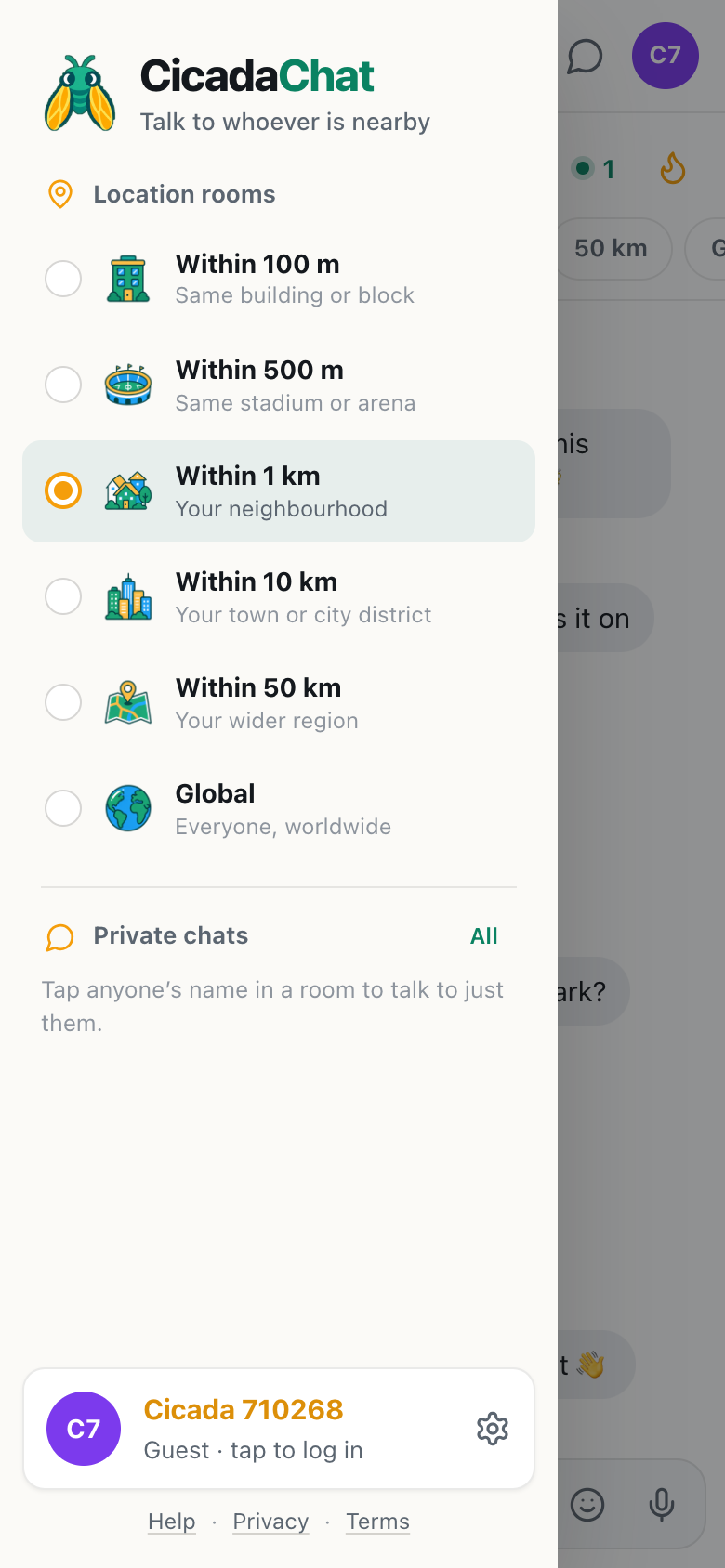
A screenshot of the sidebar on a phone, opened with the menu button at the top left.
The menu button opens the full list of rooms, each with its picture and description, your private chats, and, with an account, your friends and private rooms. At the bottom are your name, the settings gear and links to Help, Privacy and Terms. Tap outside it, or go back, to close it.
Things to know when using CicadaChat on a phone
- CicadaChat doesn't send notifications. New messages arrive live while CicadaChat is open on your screen. When you come back to it, the speech bubble and the numbers in your chat lists show what's unread in private chats and private rooms.
- Your location is only used while it's open. CicadaChat receives your position while its page is open and stops when you close it. It never tracks you in the background.
- Photos from your camera are made safe to share. Photos are re-encoded on your phone before they're sent. That makes them smaller and removes the GPS position that phone cameras store inside photos.
- Stay signed in on your own phone. When you log in, tick Keep me signed in for a year. Without it, you're signed out after a day or when the browser session ends.
If something goes wrong on a phone
- There's no "Add to Home Screen" on my iPhone. Make sure you're in Safari, or in a browser that offers it in its share menu, and not in a private browsing tab. Scroll to the bottom of the share list, since the option may be further down than you expect.
- It opens in the browser, not full screen. The icon was probably added as a plain bookmark. Remove it and add it again with the steps above.
- I'm a different guest in the home screen version. That's the iPhone's separate storage. Log in to your account there, or create one in Safari first so your guest chats come with you.
- New messages stopped arriving after my phone was locked. Phones pause web pages in the background, and the connection has to be made again when you return. If the room seems to have gone quiet, switch to another room and back, which reloads it and picks up everything you missed.
- The local rooms are greyed out. CicadaChat has no location. On an iPhone, check Settings → Privacy & Security → Location Services → Safari Websites. On Android, check that the phone's Location switch is on and that the browser is allowed to use it.
- A voice message won't record. Your browser needs permission to use the microphone. Allow it when asked, or turn it on in the browser's site settings.
Removing CicadaChat from your home screen
Press and hold the icon, then choose to remove it. On an iPhone that's Delete Bookmark or Remove App. On Android it's Remove or Uninstall, depending on how it was added. Removing the icon doesn't delete your CicadaChat account. If you have one, log in again in the browser and everything is there.
On an iPhone, removing the home screen version also removes its storage. If you only ever used it as a guest, that guest account can't be recovered, so create an account first if you want to keep your private chats.
No comments yet. Start the conversation.