
How to log in to CicadaChat
Log in to CicadaChat with your username or email on any device. Keep me signed in, signing out, and what to do when logging in doesn't work.
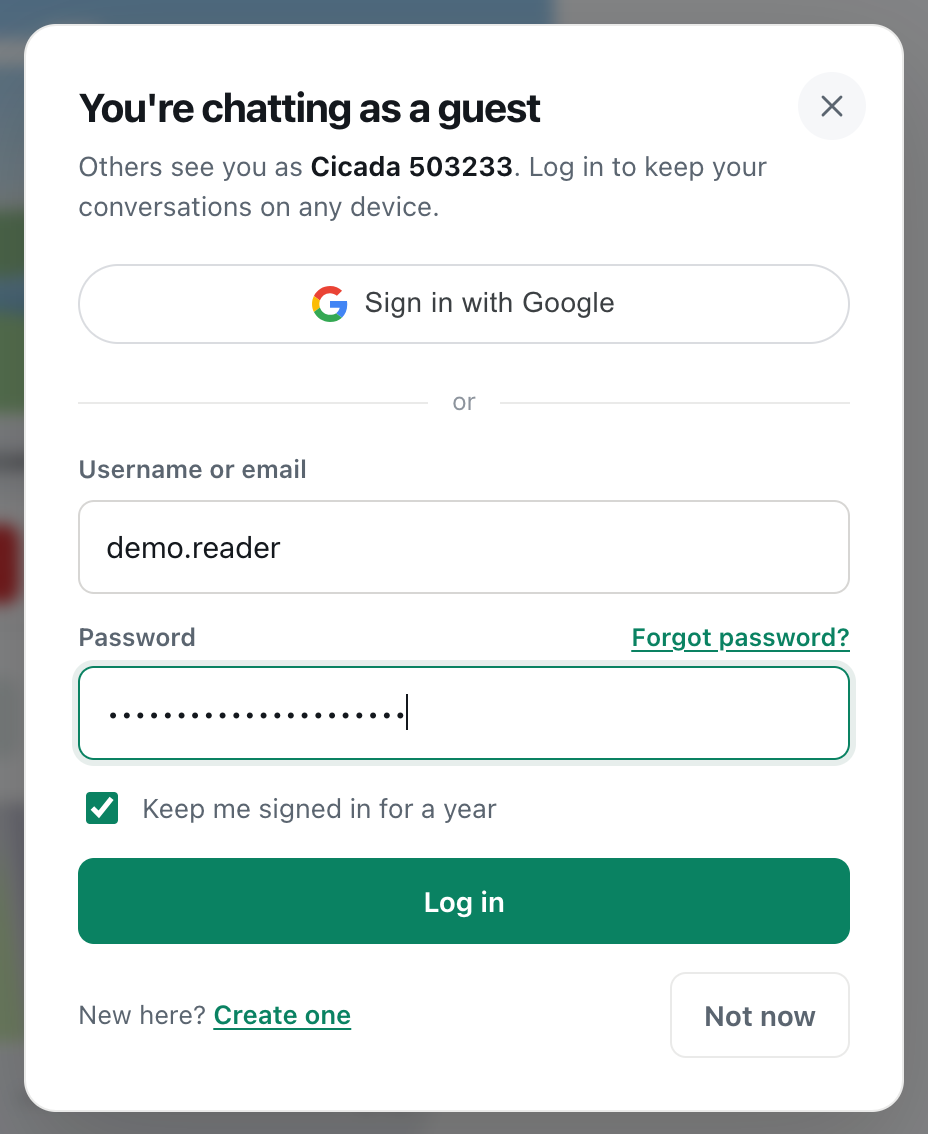
Once you have a CicadaChat account, you can log in on any phone, tablet or computer and find your name, your private chats, your friends and your private rooms waiting. This guide shows how to log in to CicadaChat with your username or email, what "Keep me signed in" means, how to sign out, and what to do when logging in doesn't work.
A screenshot of the log in dialog, opened from a guest name, ready to press Log in.
How to log in to CicadaChat
- Open cicadachat.com. Until you log in, you're chatting as a guest.
- Click your guest name at the bottom of the sidebar, where it says Guest · tap to log in. On a phone, tap the coloured circle at the top right of the screen.
- A dialog opens, headed You're chatting as a guest.
- In Username or email, type either your username (for example demo.reader) or the email address on your account. Capital letters don't matter.
- Type your Password.
- Leave Keep me signed in for a year ticked on your own device, or untick it on a shared computer.
- Press Log in.
If you signed up with Google, press Sign in with Google at the top of the dialog instead. See How to sign in to CicadaChat with Google.
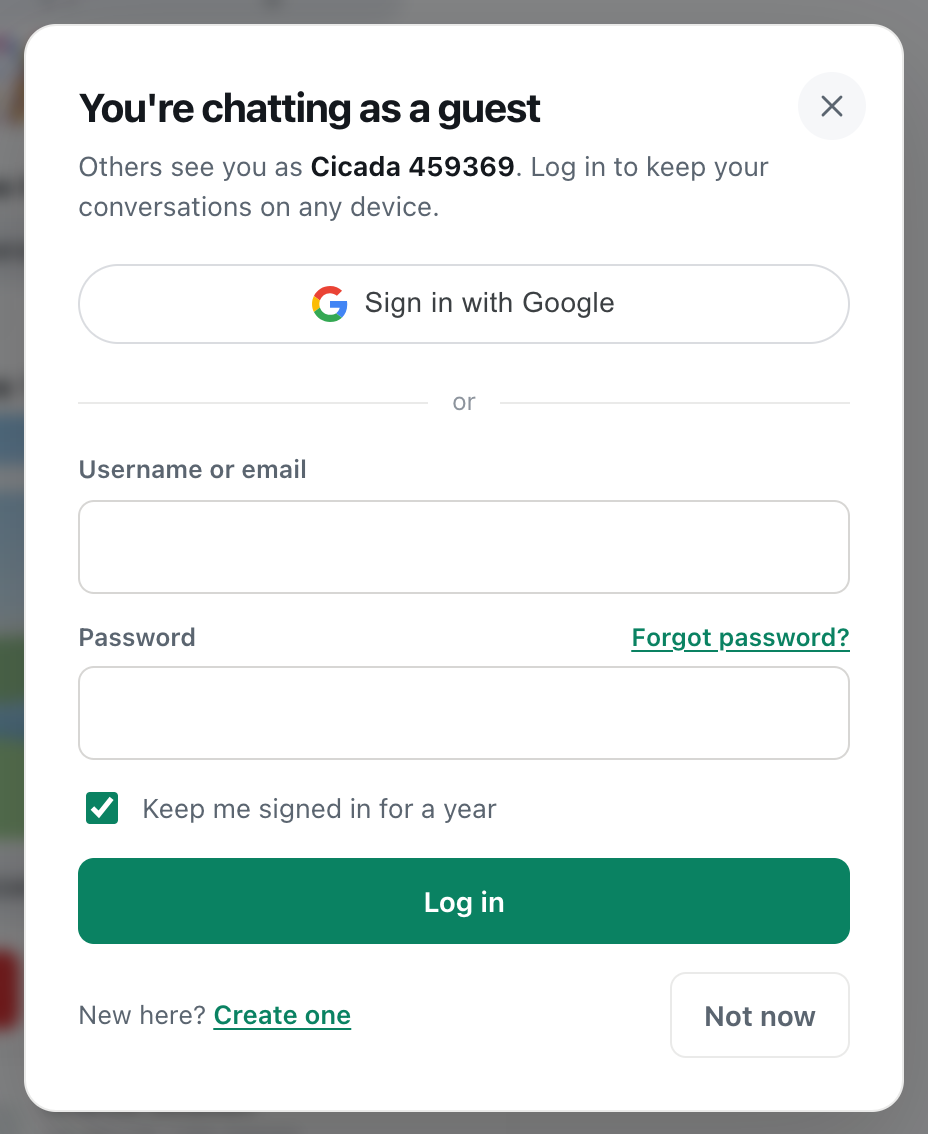
A screenshot of the empty log in dialog. Forgot password? sits next to the password label.
Username, email or full name: which one to type
An account has three names, and only two of them work for logging in:
| Name | Example | Log in with it? | Who sees it |
|---|---|---|---|
| Username | demo.reader | Yes | Your friends, and people who search for you |
| Email address | reader@example.com | Yes | Nobody but you |
| Full name | Demo Reader | No | Everyone, in rooms |
A common mistake is typing the name people see in rooms, like "Demo Reader". That's the Full name, which can contain spaces and doesn't have to be unique, so it can't be used to log in. Use the username or the email instead. To check your username, look at the bottom of the sidebar on a device where you're logged in: it's the line starting with @.
What you see once you're logged in
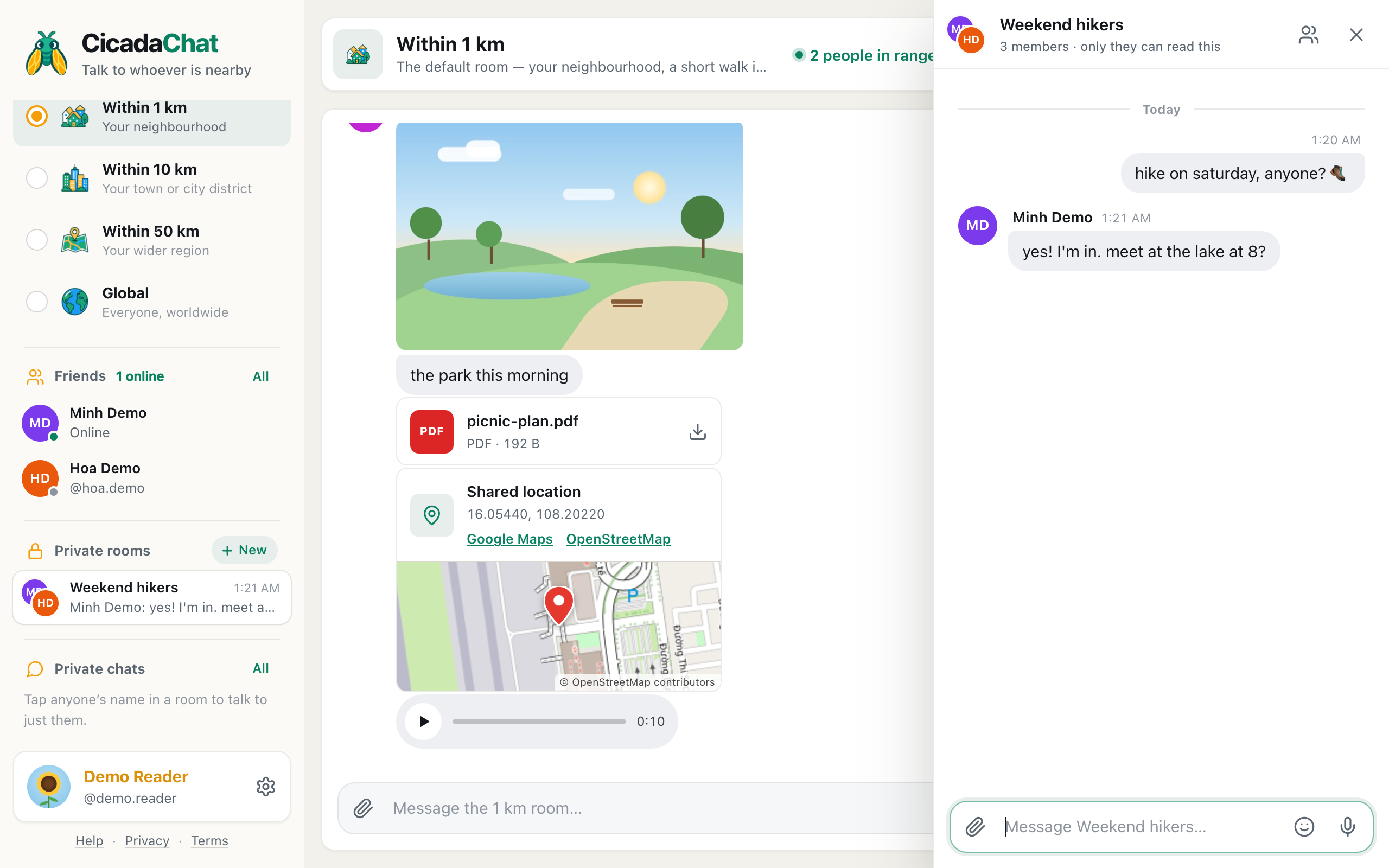
The dialog closes, and the bottom of the sidebar changes from your guest name to your account: your photo, your Full name and your username.
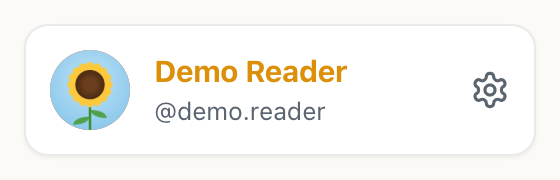
A screenshot of the bottom of the sidebar once you're logged in.
- Friends and Private rooms appear in the sidebar.
- Private chats lists your account's conversations, from any device.
- In rooms, people see your name and photo on everything you send from now on.
Your guest chats stay with the guest
Logging in switches from the guest to your account. It doesn't merge the two. Private chats you had as a guest in this browser stay with that guest, and they don't appear in your account. (Creating an account is different: it turns your guest into the new account, chats included.) If you sign out later on the same browser, you're back to that guest, conversations and all.
Logging in on more than one device
You can be logged in on as many devices as you like at the same time: a phone, a laptop and a tablet, for example. Messages, private chats and friends are the same everywhere. New messages appear live on every device that has CicadaChat open.
Some things belong to the device rather than the account, so they don't follow you: the room you last picked, your light or dark theme, and whether location is allowed. Set those on each device.
Logging in on a phone
On a phone, tap the coloured circle at the top right of the screen to open the dialog. Your phone's password manager, such as iCloud Keychain or Google Password Manager, can fill in the username and password for you, and offer to save them the first time. With Keep me signed in for a year ticked, you won't need to log in again on that phone.
If you've added CicadaChat to an iPhone's home screen, log in there once as well. The home screen version keeps its own storage, separate from Safari, so it doesn't know you're logged in in Safari.
Logging in on someone else's device
Borrowing a friend's laptop, or using a computer in a library or hotel? A few precautions:
- Use a private or incognito window if you can. Everything is forgotten when you close it.
- Untick Keep me signed in for a year.
- If the browser offers to save your password, say no.
- When you've finished, open Your account and press Sign out, then close the window.
If you forget to sign out, change your password from your own device. That signs out every other device, including the one you left behind.
Switching between accounts
Each browser holds one account at a time. To switch, sign out, then log in with the other account. To use two accounts side by side, for example a personal one and one for your business, use two different browsers, or a normal and a private window.
Keep me signed in for a year
The checkbox under the password decides how long this device stays logged in:
- Ticked: you stay logged in on this browser for a year, even after closing it or restarting the device.
- Unticked: you're logged out when the browser session ends, and after a day at most. Use this on shared or public computers, like a library or a friend's laptop.
The Help article Staying signed in: what "Keep me signed in for a year" does explains the details.
Signing out
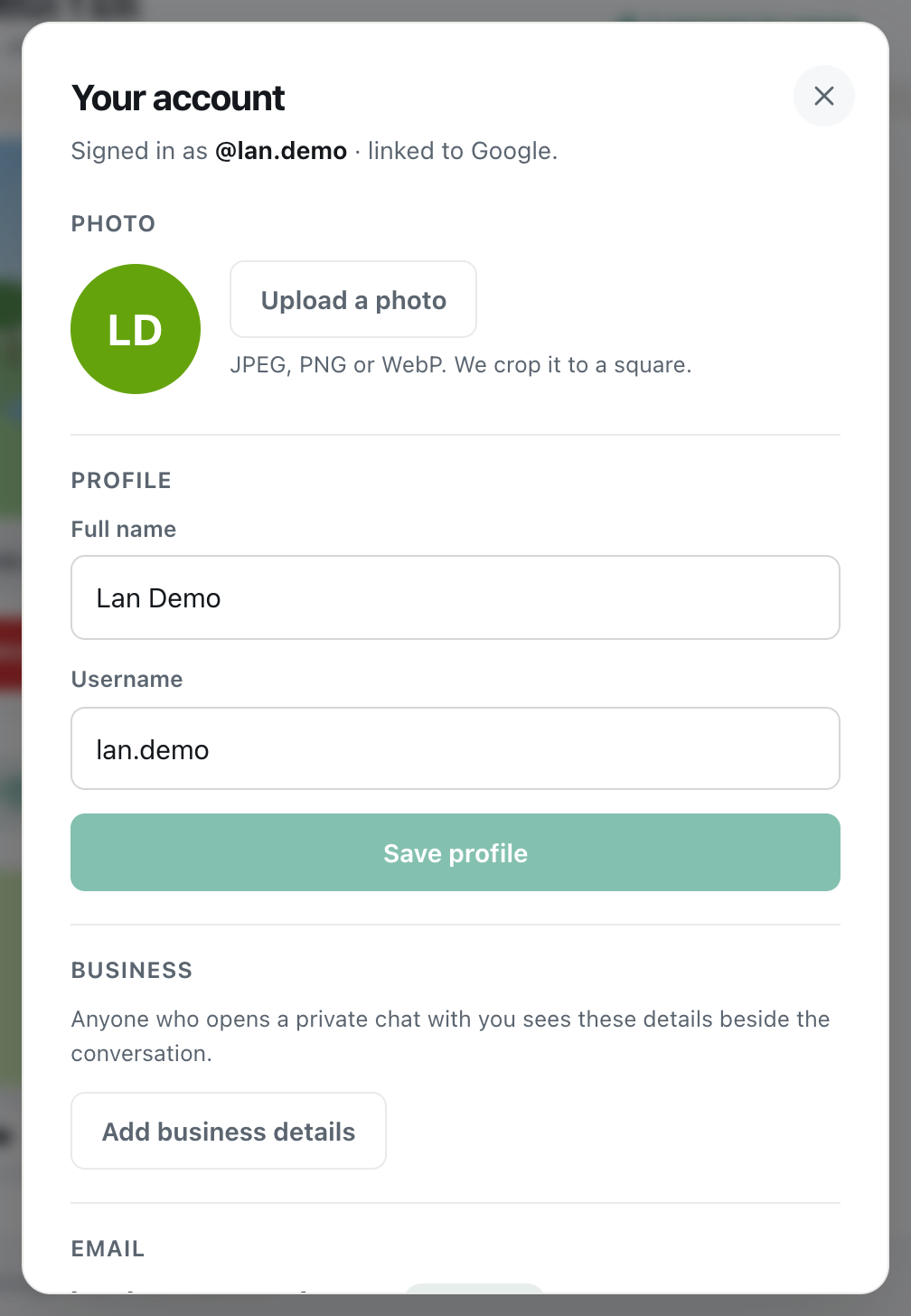
- Click your name at the bottom of the sidebar (or your photo at the top right on a phone) to open Your account.
- Scroll to the bottom and press Sign out.

A screenshot of the bottom of Your account, where Sign out is.
You're signed out on this device only, and CicadaChat carries on as a guest, so you can still read and chat. Your other devices stay logged in. To sign out everywhere at once, change your password: that ends every other session. See How to change your password and sign out of every device.
After signing out, you'll see a guest name again. If you created your account from this browser's guest, it's a brand-new guest name, because the old guest became your account. If you logged in to an existing account, it's the guest you were before logging in.
If logging in doesn't work
"That username or email and password do not match."
This one message covers every wrong combination, on purpose: CicadaChat doesn't say whether the username exists, so nobody can use the login form to find out who has an account. Check:
- The username. It's the one in Your account, without the @. If you changed it, use the new one. Or use your email address instead.
- The email address. If you changed your email, the old address no longer works for logging in.
- The password. Passwords are case-sensitive. Check Caps Lock, and whether your phone capitalised the first letter.
- Google. If you created the account with Google and never set a password, there's no password to type. Use Sign in with Google, or set a password with Forgot password?.
Still stuck? Press Forgot password? next to the password label to get a link to choose a new one. See Forgot your password? How to reset it.
"Enter your username or email."
The first box is empty. Type your username or email address.
You're asked to wait
After many login attempts from the same connection in a short time, CicadaChat stops accepting more for up to 15 minutes. This protects accounts from people guessing passwords. Wait, then try again carefully, or reset your password.
You were logged out unexpectedly
- The password was changed, by you on another device or through a reset link. That signs out every other device. Log in with the new password.
- "Keep me signed in for a year" was unticked, so the session ended with the browser, or after a day.
- The browser's data was cleared, or you're in a private window. Log in again.
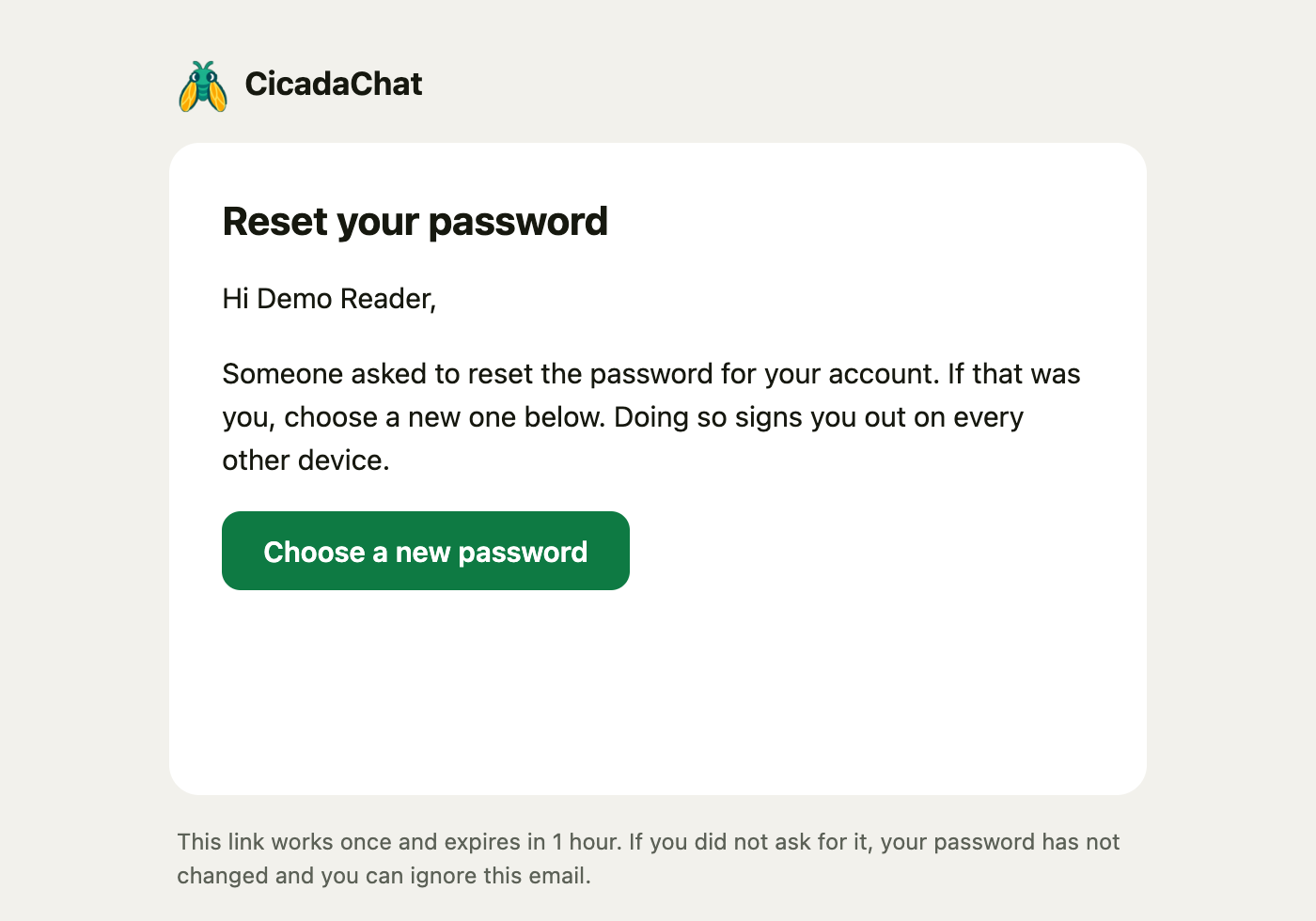
If your password was changed and it wasn't you, reset it straight away with Forgot password?. CicadaChat also emails you whenever your password changes, with a link to do exactly that.
Keeping your account safe
- Use a password you don't use anywhere else. A password manager can create and remember a strong one for you.
- Untick "Keep me signed in" on shared computers, and sign out when you've finished.
- Keep your email address up to date in Your account, so reset links can reach you.
- Never share your password, not even with someone claiming to be from CicadaChat. Nobody from CicadaChat will ever ask for it.
Questions about logging in
Can I log in with my phone number?
No. CicadaChat accounts don't use phone numbers. Log in with your username or email and your password, or with Google.
Do I have to confirm my email before I can log in?
No. You can log in straight after creating your account. Confirming your email is still worth doing, so that password reset links reach the right inbox.
Does logging in change which room I see?
No. Rooms are drawn around the device you're holding, not the account. Logging in on a laptop at home and a phone across town gives you two different 1 km rooms, one around each device.
No comments yet. Start the conversation.