
Staying signed in: what "Keep me signed in for a year" does
What the Keep me signed in for a year checkbox does, when to untick it on shared computers, and how to sign out of one device or every device at once.
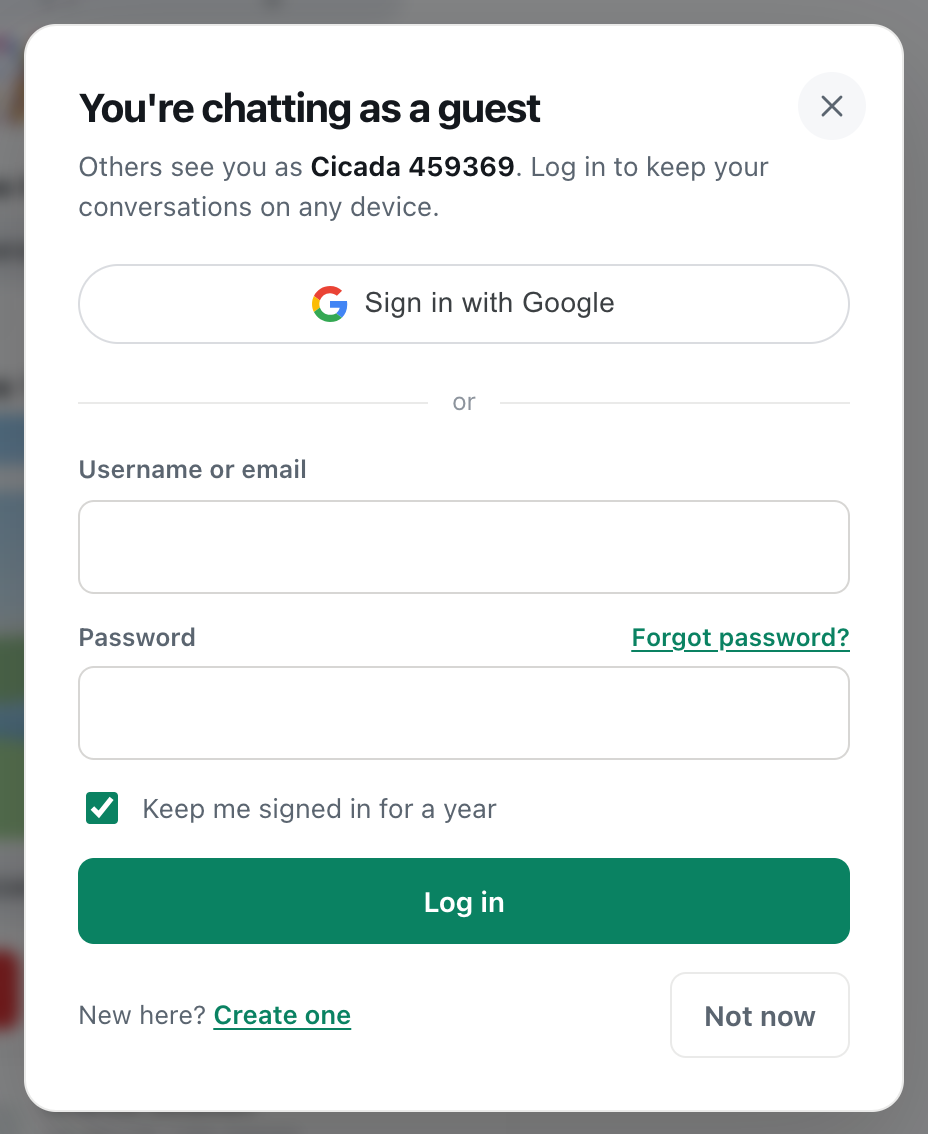
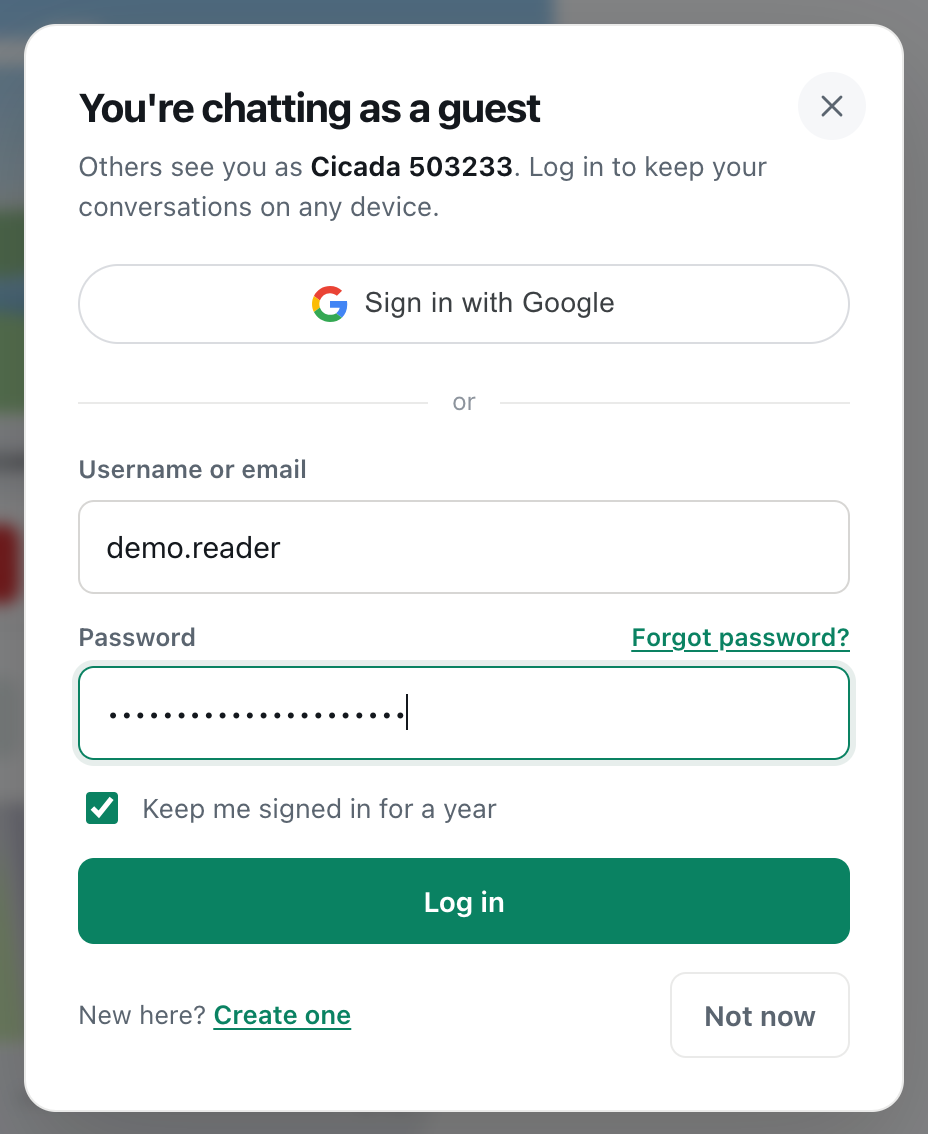
Every time you log in to CicadaChat, or create an account, there's a checkbox under the password: Keep me signed in for a year. It's ticked unless you untick it. This article explains exactly what "Keep me signed in for a year" does, when to leave it ticked and when to untick it, and how to sign out of one device or all of them.
A screenshot of the log in dialog. The checkbox is ticked unless you untick it.
What "Keep me signed in for a year" does
When you log in, CicadaChat gives your browser a pass that proves who you are. The checkbox decides how long that pass lasts and where the browser keeps it.
| Ticked | Unticked | |
|---|---|---|
| How long you stay logged in | A year | Until you close the tab, and a day at most |
| After closing the browser or restarting the device | Still logged in | Logged out |
| Opening CicadaChat in another tab | Logged in there too | Not logged in there. That tab opens as a guest |
| Good for | Your own phone, laptop or tablet | Shared, borrowed and public computers |
The same checkbox appears on the log in form and the sign-up form, and it also applies when you use Sign in with Google or Continue with Google: tick or untick it before pressing the Google button.
When to leave it ticked
On a device that's yours alone, keep it ticked. You'll open CicadaChat and find yourself logged in, straight into your room, with your private chats and friends ready. That's especially handy on a phone, and if you've added CicadaChat to your home screen.
A year after you logged in, the pass runs out, and you're asked to log in again. Logging in again starts a new year.
When to untick it
Untick it whenever other people use the same device or the same browser profile:
- a computer in a library, school, hotel or internet café,
- a friend's or colleague's laptop,
- a family computer or tablet that everyone shares.
With the box unticked, CicadaChat keeps your login only in the tab you logged in from. When you close that tab, or quit the browser, you're logged out, and the next person to open CicadaChat finds a guest, not your account. Even if the tab stays open, the login ends after a day.
For extra safety on a public computer, also use a private or incognito window, say no if the browser offers to save your password, and sign out when you've finished.
One thing to know about unticking it
Because an unticked login lives in a single tab, opening CicadaChat in a second tab, or following a link that opens a new tab, shows you as a guest there. Carry on in the original tab, or log in again in the new one. Reloading the original tab keeps you logged in.
Examples: ticked or unticked?
- Your own phone, with a screen lock. Ticked. You'll rarely see the log in form again.
- Your own laptop. Ticked, unless other people use your user account on it.
- A family tablet. Unticked, or give each person their own browser profile. Otherwise whoever picks it up next is chatting as you.
- A work computer. Unticked if colleagues or an IT department also use it, or if you sometimes leave it unlocked at your desk.
- A library, hotel or school computer. Unticked, in a private window, and sign out before you leave.
- A friend's phone, just this once. Unticked. Better still, use a private tab in their browser, and close it afterwards.
Each device makes its own choice
The checkbox applies to the device and browser you're logging in on, and nowhere else. You can stay signed in for a year on your phone, while logging in unticked on a library computer. Each login has its own year, or its own single session. Logging in on a new device doesn't sign you out of the others.
Your account is the same everywhere: the same name, private chats, friends and private rooms. Only the login itself is per device.
Emails that tell you something changed
CicadaChat emails you when something important happens to your account, so you'd know if it wasn't you:
- Your CicadaChat password was changed, sent whenever your password is changed, set or reset. It includes a link to reset the password if you didn't make the change.
- Your CicadaChat email was changed, sent to your old address when your email is switched to a new one, again with a link to reset your password if it wasn't you.
If you get one of these and didn't make the change, use the link in the email, or Forgot password? in the log in dialog, to choose a new password. That signs out everyone, including whoever made the change.
What about guests?
The checkbox is about logging in to an account. A guest account has no such choice: it always stays with the browser, for as long as the browser keeps its storage. Clearing the browser's data, or using a private window, starts a new guest.
How to sign out of one device
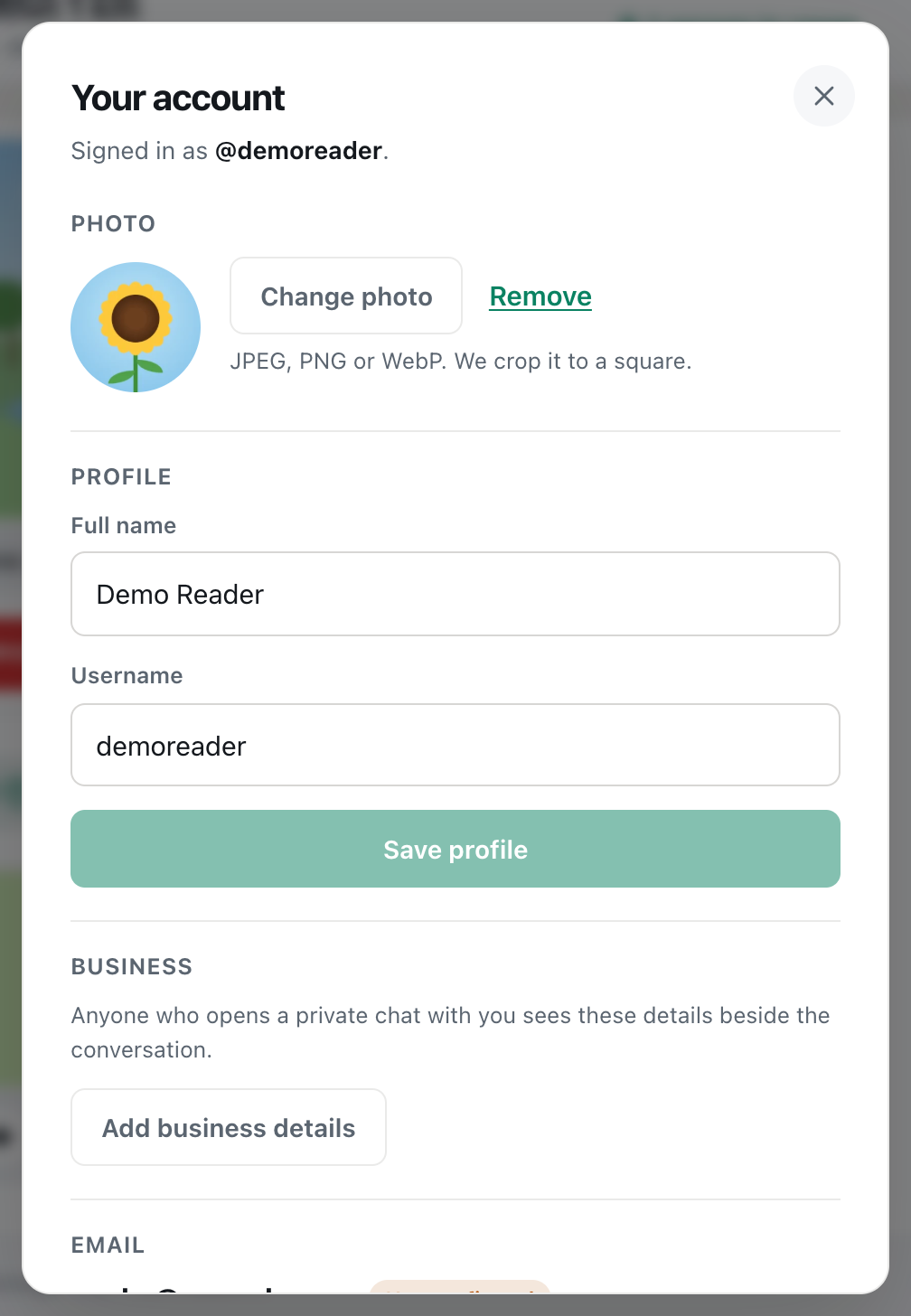
- Click your name at the bottom of the sidebar, or your photo at the top right on a phone, to open Your account.
- Scroll to the bottom and press Sign out.

A screenshot of the bottom of Your account. Sign out signs you out of this device only.
You're signed out of this browser only, and CicadaChat carries on as a guest. Your other devices stay logged in.
How to sign out of every device at once
Lost your phone? Logged in on a library computer and forgot to sign out? Change your password. That ends the login on every other device, wherever it is, and keeps you logged in on the one you're using.
- Open Your account.
- In Password, press Change password.
- Type your Current password and a New password.
- Press Save password. CicadaChat confirms: Password saved. Every other device has been signed out.
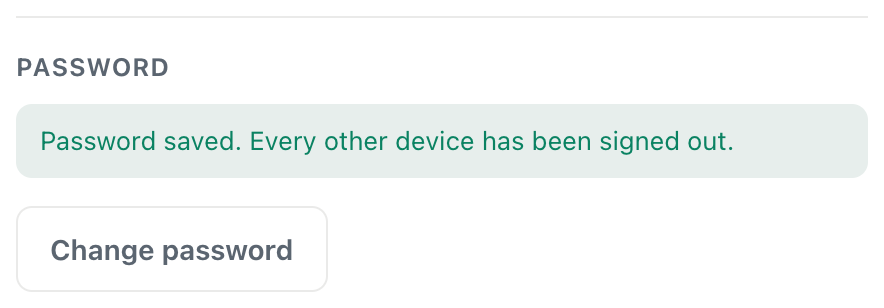
A screenshot of the message after changing your password, the way to sign out everywhere at once.
Resetting your password with Forgot password? does the same, and signs out every device, including the one you're using, so you log in afresh with the new password. The Help article How to change your password and sign out of every device has more.
If you signed up with Google and have no password, set one in Your account. Setting a password for the first time signs out the other devices in the same way.
Your login and this browser's guest
Every browser starts with a guest. When you log in, your account takes the guest's place in that browser, and the guest simply waits in the background. It comes back when your login ends: after you sign out, after an unticked session closes, or in another tab when the box was unticked. Its private chats are still there, separate from your account's.
If you created your account from this browser's guest, that guest became your account, so a fresh guest, with a new Cicada name, appears instead.
If you think someone else is using your account
- On a device where you're logged in, open Your account and change your password straight away. Every other login ends.
- Check the rest of Your account for anything you didn't change: your name, username, photo or email address. Put back anything that's wrong.
- If you can't log in at all, use Forgot password? in the log in dialog to get a reset link.
- Choose a new password you don't use anywhere else, and keep your email address up to date so reset links always reach you.
Why you might be logged out
- The box was unticked and you closed the tab, or a day passed.
- A year has passed since you logged in with the box ticked.
- Your password was changed or reset, on this device or another. Every other login ends.
- The browser's data was cleared, by you, by a cleaning app, or because you were in a private window.
- You signed out, in Your account.
In every case, just log in again. Your account, your chats and your friends are all still there. If you didn't change your password and were logged out anyway, or you get an email saying your password was changed when you didn't change it, reset your password straight away with Forgot password?: see how to reset your password.
Questions about staying signed in
Does staying signed in mean CicadaChat tracks my location all year?
No. Staying signed in only means you don't have to type your password. CicadaChat receives your location only while its page is open, whether you're signed in or not.
Can I change my choice without logging in again?
No. The choice is made when you log in. To change it, sign out, then log in again with the box ticked or unticked.
Is it safe to stay signed in on my phone?
On a phone that only you use, with a screen lock, yes. Anyone who can unlock your phone could open CicadaChat as you, just as with any other app, so keep a screen lock on.
I ticked it but was still asked to log in on my iPhone's home screen.
The home screen version keeps its own storage, separate from Safari. Log in there once, with the box ticked, and it will remember you too.

No comments yet. Start the conversation.