
The 100 m room: chatting with the people in your building or on your block
The smallest room on CicadaChat reaches only the people within 100 m of you: your building, your block, the café across the road. Here's how it works and what it's good for.
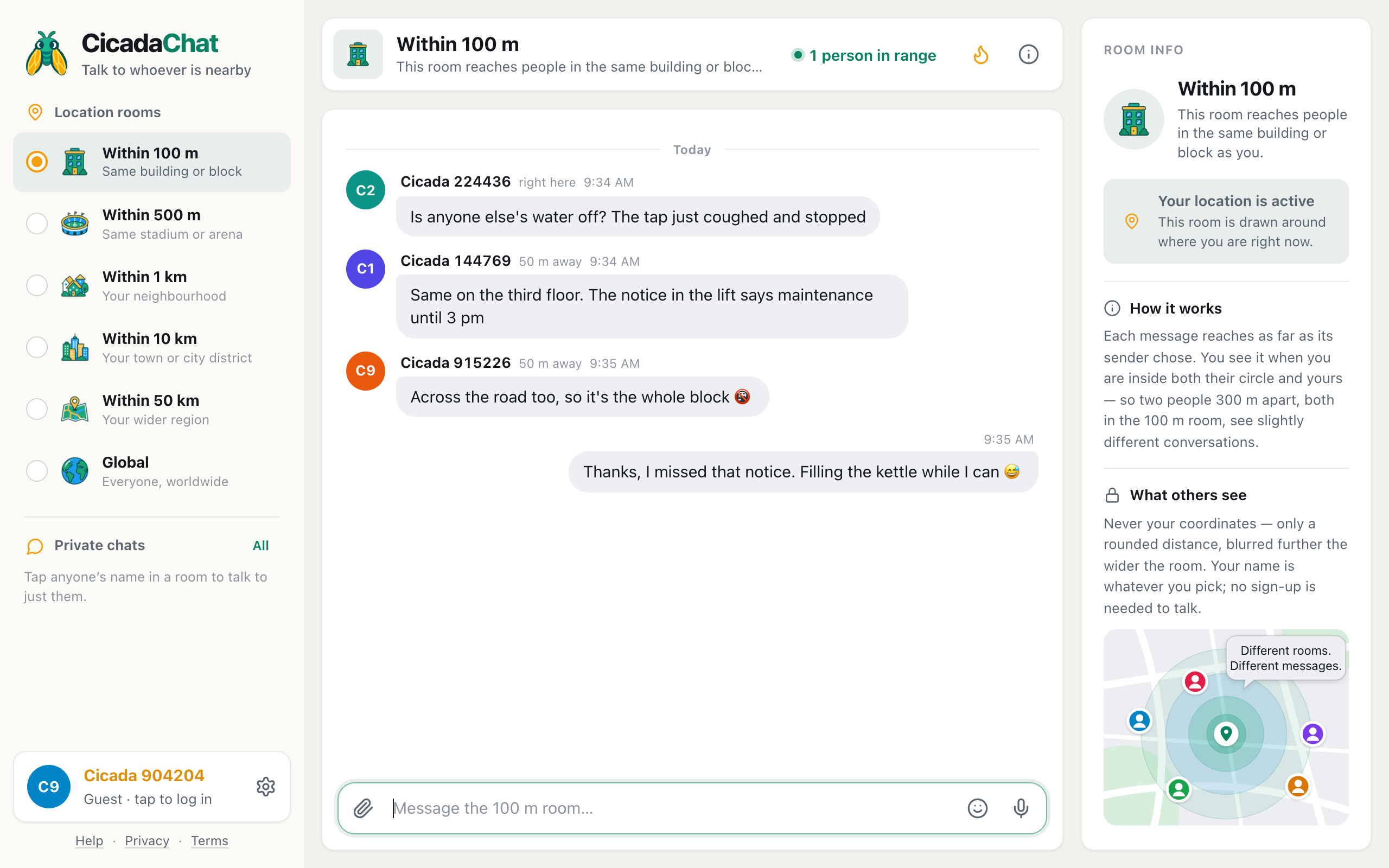
The 100 m room is the smallest circle on CicadaChat. It's how you chat with the people in your building or on your block: the neighbours behind the wall, the office two floors up, the café across the road. There's no group to find and nobody to ask for an invite. You open CicadaChat, tap Within 100 m, and everyone who can read you is, quite literally, a short walk away.
This article explains what the 100 m room is, how it decides who hears you, what the people around you can and can't see, and what it's good for. If you've never used CicadaChat before, you can follow along in your browser right now, without signing up.
What the 100 m room is
Most chat apps are built around groups: a building group, a street group, a parents' group. Somebody has to create it, somebody has to add you, and it slowly fills with people who moved away years ago. CicadaChat works the other way round. A room isn't a place you join. It's a circle drawn around you, wherever you are right now.
The app offers six of those circles, from tightest to widest: 100 m, 500 m, 1 km, 10 km, 50 km and Global. The 100 m room sits at the top of the ladder. Its label in the app is Within 100 m, with the line Same building or block underneath, and its header reads "This room reaches people in the same building or block as you."
A hundred metres is about the length of a football pitch. From your front door, that usually takes in your own building, the ones on either side, and the buildings facing you across the street. In a dense city that can be hundreds of people. In a suburb it might be a dozen houses. Either way, it's the people you share a lift, a staircase, a car park or a bus stop with.
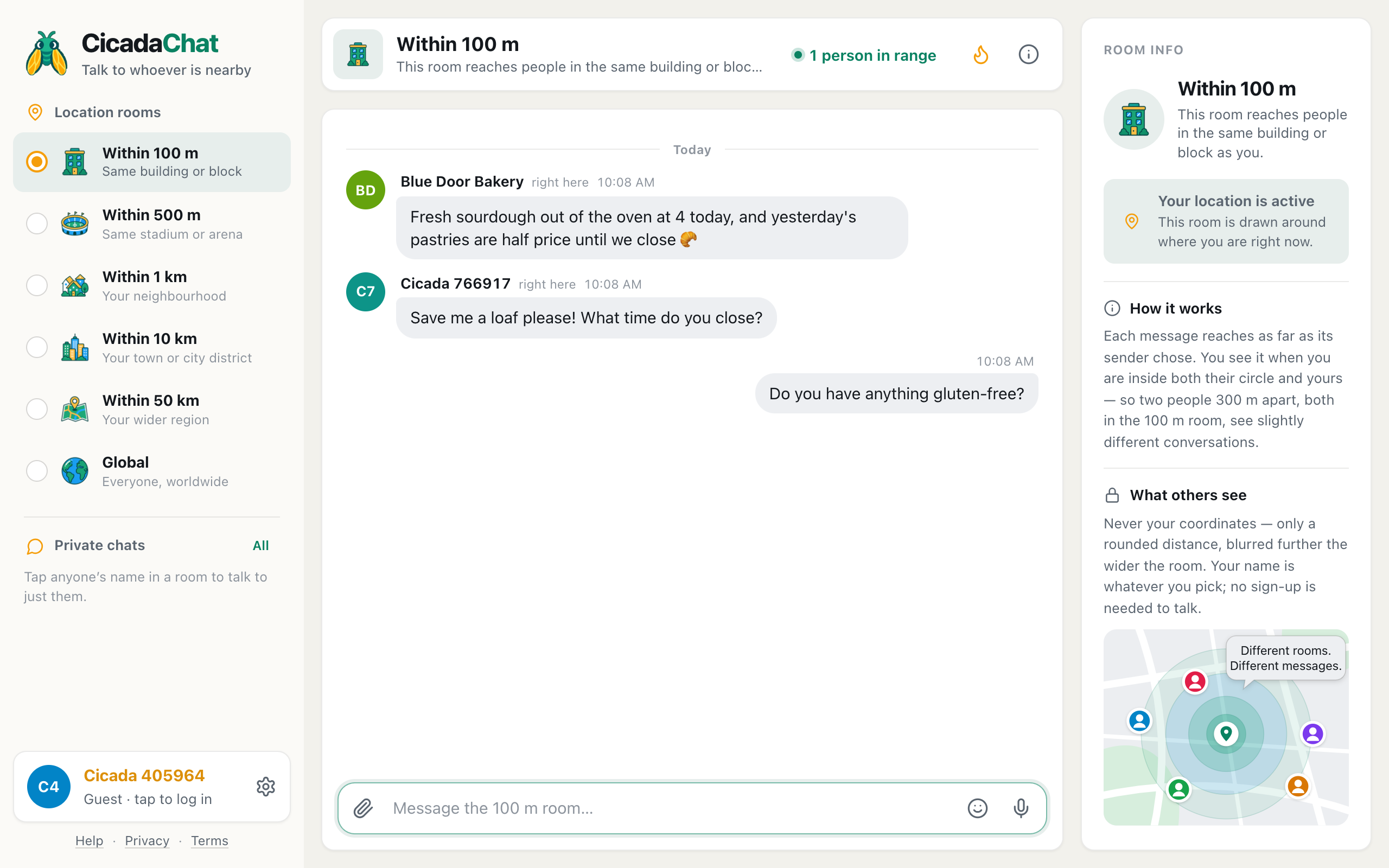
A screenshot of the Within 100 m room on a computer. Next to each name you see how far away that person was when they wrote: right here, or 50 m away.
How to open the 100 m room
When you first open CicadaChat and allow your location, you land in the 1 km room, your neighbourhood. Moving down to the 100 m room is one tap:
- Open cicadachat.com and allow location when your browser asks.
- On a computer, pick Within 100 m at the top of the Location rooms list on the left.
- On a phone, tap the 100 m tab, the first one in the row of tabs under the header.
- Type in the box that says Message the 100 m room… and press Enter to send.
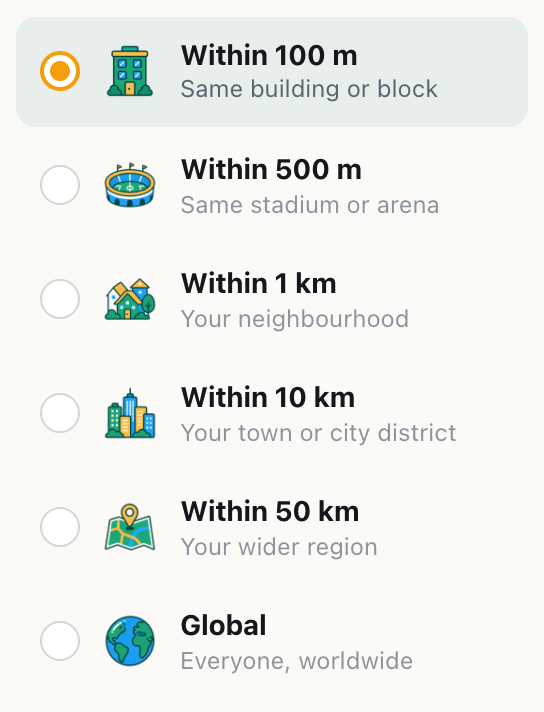
A screenshot of the room list in the sidebar. Within 100 m is the first rung, marked Same building or block.
CicadaChat remembers the room you last used in that browser, so if the 100 m room becomes your usual spot, you'll be back in it the next time you open the app.
The room needs your location, because without it there's no circle to draw. If you declined the location prompt, the 100 m room is greyed out, and hovering over it says Share your location to use this room. You can still chat in the Global room in the meantime, and turn location on whenever you're ready.
Who hears you, and whose messages you see
This is the part that makes CicadaChat different from a group chat, and it's worth two minutes to get right.
Every message remembers two things: where it was sent from, and the radius its sender chose, which is simply the room they were in when they pressed send. You see a message when you're inside both circles: the sender's and your own. In other words, a message reaches you when the distance between you is no more than the smaller of the two radiuses.
Here's what that means for the 100 m room in practice:
- What you say reaches only people within 100 m of you. Someone 300 m away in the 1 km room won't see it, even though their room is bigger. Choosing 100 m is a promise that your message stays on your block.
- What you hear is everything said within 100 m of you, in any location room. If a neighbour 60 m away writes in the 1 km room, their message reaches you in the 100 m room too, because you're inside their circle and they're inside yours.
- The Global room is separate. Global messages never appear in the 100 m room, and nothing you say in the 100 m room appears in Global.
So the 100 m room is both the quietest place to listen and the most private place to speak. You hear only what's being said very close by, and only the people very close by hear you.
There's one more consequence. Because each circle is drawn around a person, not a building, two people sitting in the 100 m room 80 m apart don't see exactly the same conversation. Each of them sees what's within 100 m of them. The overlap is large, but the edges differ. The article on why two people in the same room can see different messages walks through that in detail.
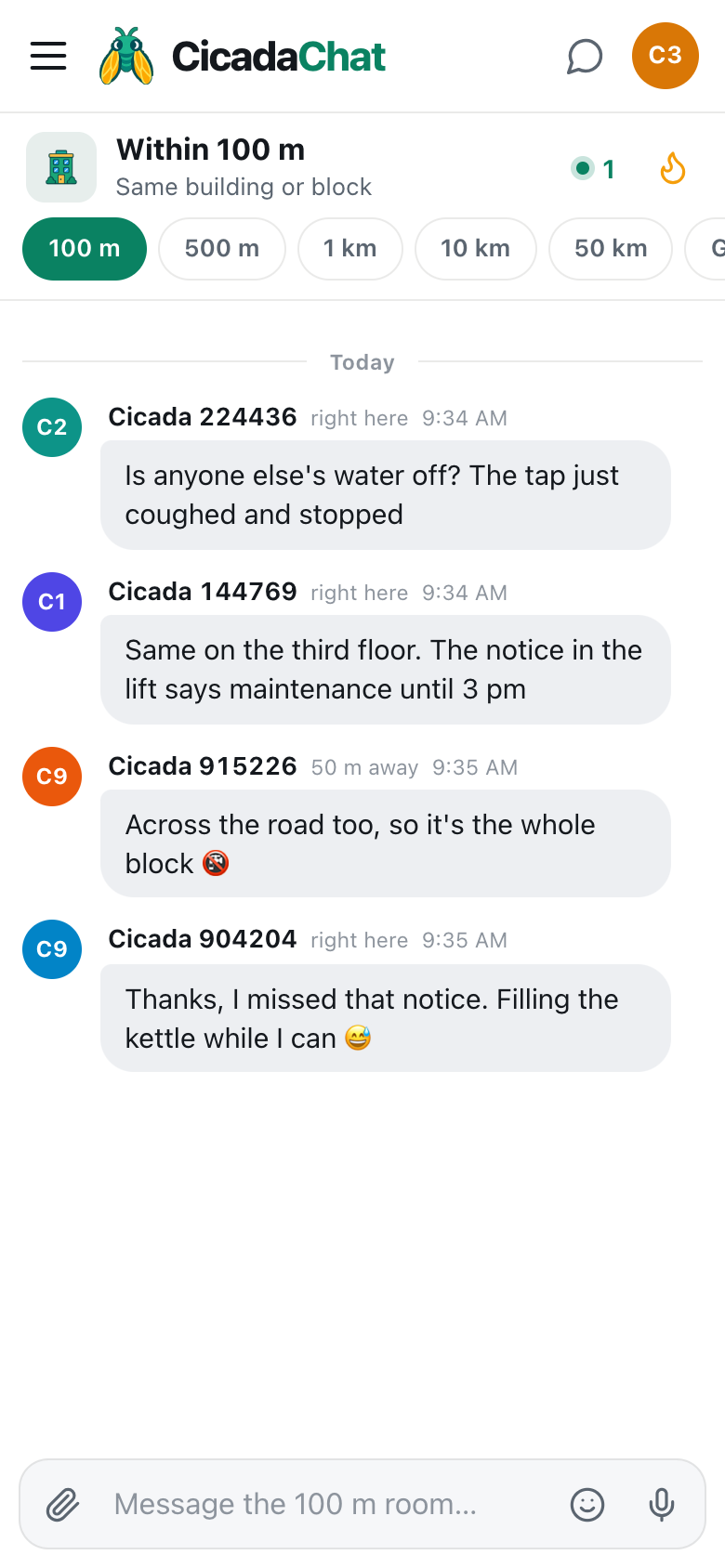
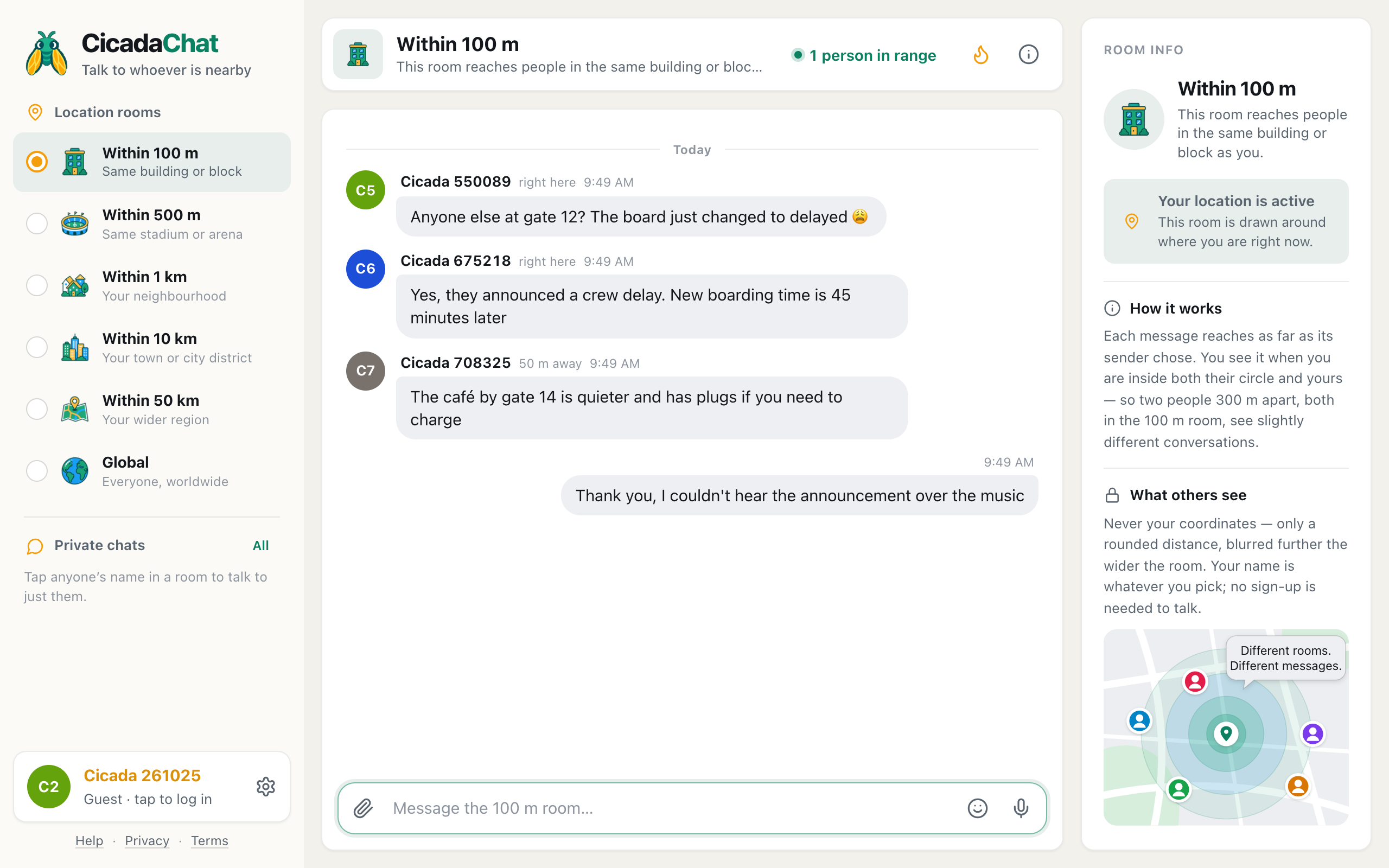
A screenshot of the same conversation on a phone, seen from a few metres away. The distances changed, because they are measured from whoever is reading.
What your neighbours can see about you
In a room this small, it's natural to wonder how much the person across the hall can work out. Here's exactly what CicadaChat shows and what it keeps back.
A rounded distance, never your coordinates
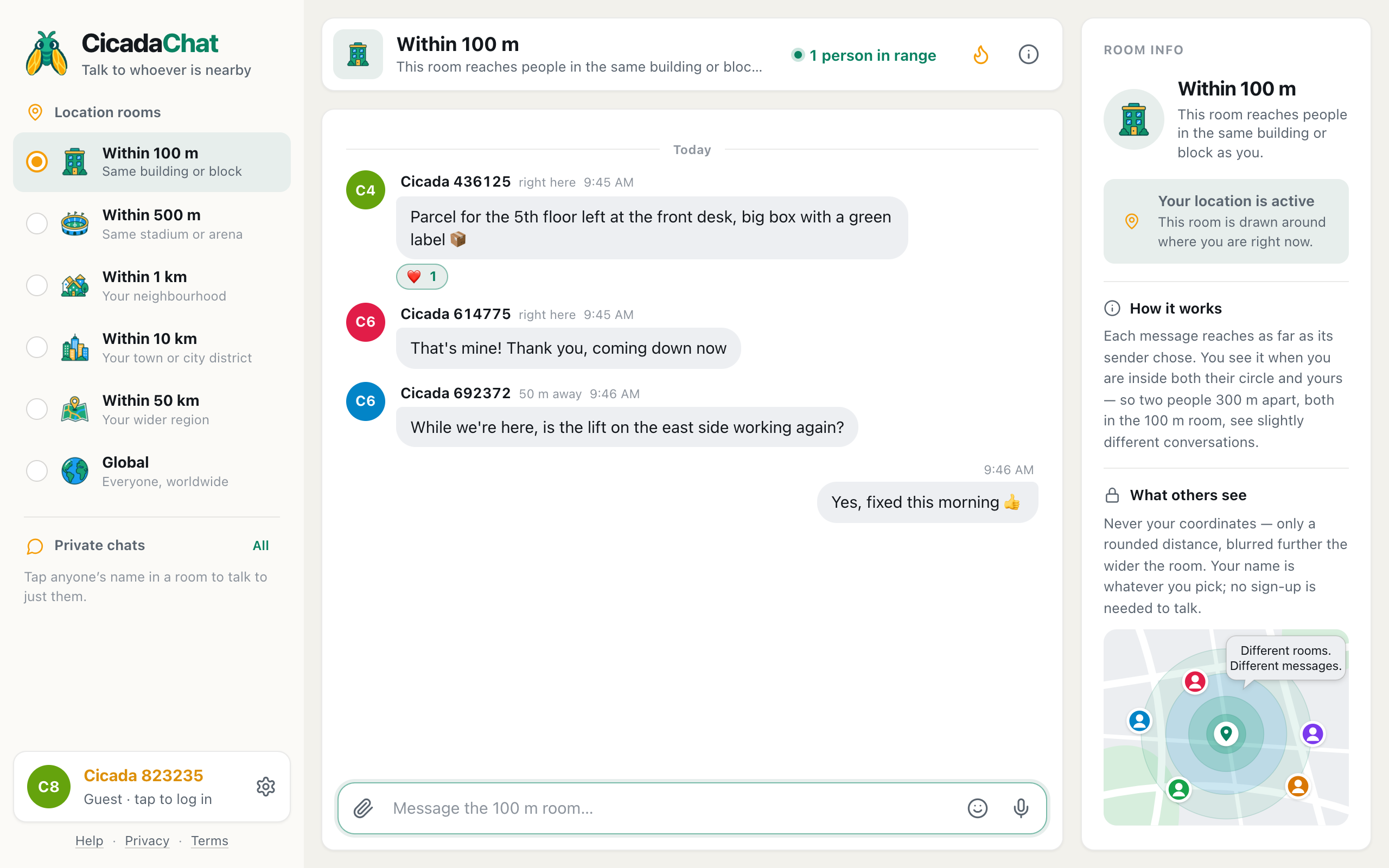
Next to each name in a message, CicadaChat shows how far away it was sent from. In the 100 m room that distance is deliberately blunt. Anything under 50 m shows as right here. Beyond that, you see 50 m away or 100 m away. Your exact position never leaves the server: nobody else's phone or browser receives your coordinates, only that rounded distance.
The distance is measured between where the message was sent and where the reader is now. That's why the same message can say right here to one neighbour and 50 m away to another. It describes the gap between the two of you, not a spot on a map.
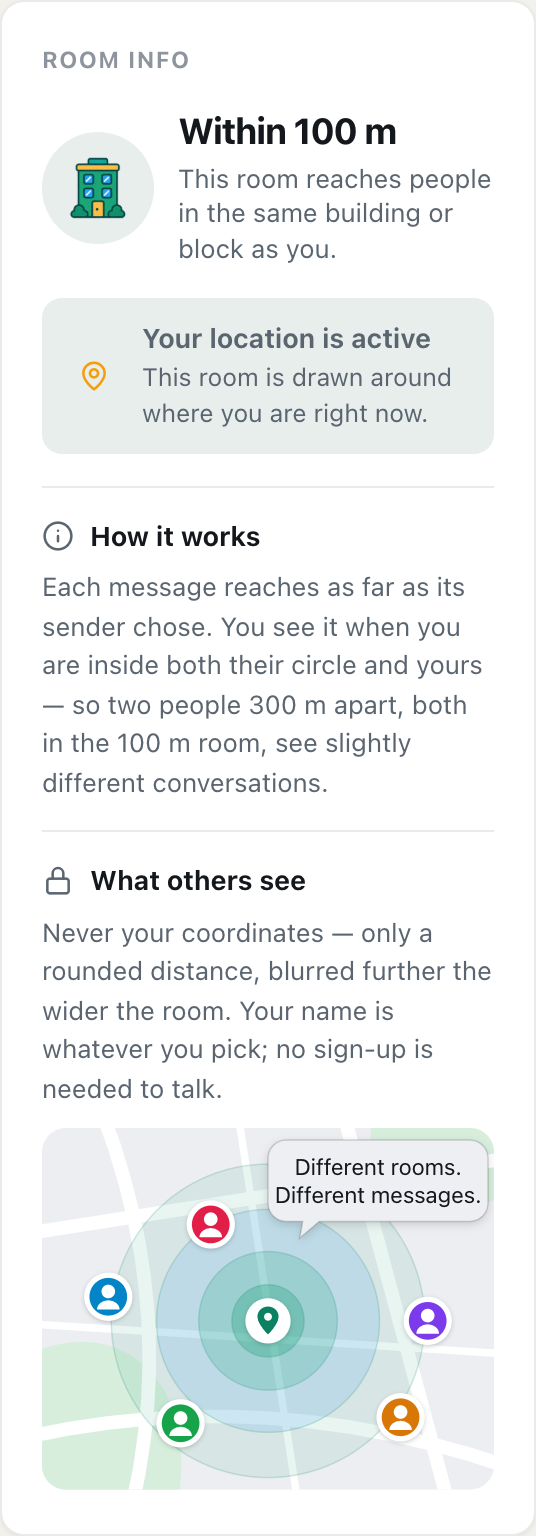
A screenshot of Room info for the 100 m room. The What others see section explains that people get a rounded distance, never your coordinates.
Your name is what you choose
As a guest, you appear under a name like Cicada 391049, so the people near you can talk with you without knowing who you are. If you create an account, you choose the name people see. In a 100 m room, think about that choice. Your first name plus a floor number makes you easy to find. A nickname lets you be a neighbour without being an address.
Small rooms make people easier to guess
CicadaChat hides your coordinates, but it can't hide context. If there are only three people in range and you mention your balcony plants, someone may work out which balcony is yours. That's the nature of talking to the people next door. So in the 100 m room:
- Don't give your flat number, door code or daily routine in a public message.
- Move a conversation to a private chat before sharing anything personal. Tap someone's name to talk to them one to one.
- Think twice before attaching your location (the paperclip, then Location). It's the one feature that does send an exact spot, and in this room the composer warns you: Everyone within 100 m will see this exact spot.
Photos you send are re-encoded before upload, which strips the GPS data a phone camera hides inside a picture. The photo itself can still show a view out of your window, of course. For the full picture, see what other people can see about you on CicadaChat, and the Privacy Policy.
What the 100 m room is good for
The 100 m room shines when the question only makes sense to people who are physically close. A few examples of the conversations it's made for:
At home
- "Is anyone else's water off?" Outages, a lift that's stuck again, a smell of smoke in the stairwell. The people who can answer are exactly the ones within 100 m.
- Lost and found. A parcel left at the wrong door, a set of keys on the wall by the gate, a cat sitting on someone's windowsill.
- Borrowing and lending. A ladder, a drill, two eggs. Asking a whole neighbourhood is awkward; asking your block isn't.
- Noise, kindly. "Whoever's practising the trumpet: you're getting better, but maybe not after ten?" lands better as a friendly message than as a note on the door.
At work and out and about
- The office or co-working space. "Is the meeting room on four free?" "Does anyone have a USB-C charger?" The 100 m room reaches your building without a company-wide channel.
- Waiting together. At a station platform, an airport gate or a long queue, everyone within 100 m is waiting for the same thing. "Has anyone heard why the train is late?"
- Small venues. In a café, a bar or a small gig, the 100 m room is the room you're standing in, not the whole district.
When a conversation needs to reach further, don't be shy about moving up a rung. A stadium or a campus is the 500 m room's territory; a whole neighbourhood is the 1 km room's. The help article on who's around and the People in range list shows how to check whether anyone is listening before you pick.
Is anyone there? When the 100 m room is quiet
A small circle means a small audience, and sometimes nobody else is in it. CicadaChat tells you honestly:
- The header shows how many people are in range, for example 1 person in range. That's the number of people online right now who would hear you if you spoke. It counts you too, so 1 person in range means you're alone for the moment.
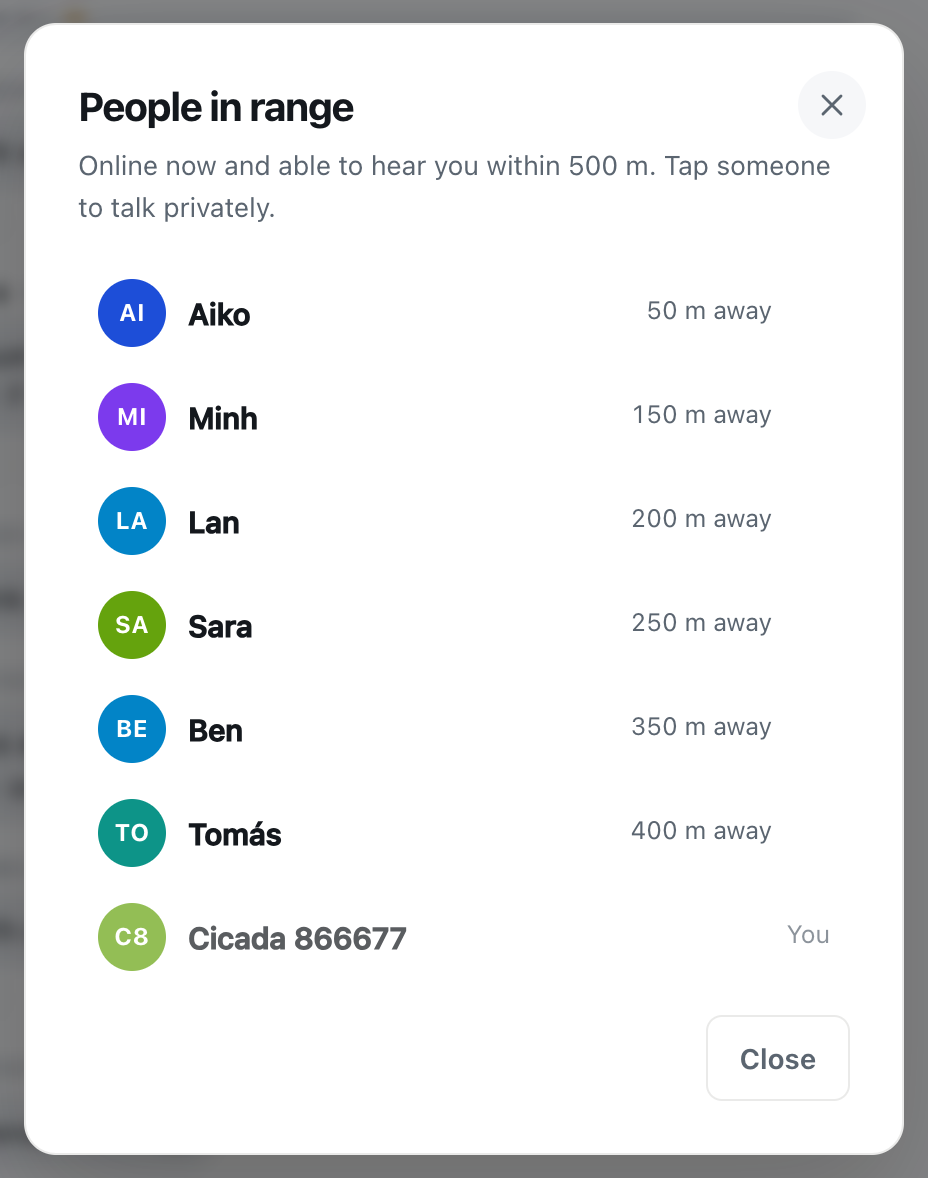
- Tap that count to open People in range. If it says Nobody else is in range right now. Try a wider room., nobody else within 100 m has CicadaChat open at the moment.
- A room with no history shows Nobody has said anything yet and Be the first. Anyone within 100 m will see it.
An empty room isn't a dead one. Messages stay where they were sent, so a question you ask this morning is still there for the neighbour who opens CicadaChat this evening, as long as they're within 100 m of the spot you asked it from. Ask something that's easy to answer, and give it time.
The flame button in the header opens Hot: the most-reacted messages in the room from the past week. In a busy building it's a quick way to see what everyone has been talking about. In a quiet one, it tells you the room has been alive even when nobody is online right now.
Tips for a good 100 m room
- Mind your GPS. Phones are least accurate indoors, and 100 m is a small circle. If your phone thinks you're 40 m from where you really are, the edge of your room moves with it. Opening CicadaChat near a window or outdoors gives a better fix. The app also doesn't move you for small shifts: it updates your position once you've moved about 25 m.
- Say where "here" is, roughly. "Third floor", "the building with the green door" or "by the bakery" gives people context without pinning you down.
- React instead of replying. A 👍 on "the water's back on" tells everyone without adding another message.
- Be a good neighbour. The people who read you are the people who pass you on the stairs. The tone you'd use face to face is the tone that works here.
- Keep the people you meet. Guests can chat right away. To add a neighbour as a friend, or to start a private room for your building, you'll need a free account, and creating one keeps your guest history.
On the web and on Android
The 100 m room works the same everywhere CicadaChat runs. In a browser on a computer, it's the first entry in the room list. In a browser on a phone, it's the 100 m tab. The Android app has the same six rooms and the same rules. There's no iPhone app yet, but CicadaChat works in Safari, and you can add it to your home screen so it opens like an app.
Wherever you use it, the idea is the same: the 100 m room is the conversation happening on your doorstep. Open it the next time something happens in your building, and see who answers.
No comments yet. Start the conversation.