
CicadaChat settings: theme, location and legal links
What every option in CicadaChat settings does: System, Light or Dark, what your location status means and how to change it, and where to find Help, Privacy and Terms.
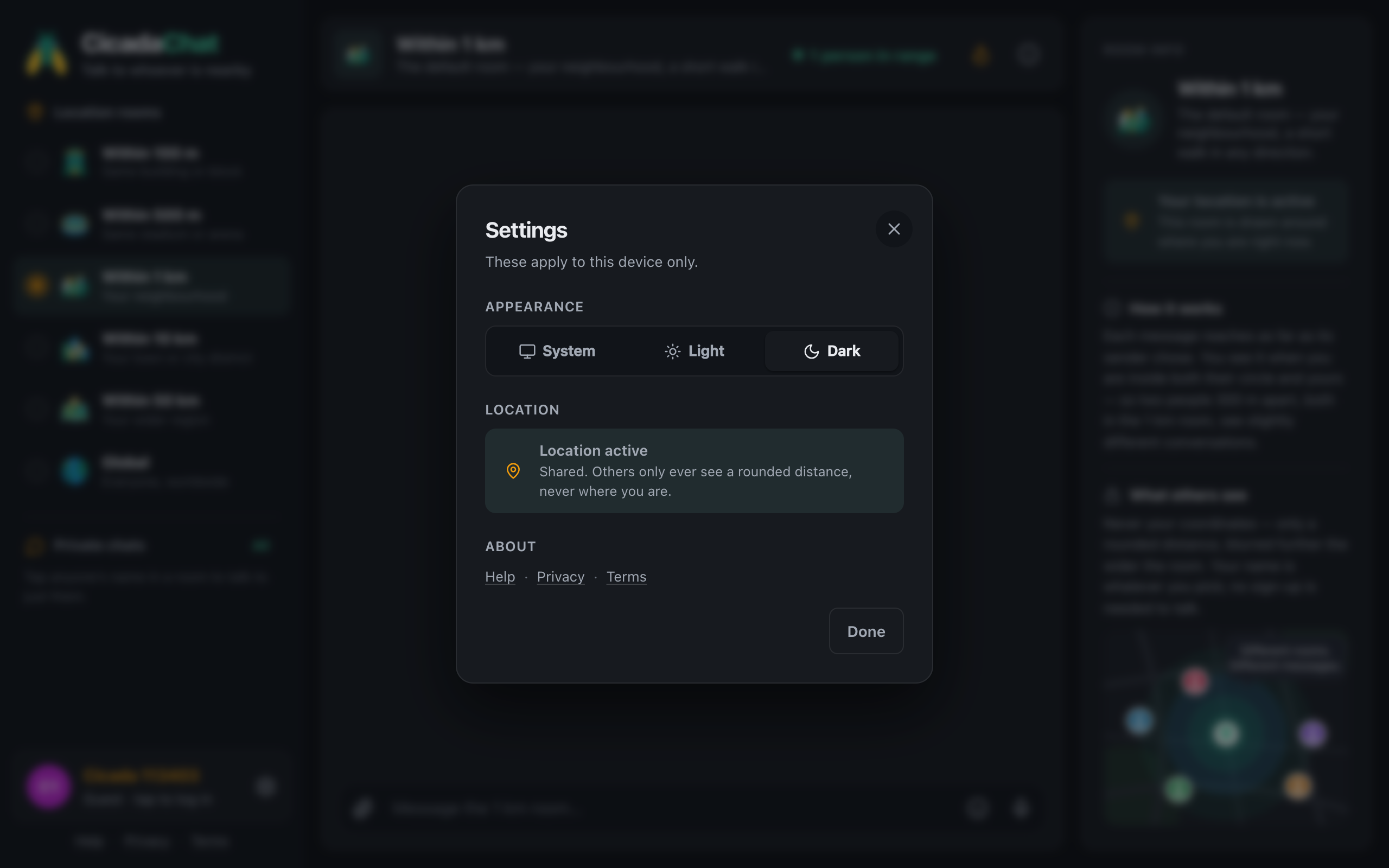
CicadaChat settings are deliberately short: how the app looks, whether it can use your location, and links to help and the legal pages. This guide goes through each of the CicadaChat settings, what every option and status means, and where to find the things that live somewhere else, such as your name, password and business card.
A screenshot of Settings on a computer, just after choosing the Dark theme. The whole app changes as soon as you pick one.
How to open Settings
- On a computer: click the gear next to your name at the bottom of the sidebar. Its label is Settings.
- On a phone: tap the menu button at the top left, then the gear at the bottom of the menu.
To close Settings, press Done or the ×, or click outside the dialog. On a phone, the back gesture closes it too. There's no save button: every change takes effect the moment you make it.
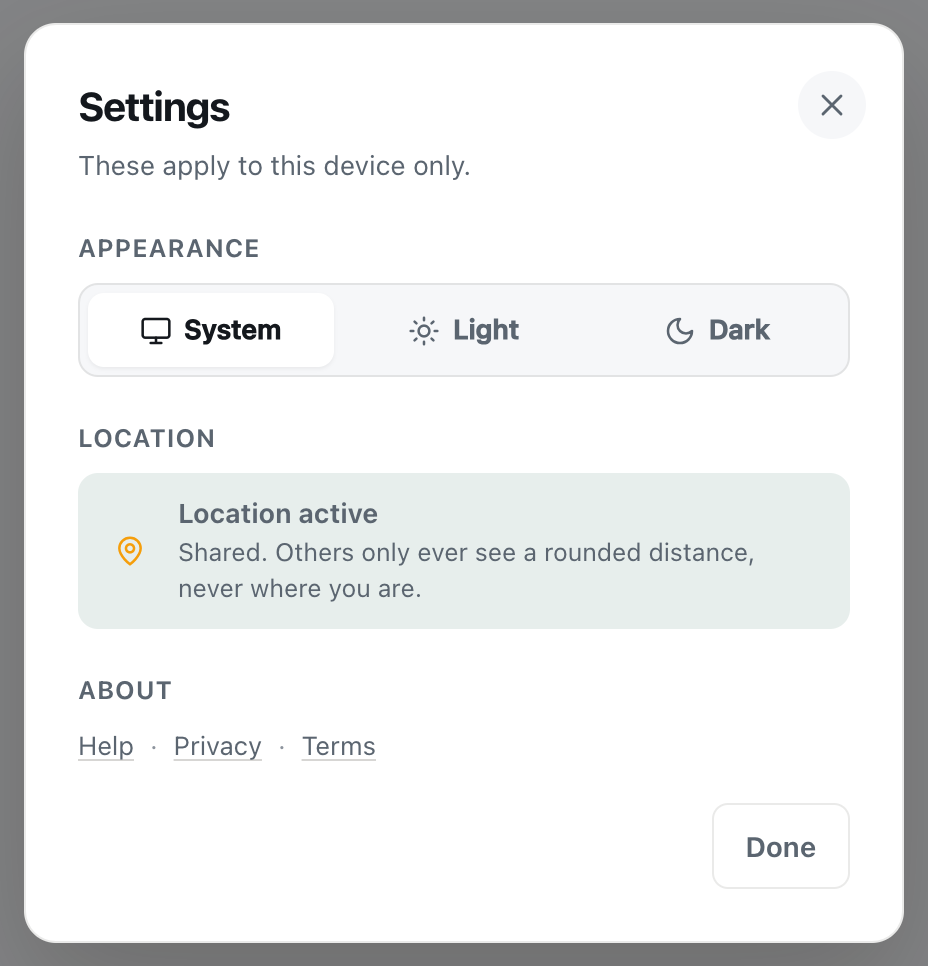
A screenshot of Settings with the theme on System and location shared. The three sections are all there is.
Settings belong to this device
Under the title, Settings says These apply to this device only. That's meant literally. Your choices are kept in this browser, not in your CicadaChat account, so:
- Choosing Dark on your laptop doesn't change your phone.
- Logging in on a new device starts with the default theme.
- Clearing your browser's data for CicadaChat, or using a private window, forgets them.
The same goes for the location permission, which your browser keeps per site and per device, and for the room you last picked, which CicadaChat remembers per browser too.
Things that are about you rather than the device, such as your name, photo, email and password, follow your account everywhere. They're in Your account, not in Settings. There's a list at the end of this guide.
Appearance: System, Light or Dark
The Appearance section has three choices:
- System is the default. CicadaChat follows your device's own light or dark setting, and switches when your device does, for example if your phone goes dark automatically in the evening.
- Light keeps CicadaChat light all the time, whatever the device is set to.
- Dark keeps it dark all the time.
Pick one and the whole app changes straight away, including the sidebar, rooms, private chats and dialogs. The choice is remembered on this device the next time you open CicadaChat.
Which should you choose? Dark is easier on the eyes at night and in a dark room, at a concert, say, where a bright screen stands out. Light is easier to read outside in bright sun. If you use CicadaChat at all hours, System lets your device decide.
Location: your status at a glance
The Location section tells you whether CicadaChat can use your location right now, and what that means for the rooms you can use. It shows one of these:
- Location active: Shared. Others only ever see a rounded distance, never where you are. All six rooms, from 100 m to Global, are open to you.
- No location: Not shared. You are limited to the global room. Your browser hasn't given CicadaChat your location yet. A Share my location button appears under it.
- Location blocked: Blocked in this browser, so you are limited to the global room. You, or your browser, said no to location for CicadaChat, and the browser remembers that answer. Directions to change it appear under it.
- While your browser is still asking you, it says Waiting for your browser to answer…
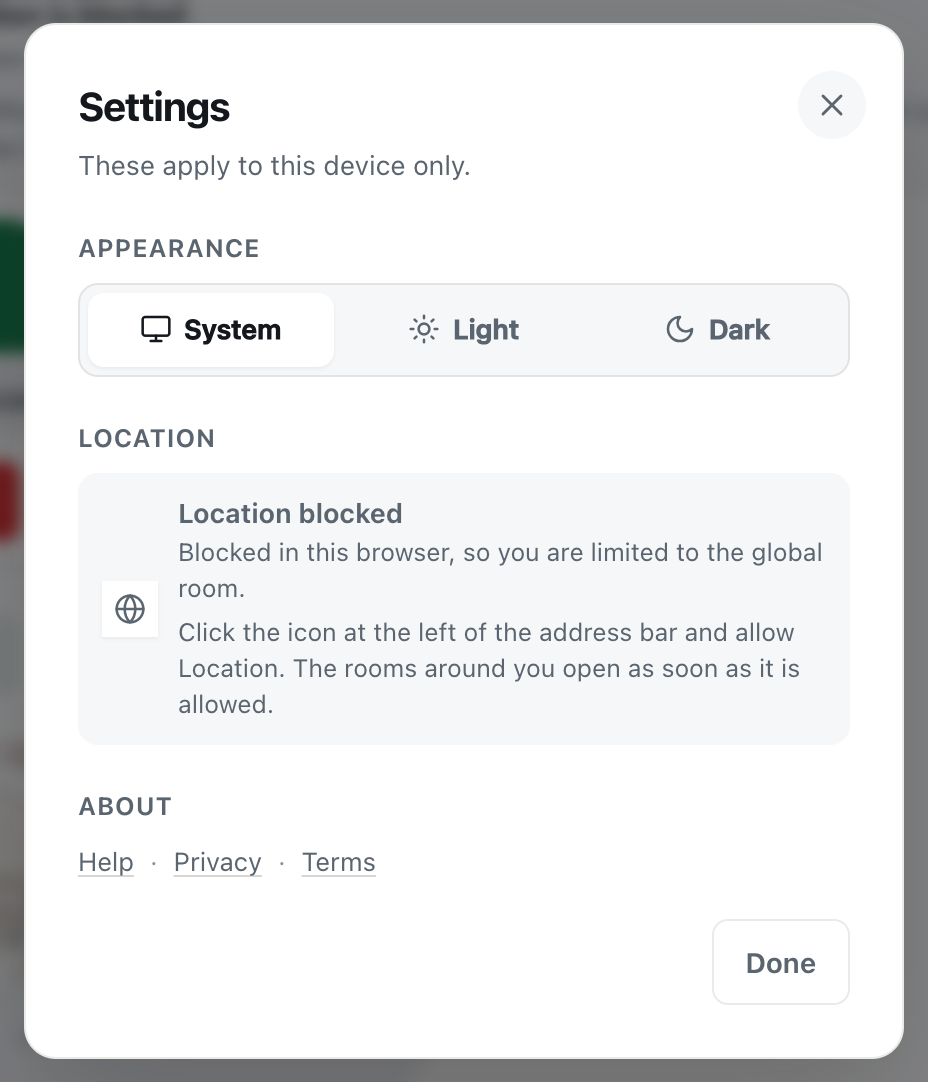
A screenshot of Settings after location was refused. The directions change to match your device and browser.
Sharing your location from Settings
If you see Share my location, press it. Your browser asks whether CicadaChat may use your location. Allow it, and the status changes to Location active. The location rooms open, and if you had picked one before, CicadaChat takes you back to it.
When location is blocked
A browser that has been told "Block" doesn't ask again, so a button in Settings can't help. Instead, Settings tells you where the switch is on your device:
- On a computer:Click the icon at the left of the address bar and allow Location.
- On an Android phone:Tap the icon at the left of the address bar, then Permissions → Location, and allow it.
- On an iPhone or iPad:Tap “aA” in the address bar, then Website Settings → Location → Allow. If it is already allowed there, check Settings → Privacy & Security → Location Services → Safari Websites.
Each one ends with The rooms around you open as soon as it is allowed. You don't need to reload. When you come back to the CicadaChat tab, it notices the change and moves you out of the global room. For screenshots of each browser, see how to turn on location for CicadaChat (and unblock it in your browser).
What sharing your location means
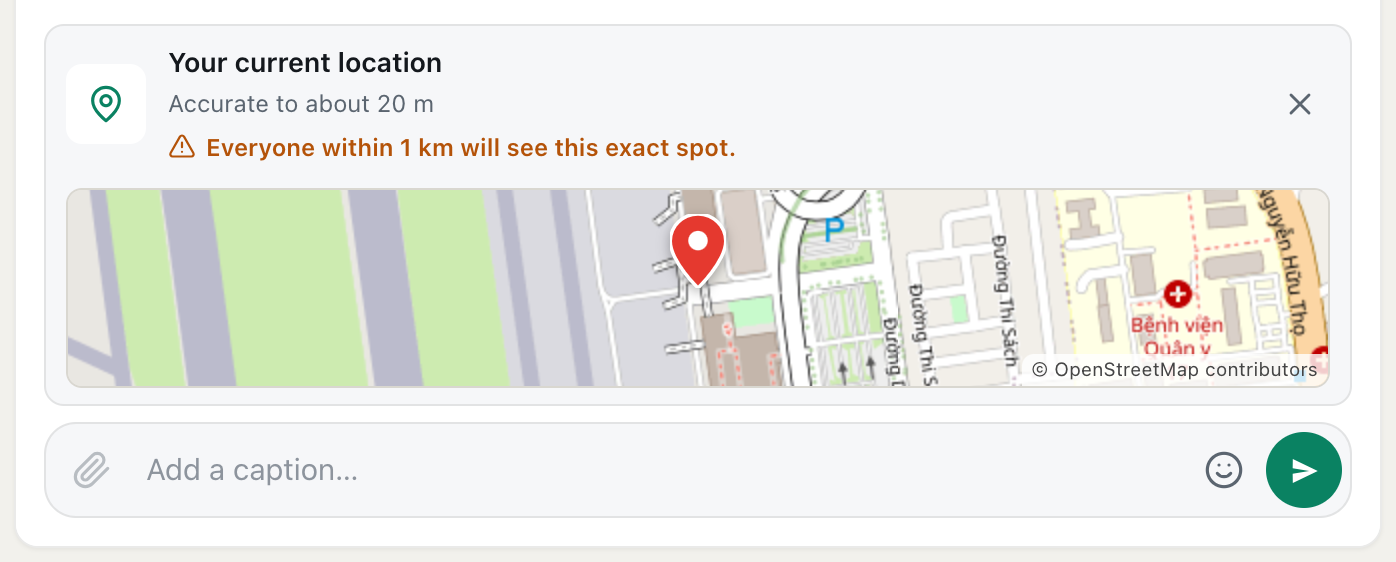
CicadaChat uses your position to work out who is near you and which messages reach you. Other people never see where you are. In a room, they see a distance rounded to a step that grows with the room, such as 650 m away, and in the global room they see no distance at all.
How to stop sharing your location
There's no "off" switch in Settings, because the permission belongs to your browser. To stop sharing, open the same site settings described above, set Location to Block for CicadaChat, and reload the page. You'll land in the global room, and Settings will say Location blocked. Global is a complete place to chat without any location at all: see using CicadaChat without sharing your location: the Global room.
About: Help, Privacy and Terms
The last section, About, has three links:
- Help opens the CicadaChat help articles, like this one.
- Privacy opens the Privacy Policy: what CicadaChat stores, who can see it, where your location goes, and which other companies are involved.
- Terms opens the Terms of Service, the rules for using CicadaChat.
All three open in a new tab. That's on purpose: your chat stays open and connected in its own tab while you read, so you don't miss what's said in the room.
Other places you'll find these links
- At the bottom of the sidebar, under your name: Help · Privacy · Terms.
- On the sign-up form, under Create account: By creating an account, you agree to the Terms of Service and confirm you have read the Privacy Policy. Both are links, so you can read them before you sign up.
- On the page CicadaChat shows when it can't be reached, so help is available even when the app isn't.
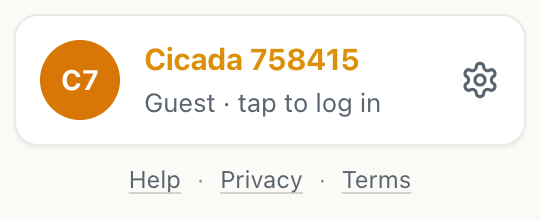
A screenshot of the foot of the sidebar. The gear opens Settings, and the links below it are the same as in About.
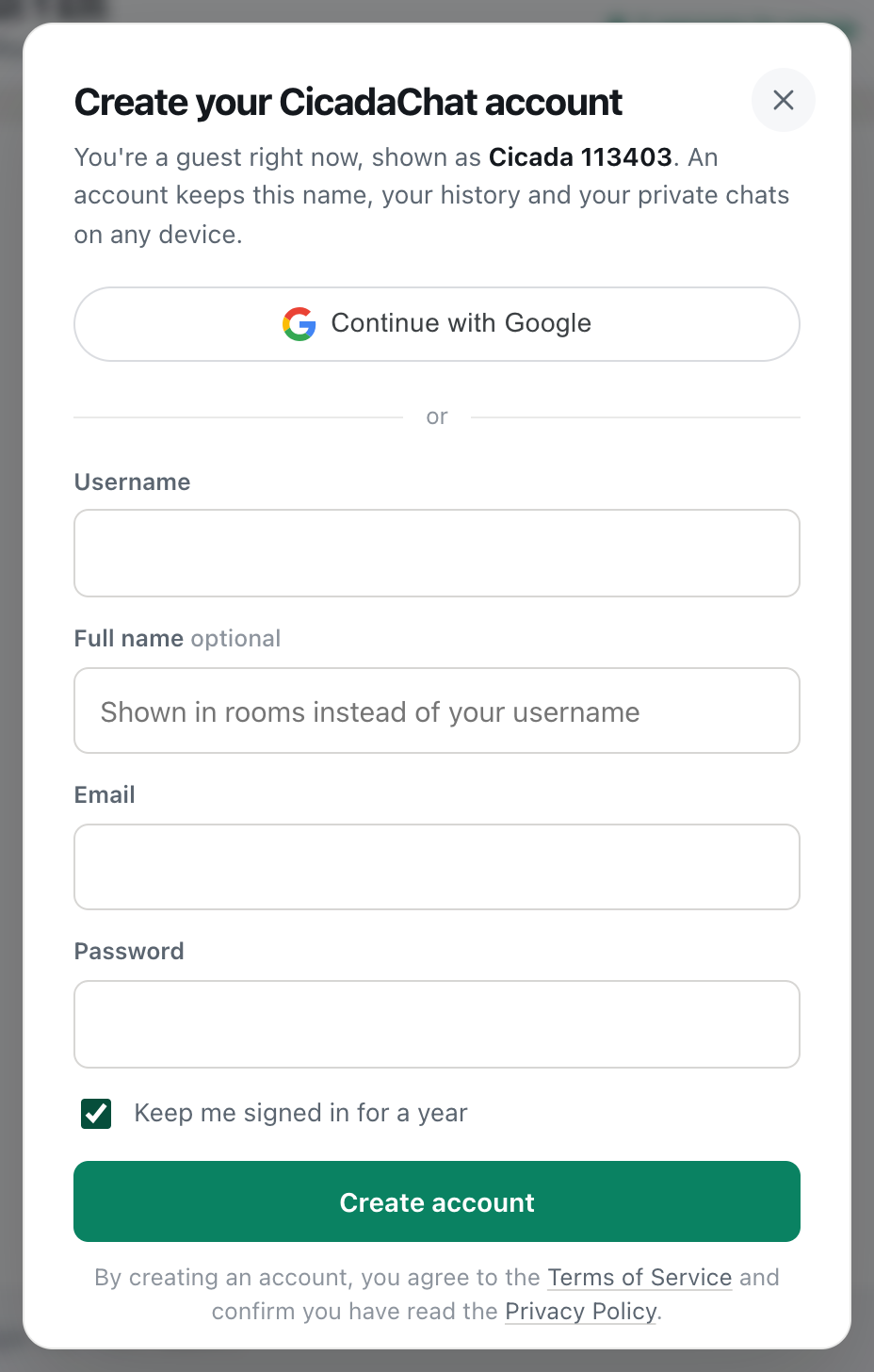
A screenshot of the sign-up form. The line under Create account links to the Terms of Service and the Privacy Policy.
What isn't in Settings, and where to find it
| You want to change | Where it is |
|---|---|
| Your photo, full name or username | Your account: click your name at the bottom of the sidebar |
| Your email address or password | Your account |
| Your business card | Your account, under Business |
| Signing out | Sign out, at the bottom of Your account |
| Staying signed in | Keep me signed in for a year, ticked or not when you log in |
| Your friends | All, next to Friends in the sidebar |
| Which room you're in | The room list in the sidebar, or the tabs above the messages on a phone |
As a guest, clicking your name opens Log in instead of Your account, because a guest has no account settings yet. You can still use Settings exactly as described here.
Setting up CicadaChat on a new device
Because settings stay on each device, it's worth a minute the first time you open CicadaChat somewhere new:
- Log in, if you have an account, so your name, friends, private chats and private rooms come with you. Tick Keep me signed in for a year only on a device that nobody else uses.
- Open Settings and pick a theme, or leave it on System.
- Check the Location status. If it says No location, press Share my location and allow it when your browser asks.
- Choose your room in the sidebar. CicadaChat opens that room the next time you come back on this device.
On a shared or borrowed computer, finish the other way round: open Your account and press Sign out when you're done, so the next person doesn't find your private chats. After signing out, that browser carries on as a new guest, with nothing of yours in it.
Settings on a phone
On a phone, Settings is the same dialog, reached through the menu at the top left. If you've added CicadaChat to your home screen, the theme you pick applies there too, as long as it's the same browser. The location directions change to match your phone, so follow the ones shown on your screen rather than the ones for a computer.
If something goes wrong
- The theme doesn't match your device on System. Check your device's own light or dark setting. Some browsers have their own theme setting that overrides the device's. Pick Light or Dark to choose one yourself.
- The theme keeps going back to System. Your browser isn't keeping CicadaChat's data, usually because you're in a private window or the browser clears site data when it closes.
- Share my location does nothing. Look for your browser's permission prompt, which can appear near the address bar. If there's none, location is blocked: follow the directions under Location blocked.
- It still says Location blocked after you allowed it. On an iPhone, also check Location Services for Safari Websites, as the directions say. On a computer, check that location is turned on for the browser in your system's privacy settings.
- A link in About doesn't open. Your browser may be stopping new tabs. Allow them for CicadaChat, or hold the link and open it yourself.
For other problems, see troubleshooting CicadaChat: common problems and how to fix them.
No comments yet. Start the conversation.