
Troubleshooting CicadaChat: common problems and how to fix them
CicadaChat won't open, location is stuck, a message won't send, or you're suddenly a guest? The exact message you'll see, what it means and how to fix it.
Most CicadaChat problems come down to a handful of causes: the connection, the location permission, the browser forgetting your sign-in, or a file it can't use. This guide covers troubleshooting CicadaChat problem by problem, with the exact message you'll see on screen and what to do about it. Find the heading that matches what's happening to you.
Before anything else, two quick fixes solve a surprising number of problems: reload the page, and make sure your browser is up to date. CicadaChat runs entirely in your browser, so an old browser is behind more problems than you'd expect.
CicadaChat won't open
"CicadaChat is not answering right now."
Instead of the app, you see a page about CicadaChat with this line and a Try again button. It usually comes with a reason, most often Cannot reach CicadaChat. Check your connection.
- Check that you're online: open another website.
- If you're on public or work Wi-Fi, it may be blocking the connection. Try mobile data.
- Press Try again. If CicadaChat itself was briefly down, it opens as soon as it's back.
Stuck on "Warming up…"
Warming up… with Setting up your session. No sign-up needed. should last a second or two. If it doesn't go away, your connection is very slow or has dropped. Reload the page once you're back online.
Location problems
Stuck on "Finding you"
A location room shows Finding you while it waits for your position, and the message box says Waiting for your location…. Two things cause it:
- Your browser is asking and you haven't answered. Look for the permission prompt near the address bar, or at the bottom of the screen on a phone, and allow it.
- Your device can't find its position. Indoors, underground or with location services switched off for the whole device, it can take a while. If it gives up, you see We could not work out where you are. You are in the global room. Move near a window or turn on Wi-Fi, which helps a phone locate itself, and press Try again.
You're stuck in the Global room
If the location rooms are greyed out and you're in Global, CicadaChat doesn't have your location. A card at the top of the room says why:
- Location is off: Location is off, so you are in the global room. Press Try again and allow location when your browser asks.
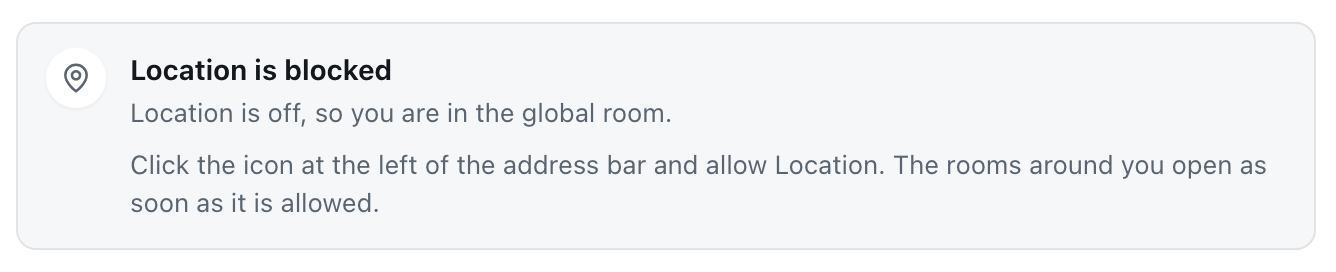
- Location is blocked: your browser remembers a "Block" for CicadaChat and won't ask again. The card tells you where the switch is on your device.
A screenshot of the card shown when location is blocked. On a phone, the directions are the ones for your phone.
Once you allow it, you don't need to reload. Come back to the CicadaChat tab and it moves you to the room you had picked. For step-by-step directions for each browser, and the extra iPhone setting that often catches people out, see how to turn on location for CicadaChat (and unblock it in your browser). You can also check the status at any time in Settings.
This browser can't share a location
This browser cannot share a location. means the browser has no location feature at all, or has it switched off completely. Try another browser. You can still use the global room.
The room is empty, or nobody answers
- "Nobody has said anything yet" means nobody within range of you has written in this room recently. Try a wider room: 10 km or 50 km in a quiet area, or Global.
- Check the people count at the top of the room, such as 1 person in range. If you're the only one, nobody nearby will see your message right now, though people who open the room later will.
- Someone nearby can't see your message. A message reaches as far as the room you sent it in, and a reader sees it only if you're inside their room too. If they're in the 100 m room and you're 400 m away, your message won't reach them, whatever room you sent it in.
A message won't send
- It stays faded. A message looks faded until the server has it. If it stays that way, your connection has dropped, and CicadaChat sends it once it's back. If nothing happens after a minute, copy your text and reload the page.
- It says "· not sent". The server refused it. The message box shows That did not send., and a card at the top of the room says Something went wrong with the reason. What you typed is still in the box, so you can fix it and press send again.
- "You are sending messages too quickly." Wait a few seconds and send again.
- "Messages are capped at 2000 characters." Split a long message into two.
- The message box is greyed out and says Waiting for your location…: see "Stuck on Finding you" above.
Photos, documents and voice notes
- "Pick a photo — JPEG, PNG, WebP, HEIC or GIF." The file you picked as a photo isn't one. Send it as a document instead, if it's a type documents allow.
- "That photo could not be read in this browser. Try a JPEG or PNG." Usually an iPhone HEIC photo on a computer whose browser can't open HEIC. Convert it to JPEG, or send it from your phone.
- "That GIF is too large to send." GIFs are sent as they are, without shrinking, so a long one can be too big. Pick a shorter one.
- "That kind of file cannot be shared." Documents are limited to common, safe types: PDF, text, Word, Excel, PowerPoint and their LibreOffice and Apple equivalents, CSV, JSON and ZIP. The message lists them all.
- "Documents can be up to 25 MB." Compress the file, or share a link to it instead.
- "The upload failed." The connection dropped while the file was uploading. Press send again: the file is still attached.
- "Microphone access was blocked. Allow it in your browser to send voice messages." Allow the microphone for CicadaChat in the same place as location: the icon at the left of the address bar. On an iPhone, it's under aA, then Website Settings.
- "This browser cannot record audio." Try another browser, or a newer version of this one.
You're suddenly a guest
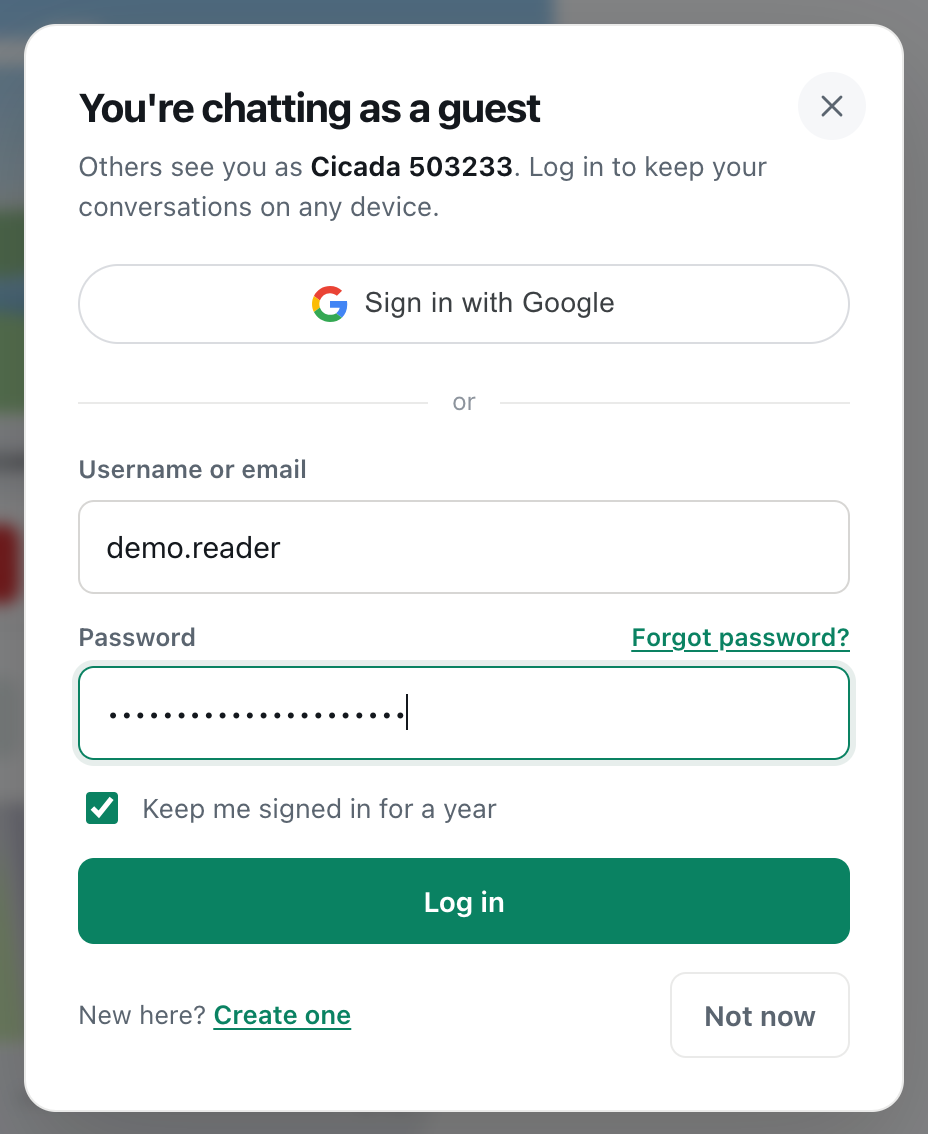
You were signed in, and now the bottom of the sidebar shows a name like Cicada 758415 and Guest · tap to log in. CicadaChat never shows a signed-out screen: when your sign-in ends, it carries on with a new guest. Your account and everything in it are safe. Click the name and log in again.
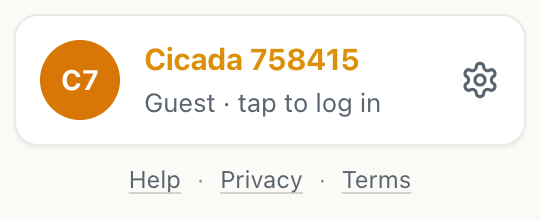
A screenshot of what the sidebar shows when you are chatting as a guest. Click the name to log in.
Why it happens:
- You didn't tick Keep me signed in for a year when you logged in. Then your sign-in lasts until you close the tab, and at most a day. See staying signed in: what "Keep me signed in for a year" does.
- Your password was changed, or reset, on another device. That signs you out everywhere on purpose.
- Your browser cleared CicadaChat's data, or you're in a private window, which forgets everything when it's closed.
A guest's chats belong to the browser they were made in. If you were a guest and your browser's data was cleared, that guest can't be brought back. Creating an account is how to keep your chats safe from that.
You can't log in
- "That username or email and password do not match." Check for a typo, and that Caps Lock is off. You can log in with your username or with your email address.
- You don't remember the password. Press Forgot password? in the Log in dialog, and CicadaChat emails you a link to set a new one.
- You signed up with Google. Use Sign in with Google in the Log in dialog instead of a password.
- A message about a rate limit. After a lot of attempts in a short time, CicadaChat stops accepting more for a while, to protect your account from guessing. Wait up to 15 minutes, then try again carefully, or reset your password.
Friends, private chats and private rooms
- There's no Friends or Private rooms section in the sidebar. You're a guest. Friends and private rooms need an account.
- "You are no longer in that room." The owner removed you from a private room, or deleted it.
- "That room does not exist, or you are not in it." Same as above, or you're signed in to a different account.
- A private chat is missing. Check you're signed in to the account you used for it, not chatting as a guest. Chats a guest had before creating an account stay with that account.
Your theme or room keeps resetting
The theme, the room you last picked and the location permission are kept on each device, not in your account. If they reset every time, your browser isn't keeping CicadaChat's data, usually because of a private window or a setting that clears site data on close. See CicadaChat settings: theme, location and legal links for what's stored where.
On a phone
- Back takes you out of CicadaChat. Back closes the open chat or dialog first. From the room itself, CicadaChat shows Go back again to leave CicadaChat, and a second back leaves.
- It asks for location every time. Your browser is set to ask each visit. When it asks, choose the option that allows it every time, rather than only this time.
Still stuck?
Try CicadaChat in another browser, or on another device, at cicadachat.com. If it works there, the problem is a setting in the first browser, most often location, the microphone or blocked site data. If it doesn't work anywhere, CicadaChat itself may be having a problem, and it's worth trying again a little later.

No comments yet. Start the conversation.