
Using CicadaChat without sharing your location: the Global room
Decline the location prompt and CicadaChat puts you in Global, one room for everyone. What the Global room is like, what works without a location, and how to open the local rooms later.
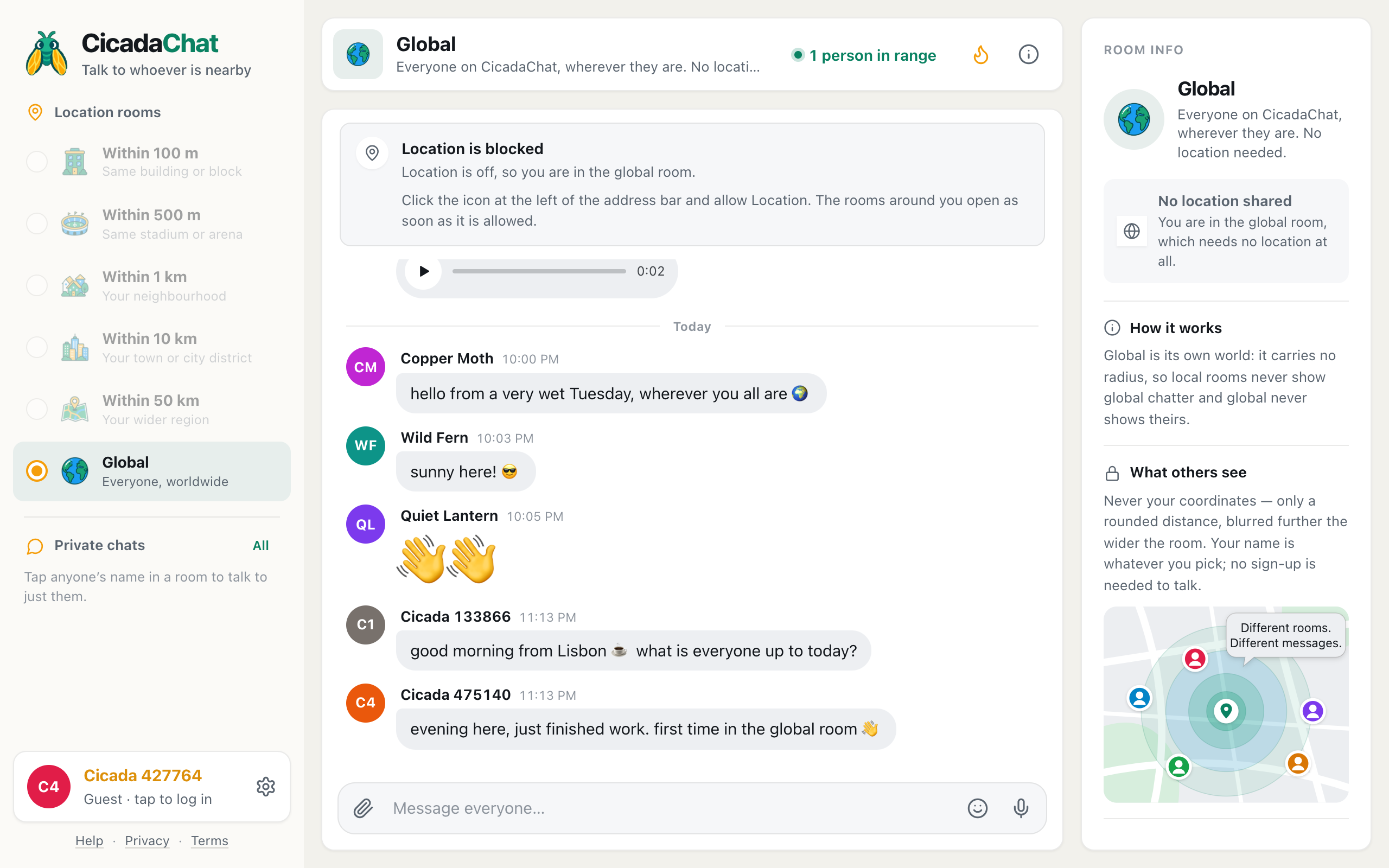
You can use CicadaChat without sharing your location. Decline the location prompt and you land in Global, a single room for everyone on CicadaChat, wherever they are. It's a complete room, not a waiting area: you can chat, react, send photos and voice messages, and talk privately with anyone you meet there. This article explains what the Global room is like, what works without a location and what doesn't, and how to open the local rooms later if you change your mind.
A screenshot of the Global room after declining the location prompt. The local rooms on the left are greyed out.
Why use CicadaChat without sharing your location?
Sharing a location is always your choice, and there are good reasons not to:
- You'd rather not. Even though other people only ever see a rounded distance, you might prefer the app not to know where you are at all.
- Your device can't tell. Many desktop computers have no GPS and work out their position from Wi-Fi, which isn't always possible.
- You want to talk to everyone. Sometimes the street isn't the audience you want. Global is where people from different towns and countries meet.
Whatever the reason, you get a full place to chat, and you can switch to the local rooms at any time by allowing location.
How to use CicadaChat without sharing your location
When you first open CicadaChat, your browser asks whether the site may use your location. Choose Block or Don't allow (the wording depends on your browser). Here's what happens next:
- CicadaChat moves you to Global straight away. There's nothing to set up.
- A card at the top of the conversation says Location is off, so you are in the global room. If your browser remembers your answer, the card is headed Location is blocked and tells you where the setting is on your device, in case you want it later.
- The five local rooms are greyed out in the room list, and on a phone their tabs are too.
- Room info says No location shared and You are in the global room, which needs no location at all.
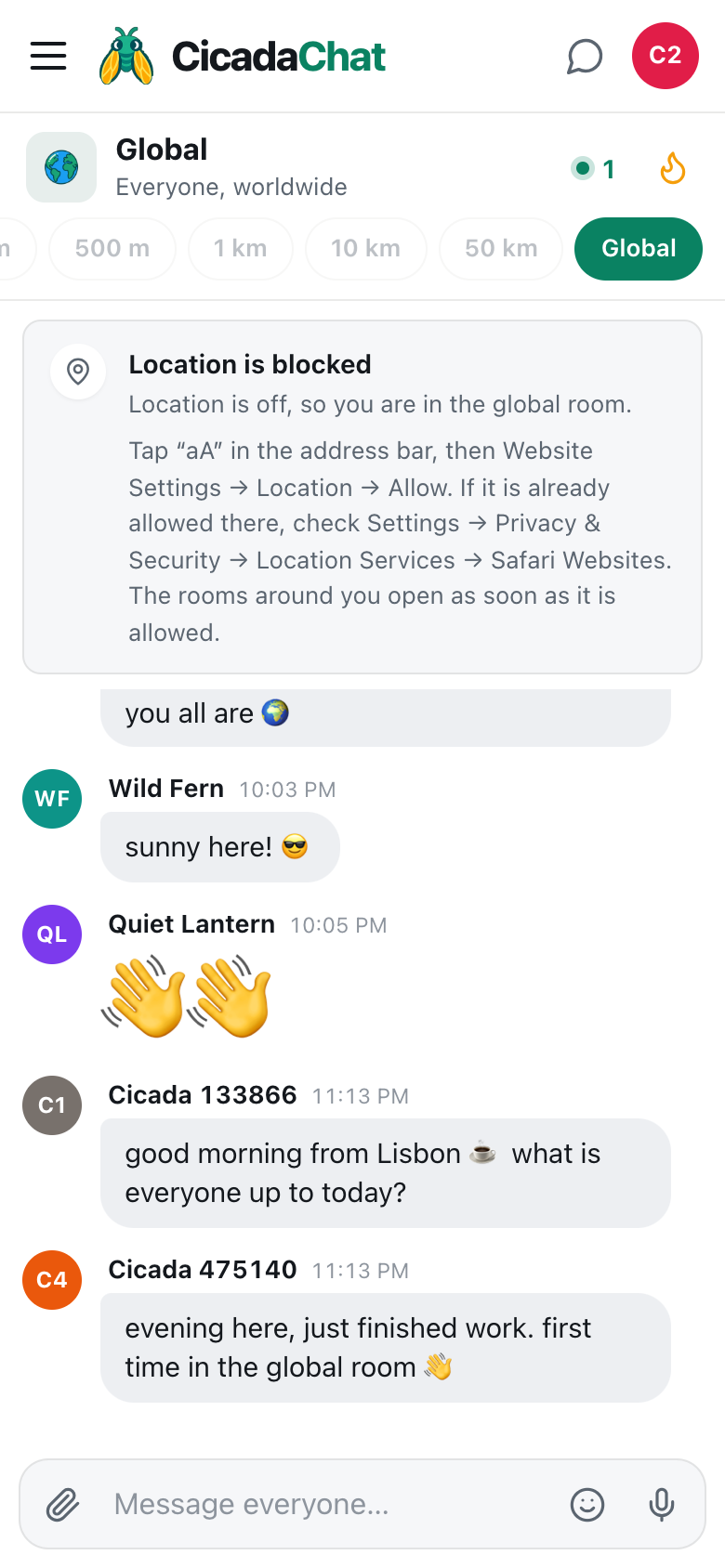
A screenshot of Global on an iPhone. The card gives the directions for Safari, since the browser won't ask twice.
The same happens if your device tries but can't find you. CicadaChat then says We could not work out where you are. You are in the global room.
Choosing Global while your location is on
You can also pick Global yourself from the room list, even with location allowed. That's the way to talk to everyone without giving up the local rooms. Note that picking Global doesn't switch location off: while the app is open and location is allowed, your browser keeps sending your position to CicadaChat, which uses it for the local rooms. Nobody in Global sees it, or any distance. If you don't want CicadaChat to have your position at all, block location for the site in your browser's settings.
What the Global room is like
Everyone on CicadaChat, wherever they are. No location needed. That's how the room describes itself, and it's worth knowing what that means in practice.
- It's one room for everyone. Unlike the local rooms, which are circles drawn around each reader, Global is the same for all. Two people in Global see exactly the same conversation.
- There are no distances. Messages show a name and a time. Global messages are stored without any position, so there's nothing to measure.
- It's kept apart from the local rooms. Messages sent in Global never appear in a local room, and messages sent in local rooms never appear in Global. Room info says it plainly: Global is its own world: it carries no radius, so local rooms never show global chatter and global never shows theirs.
- Your message goes to everyone in it. The message box says Message everyone… as a reminder.
- The people in range count is the people in Global right now. It counts people who have the Global room open at this moment. People reading local rooms aren't counted, because they wouldn't see a Global message.
- Hot works here too. Press the flame to see the past week's most-reacted Global messages.
Because Global mixes time zones, the conversation can feel different from a local room. Someone's "good morning" arrives in the middle of your evening. Questions tend to be broader ("what's everyone listening to?") and answers come from further away.
What works without a location
| Feature | Without a location |
|---|---|
| The Global room: reading, writing, reacting, Hot | Works |
| Photos, documents and voice messages | Work |
| Private chats | Work, with anyone you meet |
| Creating an account, logging in, Google sign-in | Work |
| Friends and private rooms (registered accounts) | Work |
| The five local rooms, from 100 m to 50 km | Greyed out |
| Sharing a location in a message | Needs location allowed |
Sharing a location in a message asks your browser for your position at that moment, so it needs location permission too. With location blocked, choosing Location from the paperclip menu shows Could not get your location. Is it allowed?.
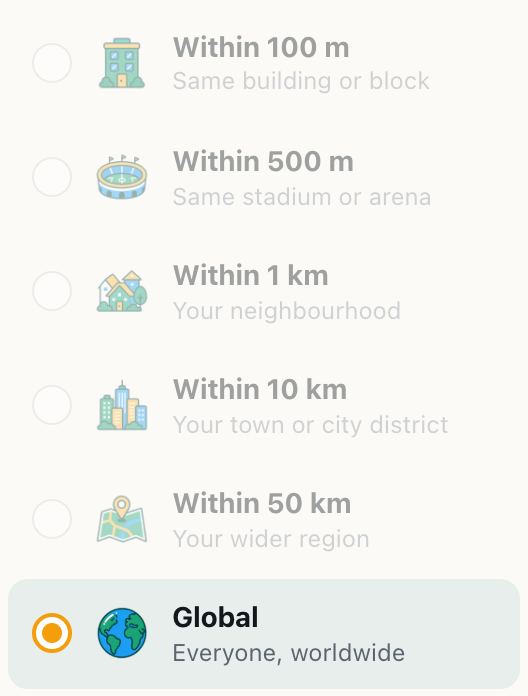
A screenshot of the room list without a location. Only Global is available until location is allowed.
What other people see about you in Global
In Global, people see your name, your picture (or your coloured initials) and your messages. They don't see a distance, because Global messages carry no position. If you're a guest, your name is the one CicadaChat gave you, like Cicada 133866. With an account, it's your username or the full name you chose.
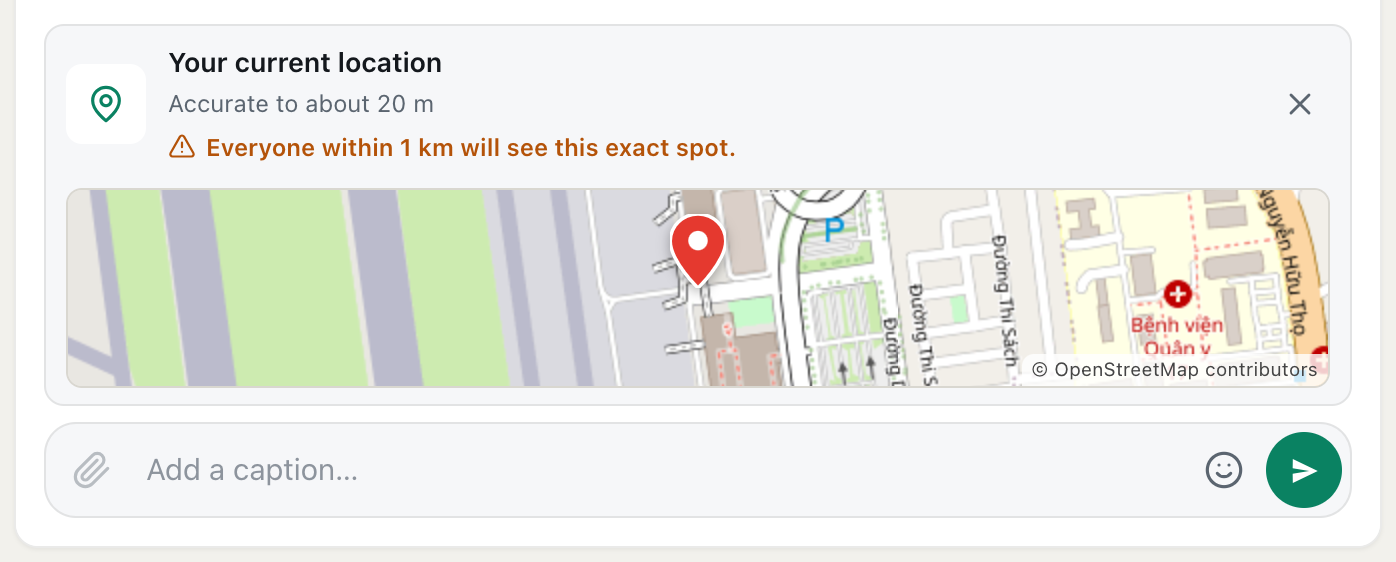
Remember that Global is the widest audience CicadaChat has. Anyone on CicadaChat can read what you post there, so don't post anything you wouldn't want the whole room to see. If you share a location or a photo in Global, everyone in Global can see it. Before a location is sent, the message box warns you: Everyone in the global room will see this exact spot.
Photos are re-encoded on your device before they're sent, which removes the GPS position that phone cameras often store inside a photo. So a photo sent in Global doesn't reveal where it was taken, unless the picture itself shows it.
Moving from Global to a local room later
If you change your mind, you don't need to reload or sign in again.
- Open Settings with the gear next to your name.
- If a Share my location button appears, press it and allow location when your browser asks.
- If Settings says Location blocked instead, your browser remembers your earlier answer and won't ask again. Follow the directions shown there to allow location in your browser's settings, then come back to CicadaChat.
CicadaChat notices the change when you return to the page, and the local rooms open. If Global was chosen for you because location was off, you're taken back to the room you picked before, or to Within 1 km if you never picked one. If you chose Global yourself, you stay there until you pick another room.
For step-by-step directions for each browser and phone, see the Help article How to turn on location for CicadaChat (and unblock it in your browser).
Getting the most out of Global
- Say roughly where you are, if you like, in words. Global can't show distances, so people often open with "morning from Lisbon" or "evening here". How much you say is up to you. A city is plenty. There's no need to name a street.
- Start with Hot. Global moves fast when it's busy. The flame shows the week's most-reacted messages, which is a quick way to see what the room enjoys.
- React to things. Reactions are how good messages rise in Hot, and they're an easy way to join a conversation before you've written anything.
- Take long conversations private. If you get talking with someone, tap their name. A private chat keeps the thread in one place and away from the busy room.
- Keep the people you meet with an account. As a guest, your private chats live in this browser. With an account you can log in on any device, and add people as friends so you can find them again.
If switching to a local room doesn't work
- You allowed location but the rooms are still greyed out. Switch to another app or tab and back, so CicadaChat checks the setting again. If that doesn't help, reload the page.
- On an iPhone, Safari allows it but nothing happens. Check the phone's own switch as well: Settings → Privacy & Security → Location Services → Safari Websites. CicadaChat shows the same directions on the card.
- "This browser cannot share a location." Your browser has no location support at all. Try an up-to-date Chrome, Safari, Firefox or Edge.
- "We could not work out where you are." Your device allowed it but couldn't find a position in time. Turning on Wi-Fi, or moving near a window, often helps.
Questions about the Global room
Why are the other rooms greyed out?
They're circles drawn around your position, so they can't work without one. Allow location and they open.
Can people in my neighbourhood see what I post in Global?
Only if they're reading Global too. Global messages never appear in the local rooms, so your neighbours in the 1 km room won't see them there.
Will people in Global know I'm nearby?
No. Global shows no distances to anyone, whether or not you've shared a location.
Can I message someone privately from Global?
Yes. Tap their name or picture to open a private chat. Private chats don't depend on distance or location.

No comments yet. Start the conversation.