
How to turn on location for CicadaChat (and unblock it in your browser)
The local rooms need your location. How to allow it from inside CicadaChat, how to unblock it in Chrome, Edge, Firefox, Safari and on iPhone or Android, and what CicadaChat does with it.

CicadaChat's local rooms, from Within 100 m to Within 50 km, are circles drawn around you, so they need your location. If you said no to the location prompt, or your browser blocked it, this guide shows how to turn on location for CicadaChat: first from inside the app, then in each browser if it has remembered a "Block". It also explains what CicadaChat does with your location once you allow it.
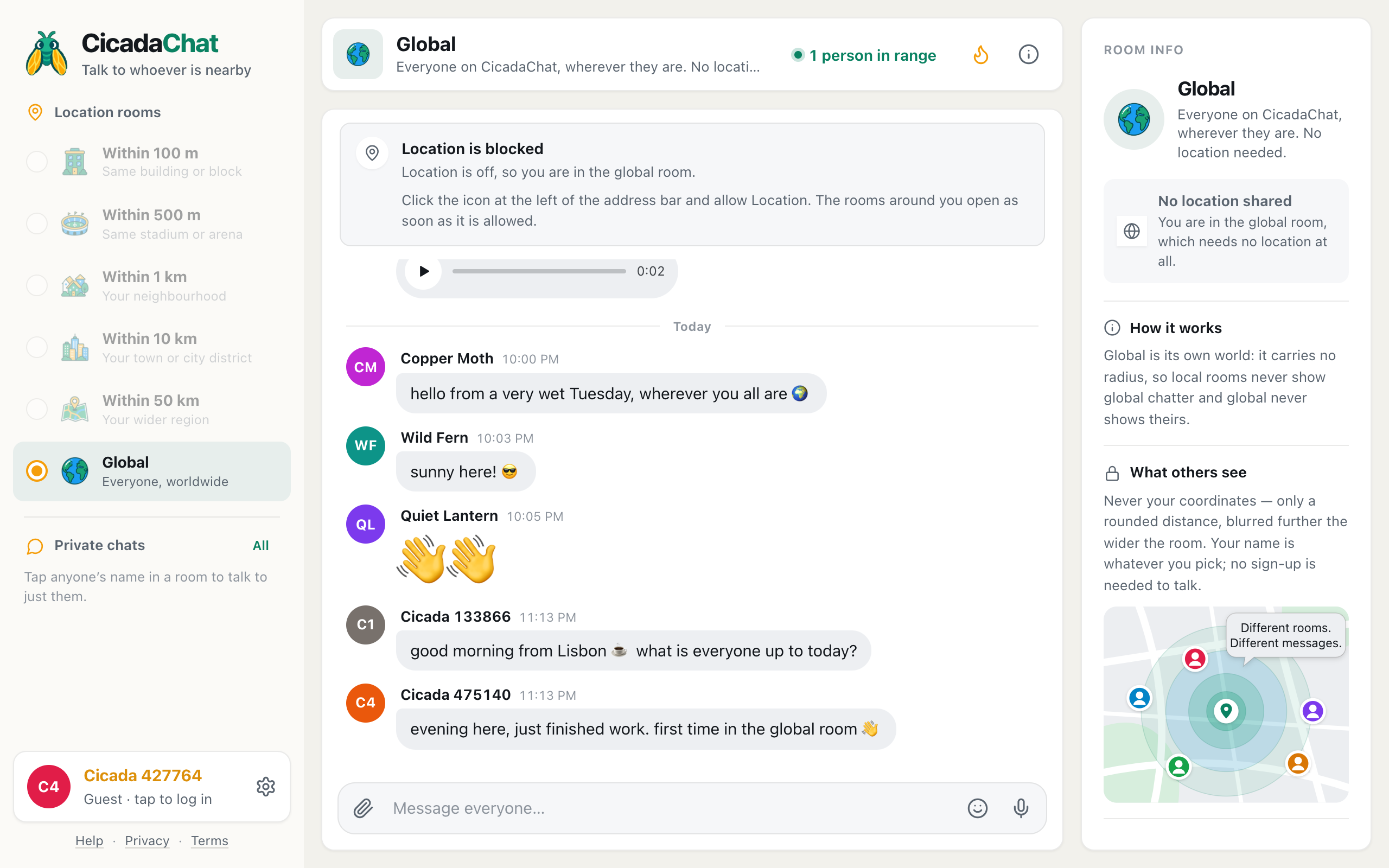
A screenshot of the card CicadaChat shows while location is blocked, with the directions for this computer's browser.
Check your location status first
Open Settings with the gear next to your name, at the bottom of the sidebar (on a phone, open the menu at the top left first). The Location section shows one of these:
| Settings shows | What it means |
|---|---|
| Location active | Shared. Others only ever see a rounded distance, never where you are. Everything is working. |
| No location, Not shared. You are limited to the global room. | CicadaChat hasn't got a location yet, but your browser can still be asked. Use Share my location. |
| No location, Waiting for your browser to answer… | The browser is asking you right now. Look for its prompt, usually near the address bar. |
| Location blocked | Blocked in this browser, so you are limited to the global room. The browser remembers a "Block" and won't ask again. Change it in the browser's settings, below. |
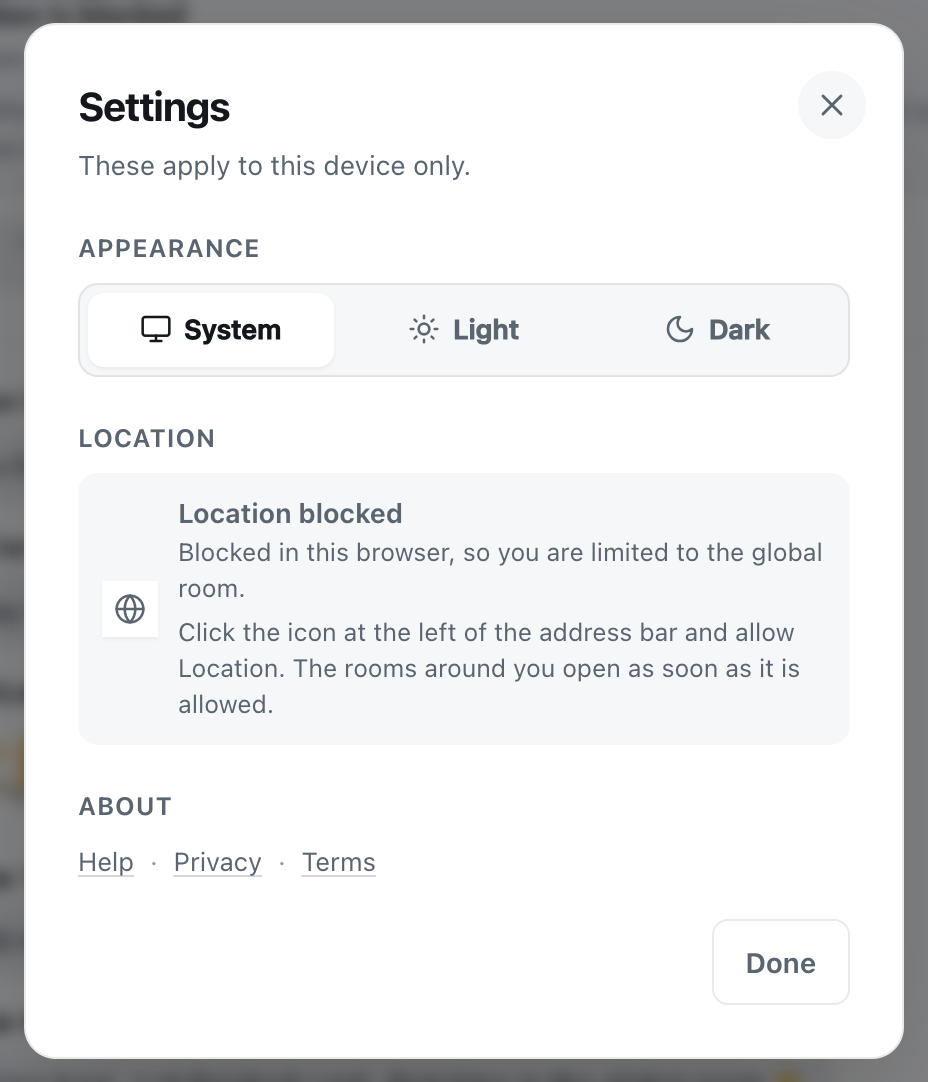
A screenshot of Settings when the browser has blocked location. The directions depend on your device.
Allow, Allow this time or Block: what each answer does
CicadaChat asks for your location as soon as it opens, because the room it starts you in, Within 1 km, is drawn around you. Your browser shows the question, and the answer you pick decides what happens next time too:
- Allow (or Allow while visiting the site): the browser remembers it. CicadaChat opens straight into your local room on every visit, with no prompt.
- Allow this time (or Allow once): location works now, and you'll be asked again next time you open CicadaChat.
- Block (or Don't allow): the browser remembers that too. CicadaChat puts you in Global and can't ask again. Only you can undo it, in the browser's settings.
- Closing the prompt without answering: nothing is remembered, and you're in Global for now. Be aware that some browsers, Chrome among them, start blocking a site automatically for a while if you dismiss its prompt several times in a row.
Saying no is a normal choice, not an error, and the Global room is there for you. CicadaChat doesn't keep nagging: it shows one card explaining where you are, and the Global room works fully without a location.
How to turn on location for CicadaChat from the app
If your browser hasn't blocked CicadaChat, you can do it without leaving the app:
- Open Settings with the gear next to your name.
- Press Share my location.
- Choose Allow when your browser asks. On some browsers it's Allow while visiting the site or Allow this time. Either works, but "this time" means you'll be asked again on your next visit.
The card at the top of the Global room offers the same thing: if your browser may still ask, it has a Try again link. As soon as your position arrives, the local rooms open and you move back to the room you'd picked before, or to Within 1 km.
How to unblock location in your browser
Once you've chosen "Block", browsers don't ask again, and a button in the page can't change that. Only you can, in the browser's settings for the site. CicadaChat shows the directions for your device on the card and in Settings. They're repeated here in more detail. Menus differ a little between browser versions, but the switch is always in the same kind of place.
Chrome or Edge on a computer
- Click the icon at the left of the address bar, next to cicadachat.com.
- Turn Location on, or set it to Allow. If you don't see it, choose Site settings (Chrome) or Permissions for this site (Edge) and set Location to Allow there.
- Go back to the CicadaChat tab.
Firefox on a computer
- Click the icon at the left of the address bar.
- Next to the blocked location permission, click the × to clear it.
- Press Try again on CicadaChat's card, or Share my location in Settings, and choose Allow.
Safari on a Mac
- With CicadaChat open, choose Safari in the menu bar, then Settings for cicadachat.com.
- Set Location to Allow or Ask.
- If it still doesn't work, check the Mac itself: System Settings → Privacy & Security → Location Services, and make sure Safari is switched on.
Safari on an iPhone or iPad
CicadaChat's card gives these steps on an iPhone: Tap "aA" in the address bar, then Website Settings → Location → Allow. If it is already allowed there, check Settings → Privacy & Security → Location Services → Safari Websites.
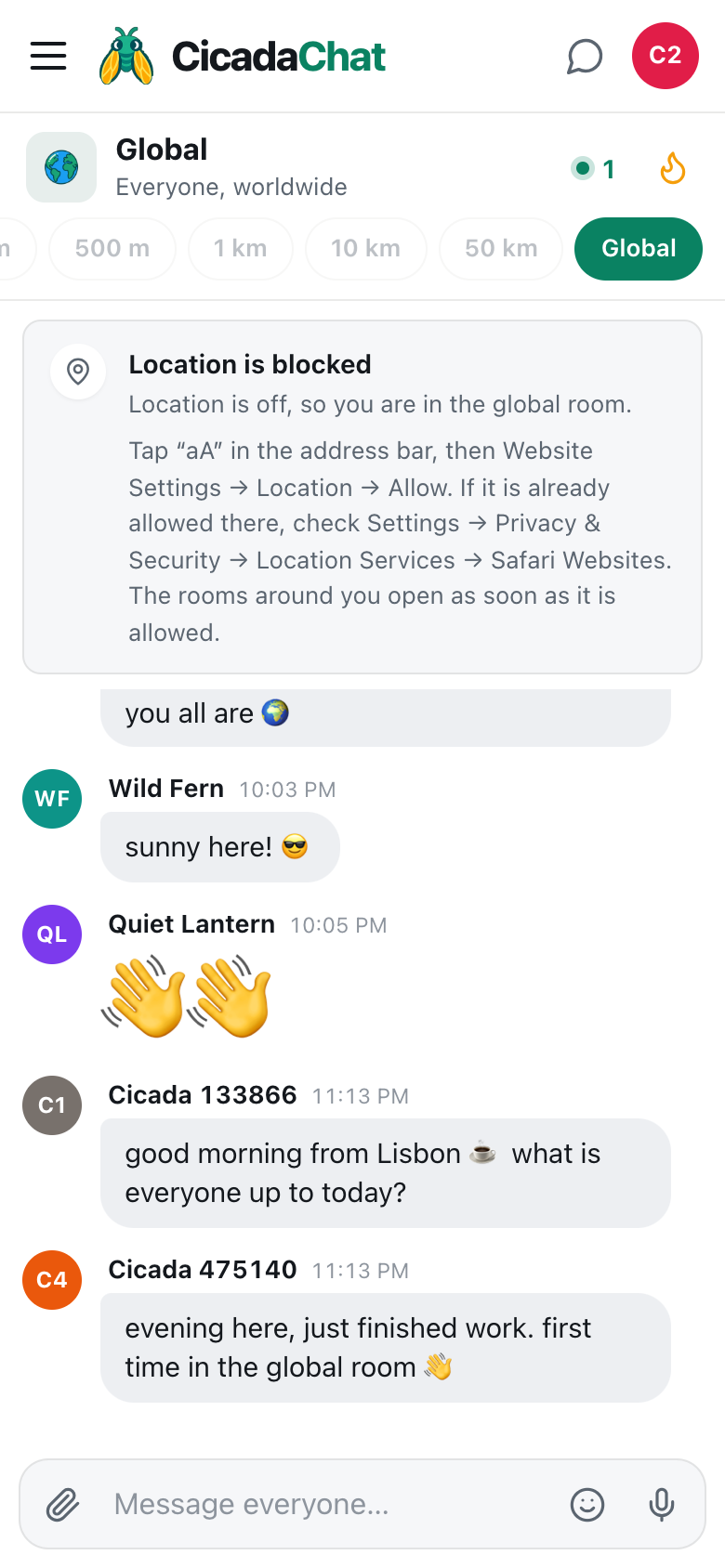
A screenshot of CicadaChat on an iPhone with location blocked. The card names the exact Safari and iPhone settings.
- Tap aA at the left of the address bar. On some iOS versions it's an icon with a page and lines instead.
- Tap Website Settings.
- Set Location to Allow or Ask.
- If location still doesn't work, open the iPhone's Settings app, go to Privacy & Security → Location Services, check that Location Services is on, and set Safari Websites to While Using the App.
Chrome on an Android phone
The card on Android says: Tap the icon at the left of the address bar, then Permissions → Location, and allow it.
- Tap the icon at the left of the address bar.
- Tap Permissions, then Location, and allow it.
- If Chrome itself isn't allowed to use location, Android asks you to allow it too. You can also check in the phone's Settings → Apps → Chrome → Permissions → Location.
- Make sure the phone's own Location switch is on, in the quick settings you pull down from the top of the screen.
Windows
If your browser allows location but CicadaChat still can't find you, Windows may be blocking it for every app. Open Settings → Privacy & security → Location, turn on Location services, and allow desktop apps to access your location.
After you've allowed it
You don't need to reload. CicadaChat listens for the change and checks again whenever you come back to its tab, which is exactly when you've just been changing the setting. The Location is blocked card disappears, and as soon as your device has worked out where it is, the local rooms open and you move to your room. Settings now says Location active.
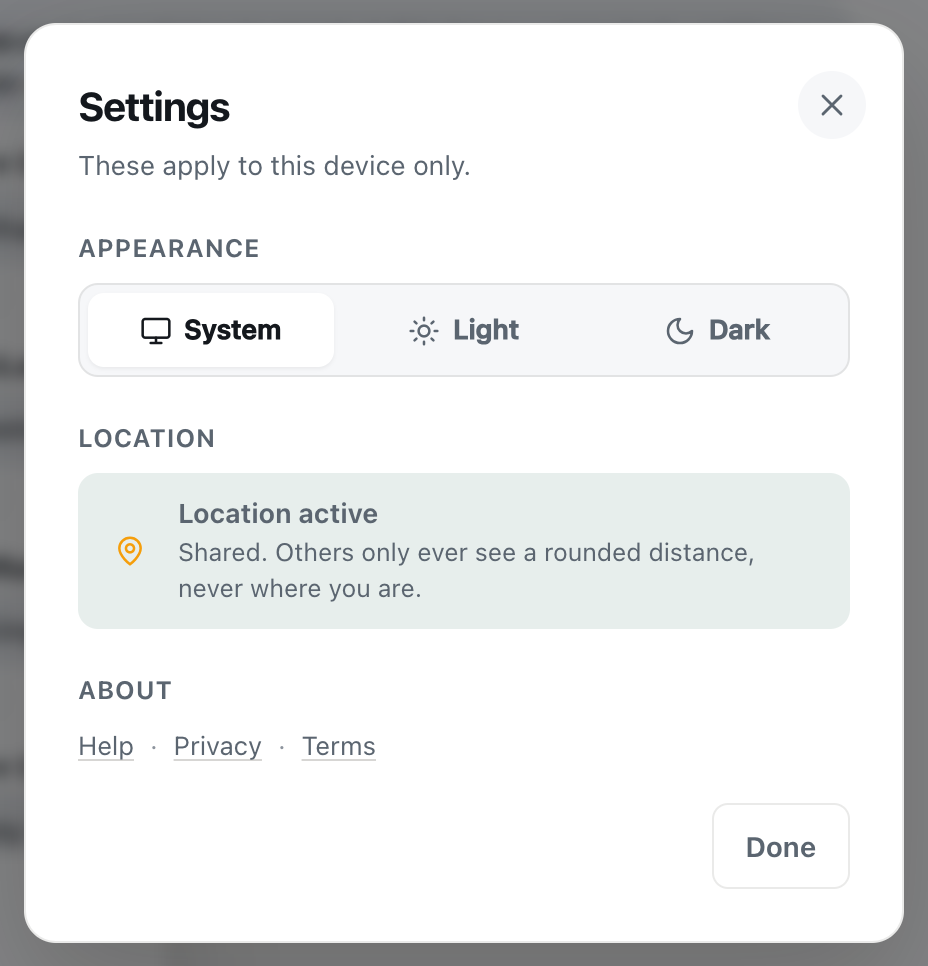
A screenshot of Settings once location is allowed. Others still see only a rounded distance.
If the rooms are still greyed out after a few seconds, switch to another tab and back, or reload the page.
What CicadaChat does with your location
It's reasonable to want to know what you're agreeing to. Here's exactly what happens once location is allowed:
- Your position is used to draw your rooms. While the app is open, your browser sends it to CicadaChat, and again whenever you've moved about 25 m or more. That's how your rooms follow you.
- Nobody else sees your coordinates. Other people see a rounded distance next to your name, like 150 m away, rounded more roughly in wider rooms. See how CicadaChat rooms work. They never see a map, an address or a pin.
- Each message you send in a local room keeps the point it was sent from. That point is used only to work out distances and who the message reaches. It's never shown to anyone.
- Nothing is sent once CicadaChat is closed. It only receives your position while its page is open. Close the tab and it stops.
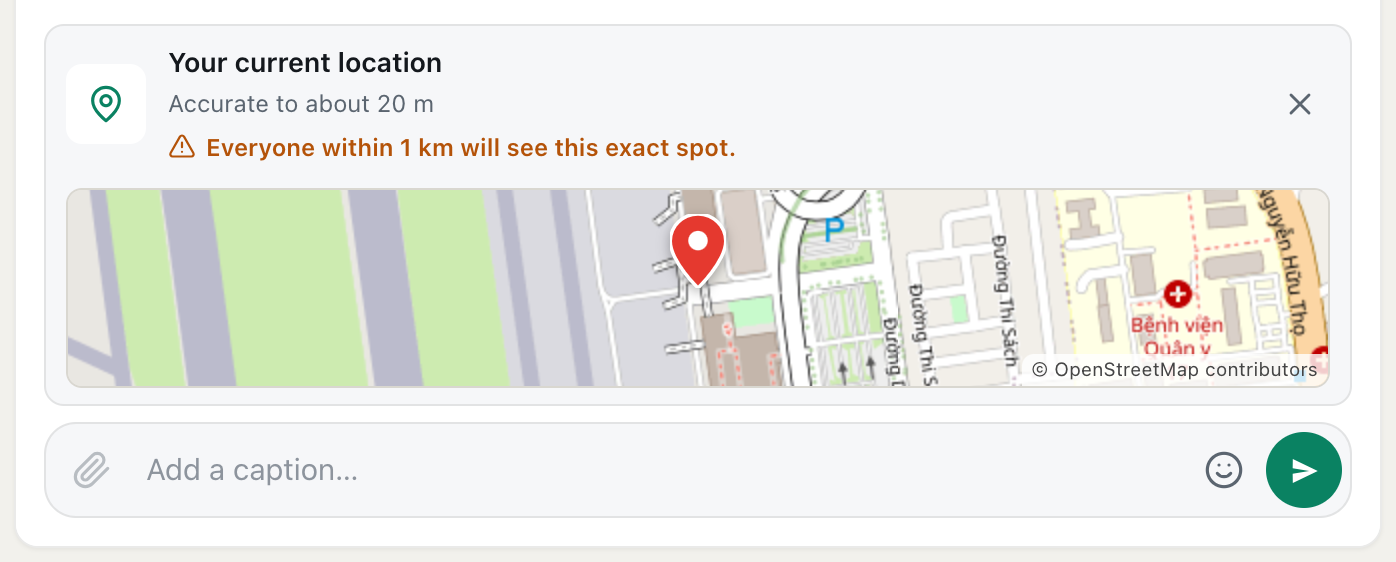
- Sharing a location in a message is separate. Choosing Location from the paperclip menu sends an exact spot that the room will see. CicadaChat warns you first, for example Everyone within 1 km will see this exact spot.
For the full details, see the Privacy Policy, linked from Settings under About.
If CicadaChat still can't find you
- "We could not work out where you are. You are in the global room." Location is allowed, but your device didn't find a position within 20 seconds. Indoors, a phone may struggle to get a fix. Turn on Wi-Fi, which helps even when you're not connected to a network, or move near a window. Then press Try again.
- "This browser cannot share a location." The browser has no location support. Use an up-to-date Chrome, Safari, Firefox or Edge.
- The distances look wrong. A computer without GPS guesses its position from Wi-Fi or its internet connection, which can be off by hundreds of metres or more. A phone outdoors is usually much closer. Remember too that distances are rounded on purpose.
- You're asked every visit. You probably chose "Allow this time". Allow it permanently in the browser's site settings, as above.
- You're using a private or incognito window. Browsers forget everything from a private window when it closes, including your location answer, so each new private window asks again. It also forgets your guest account, so you'll arrive as a new guest each time. Log in to keep the same account.
Turning location off again
Changed your mind? Block location for cicadachat.com in the same browser settings described above. From the next time you open CicadaChat, it can't get your position and puts you in Global, which works without one. Your messages already sent in local rooms stay there, with the reach they were sent with.
No comments yet. Start the conversation.