
How to add a business card to your CicadaChat account
A business card shows your business name, photos, address, phone, email and website beside every private chat with you. How to add one, what customers see, and how to keep it up to date.
If you run a shop, a café, a stall or a service, the people who meet you in a CicadaChat room will want to know more before they come by. A business card puts your business name, photos, address, phone number, email and website right next to every private chat with you. This guide shows how to add a business card to your CicadaChat account, what customers see, and how to keep it up to date.
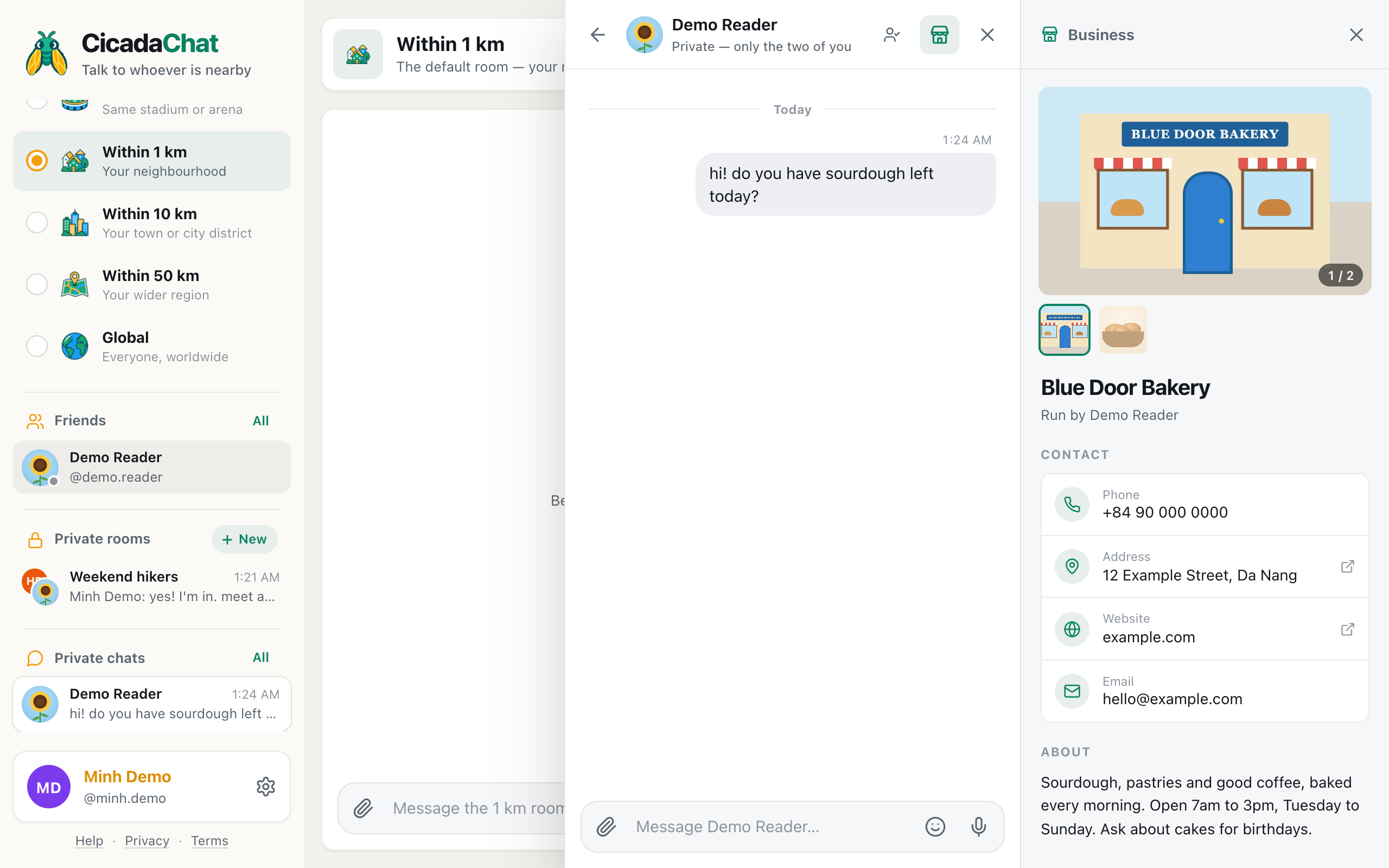
A screenshot of a business card as a customer sees it on a computer, to the right of their private chat with the owner.
What a business card is, and where it appears
- It belongs to your account. It isn't a separate business account. You still chat as yourself, and the card says Run by followed by your full name.
- It appears beside private chats with you. Anyone who opens a one-to-one chat with you sees it. They don't have to be your friend, and guests see it too.
- It doesn't appear in rooms. Your messages in a location room look the same as anyone else's, and the card doesn't show in the People in range list either. People find it by starting a private chat with you.
- You can have one card per account. To run two businesses separately, use two accounts.
What you need
- A CicadaChat account. Business cards are for registered accounts. As a guest, there's no Your account dialog to add one in, so create an account first. Your guest chats come with you when you do.
- Details you're happy to make public. Everything on the card can be seen by anyone who chats with you, so use your business phone and email, not your personal ones.
- A few photos, if you have them. JPEG, PNG, WebP or HEIC, such as your shopfront, your menu or your products.
How to add a business card
- Open Your account: click your name at the bottom of the sidebar. On a phone, tap your round picture at the top right.
- Scroll down to Business. It explains: Anyone who opens a private chat with you sees these details beside the conversation.
- Press Add business details.
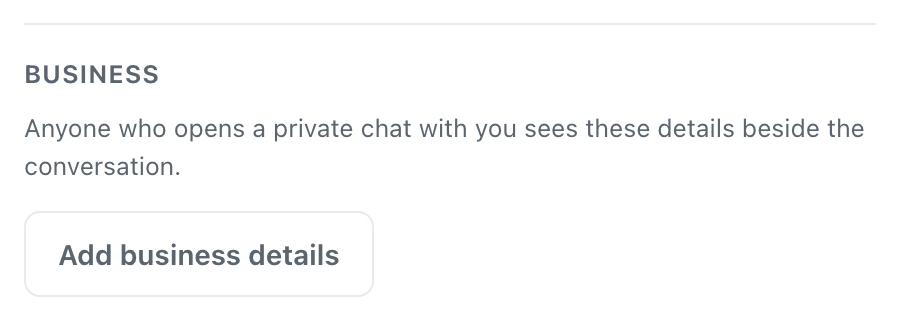
A screenshot of the Business section before you've added anything. It sits under your name and username in Your account.
- Type your Business name. It's the only field you must fill in.
- Fill in whichever of Description, Address, Phone, Email and Website you want customers to see. Leave the rest empty, and they won't appear on the card.
- Under Photos, press + Add and pick up to eight photos.
- Press Save business. When it's done, you see Saved.
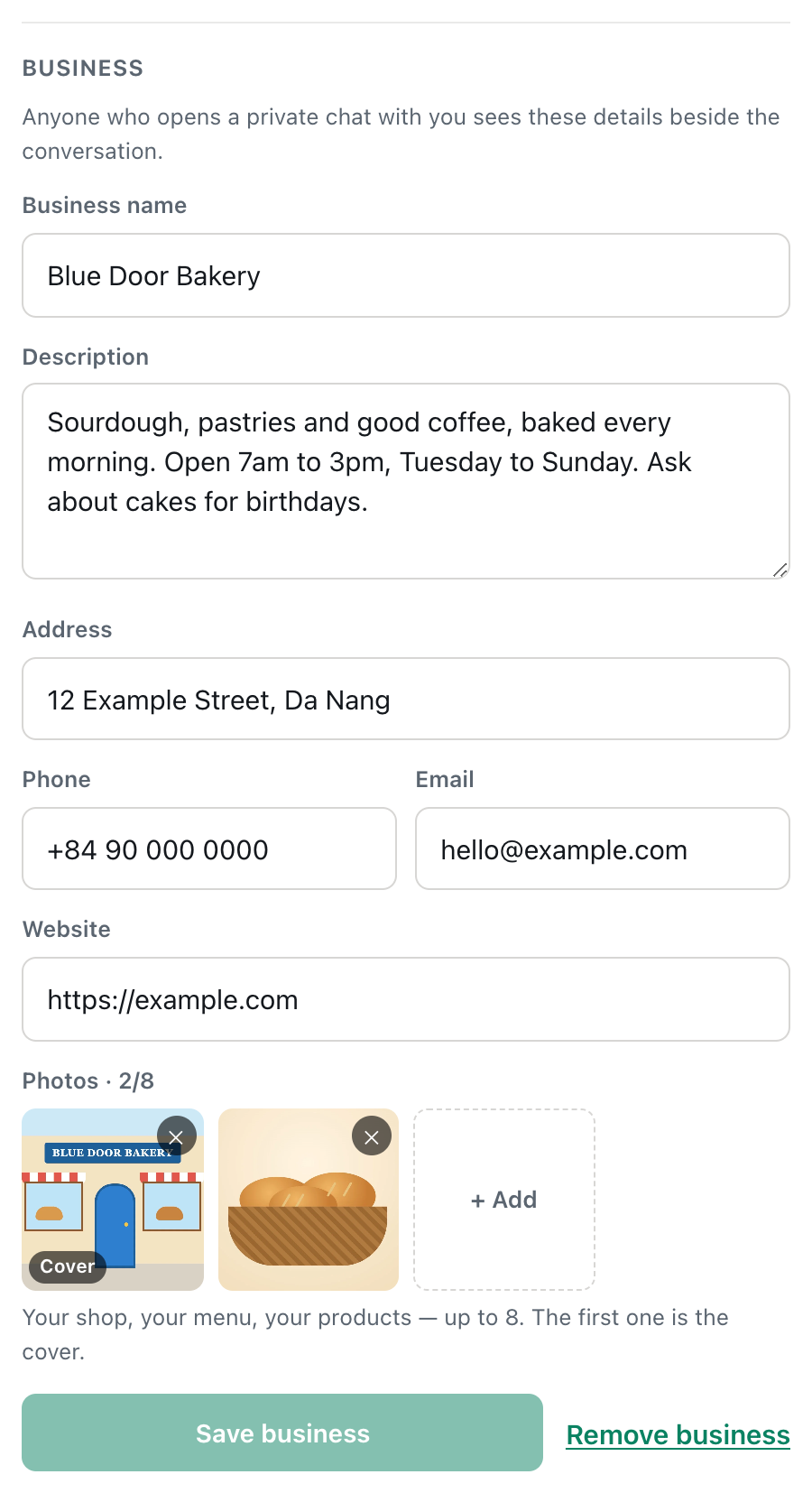
A screenshot of a finished business card in Your account. Save business lights up again whenever you change something.
That's it. The next time anyone opens a private chat with you, your card is there.
Filling in each field
Business name
Up to 80 characters. Use the name on your sign or your receipts, such as "Blue Door Bakery". It's the heading of the card, in large type, with Run by and your full name underneath. If you'd like that line to read well, set a full name in your profile: see how to set your profile photo, full name and username.
Description
Up to 1,000 characters. The empty box suggests What you do, opening hours, anything people should know, and that's a good checklist. Put the most useful facts first: what you sell, when you're open, and anything that saves a customer a wasted trip, such as "cash only" or "closed on Mondays". It appears under About on the card.
Address
Up to 200 characters. On the card, the address is a link that searches for it on Google Maps in a new tab, so write it the way you'd type it into a map: street and number, then the district or city. The address is only the text you type. It has nothing to do with your location in CicadaChat, which stays private.
Phone
Up to 40 characters: digits, spaces, brackets, dots and dashes, with an optional + at the start. Include the country code, such as +84, so the number works from any phone. On a phone, tapping it starts a call.
The address customers can write to. Tapping it opens their email app. This is separate from the email address of your account, which is never shown to anyone. Use a business address you don't mind being public.
Website
Up to 200 characters. You can type just example.com, and CicadaChat adds https:// for you. Only web addresses are accepted, meaning ones starting with http:// or https://. On the card, the link is shown short, without the https:// and www, and opens in a new tab. A page on a social network works too, if that's where your business lives.
To take a detail off the card, empty its field and press Save business.
Adding and managing photos
- Up to eight photos. The heading counts them, for example Photos · 2/8. If you pick more than fit, CicadaChat adds as many as it can and tells you Only 8 photos fit — the rest were skipped.
- The first photo is the cover. It's marked Cover, and it's the large picture at the top of the card. The others appear as small thumbnails underneath.
- Photos stay in the order you added them. There's no drag to reorder, so add your best picture first. To change the cover later, remove the photos in front of the one you want, then add them again.
- Remove a photo with the ✕ in its corner. It goes straight away.
- Before your first save, new photos are marked Unsaved, and the note says New photos upload when you save. Once the card exists, photos upload as soon as you pick them.
- Photos are prepared on your device. Before uploading, CicadaChat shrinks each one so its longest side is at most 1,600 pixels and saves a fresh copy. That keeps the card quick to load, and it leaves behind the hidden details a phone camera stores in a photo, including where it was taken.
Good photos to include: the front of your shop, so people recognise it from the street; your menu or price list; your best products; the inside, if it's somewhere people come to sit.
What customers see
On a computer
When someone opens a private chat with you, your card opens by itself on the right of the chat. At the top is your cover photo, with a counter such as 1 / 2 and thumbnails to switch between photos. Clicking the big photo opens it full size in a new tab. Below that are your business name, Run by your full name, a Contact list with Phone, Address, Website and Email, and your description under About.
The customer can hide the card with its ×, and bring it back with the store icon in the chat's header.
On a phone
There isn't room for the chat and the card side by side, so the card waits until it's asked for. A store icon appears at the top right of the private chat, next to the close button.

A screenshot of a private chat on a phone. The store icon at the top opens the business card.
Tapping the store icon opens the card over the chat. The × or the back gesture takes the customer back to the conversation.
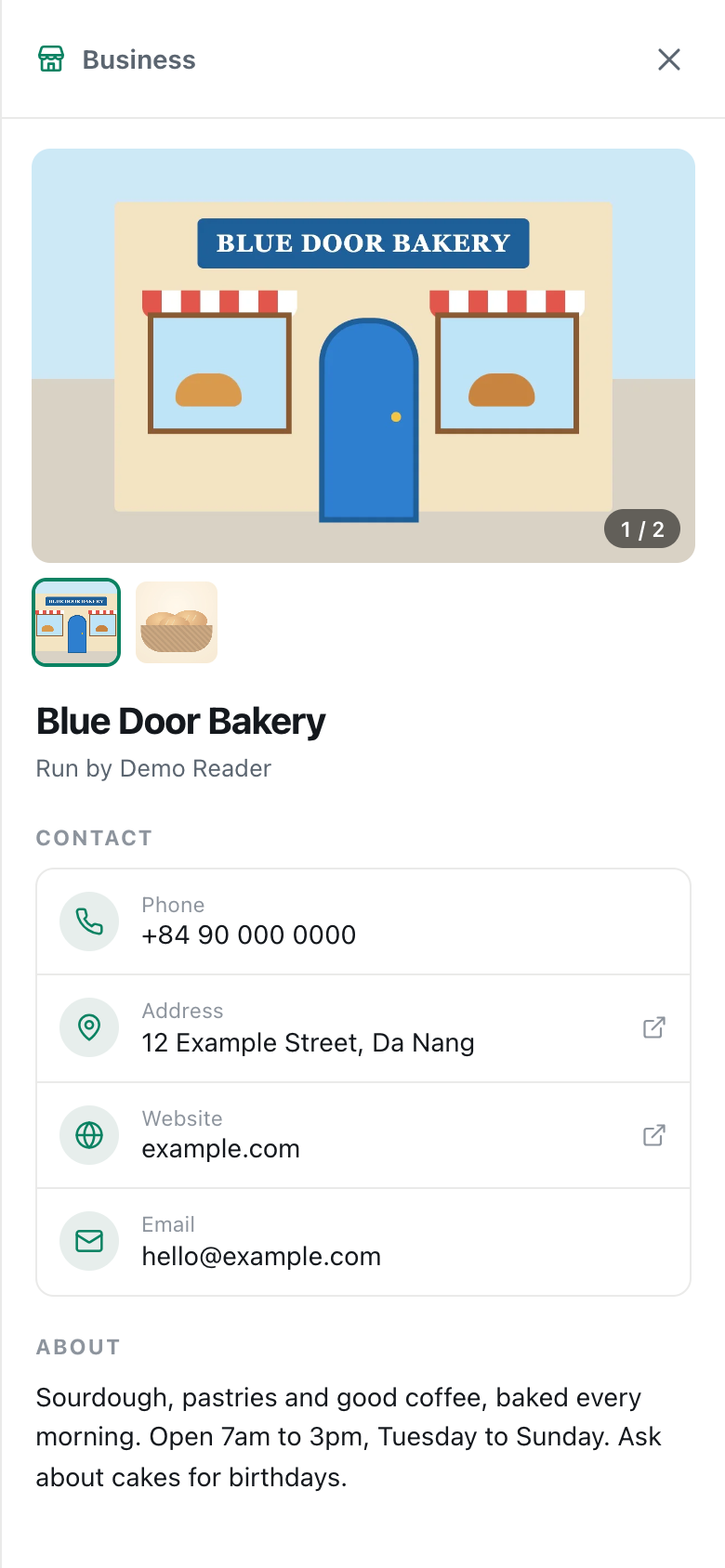
A screenshot of the same business card on a phone. Tapping the phone number starts a call.
How customers find your card
The card is only as useful as the chats that lead to it. People usually get there like this:
- They see a message of yours in a location room, or see you in the People in range list.
- They tap your name or photo, which opens a private chat with you. See private chats: how to message someone one to one for how that works.
- Your card appears beside the chat, and they can call, find you on the map or visit your website without asking.
So it helps to be present in the rooms around your business. Post something useful now and then in the room that matches your customers, such as the 500 m room around a market stall or the 1 km room around a café: today's special, a new delivery, a table free on a rainy afternoon. People who are interested will tap your name, and your card does the rest. Keep it friendly and occasional. A room full of adverts quickly gets ignored.
Keeping your card up to date
Open Your account, change what you need in Business and press Save business. The button stays greyed out until something has changed. The next time anyone opens a chat with you, they see the new details.
Worth checking now and then:
- Opening hours in the description, especially around holidays.
- Your cover photo, if your shopfront or your products have changed.
- That the phone number and website still work.
How to remove your business card
- Open Your account and scroll to Business.
- Click Remove business, next to Save business.
- Your browser asks Remove your business details and photos? Confirm it.
The card and all its photos are deleted, and it disappears from every private chat with you. If you change your mind later, Add business details starts a new card from scratch.
Privacy and your business card
- Everything on the card is public to anyone who chats with you, including guests you've never met. Treat it like a shop sign or a flyer.
- Your location stays private. The card shows only the address you typed. Your position in CicadaChat is never on it, and in rooms people still only see a rounded distance to you.
- Your account email stays private. Only the email you type into the card is shown.
For everything else that other people can and can't see, read what other people can see about you on CicadaChat.
If something goes wrong
- There's no Business section. You're chatting as a guest. Create an account, or log in to the one you have.
- Save business is greyed out. Nothing has changed since you last saved. If you've only just added photos to an existing card, they're already saved.
- "Give your business a name." The business name can't be empty.
- "That phone number does not look right." Use only digits, spaces, brackets, dots and dashes, with an optional + at the start.
- "That email does not look right." Check for a missing @ or a typo in the domain.
- "That website address does not look right." Type a full address with a dot in it, such as example.com or https://example.com/shop.
- "Pick a photo — JPEG, PNG, WebP or HEIC." GIFs, SVGs and other files can't be used on a card.
- "That photo could not be read in this browser. Try a JPEG or PNG." Usually an iPhone HEIC photo in a browser that can't open HEIC. Save it as a JPEG first, or add the photo from your phone.
- "A business can have up to 8 photos." Remove one to make room.
- A customer can't see your card. They have to open a private chat with you, and on a phone, tap the store icon. Check too that you pressed Save business after adding the details.
No comments yet. Start the conversation.