
Private chats: how to message someone one to one
Private chats in CicadaChat are just the two of you and don't depend on distance. How to start one, find it again, keep track of unread messages, and stay safe.
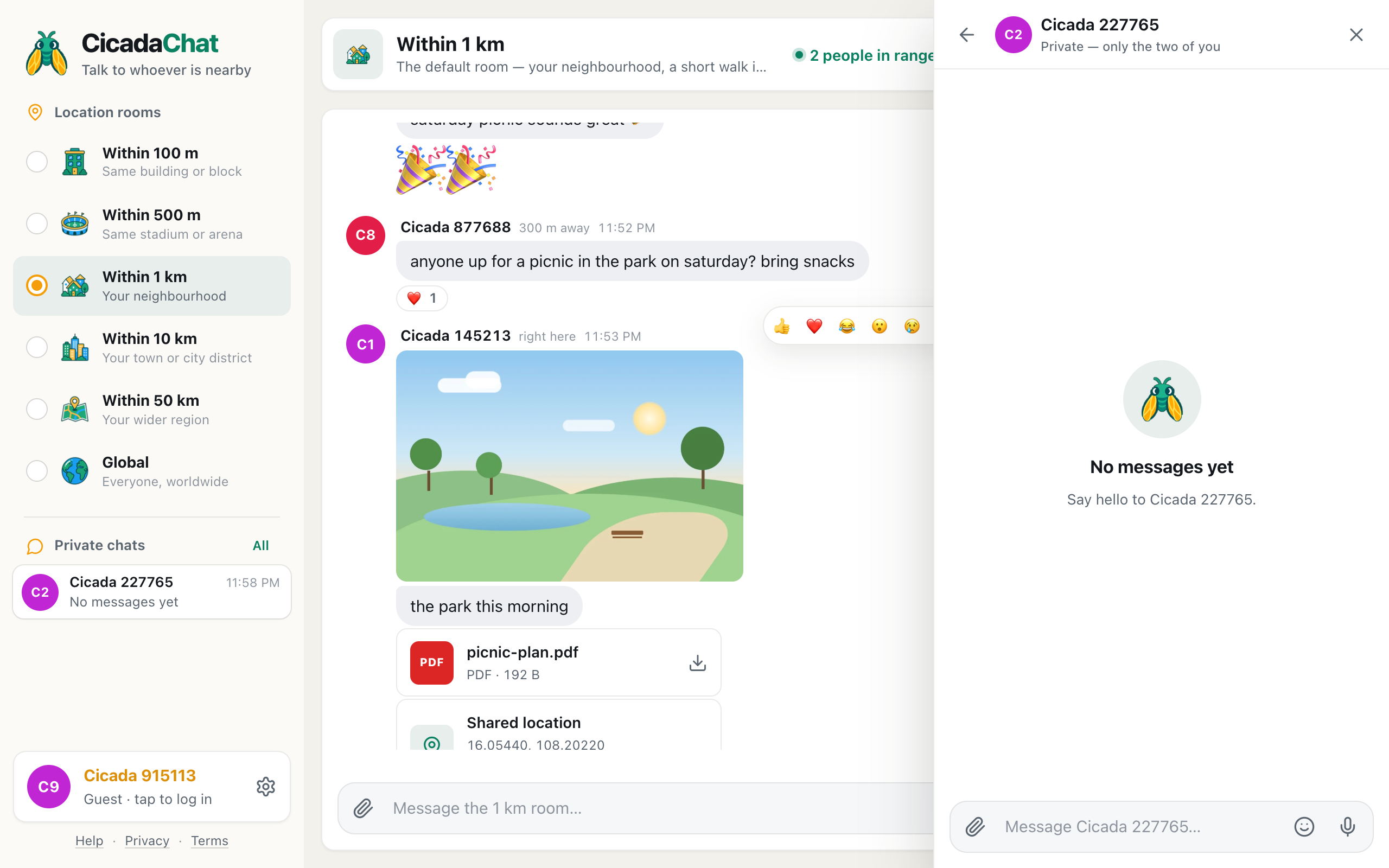
Location rooms are for everyone nearby. When you want to talk to one person, open a private chat. Only the two of you can read it, it isn't tied to distance, and guests can use it as well as people with accounts. This guide shows how to message someone one to one in CicadaChat, how to find your conversations again, and what to know about privacy in private chats.
A screenshot of a new private chat, opened from the room. It also appears in the sidebar under Private chats.
How to message someone one to one
You can start a private chat with anyone you come across in CicadaChat:
- From a message: click or tap the person's name or picture on any message in a room.
- From People in range: open the people in range list in the room header and tap someone.
- From your friends: if you have an account, tap a friend under Friends in the sidebar.
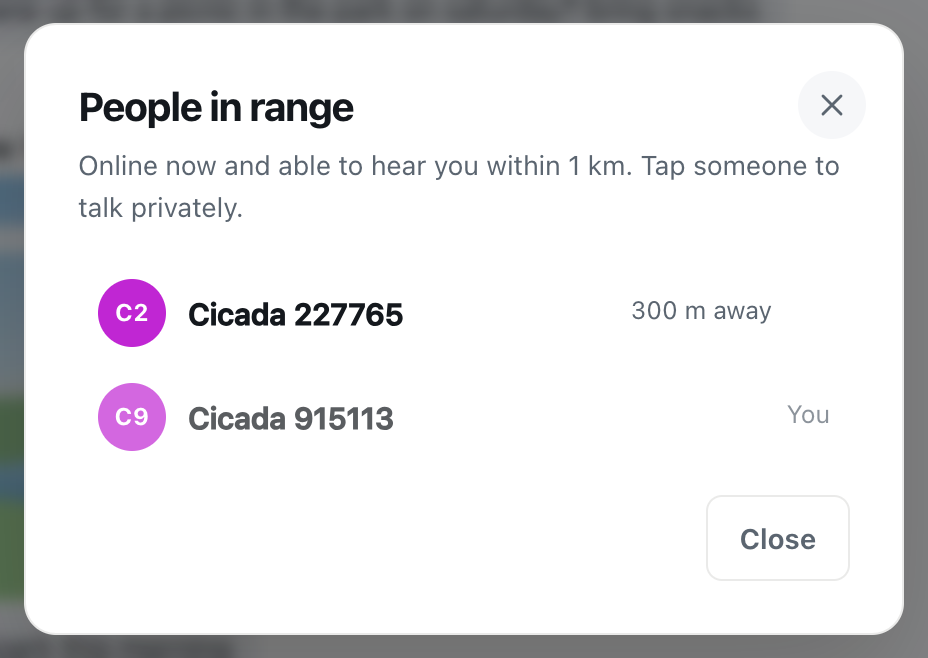
A screenshot of People in range. Tap anyone in the list to open a private chat with them.
The private chat opens as a panel on the right of the screen, or over the whole screen on a phone. At the top are the person's picture and name, with Private — only the two of you under it. Until someone writes, the conversation says No messages yet and Say hello to followed by their name.
- Type in the message box at the bottom. It says Message followed by their name, for example Message Cicada 227765….
- Press Enter or the send button.
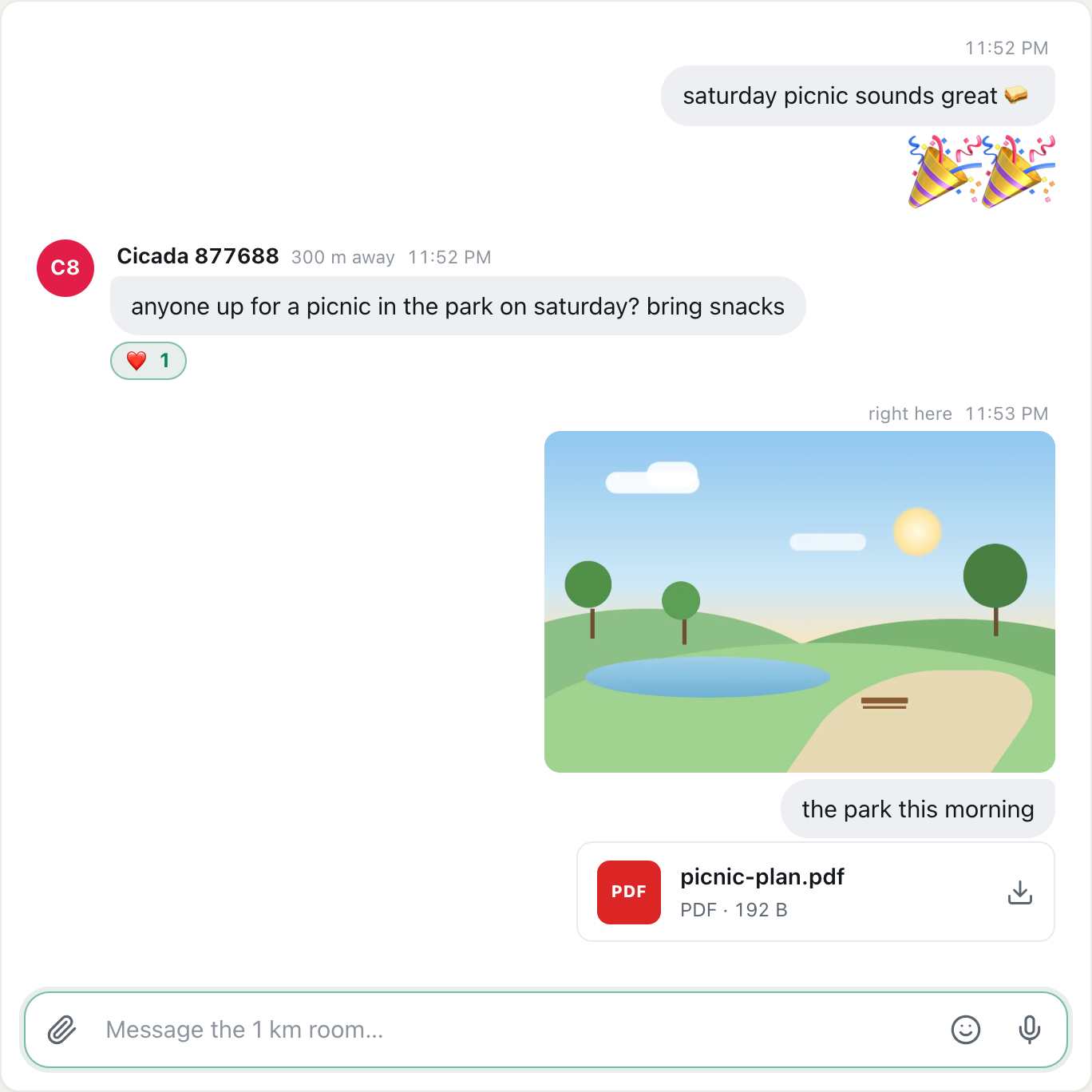
Photos, documents, voice messages, emoji and locations all work here, exactly as in a room.
They'll see it as soon as you open it
Opening a private chat creates the conversation for both of you straight away. It appears in the other person's list of private chats, marked No messages yet, even before you've typed anything. So open a chat when you mean to say something.
What a private chat is like
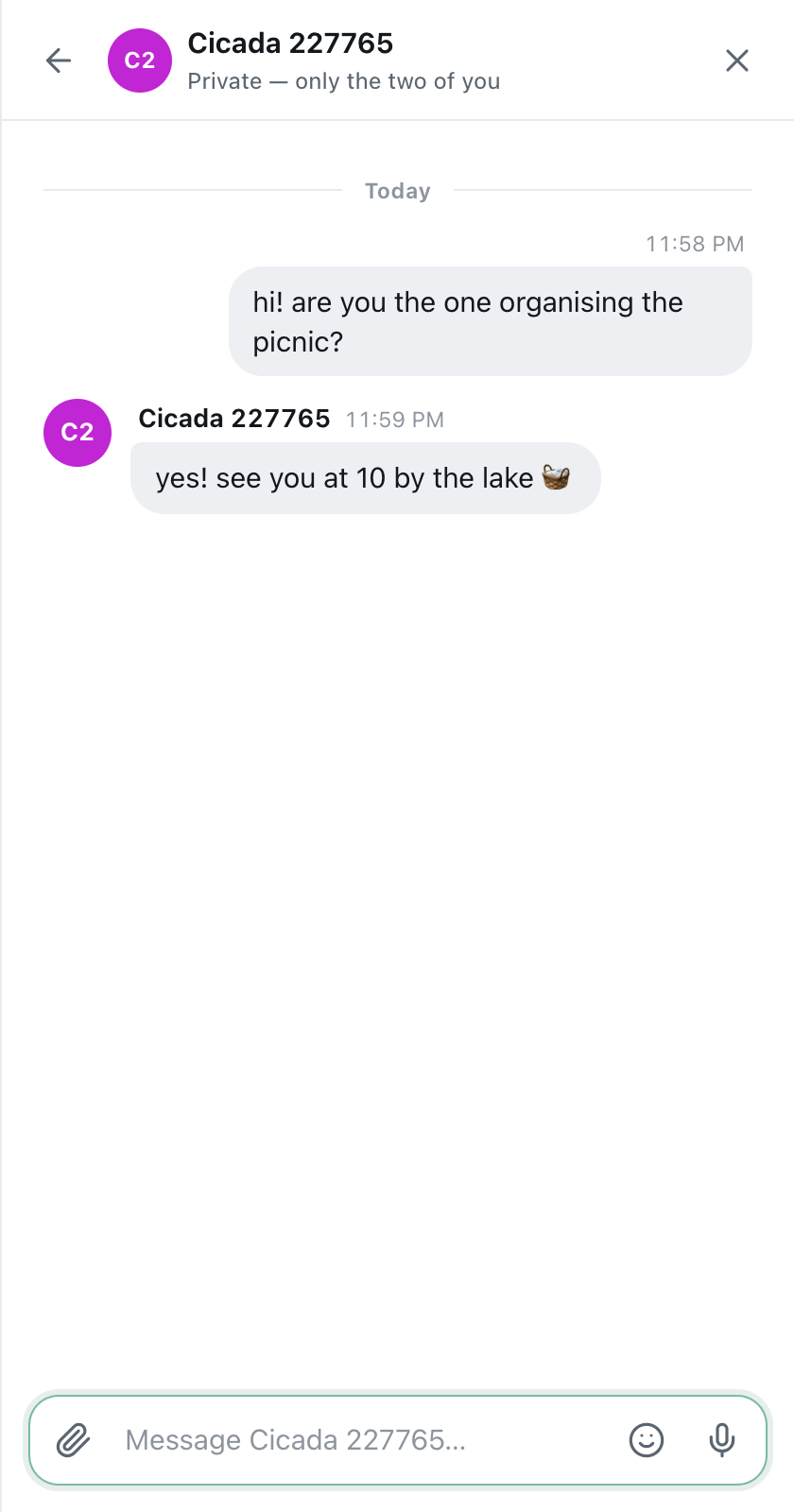
A screenshot of a private chat. The header says Private — only the two of you, and there are no distances.
- Only the two of you can read it. Nobody in the room sees it, and it never appears in any location room or in Global.
- It doesn't depend on distance. Once started, a private chat keeps working however far apart you move: across town, or across the world. There are no distances next to names here.
- It's one conversation per pair. However you open a chat with someone, and even if you both open one at the same moment, you always land in the same conversation.
- It shows your most recent messages. On the web, a private chat shows its latest 50 messages.
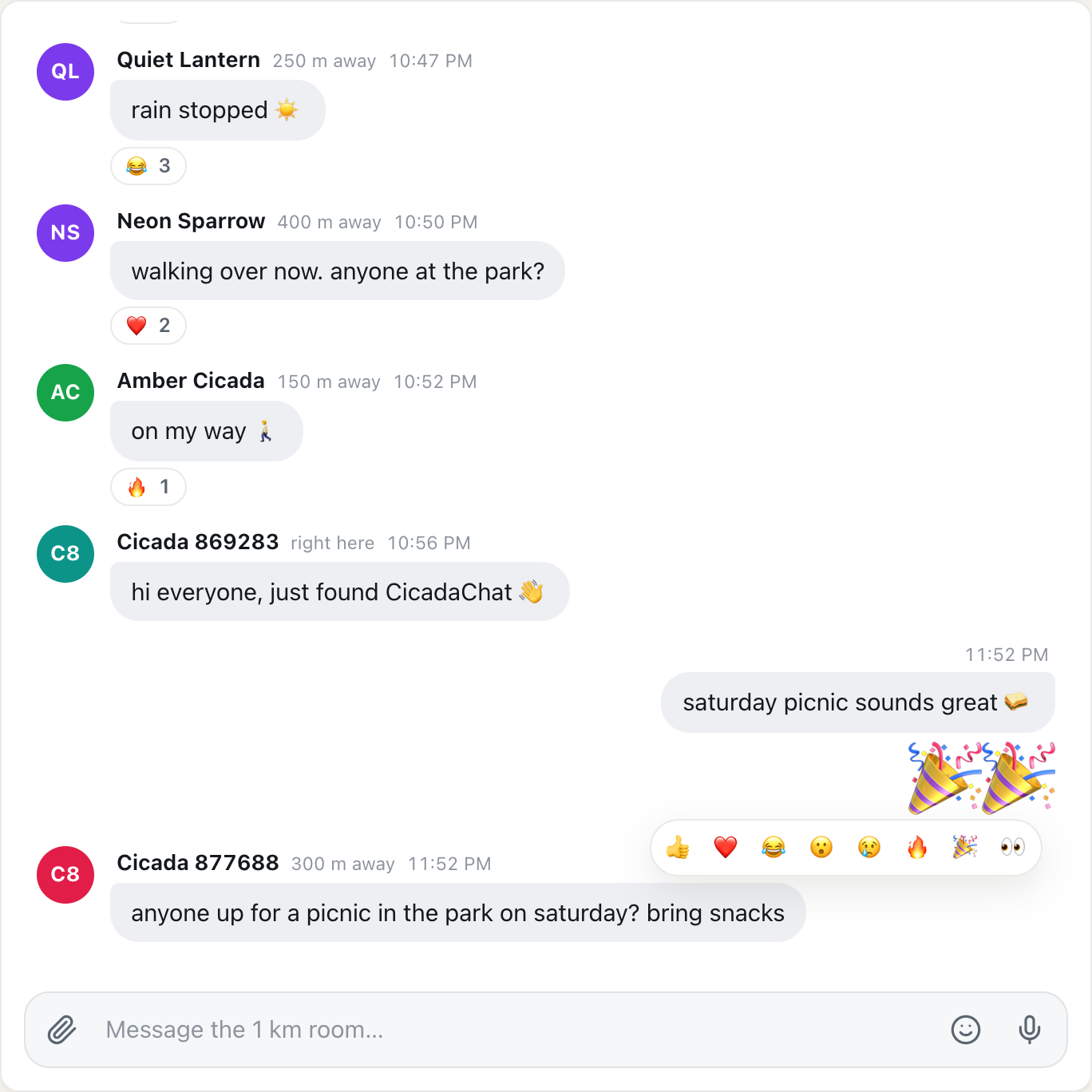
- Reactions and the typing line are room features. On the web, private chats don't show quick reactions or the "is typing…" line. Reply with a message or an emoji instead.
Sharing a location privately
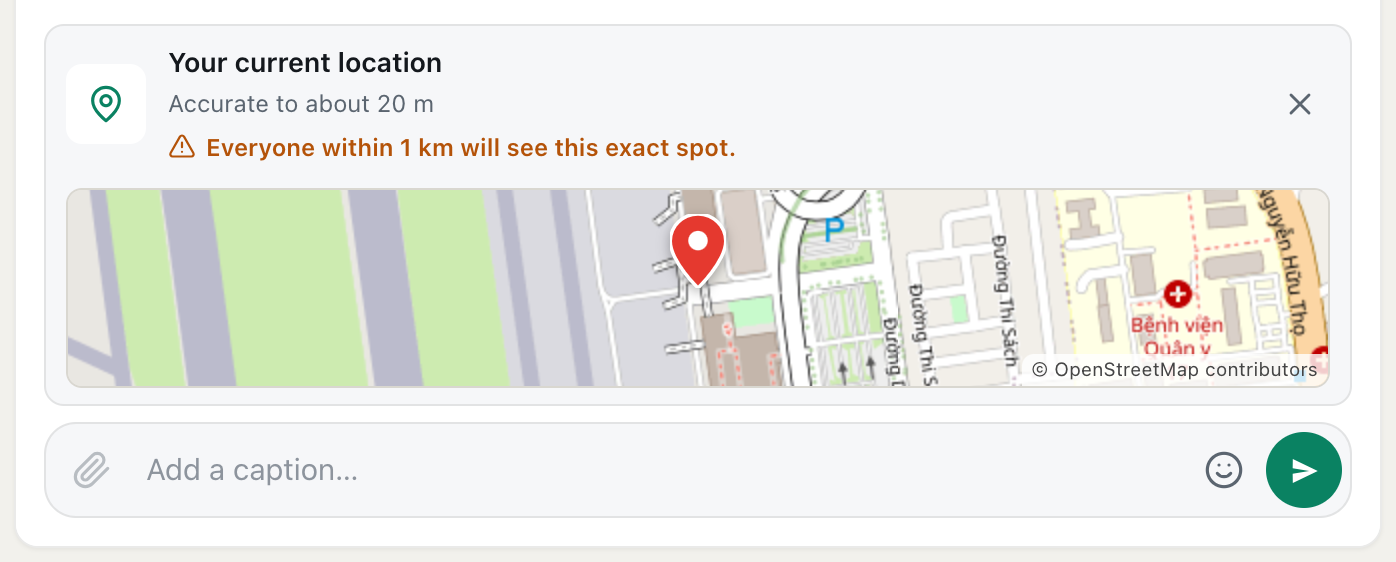
Sharing your location from the paperclip menu in a private chat sends your exact spot to the other person only. There's no warning line here, unlike in public rooms, because only they will see it. A private chat is the right place for "I'm here" when you're meeting someone.
When to take a conversation private
Rooms are good for questions everyone can answer. A private chat is better when the conversation only concerns two people:
- Arranging to meet. Times and places don't need to be in front of the whole neighbourhood.
- Buying or selling between neighbours. "Is the bike still available?" is a question for the seller, not the room.
- Following up. Someone found your lost keys? Sort out the handover privately.
- A long back-and-forth. If two of you are filling a busy room with a conversation nobody else is part of, carry on privately.
- Anything personal. A phone number, a photo of your face or a shared location belongs in a private chat, if anywhere.
Private chats and private rooms
CicadaChat has two kinds of private conversation, and they suit different things:
| Private chat | Private room | |
|---|---|---|
| Who's in it | You and one other person | A group chosen by the room's owner |
| Who can use it | Everyone, guests included | People with accounts |
| How it starts | Tap anyone's name | The owner creates it and adds friends |
| Reactions and typing line on the web | No | Reactions, yes |
For a group, such as a football team, a book club or neighbours on one staircase, see the Help article "How to create a private room for people you know".
Private chats on a phone
On a phone, private chats fill the screen. The speech bubble at the top right opens your list, and a number on it counts unread messages. Tap a conversation to open it. The back arrow, or your phone's back gesture, returns to the list, and going back again closes private chats and returns you to the room.
Finding your private chats
Your conversations are listed under Private chats in the sidebar, the most recent first. Each shows the person's name, when the last message was sent, and a preview of it: the text itself, or a label such as 📷 Photo, 🎙️ Voice message or 📍 Location.
- The sidebar shows your six most recent chats. For the full list, press All next to the Private chats heading.
- On a phone, the speech bubble at the top right of the screen opens the full list.
- Times are shown as the time of day for today, Yesterday, the day of the week for the past week, and a date before that.
From an open conversation, the back arrow at the top left returns to the list, and the × closes private chats and takes you back to the room.
Unread messages
When someone writes to you, CicadaChat shows it in three places, so you don't miss it:
- A green number next to the conversation, with the number of unread messages.
- A green number next to the Private chats heading in the sidebar, with the total across all your chats.
- On a phone, a number on the speech bubble at the top of the screen.
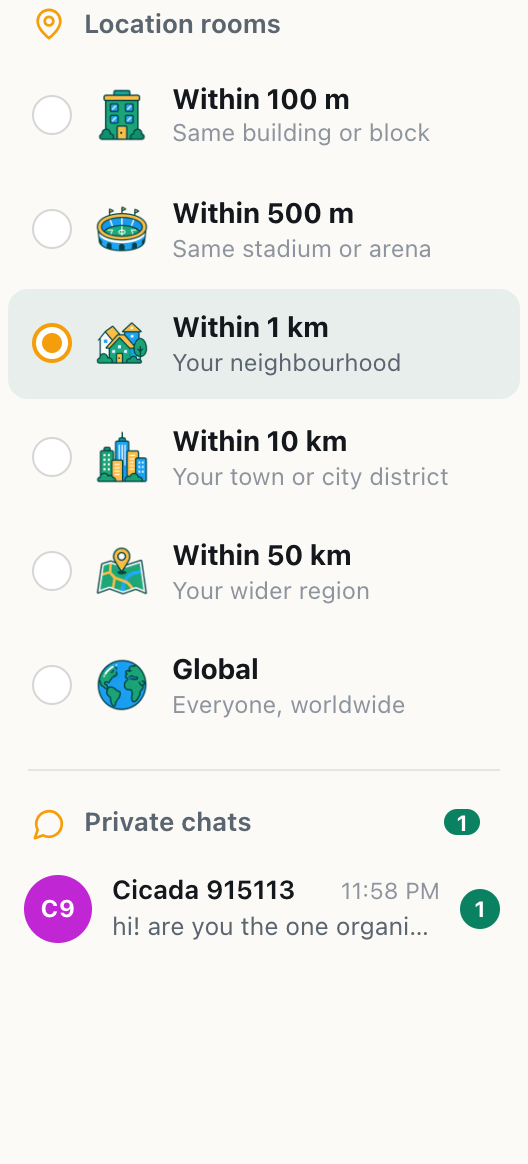
A screenshot of the sidebar after a new private message. The green numbers count what you haven't read.
Opening the conversation marks its messages as read, and the numbers go away. CicadaChat doesn't send notifications, so new private messages arrive while CicadaChat is open. When you come back to it, the numbers show what's waiting.
Private chats as a guest
Guests can start and receive private chats, with no account needed. The catch is that a guest account belongs to one browser on one device. If you clear the browser's data or switch devices, you start again as a new guest, and your private chats stay with the old one.
To keep them, create an account: click your guest name at the bottom of the sidebar and choose Create one. CicadaChat turns your guest account into the new one, so every private chat comes with you, and you can then log in on any device to carry on.
Private chats and friends
If you both have accounts, the top of the private chat shows a friend button next to the person's name. Its icon shows where you stand: Add friend, Requested, Accept or Friends. Point at it on a computer to see the label. Friends appear in your sidebar with a dot that shows when they're online, and tapping a friend opens your private chat with them. That's the easiest way to find someone again after you've both left the room where you met.
Chatting with a business
Some accounts have a business card: a shop, café or service near you. When you open a private chat with one, the card appears beside the conversation, with the business's description, address, contact details and photos. On a phone, tap the shop button at the top of the chat to see it. Anyone can view a business card, including guests.
Privacy and good sense
- Nobody else in the room is told. People in the room don't see that you've started a private chat, or with whom.
- Your location stays private. Private chats show no distances. The other person learns where you are only if you share a location or say so.
- Messages can't be deleted or edited. What you send stays in the conversation for both of you. Think before you send anything personal, particularly photos.
- You can't block someone. CicadaChat has no blocking or reporting. If a conversation becomes unpleasant, stop replying and close it. Leave the room you met in for a while if you need to.
- Be careful with strangers. Don't share your address, phone number or passwords with someone you've just met, and never send money. If you decide to meet, agree on a busy public place and tell a friend where you're going.
If something doesn't work
- Nothing happens when I tap a name. Your own name doesn't open a chat, since you can't message yourself. For anyone else, check that you're online.
- "That person is no longer here." Their account no longer exists, for example a guest whose browser data was cleared.
- My chats are gone. You're probably a new guest: the browser's data was cleared, or you're in a private window or on another device. If you had an account, log in to get them back. A guest's chats can't be recovered.
- They haven't answered. They may not have CicadaChat open. Your message waits in the conversation, and they'll see the unread number next time they open the app.
No comments yet. Start the conversation.