
Forgot your password? How to reset it
Forgot your CicadaChat password? Ask for a reset link, choose a new password and log back in. What the email looks like, and what to do if it doesn't arrive.
Forgot your password? It happens to everyone, and it only takes a couple of minutes to fix. CicadaChat emails you a link, you choose a new password, and you're back in. This guide shows how to reset your CicadaChat password step by step, what the email looks like, and what to do if the email doesn't arrive or the link doesn't work.
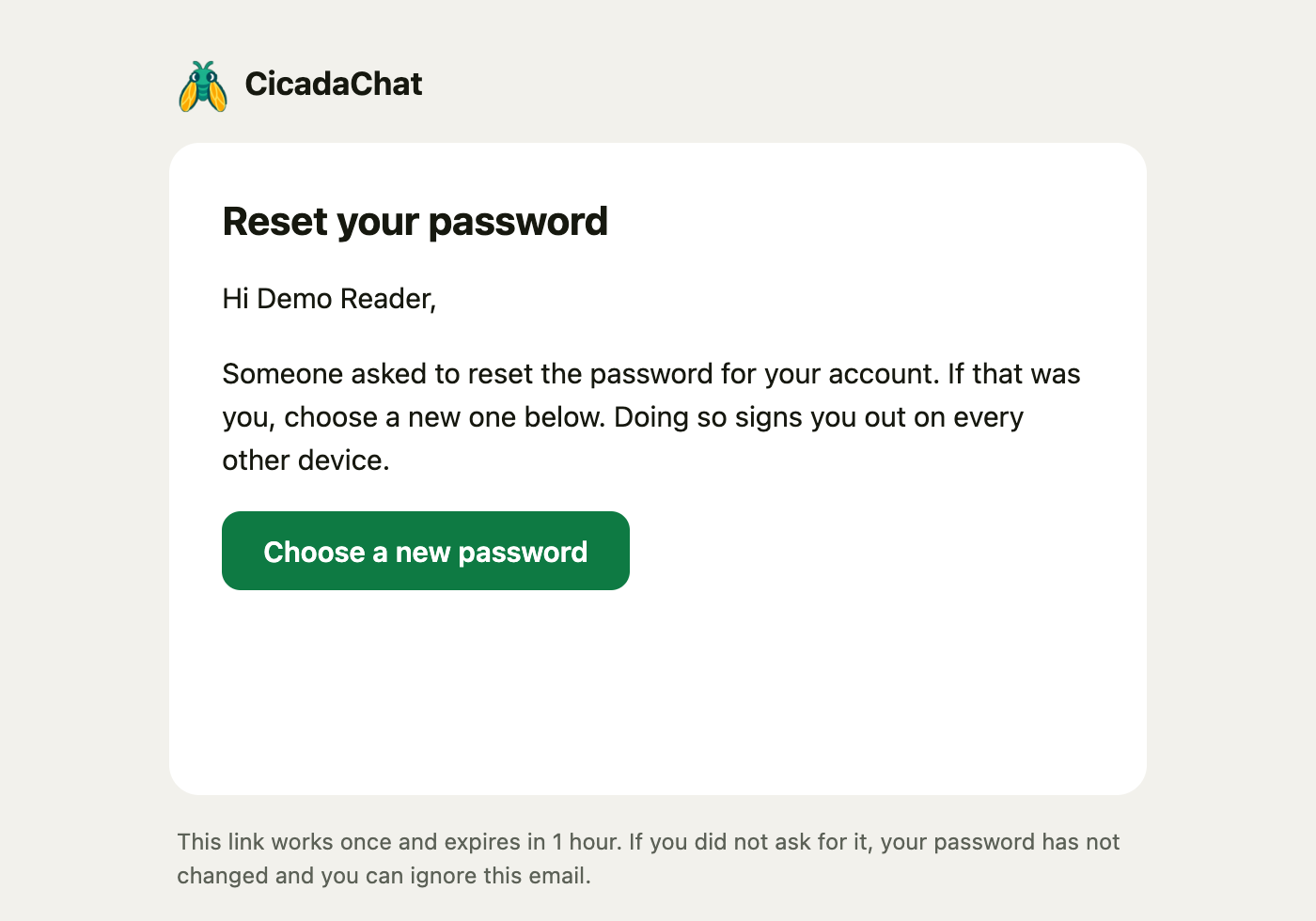
The password reset email, with the plain-text copy of the link hidden here. It works once and for one hour.
How to reset your password
1. Ask for a reset link
- Open cicadachat.com and click your guest name at the bottom of the sidebar, or tap the coloured circle at the top right on a phone.
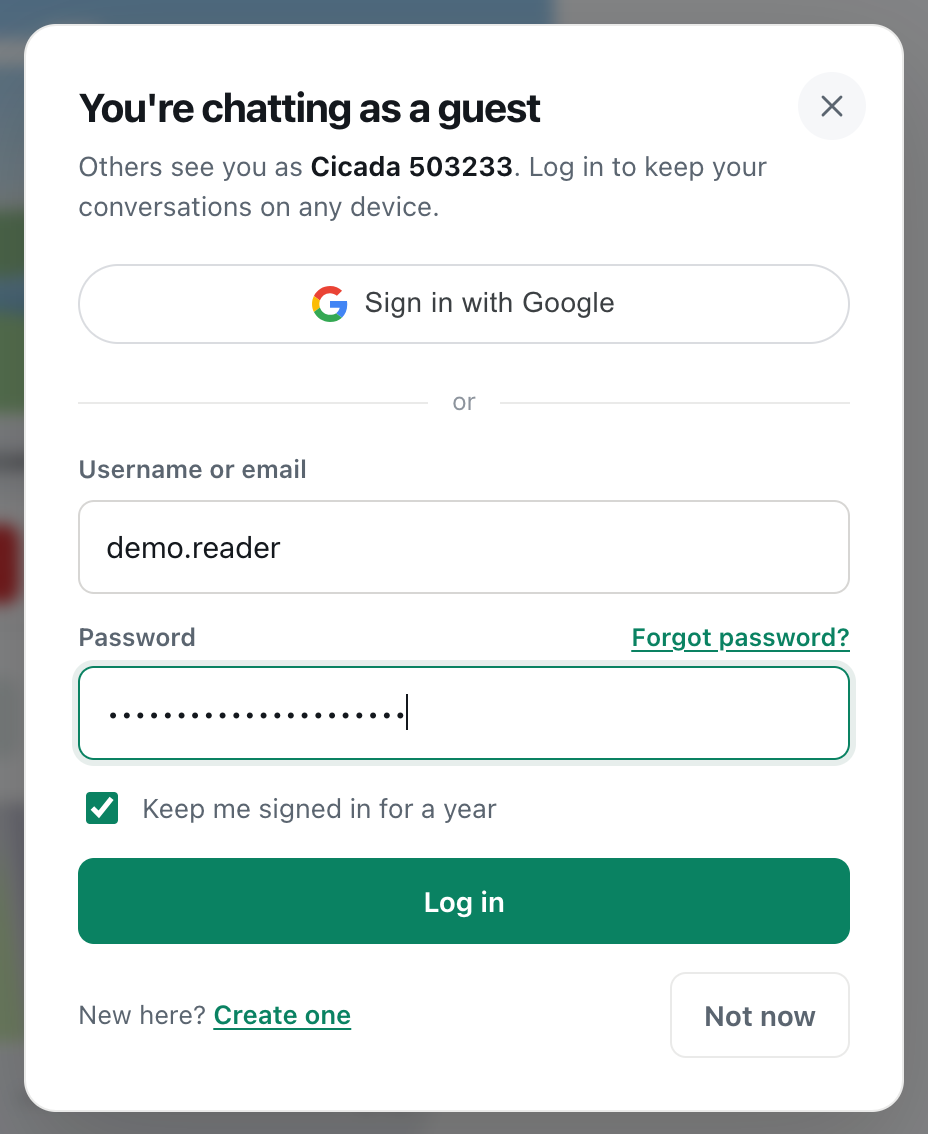
- In the log in dialog, press Forgot password?, next to the Password label.
- The dialog changes to Forgot your password?. Type your username or email.
- Press Send reset link.
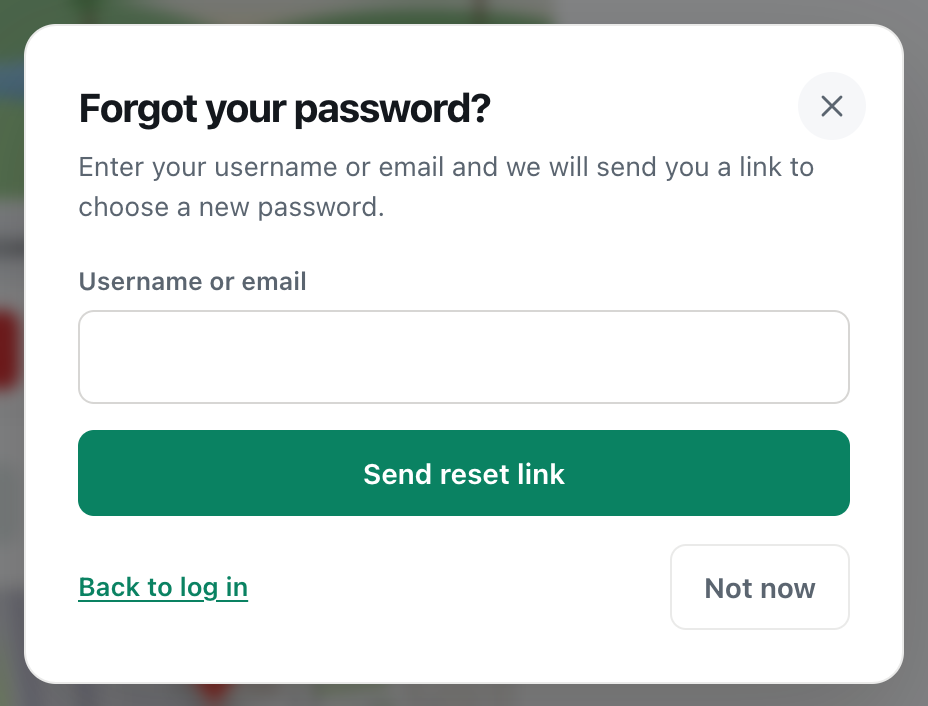
A screenshot of the Forgot your password? form, opened from the log in dialog.
The dialog then says Check your inbox: if an account matches what you typed, a reset link is on its way, and it works for one hour.
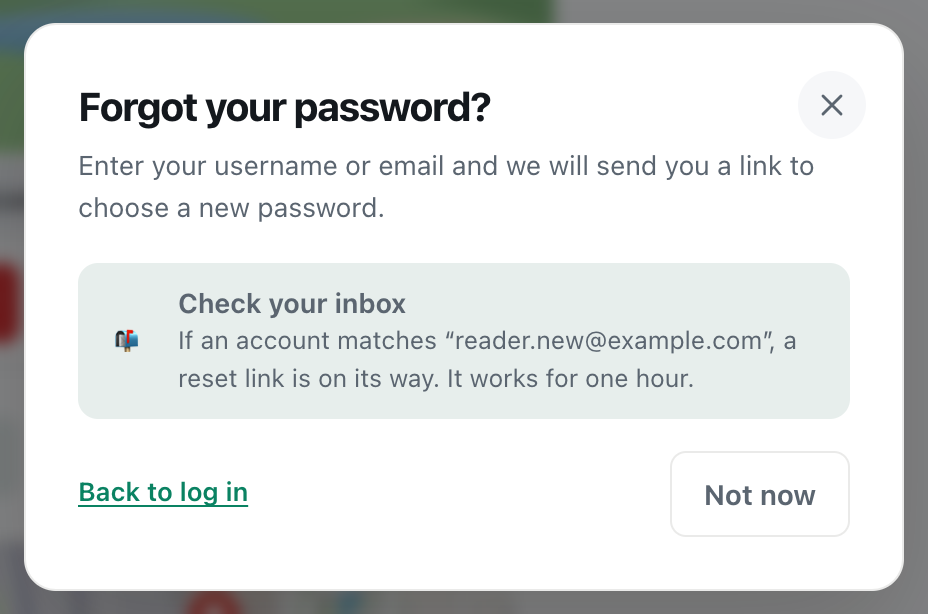
A screenshot of the answer after sending. It's the same whether or not an account matches.
2. Open the email
Look for an email from CicadaChat with the subject Reset your CicadaChat password. It greets you by name, explains that Someone asked to reset the password for your account, and has a green Choose a new password button. Press the button. You can open it on any device, not necessarily the one where you asked for it.
3. Choose a new password
CicadaChat opens with a dialog titled Choose a new password, which warns that This signs you out on every other device.
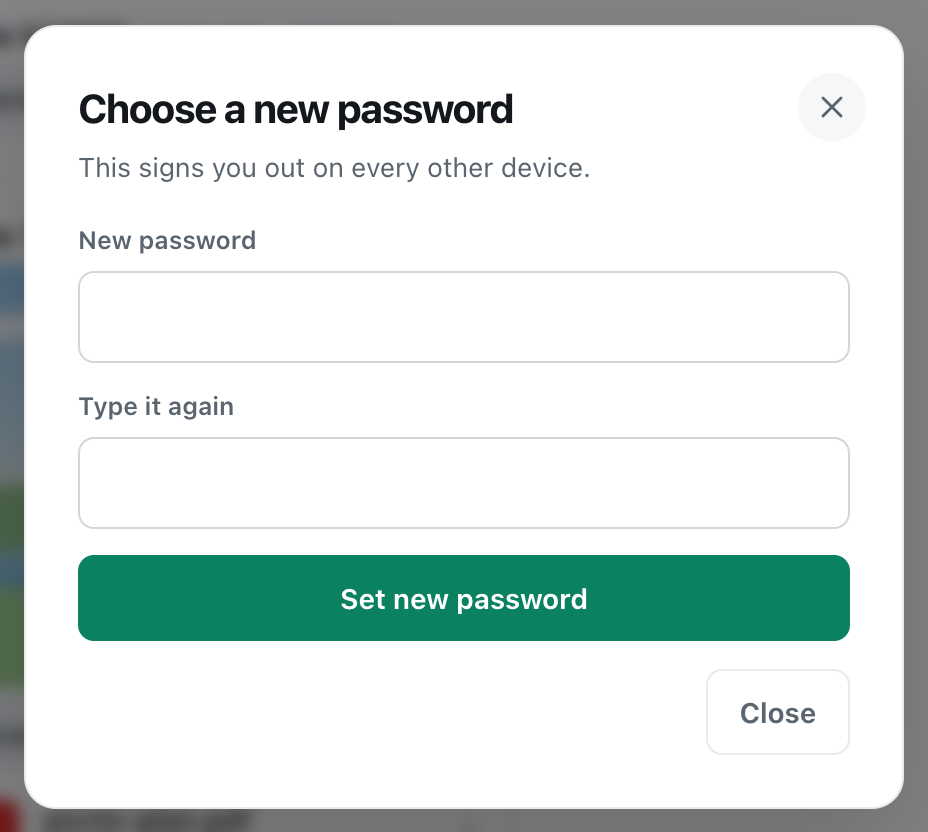
A screenshot of the dialog the email's button opens.
- Type your new password in New password. It must be at least 10 characters.
- Type it again in Type it again.
- Press Set new password.
4. Log in with the new password
The dialog changes to Password changed: You have been signed out everywhere. Log in with your new password. Press Log in, and log in with your username or email and the new password.
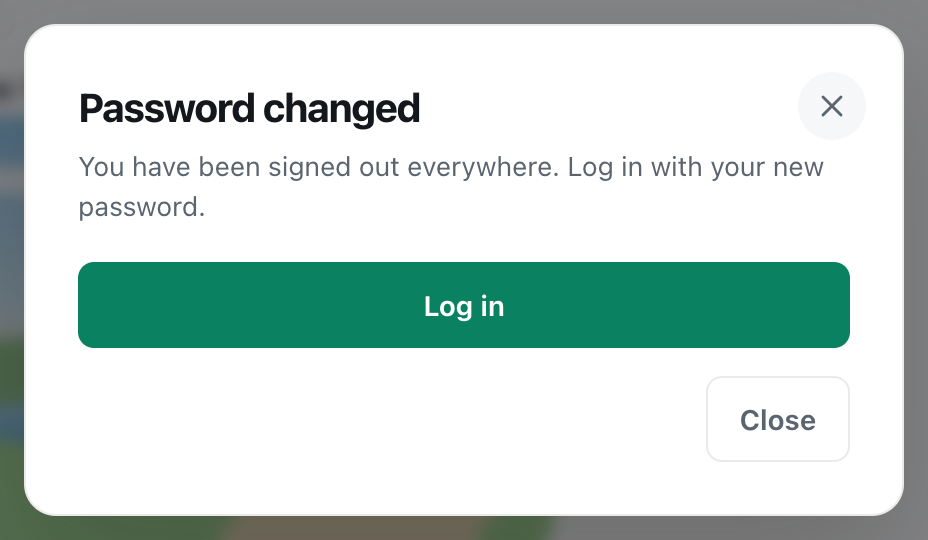
A screenshot of the confirmation after setting a new password.
What happens when you reset your password
- Every device is signed out. Your phone, your laptop, and any computer you forgot to sign out of. Anyone who might have known the old password is locked out too. Log in again on each of your devices with the new password.
- You get an email with the subject Your CicadaChat password was changed, confirming the change.
- Your email address counts as confirmed. Opening the reset link proves you can read that inbox, so if your address was still marked Not confirmed, it's now Confirmed.
- Nothing else changes. Your name, username, photo, private chats, friends and private rooms are all exactly as they were.
Resetting your password on a phone
The steps are the same on a phone: tap the coloured circle at the top right, then Forgot password?. There's one thing to watch for. When you tap Choose a new password in your email app, the link may open in the email app's own built-in browser, or in a different browser from the one you normally use for CicadaChat.
That's fine. The reset works wherever the link opens. Set the new password there, then go back to your usual browser, or to CicadaChat on your home screen, and log in with the new password. You don't need to be logged in, or even to have used CicadaChat before, in the browser that opens the link.
After resetting: log back in everywhere
A reset signs out every device, so expect to log in again on each one:
- your phone's browser, and CicadaChat on your home screen if you added it there,
- your laptop or desktop,
- a tablet, or any other device you use.
If your browser or phone saved your old password, update it when it offers to, or it will keep filling in the old one. When you log in again, remember Keep me signed in for a year on your own devices.
About the reset link
- It works once. After you've set a new password, the same link won't work again.
- It works for one hour. The email says so at the bottom: This link works once and expires in 1 hour. After that, ask for a new one.
- Only the newest link works. Asking for another link retires any earlier one, so an old email sitting in your inbox can't be used. If you asked more than once, use the most recent email.
- It's only ever sent to the email address on your account. CicadaChat can't send it anywhere else, and can't reset your password any other way.
- It's removed from the address bar as soon as CicadaChat opens it, so it isn't left in your browser history or in a screenshot.
If you didn't ask for a reset
If you get a reset email you didn't ask for, someone probably typed your username or email into the form, by mistake or on purpose. As the email says, If you did not ask for it, your password has not changed and you can ignore this email. Nobody can use the link without access to your inbox. Nothing changes unless the link is used.
Why CicadaChat says "if an account matches"
After you press Send reset link, CicadaChat always gives the same answer, Check your inbox, whether or not an account exists for what you typed. That's deliberate. If it said "no account found", anyone could use the form to find out whether a particular person or email address uses CicadaChat. So if no email arrives, it may be because what you typed doesn't match any account. The troubleshooting below covers that.
If the email doesn't arrive
- Wait a minute or two. Emails are usually quick, but not always instant.
- Check spam, junk and other tabs. In Gmail, look in Promotions and Updates too. Search your inbox for "CicadaChat".
- Check what you typed. A typo in the username or email means no account matches, and no email is sent. Try your email address if you used your username, or the other way round.
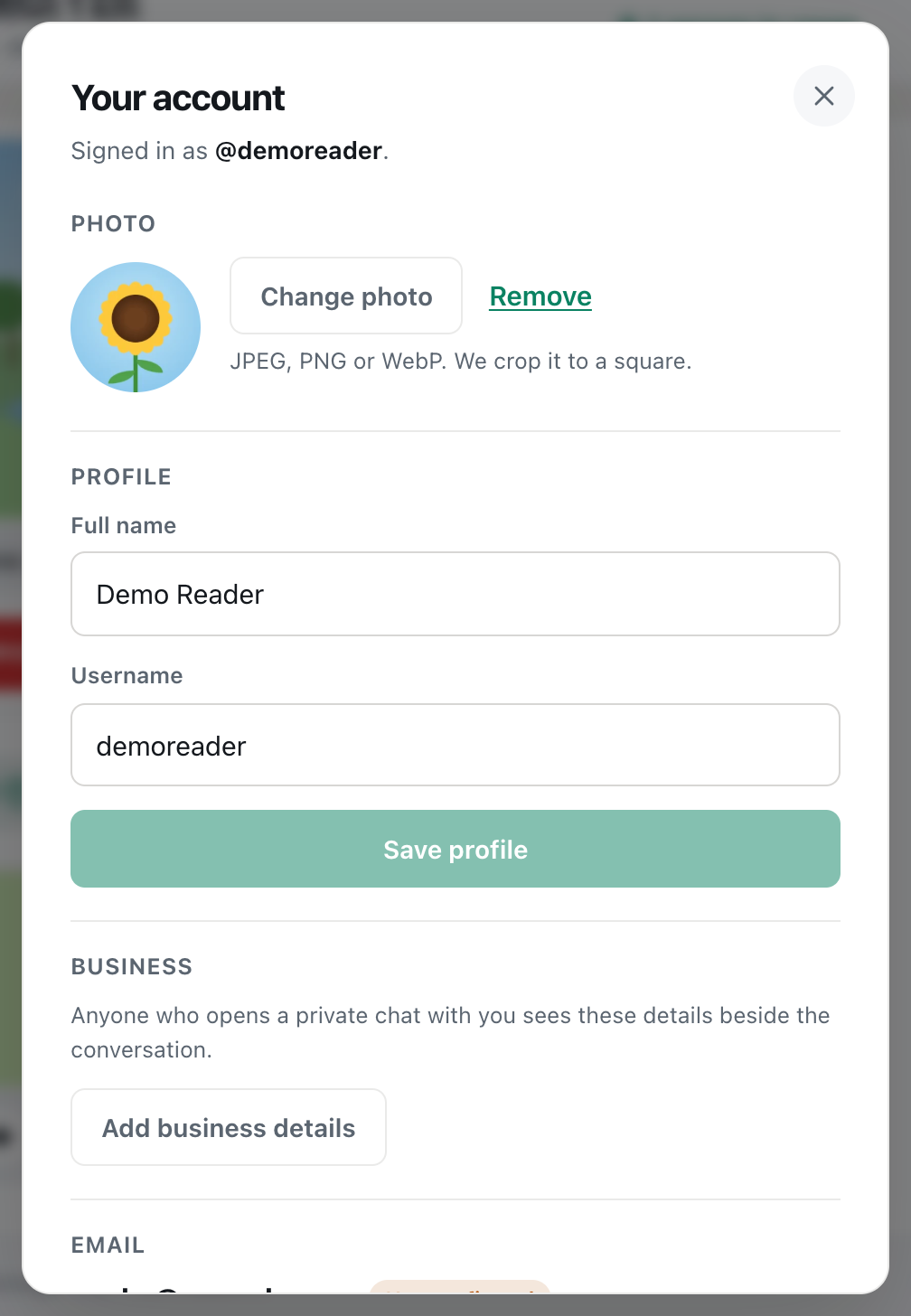
- Check which address your account uses. If you changed your email in CicadaChat, the link goes to the new address. If you're logged in on another device, Your account shows the current address.
- Ask again, but not too fast. CicadaChat sends at most one reset email a minute per account, so pressing the button repeatedly doesn't send more. Wait a minute, then ask again.
If you no longer have access to the email address on your account, CicadaChat can't send you a reset link. If you're still logged in somewhere, change the email in Your account first, then you can reset or change your password as normal.
If the link doesn't work
- "That reset link has expired or was already used." The link is more than an hour old, it has been used already, or you asked for a newer one since. Use the newest email, or go back to Forgot password? and ask again.
- "Those two passwords do not match." The two boxes are different. Type the new password carefully in both.
- "Use at least 10 characters." Choose a longer password. A few words joined together make a long password that's easy to remember.
- The button in the email does nothing. Some email apps block buttons. The email also includes the link as plain text under the button. Copy it into your browser's address bar.
Special cases
You signed up with Google
If you signed up with Continue with Google, you may not have a password at all. You can still use Forgot password?: the link lets you set a password, and afterwards you can log in either way. Or just press Sign in with Google. See how to sign in to CicadaChat with Google.
You're still logged in somewhere
If you're logged in on another device but have forgotten the password, you don't need a reset link. Open Your account there and change your password. You'll need your current password to change it, though, so if you've truly forgotten it, the reset link is the way.
You were a guest
Guest accounts have no password and no email, so there's nothing to reset, and a lost guest account can't be recovered. Create an account to protect your chats in future.
Choosing a password you'll remember
- Use a phrase of three or four unrelated words, like "harbour-violet-lantern-seven". It's long, hard to guess and easy to remember.
- Don't reuse a password from another site. If that site is ever breached, your CicadaChat account stays safe.
- Let a password manager remember it. Most phones and browsers have one built in and offer to save the password when you set it, so you won't need this page again.
Make future resets easy
- Confirm your email. If Your account shows Not confirmed next to your address, press Resend the link and confirm it, so you know it's typed correctly.
- Keep the address current. Moving to a new email provider? Change your address in Your account while you can still open the old one.
- Add Google as a second way in. If your Google account uses the same email address, signing in with Google once links it, and gives you a way in even when you've forgotten your password.
No comments yet. Start the conversation.