
Sending messages, emoji and reactions in CicadaChat
How to send messages, add emoji and react in CicadaChat: who your message reaches, big emoji, the typing line, how reactions feed Hot, and what to do when a message doesn't send.
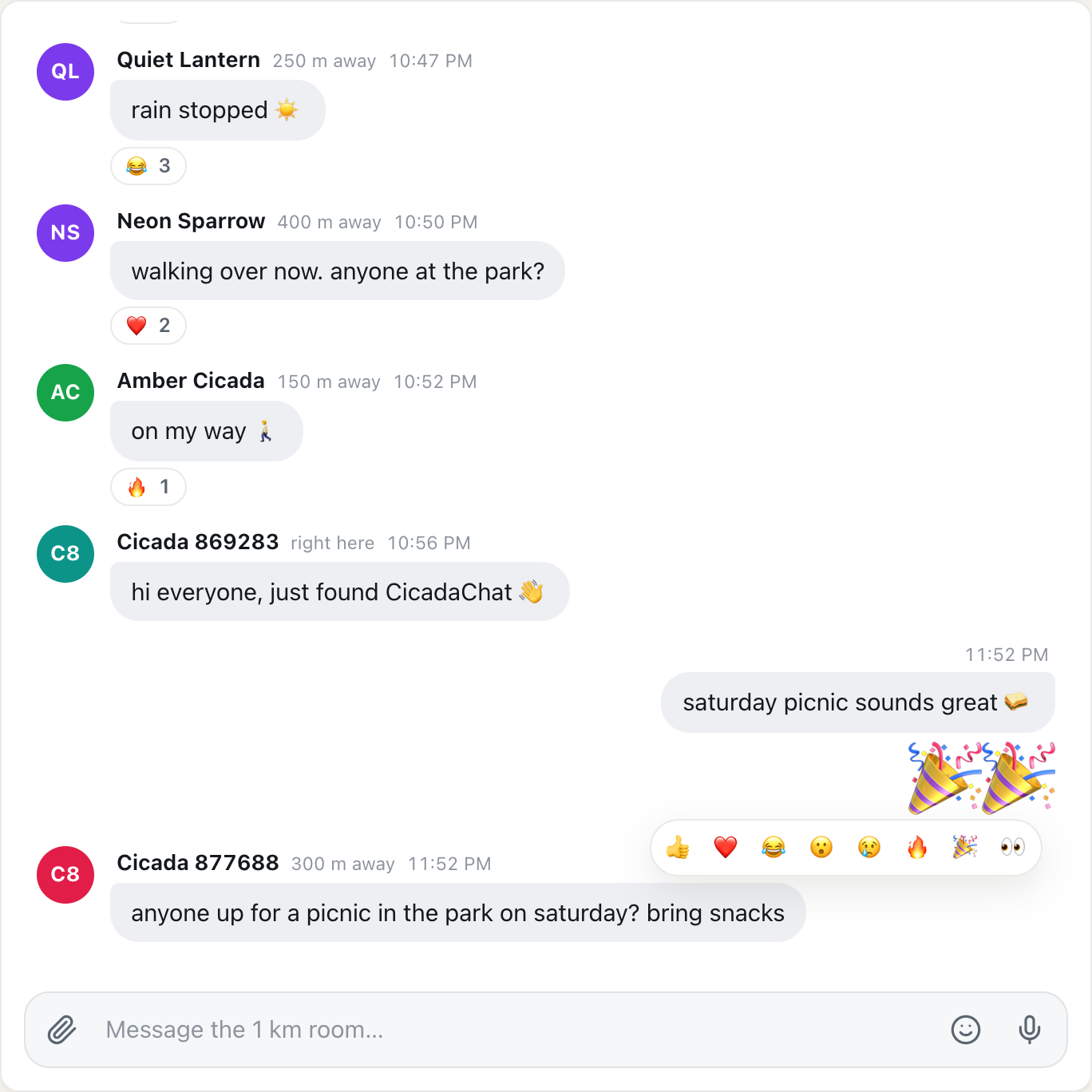
Most of CicadaChat is simple: you type and people nearby read it. But there's more to sending messages, emoji and reactions in CicadaChat than meets the eye: who a message reaches, what happens to a message made only of emoji, how reactions feed the Hot view, and what to do when a message doesn't go through. This guide covers the message box from top to bottom, on a computer and on a phone.
A screenshot of the quick reactions, shown when you point at a message. Big emoji like the 🎉🎉 above need no bubble.
Sending messages in CicadaChat
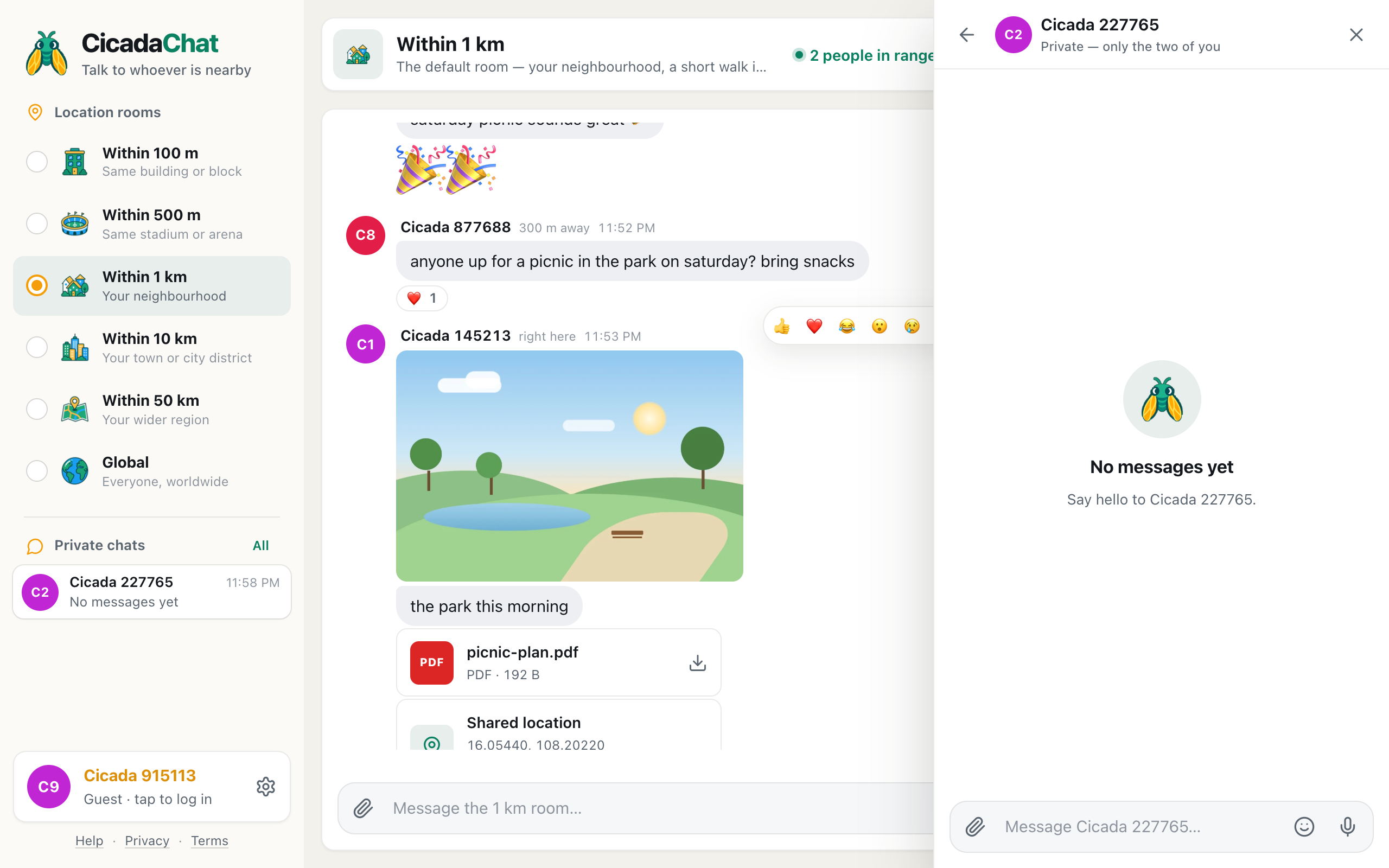
- Click or tap the message box at the bottom of the room. Its placeholder tells you who you're writing to: Message the 1 km room… in a local room, Message everyone… in Global, or Message Cicada 227765… in a private chat.
- Type your message. The box grows as you write, up to a few lines, then scrolls.
- Press Enter, or tap the green send button at the right. To start a new line instead, press Shift and Enter together. On a phone, the keyboard's return key sends the message too.

A screenshot of the message box with text in it. The microphone has turned into the send button.
The button on the right changes with what you're doing. With an empty box it's a microphone for recording a voice message. As soon as you type, it becomes the send button.
Who reads it
A message in a location room reaches everyone within that room's radius of you, and it keeps that reach for good. A message sent from Within 100 m will never be shown to someone 300 m away, even if they're reading a wider room. So choose the room first, then write. Messages in Global go to everyone in Global, and private messages go only to the other person.
What it looks like
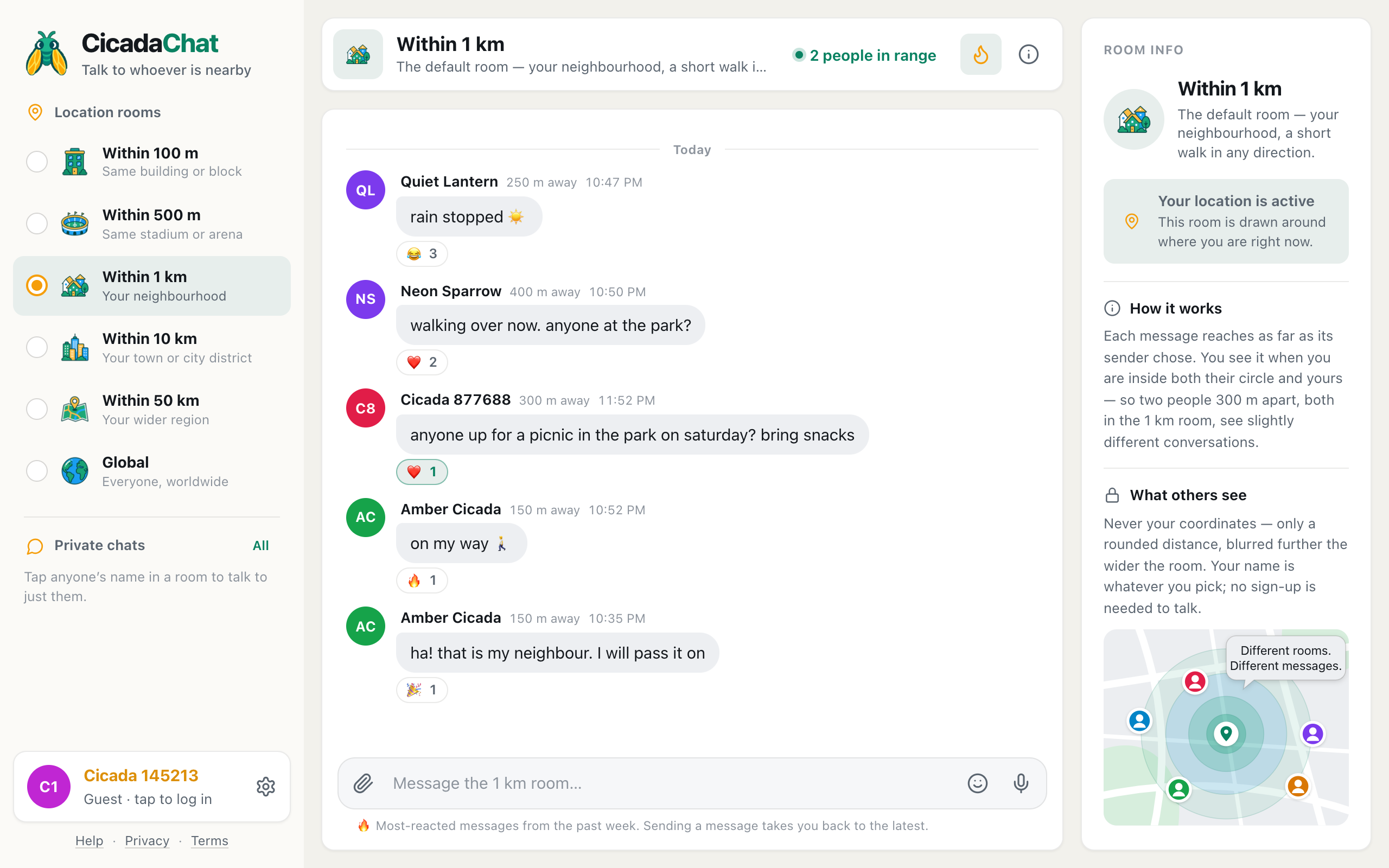
Your own messages sit on the right, without your name, because the side already says they're yours. Other people's are on the left with their picture, their name, a rounded distance such as 300 m away (in location rooms only) and the time. A few more things you'll notice:
- Messages are grouped. When someone sends several messages within five minutes of each other, their name and picture appear once, above the first.
- Days are marked. A divider says Today, Yesterday or the date wherever a new day starts.
- Links are plain text. Web addresses aren't turned into clickable links. Copy one into your browser to open it, and only if you trust the sender.
- A message is faded until it's delivered. It turns solid when CicadaChat's server confirms it. That usually takes a fraction of a second.
Limits
- A message can be up to 2,000 characters. The box stops accepting text at that point.
- You can send up to 30 messages a minute. Go faster and CicadaChat says You are sending messages too quickly. Wait a moment and carry on.
- Messages can't be edited or deleted once they're sent, so read yours through before pressing Enter.
Reading older messages and new ones
The newest messages are at the bottom. To read further back, scroll up: when you reach the top, older messages load and slot in above, and the one you were reading stays where it was on screen. If they don't load by themselves, a Load older messages button at the top does the same.
New messages arrive live, with no refresh. If you're at the bottom of the conversation, it scrolls to show each one as it arrives. If you've scrolled up to read something older, CicadaChat leaves you where you are, so a busy room can't pull the page out from under you. Scroll back down to catch up.
Seeing who's typing
In a location room, when someone nearby starts typing, a line appears just above the message box: Cicada 227605 is typing…. With two people it names both, and with more it says, for example, 3 people are typing….
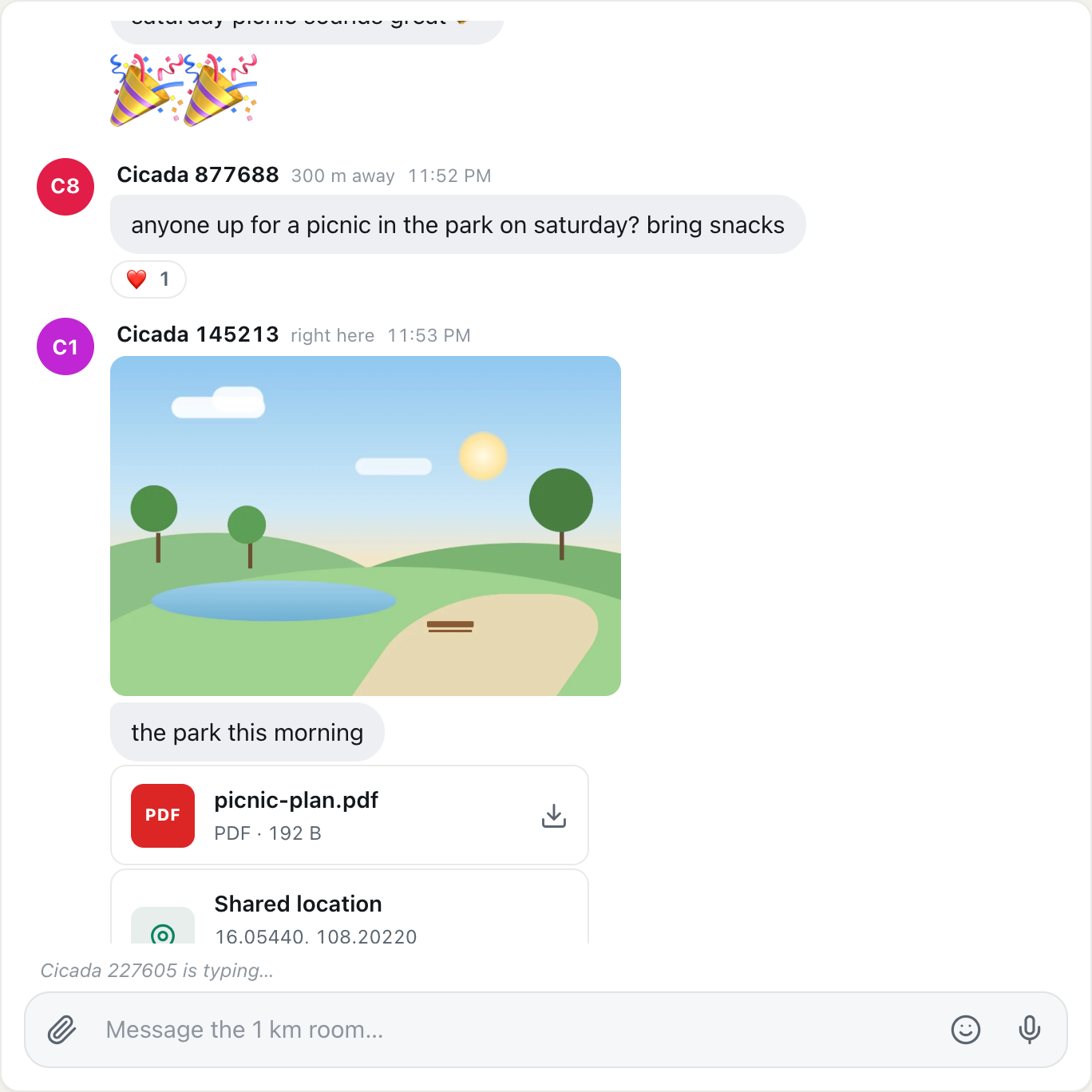
A screenshot of the typing line above the message box. It disappears a couple of seconds after the person stops.
The line appears while they type and disappears a couple of seconds after they stop, whether or not they send anything. It works the same way for you: people nearby see that you're typing while you type, but never what you've written until you send it.
Adding emoji
You can type emoji with your phone's or computer's own emoji keyboard, or use CicadaChat's picker:
- Click or tap the smiley at the right of the message box.
- Browse the groups along the top: Smileys, People, Nature, Food, Activity, Places, Objects and Symbols. Scroll the row sideways to see them all.
- Click an emoji to add it. It goes wherever your cursor is in the text, not just at the end, and the picker stays open so you can add more.
- Close the picker by clicking anywhere outside it, or press Esc.
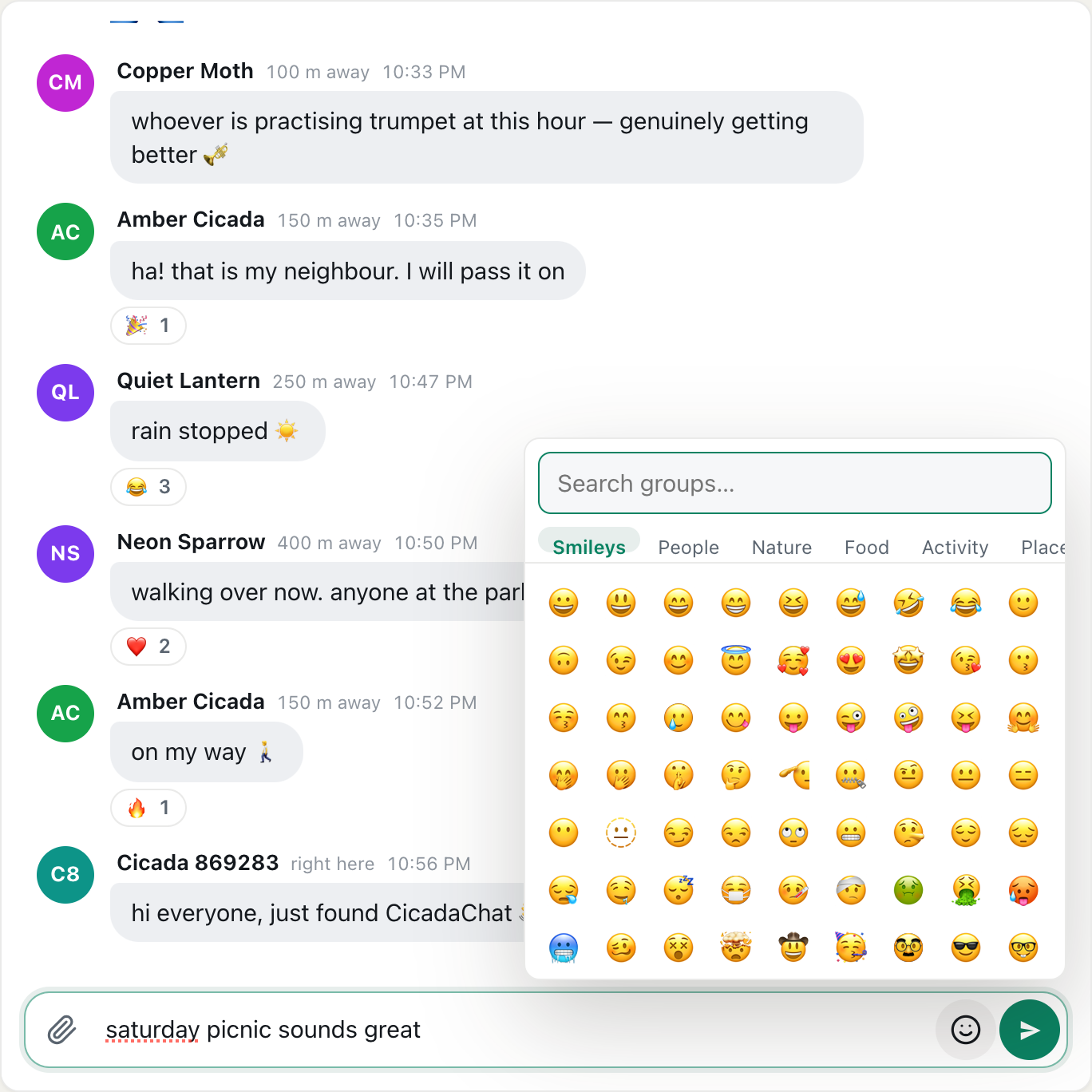
A screenshot of the emoji picker, opened with the smiley in the message box.
The Search groups… box at the top filters by group name. Type "food" or "sym" to jump straight to that group. It doesn't search emoji by their meaning, so "pizza" won't find 🍕. Open Food instead.
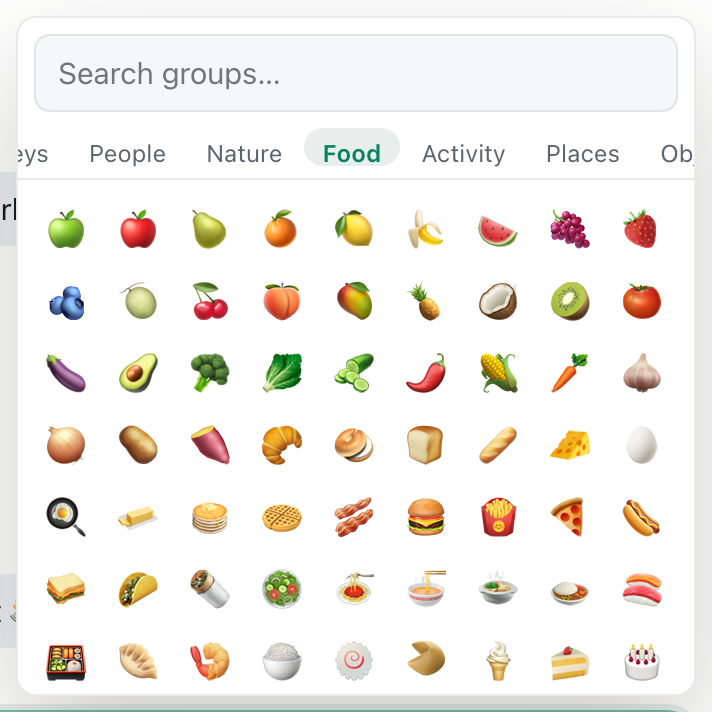
A screenshot of the Food group in the emoji picker. Search matches group names, not emoji meanings.
Big emoji
A message made only of emoji is shown without a speech bubble and at a larger size. The fewer emoji, the bigger they get: one or two are shown very large, three to five a little smaller, and more than that at a medium size. It's a quick way to cheer, applaud or shrug without words, like the 🎉🎉 in the picture at the top of this article.
Reacting to messages
A reaction is a quick emoji response attached to someone's message, without sending a message of your own.
- Point at a message on a computer, or tap it on a phone. A row of quick reactions appears above it: 👍 ❤️ 😂 😮 😢 🔥 🎉 👀.
- Click or tap one. It appears under the message with a count, and your reactions are highlighted so you can tell them apart.
Once a message has reactions, you can join one with a single click: click the reaction under the message, and the count goes up by one. Click one of your own highlighted reactions to take it back. You can add several different reactions to the same message, but each emoji only once.
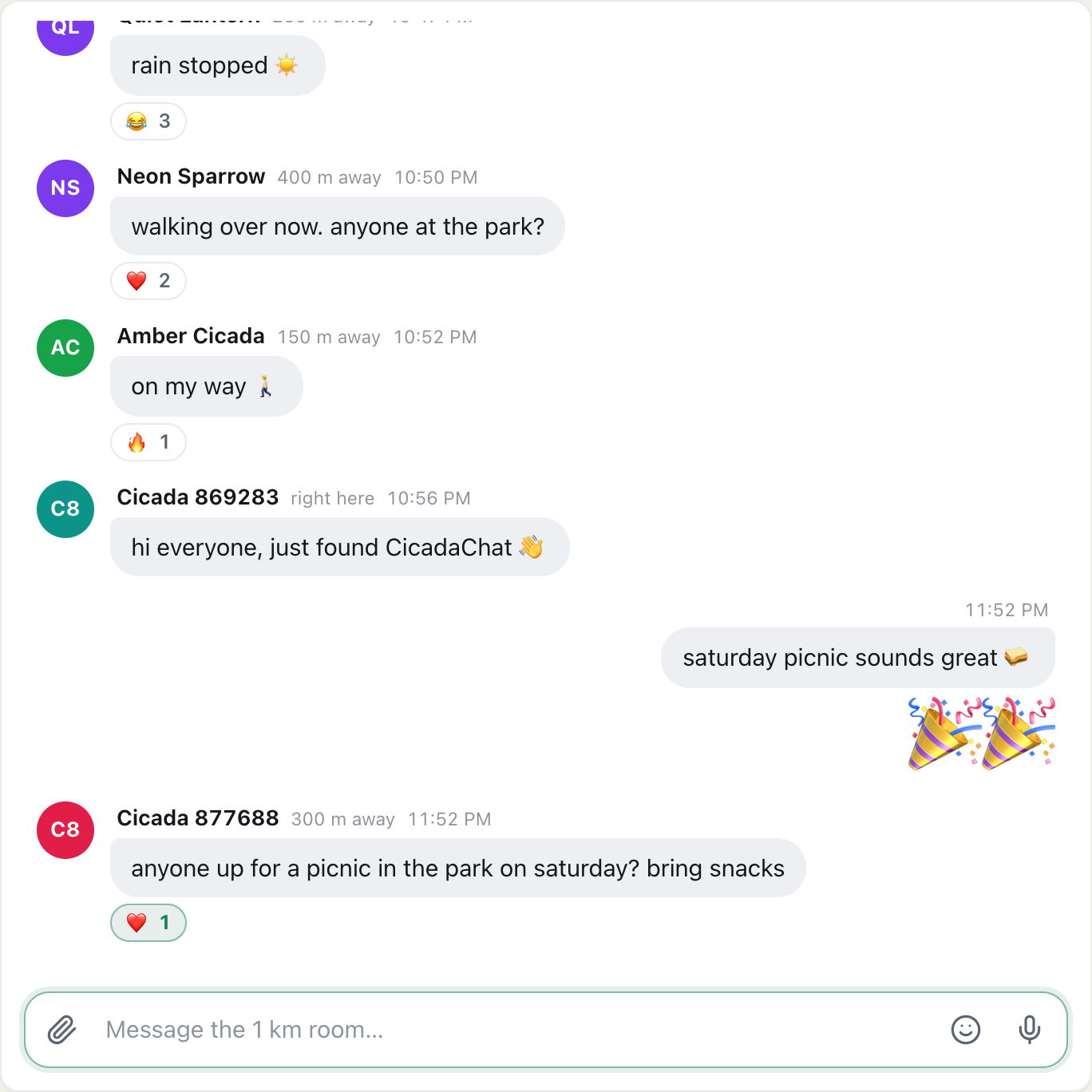
A screenshot of a message after reacting with a heart. Your own reactions are highlighted; click one again to remove it.
Reactions work in location rooms, in Global and in private rooms. In one-to-one private chats on the web, the quick reactions don't appear, so reply with a message or an emoji instead.
Reactions and Hot
Reactions do more than say "nice". The flame button in the room header opens Hot, which ranks the past week's messages in that room by how many people reacted to them. One person adding five different emoji still counts as one person, so Hot reflects how many people enjoyed a message, not how enthusiastic one person was. Reacting to something you like is the easiest way to help good messages rise. The Help article The Hot view: finding a room's best messages from the past week explains more.
If you react very fast, many times in a row, CicadaChat asks you to Slow down a moment. Wait a second and try again.
More than text
The paperclip at the left of the message box opens a menu with Photo, Document and Location, and the microphone at the right records a voice message. Each has its own Help article:
- How to send photos and documents in a chat
- How to record and send a voice note
- How to share your location in a message, and who will see it
Photos, documents and locations can carry a caption: whatever you type in the box while one is attached is sent with it.
Tips for writing to people nearby
- Say where you mean, not where you are. People see your rounded distance, not your position. "Anyone at the park by the lake?" is clearer than "anyone here?", and it reveals only what you choose.
- Reply with the right reach. If someone's message says 700 m away, a reply from the 500 m room won't reach them. Answer from the 1 km room or wider, or tap their name and reply privately.
- Use reactions for small replies. A ❤️ or 👍 answers without adding to the conversation, and it helps the message in Hot.
- Remember that rooms have a memory. A message stays in the room's history, so anyone who comes within its reach later can read it, not only the people online when you sent it.
- Keep it kind. The people reading are your neighbours, fellow fans or classmates. You may well meet them.
If a message doesn't send
- The message shows "· not sent". It didn't reach CicadaChat's server, usually because the connection dropped. Check you're online and send it again.
- "That did not send." The server refused the message. What you typed stays in the box, so you can try again in a moment.
- "You are sending messages too quickly." You've hit the limit of 30 messages a minute. Wait a moment.
- The message box is greyed out and says "Waiting for your location…". The room you're in needs your location, and CicadaChat doesn't have it yet. Allow location, or switch to Global.
- Nobody answers. Check the people in range count in the header. If it says 1 person in range, you're the only one online who would see it right now. Your message stays in the room for the next person who comes by.
No comments yet. Start the conversation.