
How to confirm or change your email address
Confirm your CicadaChat email address, or change it to a new one safely in two steps. What changes afterwards, and what to do when a link or email doesn't work.

Your email address is how CicadaChat reaches you: for a password reset link, and to tell you when something important changes on your account. So it's worth making sure it's right. This guide shows how to confirm your email address, how to change it to a new one, and what to do when a confirmation email doesn't arrive or a link doesn't work.
A screenshot of the card CicadaChat shows once the link sent to the new address is clicked.
Where to find your email address
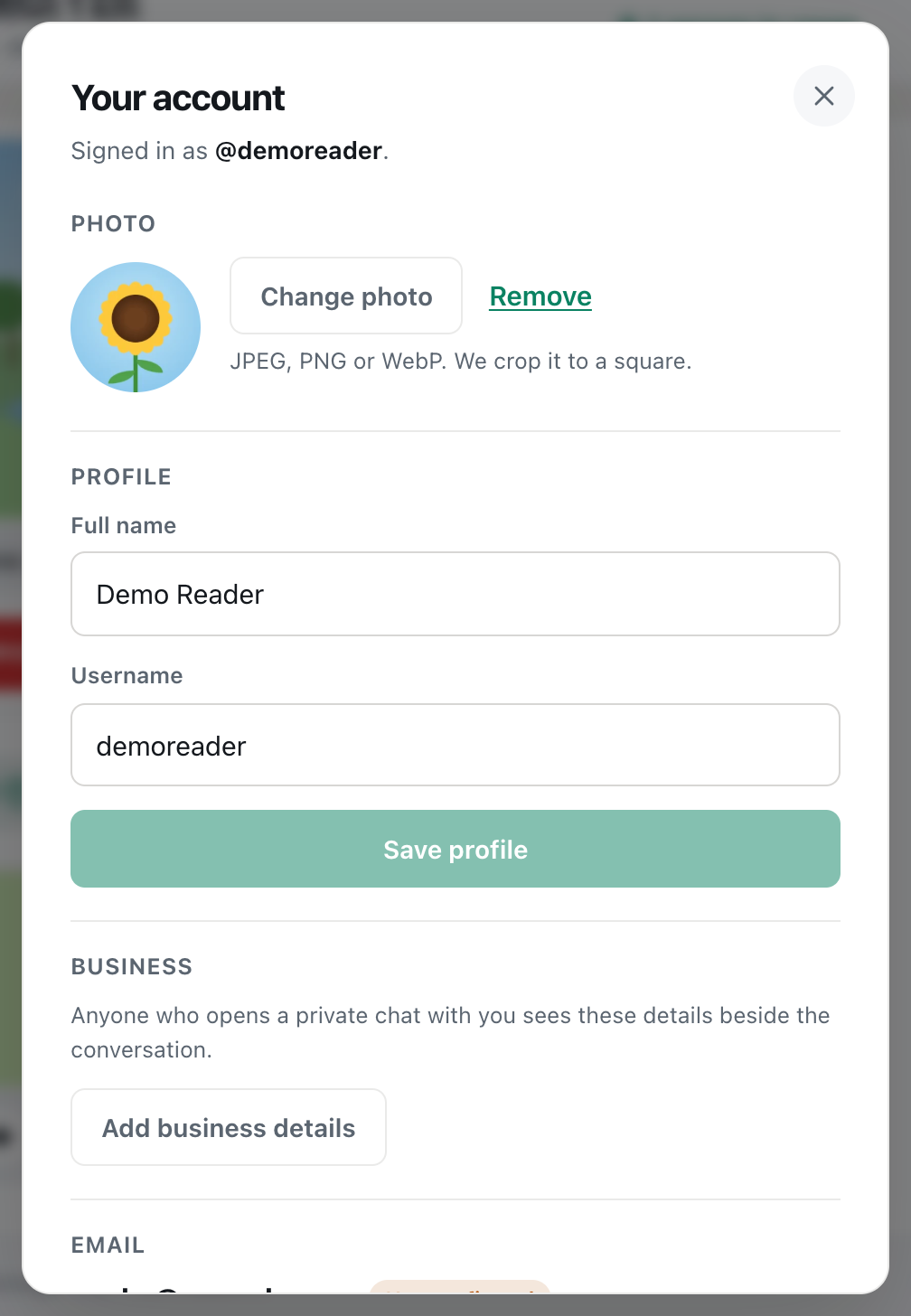
- Click your name at the bottom of the sidebar, or your photo at the top right on a phone, to open Your account.
- Scroll to the Email section. It shows your current address, with a label next to it: Confirmed or Not confirmed.
Your email address is private. Nobody else in CicadaChat can see it, not in rooms, not in private chats, not even your friends. Only guests have no email at all. See guest or registered account: what's the difference?
How to confirm your email address
When you create an account with a password, CicadaChat sends an email with the subject Confirm your email for CicadaChat. Confirming it tells CicadaChat the address is typed correctly and really yours.
- Open the email and press its button.
- CicadaChat opens and shows Email confirmed and Thanks — followed by your address and is confirmed.
- In Your account, the label changes to Confirmed.

A screenshot of the card shown after opening a confirmation link.
You can open the link on any device, logged in or not. It works once, for 48 hours.
Addresses that are confirmed automatically
- Accounts created with Google are confirmed from the start, because Google has already checked the address.
- Linking Google to an existing account with the same address confirms it too.
- Resetting your password through an emailed link confirms the address, since opening the link proves you can read that inbox.
- Changing your email confirms the new address, because you have to click a link sent to it.
If you haven't confirmed yet
Until you do, the Email section shows Not confirmed and the note Confirm it so password reset links can reach you. with a Resend the link button next to it.
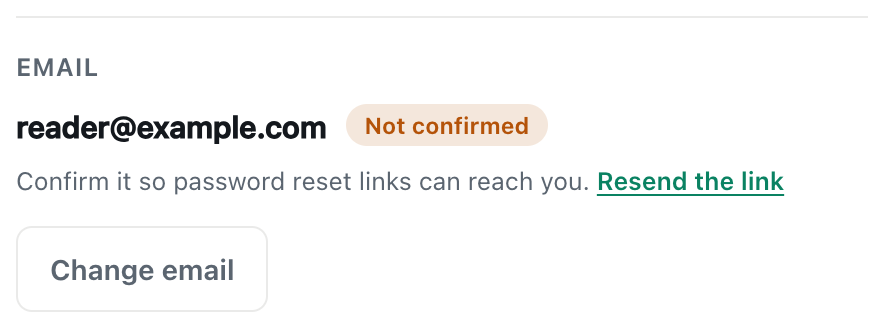
A screenshot of the Email section before confirming. Resend the link sends a fresh confirmation email.
- Check the address shown. If it's wrong, fix it with Change email (below) instead.
- If it's right, press Resend the link. CicadaChat says Sent — check followed by your address.
- Open the new email and press its button.
Only the newest link works: asking for another one retires any earlier link. And you can only ask once a minute. Press it again too soon, and CicadaChat says We just sent one — give it a minute before asking again.
How to change your email address
Changing your email is a two-step process. You ask for the change in Your account, then confirm it from the new address. Nothing changes until you do, so a typo can never lock you out of your account.
- In Your account, go to Email and press Change email.
- Type the New email.
- Type your Current password. This proves it's really you making the change. Accounts created with Google that have no password skip this step.
- Press Send confirmation link.
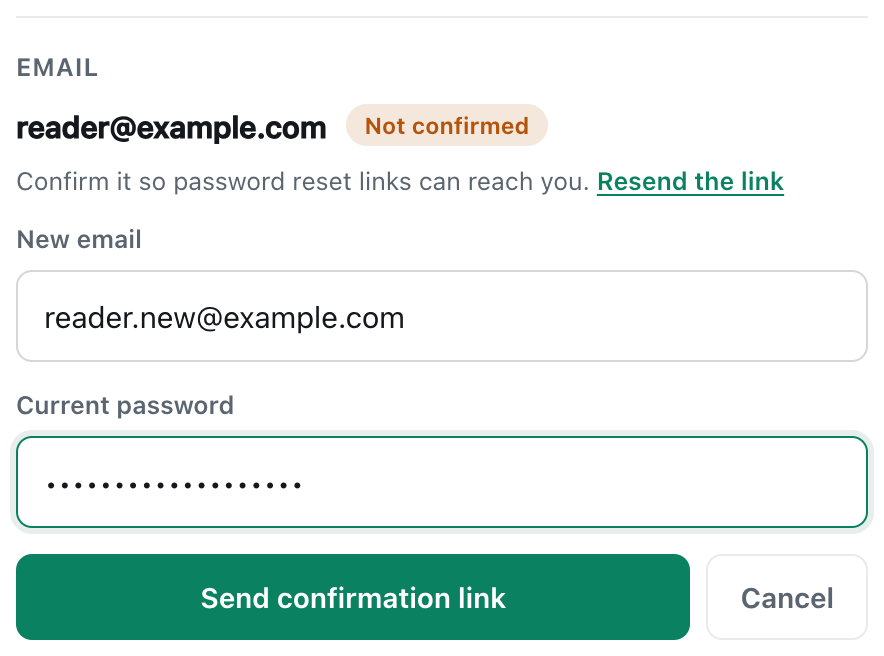
A screenshot of the Change email form. Your current password proves the change is really yours.
CicadaChat says Almost done — click the link we sent to your new address to switch over.
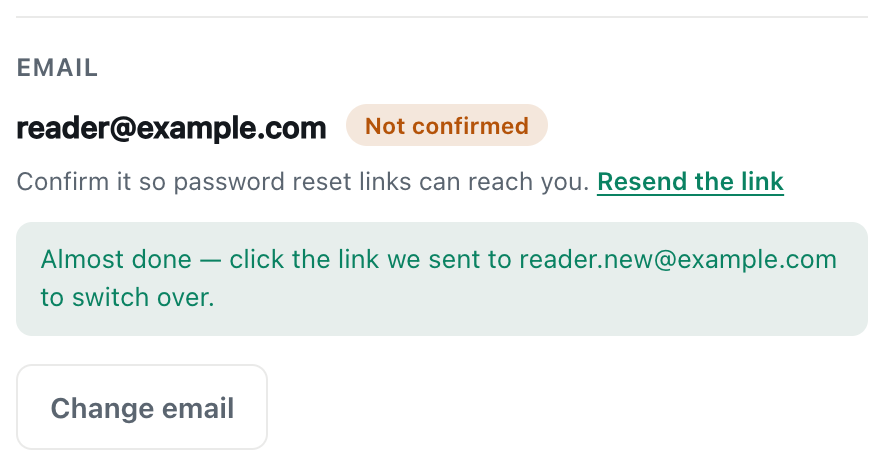
A screenshot of the Email section after asking for the change. The account keeps its old address until the link is clicked.
- Open your new inbox. Look for Confirm your new CicadaChat email.
- Press the button in the email. CicadaChat opens and shows Email changed and Your account now uses followed by the new address.
The link works once, for 24 hours. Until it's clicked, your account keeps using the old address for everything.
What happens when your email changes
- The new address is your login. You can log in with it, or with your username as before. The old address no longer works for logging in.
- The new address is confirmed, because clicking its link proved you own it.
- Your old address gets a notice with the subject Your CicadaChat email was changed, saying which address the account now uses. If you didn't make the change, it has a link to reset your password.
- Reset links and notices now go to the new address. Nothing more is sent to the old one after its notice.
- Nothing else changes. Your username, name, photo, password, chats and friends stay the same, and you stay logged in.
- Google keeps working. If you sign in with Google, that link is to your Google account itself, not to an email address, so Sign in with Google still works.
Why changing your email takes two steps
It might seem simpler to type the new address and be done. The extra step protects you in two ways:
- Typos can't lock you out. If you type "reader@exmaple.com" by mistake, the link goes nowhere, nothing changes, and your account keeps its working address. Just try again.
- Nobody can quietly take over your account. Someone who picks up your unlocked phone would need your password to ask for a change, and access to the new inbox to complete it. And if a change ever does go through, the notice sent to your old address tells you straight away.
If you can't open your old inbox any more
That's fine, as long as you're still logged in to CicadaChat somewhere and know your password. Changing your email only needs the new address to be confirmed. The old address just receives a notice, which you don't need to open. Follow the steps above from a device where you're logged in.
If you're logged out and have also lost access to the old inbox, a reset link can't reach you, because it only goes to the address on your account. That's why it's worth updating your email before an old address stops working.
Changing your email on a phone
On a phone, open Your account by tapping your photo or the coloured circle at the top right, and scroll to Email. The steps are the same. When the confirmation email arrives, tapping its button may open the link in your email app's built-in browser, or in a different browser from the one you use for CicadaChat. That doesn't matter: the link works anywhere, even where you're not logged in. Once it says Email changed, go back to CicadaChat and you'll see the new address in Your account.
If something goes wrong
The confirmation email doesn't arrive
- Wait a minute, then check spam or junk, and tabs like Promotions or Updates. Search for "CicadaChat".
- Check the address you typed. For a change of email, the link goes to the new address, not your current one.
- Ask again after a minute, with Resend the link for a confirmation, or Change email again for a change.
Messages when asking for a change
- "That is already your email." The new address is the one you already have.
- "That email is already registered." Another CicadaChat account uses that address, and each address can only belong to one account. If it's your own second account, log in to it and change its email first.
- "Your current password is not right." Check the password and try again. If you've forgotten it, see Forgot your password? How to reset it.
- "That email does not look right." Check for a missing @ or a typo.
- "We just sent one — give it a minute before asking again." Wait a minute before asking again.
Messages when opening a link
- "That link did not work", with That link has expired or was already used. The link is too old (48 hours for a confirmation, 24 hours for a change), it was used already, or a newer one was sent since. Ask for a new one.
- "That link is for an address this account no longer uses." It's an old confirmation link for an address you've since changed. There's nothing to do: your current address is the one that counts.
Keeping your email useful
- Use an address you'll keep. A personal address you've had for years is better than a work or school address you might lose.
- Change it before you lose the old one. Moving to a new email provider or leaving a job? Change your CicadaChat email while you can still open the old inbox.
- Add CicadaChat to your contacts or safe senders if its emails go to spam, so reset links arrive when you need them.
- Don't share your inbox password. Anyone who can read your email can reset your CicadaChat password.
Questions about your email
Does CicadaChat send newsletters or adverts?
No. CicadaChat only emails you about your account: confirming your address, resetting your password, and telling you when your password or email changes. See how to change your password and sign out of every device for what happens when you get a notice you didn't expect.
Can I use the same email for two accounts?
No. Each address belongs to one account, so it can be used to log in and to reset the password without any confusion.
Do I have to confirm my email to use CicadaChat?
No. Everything works before you confirm, including logging in, chatting, friends and private rooms. Confirming just makes sure reset links reach the right inbox when you need one.
No comments yet. Start the conversation.