
Friend requests: adding, accepting, declining and removing friends
Add friends on CicadaChat by username, from a room or from a private chat. Accepting and declining requests, seeing who's online, and removing a friend.
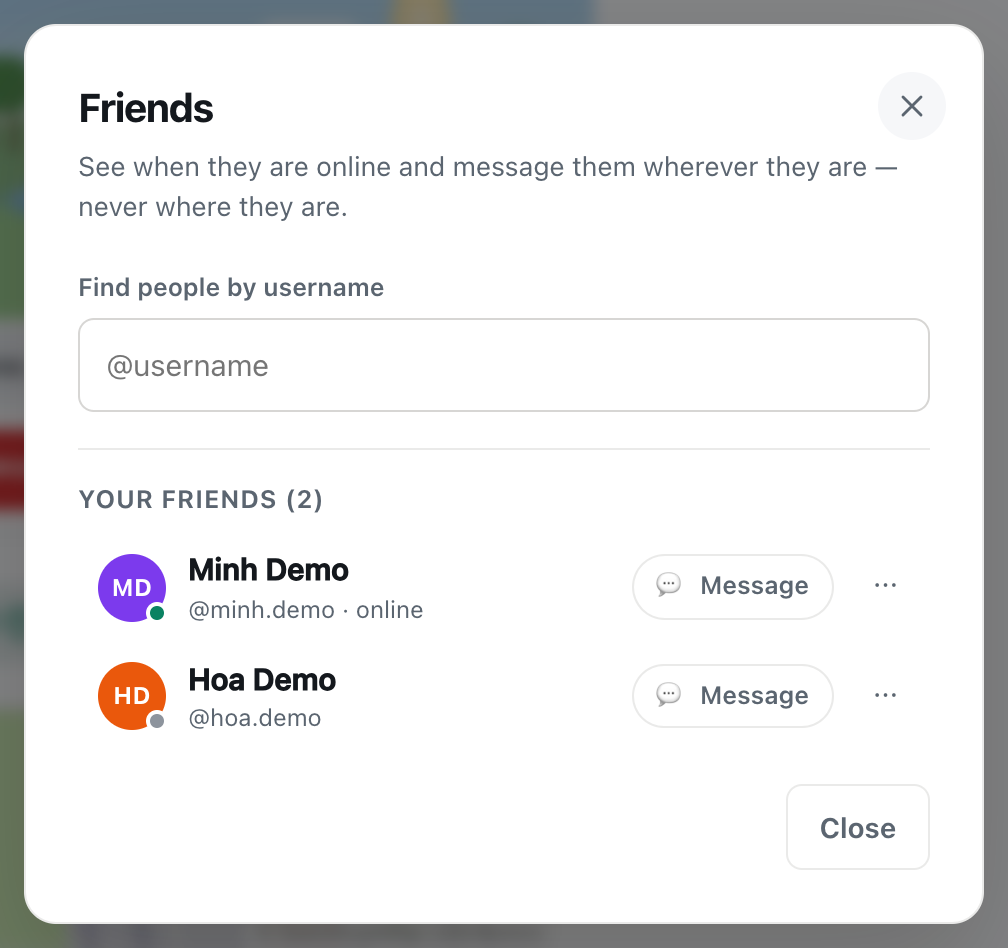
Location rooms are about whoever happens to be nearby. Friends are the people you want to keep: once you're friends, you can see when they're online and message them from anywhere, however far apart you are. This guide covers friend requests in CicadaChat from start to finish: adding friends, accepting and declining requests, seeing who's online, and removing a friend.
A screenshot of the Friends dialog with two friends. The green dot means online.
Before you start: friends need accounts
Friends are for registered accounts only, on both sides. A guest account belongs to one browser and can vanish if that browser's data is cleared, so it can't hold a friends list. If you're a guest, the Friends section doesn't appear in your sidebar at all. See how to create a CicadaChat account and keep your guest chats.
Likewise, you can't send a request to someone who's chatting as a guest. CicadaChat says They are chatting as a guest, so they cannot have friends yet. Ask them to create an account first.
How to add a friend
There are three places to send a friend request, depending on where you met.
By username
- In the sidebar, next to Friends, press All. The Friends dialog opens.
- In Find people by username, type the first few letters of their username. You don't need the @. Results appear after two letters.
- Next to the right person, press Add friend.
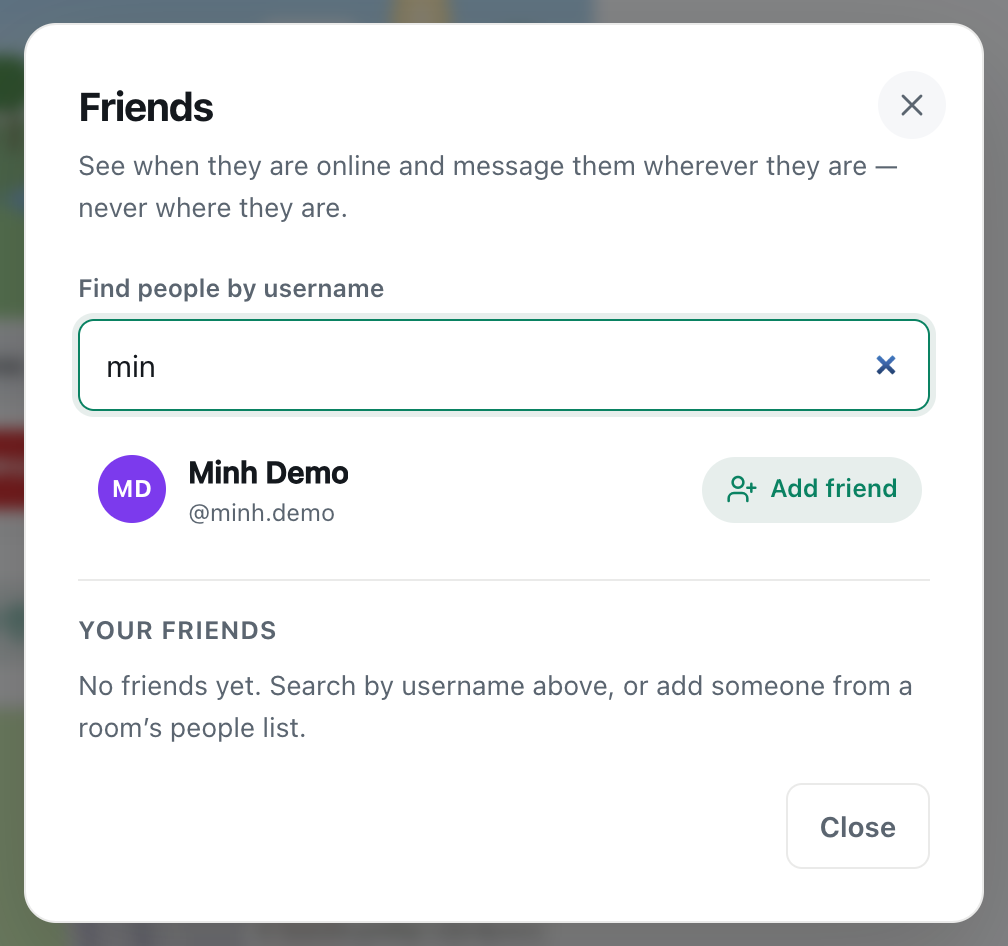
A screenshot of searching by username. Results appear after two letters.
Search matches the start of usernames, and shows up to 10 people, with an exact match first. It doesn't search Full names, so if you only know someone as "Minh Demo", ask for their username (in this example, minh.demo). If nothing matches, the dialog says Nobody with a username starting followed by what you typed.
From a room
Open the people in range list in a room's header. Next to anyone with an account, there's a small friend button. Press it to send a request. Guests don't have the button.
From a private chat
At the top of a private chat with someone who has an account, the same friend button sits next to their name. It's a natural way to keep in touch with someone you've got talking to.
What the friend button shows
The button changes as your friendship progresses. Its label shows in the Friends dialog. Elsewhere it's just an icon, and pointing at it on a computer shows what it means.
| Button | Meaning | Pressing it |
|---|---|---|
| Add friend | You're not connected | Sends a friend request |
| Requested | You've asked; they haven't answered | Withdraws your request |
| Accept | They've asked you | Accepts, and you're friends |
| Friends | You're friends | Nothing. To remove a friend, use the Friends dialog |
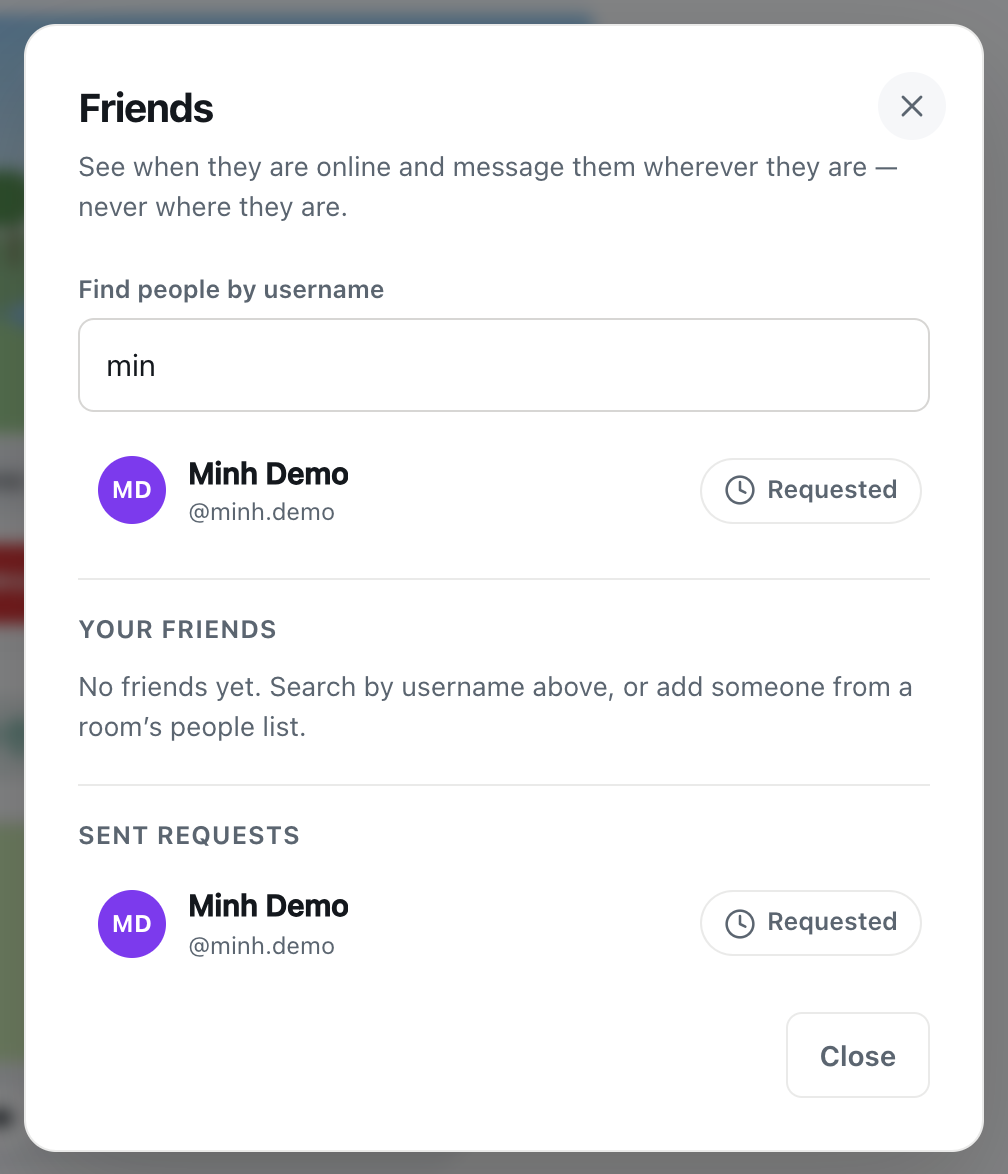
A screenshot of the Friends dialog after pressing Add friend. The request waits under Sent requests until it's answered.
After you press Add friend, the person also appears under Sent requests at the bottom of the Friends dialog, until they answer. If you both send each other a request at the same time, CicadaChat simply makes you friends. There's nothing to accept.
Receiving a friend request
When someone asks to be your friend, you'll see it in the sidebar: a green number next to Friends, and, if you don't have friends yet, the line Someone wants to be your friend. with a See requests link.
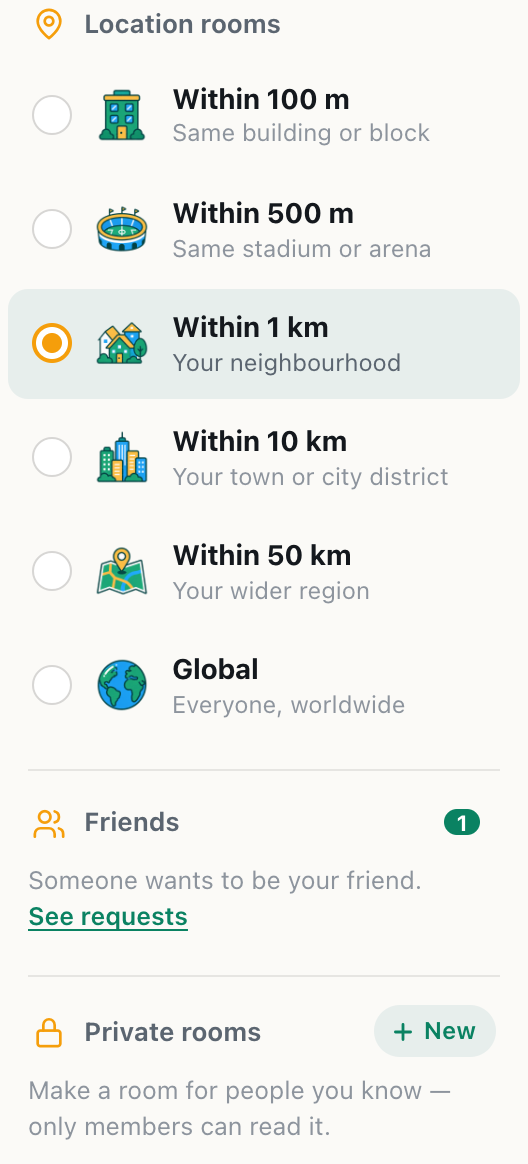
A screenshot of how a new friend request shows in the sidebar.
- Press See requests, or the green number next to Friends.
- The Friends dialog opens with a Requests section, showing each person's name, picture and username.
- Press Accept to become friends, or Decline to say no.
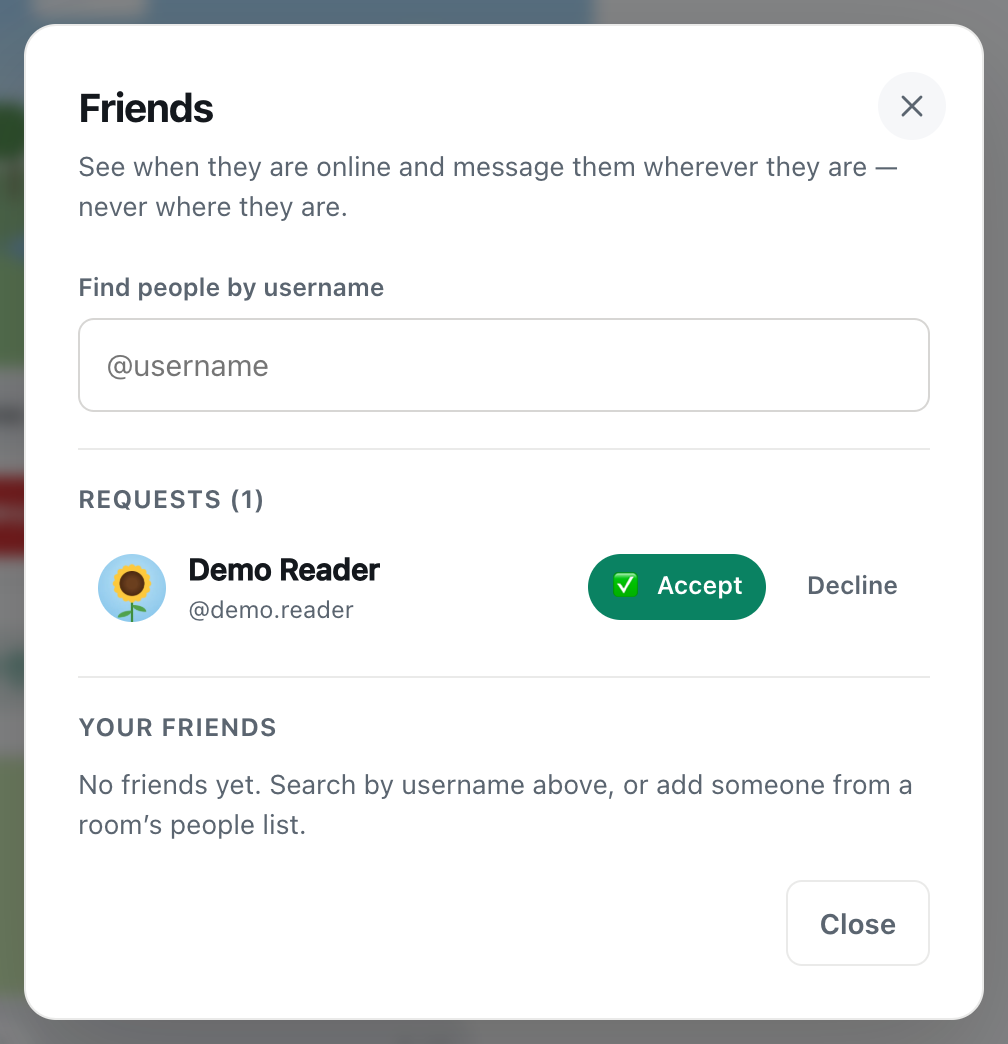
A screenshot of a friend request waiting to be answered.
What declining does
Declining simply deletes the request. CicadaChat doesn't send the other person a message saying you declined, but the request disappears from their Sent requests, so they can tell it's no longer waiting. They could send another one later. If you'd rather not hear from someone at all, there's no block option, so decline and don't reply to their messages.
Seeing who's online
Once you're friends, CicadaChat shows you when they have CicadaChat open:
- In the sidebar, Friends shows a count such as 1 online. Friends who are online are listed first, with a green dot on their picture and the word Online under their name.
- In the Friends dialog, online friends have a green dot and · online after their username.
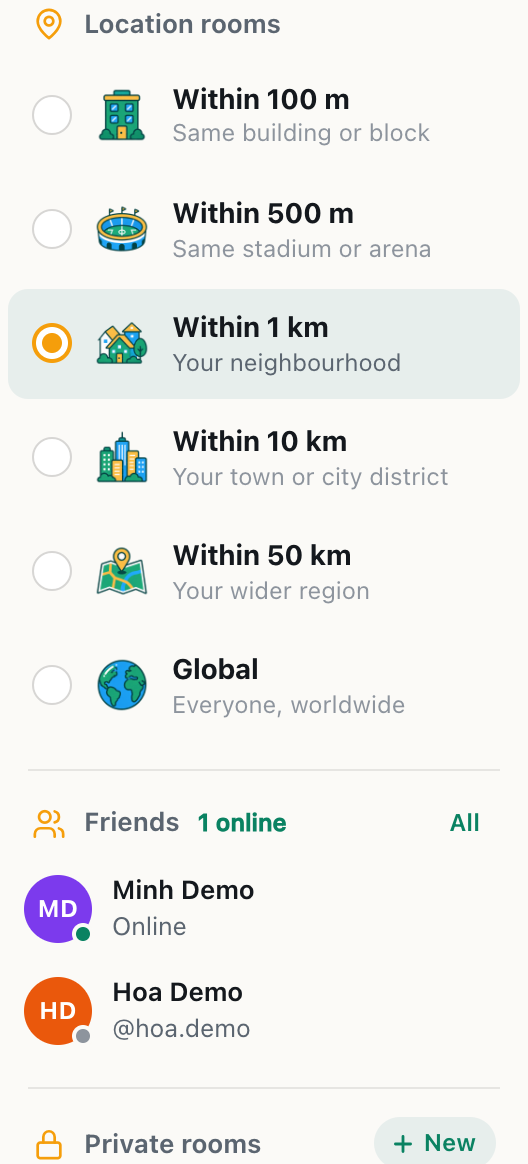
A screenshot of the Friends section in the sidebar. Online friends are listed first.
A friend counts as online while they have CicadaChat open on any device. When they close it on their last device, they go offline for you. Friends aren't shown when anyone was last online.
What friends can and can't see
- They can see whether you're online, your name, your picture and your username.
- They can't see where you are, how far away you are, or which room you're in. Friendship never shares location. If you happen to be in range of each other in a room, you'll see each other's rounded distance there, just as with anyone else.
- Online status is only for accepted friends. Someone who has sent you a request, or whom you've asked, can't see whether you're online until you're friends. A request can never be used to watch when a stranger is around.
Messaging a friend
Tap a friend in the sidebar, or press Message next to them in the Friends dialog, to open your private chat with them. It works wherever you both are: friends don't need to be in the same room, or even the same city. With friends, you can also make a group: see how to create a private room for people you know.
How to remove a friend
- Open the Friends dialog with All next to Friends in the sidebar.
- Next to the friend, press ⋯.
- The button turns into Unfriend?. Press it again to confirm. Click anywhere else to cancel.
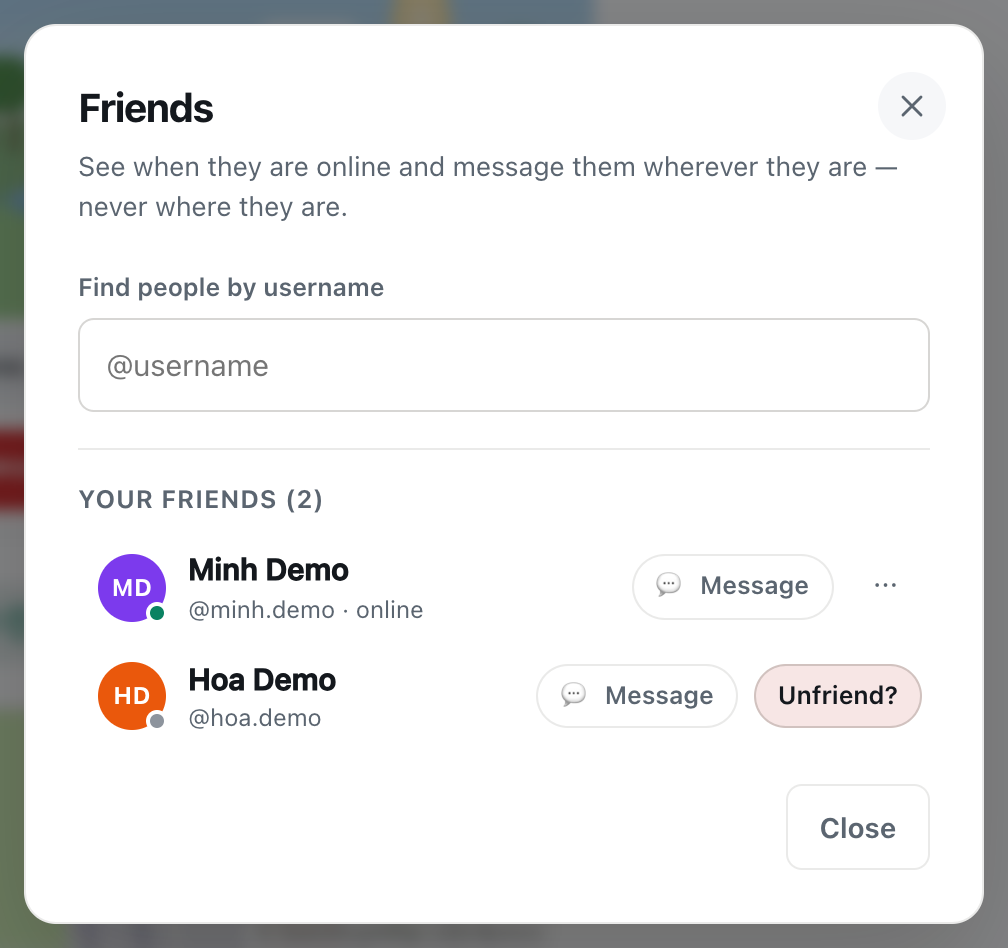
A screenshot of removing a friend. Press Unfriend? to confirm, or click elsewhere to cancel.
Unfriending removes the friendship on both sides, straight away. The other person isn't sent a message, but you disappear from their friends list, and neither of you can see the other's online status any more.
- Your private chat stays. The conversation is still in both your lists, and either of you can still write in it.
- Shared private rooms stay too. Unfriending doesn't remove anyone from a private room. If you own the room, you can remove them yourself in its settings.
- You can be friends again later, with a new request.
Withdrawing a request you sent
Changed your mind before they answered? In the Friends dialog, find them under Sent requests and press Requested. The request is withdrawn, and the button goes back to Add friend.
Limits and messages you might see
- "You have sent a lot of requests. Try again later." You can send up to 30 friend requests an hour. This stops anyone from spamming requests.
- "Slow down a moment." Searching very quickly, over and over, is paused briefly.
- "They are chatting as a guest, so they cannot have friends yet." They need an account first.
- "You cannot add yourself." That's your own username.
- "That request is no longer waiting." The request was withdrawn, or already answered on another device.
Friends on a phone
On a phone, the Friends section lives in the sidebar: tap the menu button at the top left. Your friends are listed there, online ones first, with All (or a green number when requests are waiting) next to the heading. Tap All to search, answer requests or remove a friend, and tap a friend to message them. The friend button in a private chat and in people in range works the same as on a computer.
When to add someone as a friend
- A neighbour you keep bumping into in the 1 km room. As a friend, you can find them even when one of you is away from home.
- Someone you met at an event in the 500 m room. Once the event ends and everyone scatters, the room is gone, but friends stay in your sidebar.
- A friend you already know in real life who's just joined CicadaChat. Swap usernames and add each other.
- A group you'd like to chat with. Add them all as friends, and you can put them in a private room together.
Questions about friends
Can I find someone by their email address or phone number?
No. Email addresses are private in CicadaChat, and phone numbers aren't used at all. Search only works by username.
Can I see my friends' friends?
No. Your friends list is only visible to you, and theirs only to them.
Is there a limit to how many friends I can have?
Your friends list shows up to 500 people, which is plenty for most. The limit that matters day to day is on requests: up to 30 an hour.
Tips for friends on CicadaChat
- Swap usernames when you meet. Full names can repeat, but usernames are unique, so they're the sure way to find someone.
- Add people you'd like to meet again. Rooms change as you move. Friends stay in your sidebar wherever you go.
- Keep the list real. Friends can see when you're online, so only accept people you're happy to share that with.
Do friends get told when I come online?
Their sidebar updates on its own: your green dot appears when you open CicadaChat and disappears when you close it on your last device. There's no pop-up or notification about it, and friends aren't shown when you were last around.

No comments yet. Start the conversation.