
How to change your password and sign out of every device
Change your CicadaChat password in Your account, which also signs out every other device. Setting a first password for Google accounts, and what to do if it fails.
Changing your password in CicadaChat does two jobs at once: it gives your account a new password, and it signs you out of every other device. So it's also the way to sign out everywhere after losing a phone or forgetting to sign out of a shared computer. This guide shows how to change your password and sign out of every device, how to set a password if you signed up with Google, and what to do if it doesn't work.
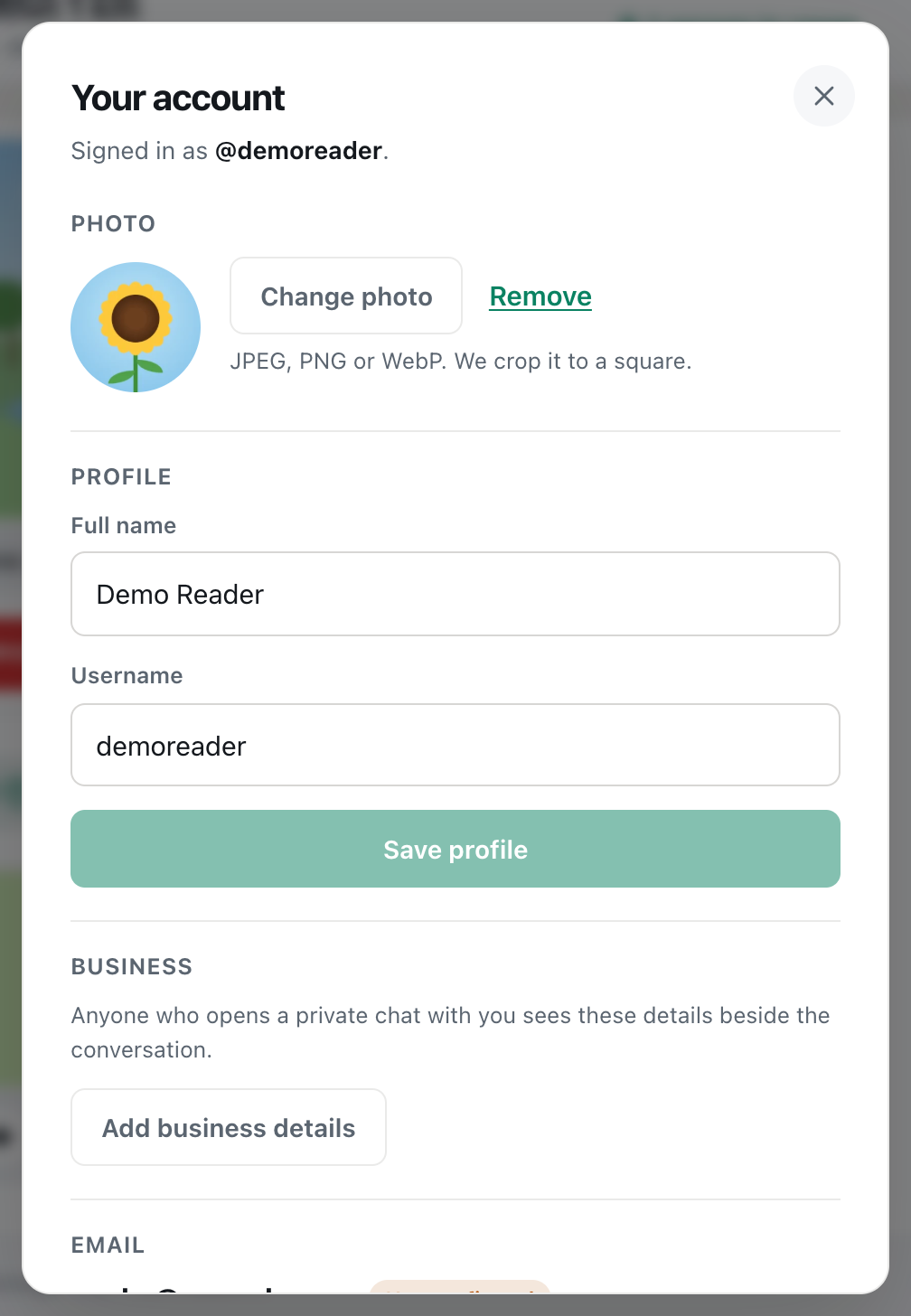
A screenshot of the top of Your account. Password is further down, below Email.
How to change your password
You need to be logged in, and you need to know your current password. If you've forgotten it, see how to reset your password instead.
- Click your name at the bottom of the sidebar, or your photo at the top right on a phone. Your account opens.
- Scroll down to Password and press Change password.
- Type your Current password.
- Type a New password of at least 10 characters.
- Press Save password.
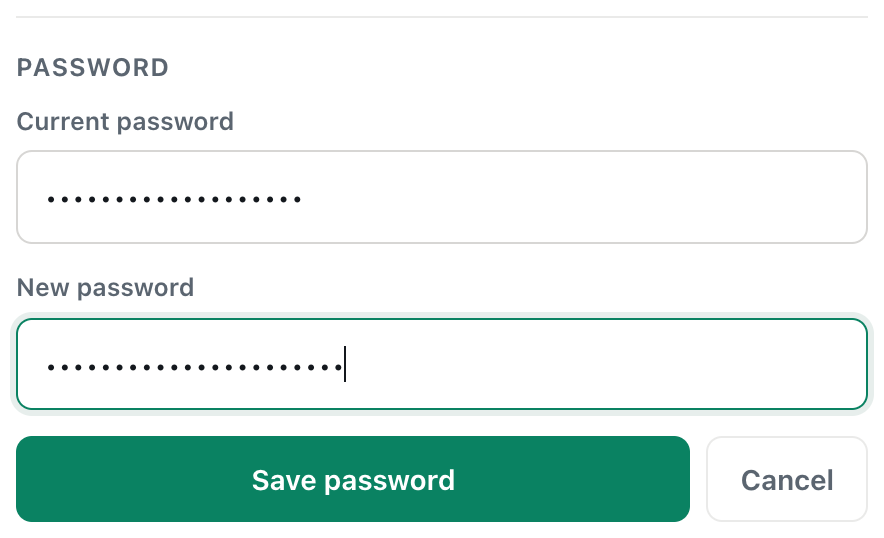
A screenshot of the Change password form, ready to save.
CicadaChat confirms the change: Password saved. Every other device has been signed out.
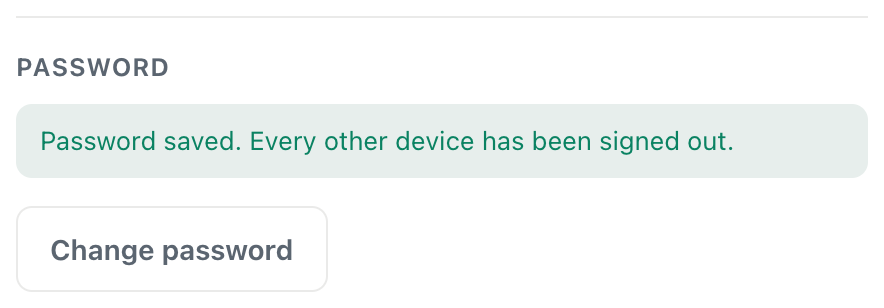
A screenshot of the confirmation. This device stays logged in; every other one is signed out.
Changed your mind before saving? Press Cancel, and nothing changes.
What happens when you change your password
- You stay logged in on this device. CicadaChat hands the device you're using a fresh login straight away, so you can carry on without logging in again.
- Every other device is signed out. Your phone, your other computers, a library computer you forgot about: all of them lose their login. The next time they connect, they go back to being a guest, and you'll need the new password to log in there.
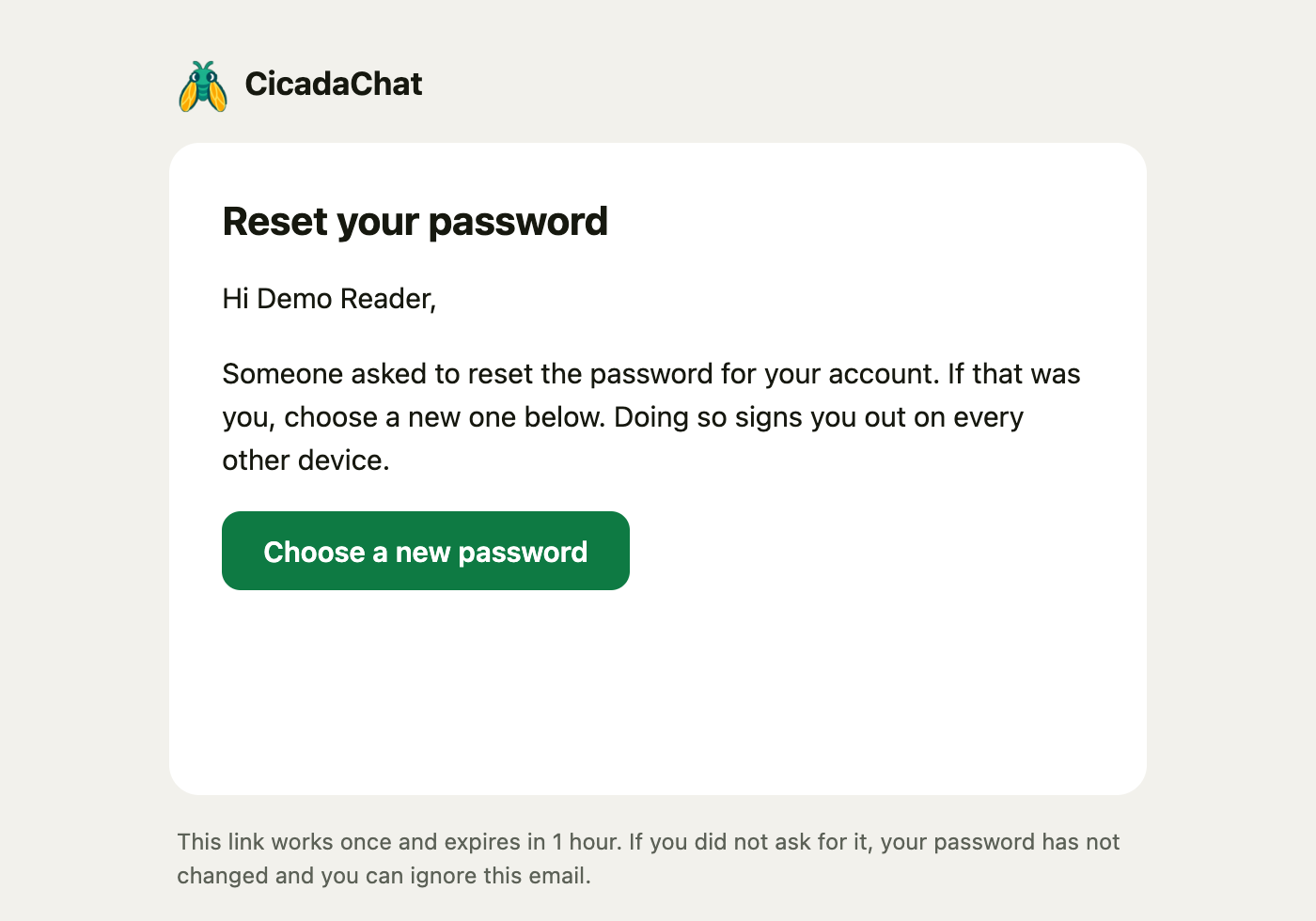
- You get an email. CicadaChat sends Your CicadaChat password was changed to your account's email address. If you didn't make the change, the email has a link to reset your password.
- Nothing else changes. Your username, email, name, photo, chats, friends and private rooms are exactly as before.
- "Keep me signed in" stays as it was on the device you're using. If you logged in there for a year, the fresh login lasts a year too.
How to sign out of every device
CicadaChat has no list of devices to sign out one by one. Instead, changing your password signs out every device at once, except the one you're holding. That makes it quick to use in an emergency:
- You lost your phone, or it was stolen. Change your password from your computer, and CicadaChat on the phone is signed out.
- You forgot to sign out of a computer in a library, a hotel or a friend's house. Change your password from your own device.
- You shared your password with someone, or typed it on a site that turned out to be fake. Change it straight away.
- You got an email about a change you didn't make. Change your password, or reset it if you can't log in.
You can "change" your password to a new one even if the old one was fine. If you'd like to keep using a similar password, pick a new one anyway: the point is that nobody else knows it.
To sign out of just the device you're using, you don't need to change anything. Press Sign out at the bottom of Your account. See what "Keep me signed in for a year" does for more on how long logins last.
Setting a password if you signed up with Google
Accounts created with Google don't have a password at first. The Password section says You sign in with Google. Add a password to sign in with your username too., and the button says Set a password.
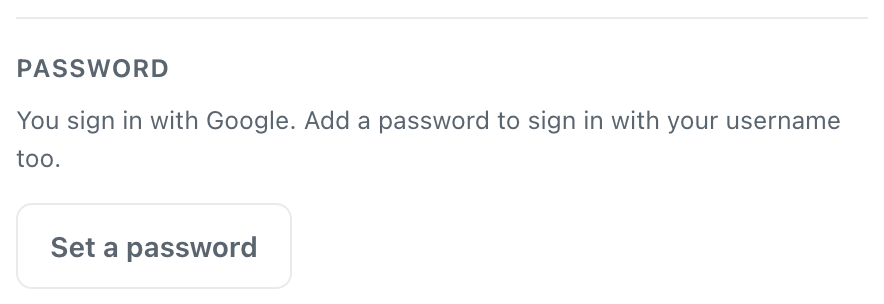
A screenshot of the Password section for an account created with Google.
- Press Set a password.
- Type a New password of at least 10 characters. There's no current password to type.
- Press Save password.
After that, you can log in with Google or with your username or email and the password, whichever is handier. Setting a first password works like a change: other devices are signed out, and you get an email. For more on Google accounts, see how to sign in to CicadaChat with Google.
Choosing a good password
- Make it long. CicadaChat asks for at least 10 characters, but longer is better. Three or four unrelated words, like "copper-garden-kettle-nine", are strong and easy to remember.
- Make it unique. Don't use a password you use anywhere else. If another site leaks it, your CicadaChat account stays safe.
- Don't make it personal. Birthdays, pet names and your username are easy to guess, especially for people who chat with you nearby.
- Use a password manager. Your phone or browser can create and remember a strong password for you. When you press Change password, it may offer to fill in the current one and suggest a new one.
If changing your password doesn't work
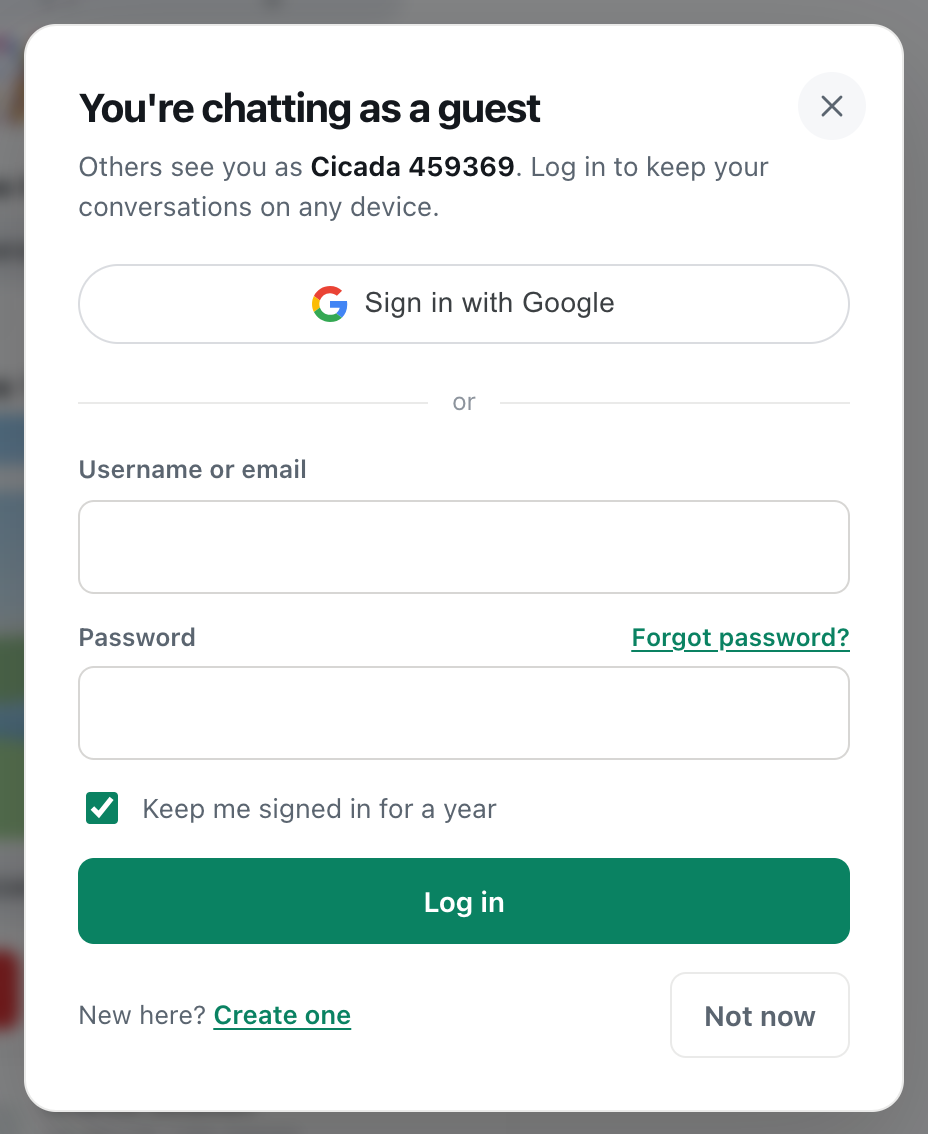
- "Your current password is not right." The first box doesn't match your current password. Check Caps Lock and try again. If you really don't know it, sign out and use Forgot password? in the log in dialog.
- "Use at least 10 characters." The new password is too short.
- "That password is too long." Passwords can be up to 200 characters. That's plenty for any passphrase.
- You're asked to wait. After many attempts in a short time, CicadaChat pauses password changes from your connection for up to 15 minutes. This stops anyone from guessing your current password on an unlocked device.
- The Save password button stays greyed out. CicadaChat is still saving. Wait a moment. If nothing happens, check your connection.
After changing your password
- Log in again on your other devices with the new password: your phone, your tablet, and CicadaChat on your home screen if you added it there.
- Update your password manager if it didn't save the new password automatically. Otherwise it will keep filling in the old one.
- Check your email for the confirmation, so you know that notices from CicadaChat reach you.
Changing your password on a phone
On a phone, tap your photo or the coloured circle at the top right of the screen to open Your account, then scroll down to Password. The steps are the same as on a computer. Your phone's password manager can fill in the current password and suggest a strong new one. Accept its suggestion, and it saves the new password for you, so logging in on your other devices is a matter of letting it fill in again.
Signs someone else may be using your account
Change your password straight away if you notice any of these:
- an email from CicadaChat about a password or email change you didn't make,
- your Full name, username or photo changed without you doing it,
- messages or private chats you don't remember sending,
- friend requests you didn't send, or new friends you don't know,
- being logged out on your own device when you didn't change anything.
After changing it, go through Your account and put back anything that was changed. If you can't log in at all, use Forgot password? in the log in dialog to get back in.
How often should you change your password?
There's no need to change a strong, unique password on a schedule. Changing it regularly tends to lead to weaker passwords that are easier to guess. Change it when there's a reason:
- you think someone else knows it or has used it,
- you used it on another site that has been breached,
- you logged in somewhere and forgot to sign out,
- a device you were logged in on was lost, stolen, sold or given away.
Change or reset: which do I need?
| Change password | Reset password | |
|---|---|---|
| Where | Your account, while logged in | Forgot password? in the log in dialog |
| You need | Your current password | Access to your email inbox |
| This device | Stays logged in | Logged out. Log in with the new password |
| Other devices | Signed out | Signed out |
| Confirmation email | Yes | Yes |
In short: if you know your password and just want a new one, or want to sign out everywhere, change it. If you've forgotten it, reset it.
Questions about passwords
Can CicadaChat tell me my current password?
No. CicadaChat stores your password only in a scrambled, one-way form, so nobody can read it back, not even CicadaChat. If you've forgotten it, reset it.
Will changing my password change my username or email?
No. Those are separate. To change them, see how to set your profile photo, full name and username and how to confirm or change your email address.
Will people I chat with notice?
No. Nothing about your password change is visible to anyone else. Your name, photo and messages look exactly the same.
Does changing my password end my private chats or leave my private rooms?
No. Signing out other devices only ends the logins on those devices. Your conversations, your friends and your private rooms belong to your account, and they're all there when you log in again with the new password.
I changed my password but my other device still looks logged in.
A page that was already open can stay on screen for a while. Its login no longer works, though, and the next time the page reloads or reconnects, it goes back to being a guest. Reload it to see that straight away.

No comments yet. Start the conversation.