
From the 10 km room to a private room: organising a club or meetup across town
How a message in CicadaChat's 10 km room becomes a club with its own private room: finding people, becoming friends, creating the room and running a group spread across town.
It starts with one message in the 10 km room: "Starting a Sunday morning cycling group across town. Who's in?" A few people say yes, and suddenly you need somewhere to agree on a route, change the meeting point, share photos and cancel for rain, without filling the town's room with it. That's what a private room is for. This article walks through organising a club or meetup across town, from the first message in the 10 km room to a private room of its own, and how to keep both rooms working well once the group is going.
Why town-wide groups need a private room
The 10 km room, Within 10 km, is a circle twenty kilometres across drawn around each person. It's the best place to find people for a club, because a whole district has enough of them to share almost any interest. But it's not the best place to run one:
- It's everyone's room. A dozen messages about which café to finish at is a lot for the rest of the town to scroll past.
- Your members aren't all in each other's range. Two members at opposite ends of town can be more than 10 km apart. In the 10 km room, each sees their own circle, so a message from one might never reach the other.
- It moves with you. When a member goes away for the weekend, the 10 km room goes with them, and the group's conversation is out of reach.
A private room fixes all three. It's an invite-only group chat, and it isn't tied to location at all: every member sees every message, wherever they are. It doesn't show anyone's distance. And only members can read it, or even tell it exists.
Step 1: find your people in the 10 km room
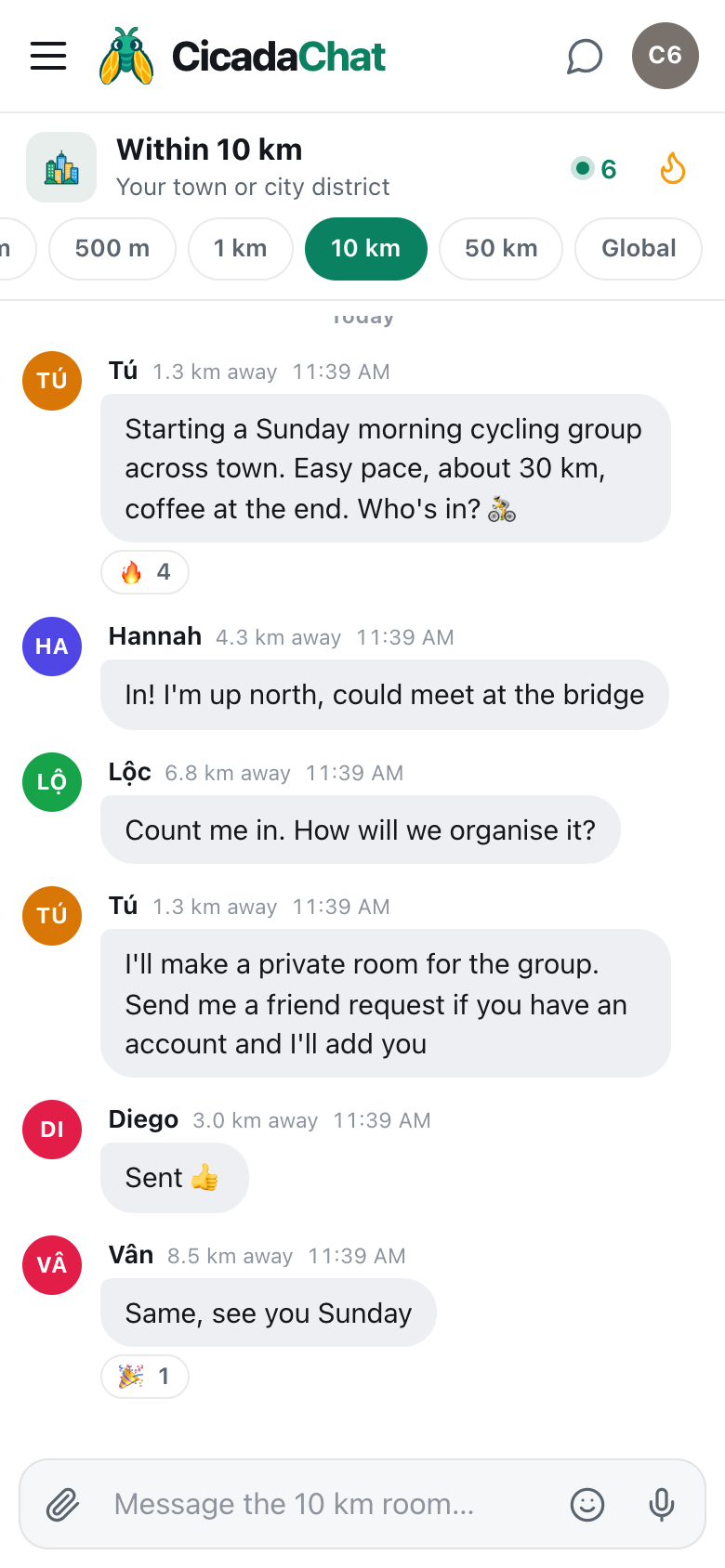
Post an invitation that tells people what, who for, when and where, in one message. Something like: "Starting a Sunday morning cycling group across town. Easy pace, about 30 km, coffee at the end. Who's in? 🚴"
A screenshot of a cycling group forming in the 10 km room. Replies come from 3 to 8.5 km away, and the organiser offers to make a private room and add people who send a friend request.
Replies come from across town: one person up north who can meet at the bridge, one 6.8 km away asking how it will be organised. 🔥 reactions from people who are interested but haven't said so yet are a good sign too. Answer the questions in the room, so the next person to read it has the answers, and tell people how to join: "I'll make a private room for the group. Send me a friend request if you have an account and I'll add you."
Step 2: registered accounts for everyone
Friends and private rooms are for registered accounts. A guest account is tied to one browser and can vanish if that browser's data is cleared, which would leave a hole in the group. Creating an account is free, takes a minute, and keeps everything the person already said as a guest.
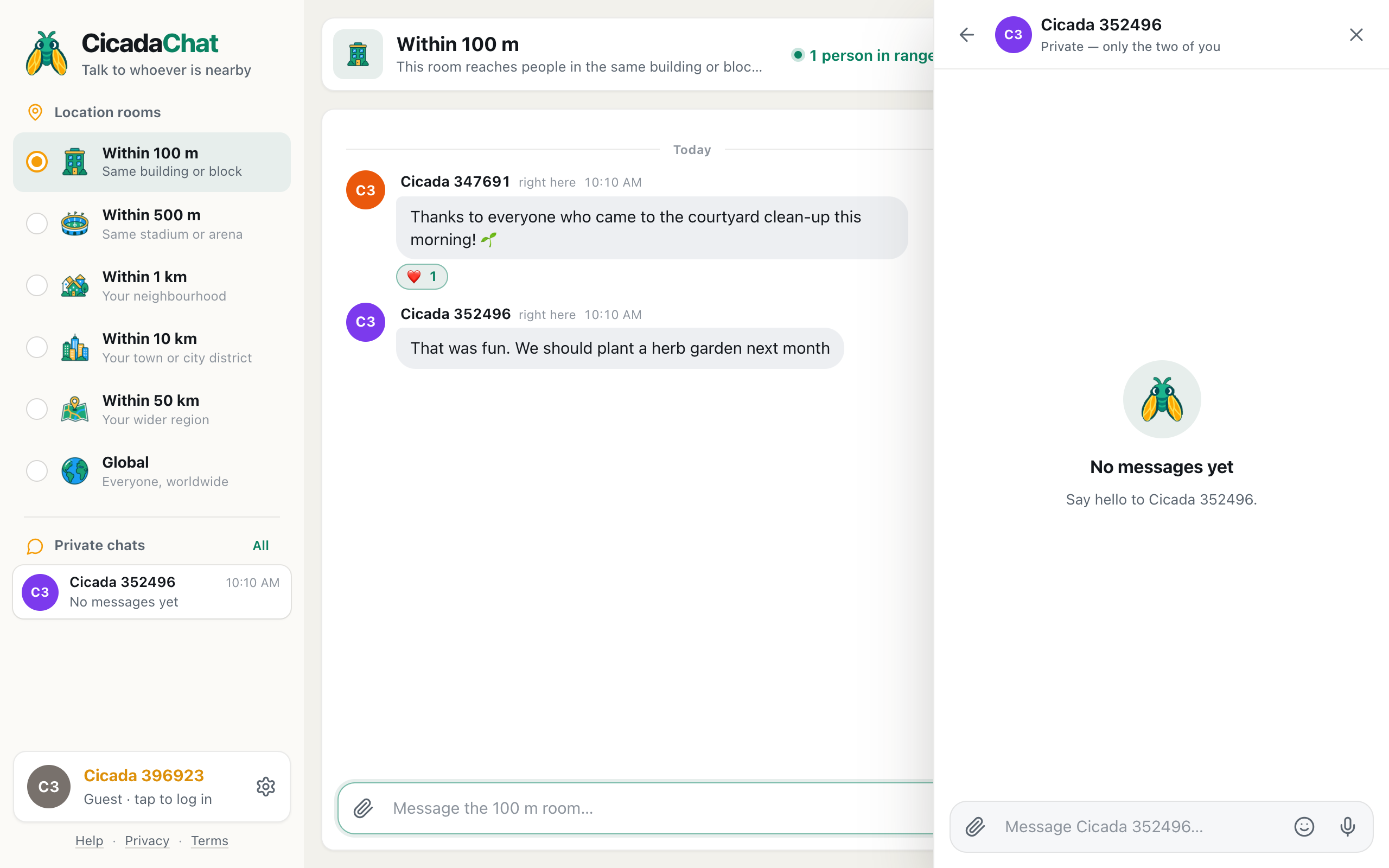
If someone in the group is still a guest, their name at the bottom of the sidebar says Guest · tap to log in. Tapping it opens the dialog where they can create an account.
Step 3: become friends
A private room's owner can only add their accepted friends. That's deliberate: nobody can be pulled into a room by a stranger. So the next step is friend requests.
- Tap a member's name, on one of their messages or in the People in range list. A private chat with them opens.
- Use Add friend. The button changes to Requested while you wait.
- When they accept, it becomes Friends.
It works in either direction. If people send you requests, you'll see a note in the sidebar that someone wants to be your friend, and the button on their chat reads Accept. If they had already asked you, sending your own request simply accepts theirs. Friends see when each other is online, but never where each other is. The help article friend requests: adding, accepting, declining and removing friends has the details.
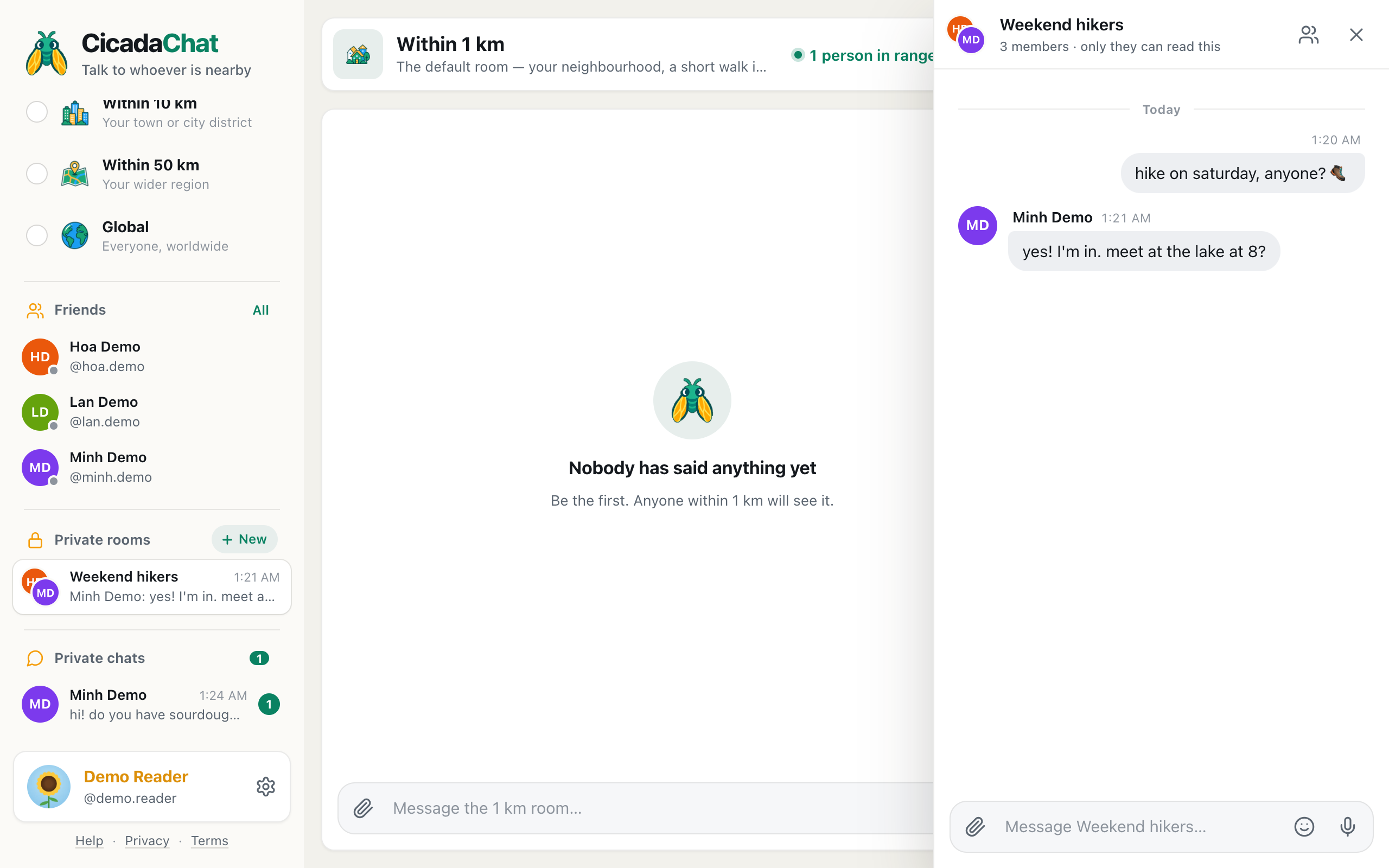
Step 4: create the private room
- Open the sidebar and find Private rooms. On a phone, tap the menu button at the top left first.
- Press New, beside the Private rooms heading. The New private room dialog opens.
- Type a Room name, like "Sunday Riders" or "Thursday Board Games".
- Under Add friends, tick the people to add.
- Press Create room.
The room appears in everyone's sidebar under Private rooms, and you're its owner. The help article how to create a private room for people you know walks through it with screenshots.
Step 5: tell the 10 km room
Go back to the 10 km room and say it's done: "Private room is up. If you'd like to join, send me a friend request." It closes the loop for the people who replied, and it's an open door for people who read the thread later. New members can join the same way at any time.
What goes where
| In the 10 km room | In the private room |
|---|---|
| Finding new members | Planning routes, times and places |
| Occasional updates: "Sunday Riders did 40 km today, beginners welcome next week" | Changes, cancellations and "running late" |
| Questions from people who might join | Photos from the ride, the game or the meetup |
| Public events anyone can come to | Anything personal: phone numbers, addresses, who's giving whom a lift |
Everything you can send in the 10 km room works in a private room too: messages, reactions, photos, documents, voice notes and shared locations. A shared location in a private room is seen only by its members, which makes it the right place to drop a pin on this week's meeting point.
Running a group across town
Choosing places
In a group spread over 20 km, somebody always has further to go. Pick meeting points on main roads or bus routes, rotate between sides of town, or meet in the middle. A shared location takes the guesswork out of "the east end of the bridge".
Keeping the room useful
Pin down the regular details in one message people can find: the day, the time, the usual meeting point, what to bring. Private rooms have no Hot view, so say it again whenever it changes rather than relying on people scrolling back.
Changes of owner
Only the owner adds and removes people, renames the room or deletes it. Anyone can leave at any time. When the owner leaves, the longest-standing member becomes the owner, so the group carries on. A room left with nobody in it is deleted. Managing a private room: adding and removing people, renaming, leaving and deleting covers every option.
When the group grows
Successful groups change shape. The cycling group splits into a fast ride and an easy one. The board game night fills a café and starts a second evening. When that happens, it's easy to create another private room for the new part of the group and keep the original one for everyone. Each member can be in as many private rooms as they like, and each room shows up separately under Private rooms in the sidebar, with its own unread count.
Members also move away. Because private rooms aren't tied to location, someone who moves across the country can stay in the group and keep up with the news, even though they're long out of the 10 km room. That's often the best part of a group that started with strangers across town: it outlives the distance that brought it together.
If something doesn't work
- There's no New button beside Private rooms. You're using a guest account. Create a free account first.
- Someone isn't in the list under Add friends. You're not friends yet, or their request hasn't been accepted. Check their chat: the button should read Friends.
- A member can't find the room. Make sure they're signed in to their registered account, on the device they're using. Private rooms appear under Private rooms in the sidebar, not in the room tabs.
- Someone left by mistake. The owner can add them again, as long as the two of them are still friends.
Kinds of groups that start in the 10 km room
- Sport: cycling, running, five-a-side, badminton, climbing, swimming.
- Games: board games, chess, quiz teams.
- Languages: exchange groups and conversation clubs.
- Newcomers: people who've recently moved to the city and want to explore it together.
- Parents: families with children of the same age, or with the same needs, from across the district.
- Volunteers: clean-ups, food banks, shelters.
- Makers: photography walks, sketching, craft circles.
Keeping it friendly and safe
- Meet in public places, at least until the group knows each other.
- Add people who've met the group, or who you've talked to in a private chat, rather than everyone who reacts in the 10 km room.
- Keep personal details in the private room, and even there, only share what you're comfortable with. Members of a private room can see each other's usernames.
- Let people go gracefully. Anyone can leave, and that's fine. Groups change.
- Keep the door open. Post in the 10 km room now and then. The best groups never stop being findable.
It takes about ten minutes to go from one message to a private room of your own. Open CicadaChat, tap 10 km, and ask who's in.
No comments yet. Start the conversation.