
Managing a private room: adding and removing people, renaming, leaving and deleting
How to manage a private room in CicadaChat: see who's in it, add friends, remove people, rename it, hand it on to someone else, leave it or delete it for everyone.
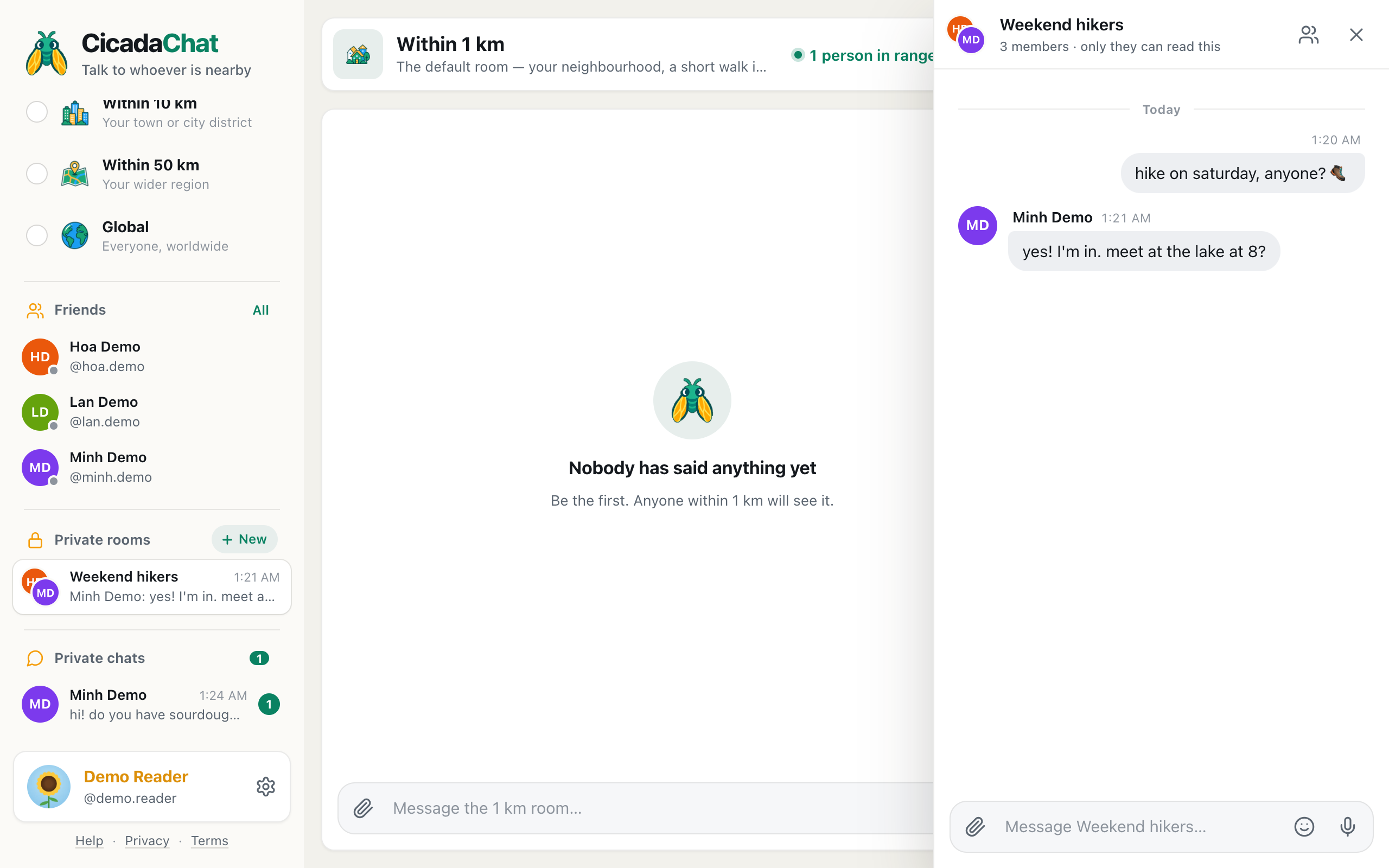
A private room keeps changing after you create it. Someone new joins the group, someone moves away, the name stops fitting, or the plan it was made for is over. This guide shows how to manage a private room in CicadaChat: how to see who's in it, add and remove people, rename it, hand it on, leave it and delete it, and what everyone else sees when you do each of those things.
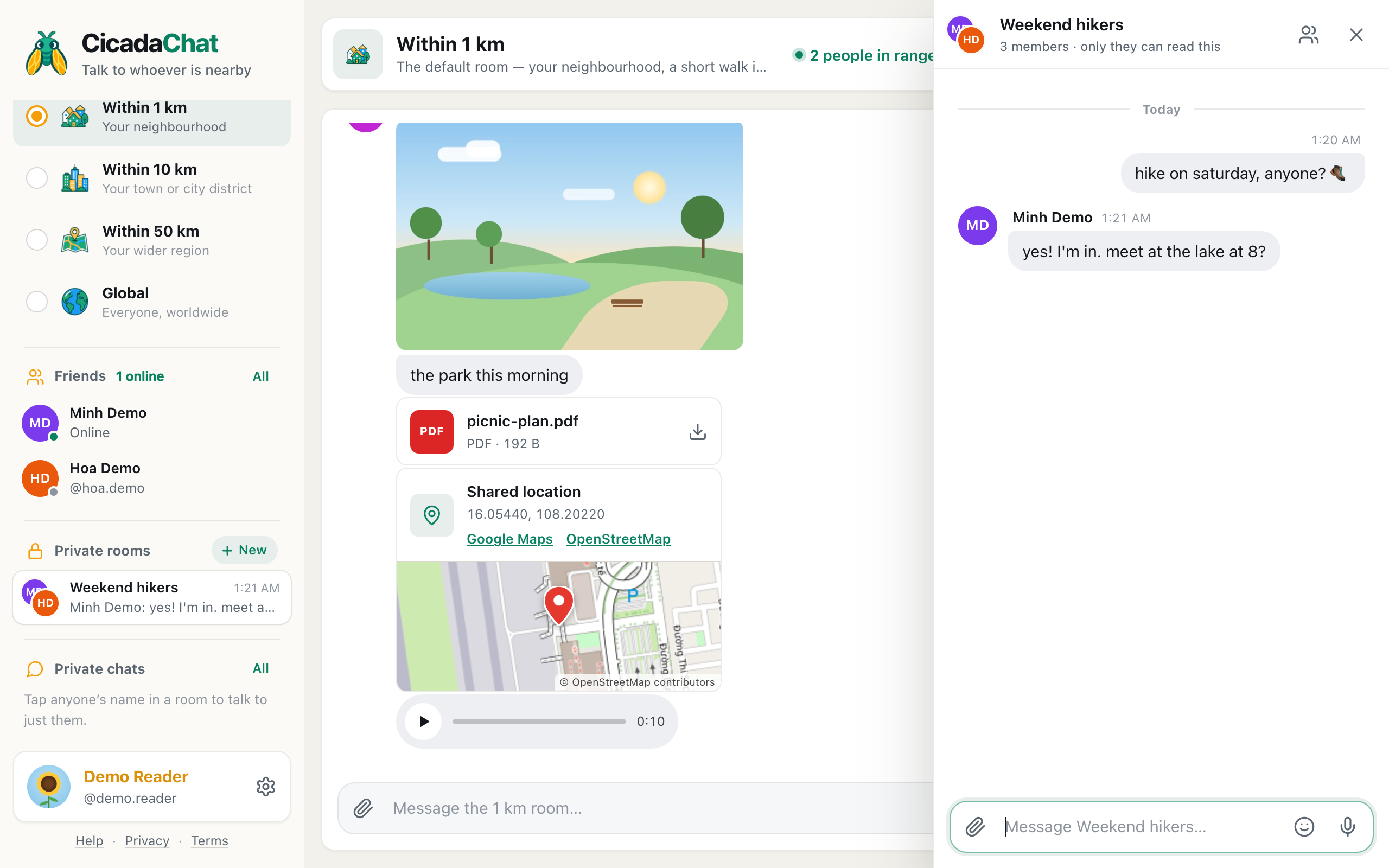
A screenshot of a private room open on a computer. The room's name at the top and the people icon beside it both open its settings.
If you haven't made a room yet, start with how to create a private room for people you know. Everything below assumes the room already exists.
Owners and members
Every private room has exactly one owner. At first that's whoever created it. Everyone else in the room is a member. What you can do depends on which one you are:
| Owner | Member | |
|---|---|---|
| Read, write and react | Yes | Yes |
| See who's in the room | Yes | Yes |
| Message a member privately | Yes | Yes |
| Add friends to the room | Yes | No |
| Remove someone | Yes | No |
| Rename the room | Yes | No |
| Leave the room | Yes | Yes |
| Delete the room for everyone | Yes | No |
There's no button to make someone else the owner. Ownership only changes when the owner leaves, which is covered below under "Handing a room on to someone else".
How to open a private room's settings
Everything in this guide happens in one place: the room's settings.
- Find Private rooms in the sidebar. On a phone, open the menu at the top left first.
- Tap the room to open it.
- Tap the room's name at the top of the room, or the people icon next to it. The icon's label is Room members and settings.
A dialog opens with the room's name as its title. Under the title, the owner sees Only the people below can read this room. You own it. A member sees Only the people below can read this room. Only the owner can add or remove people.
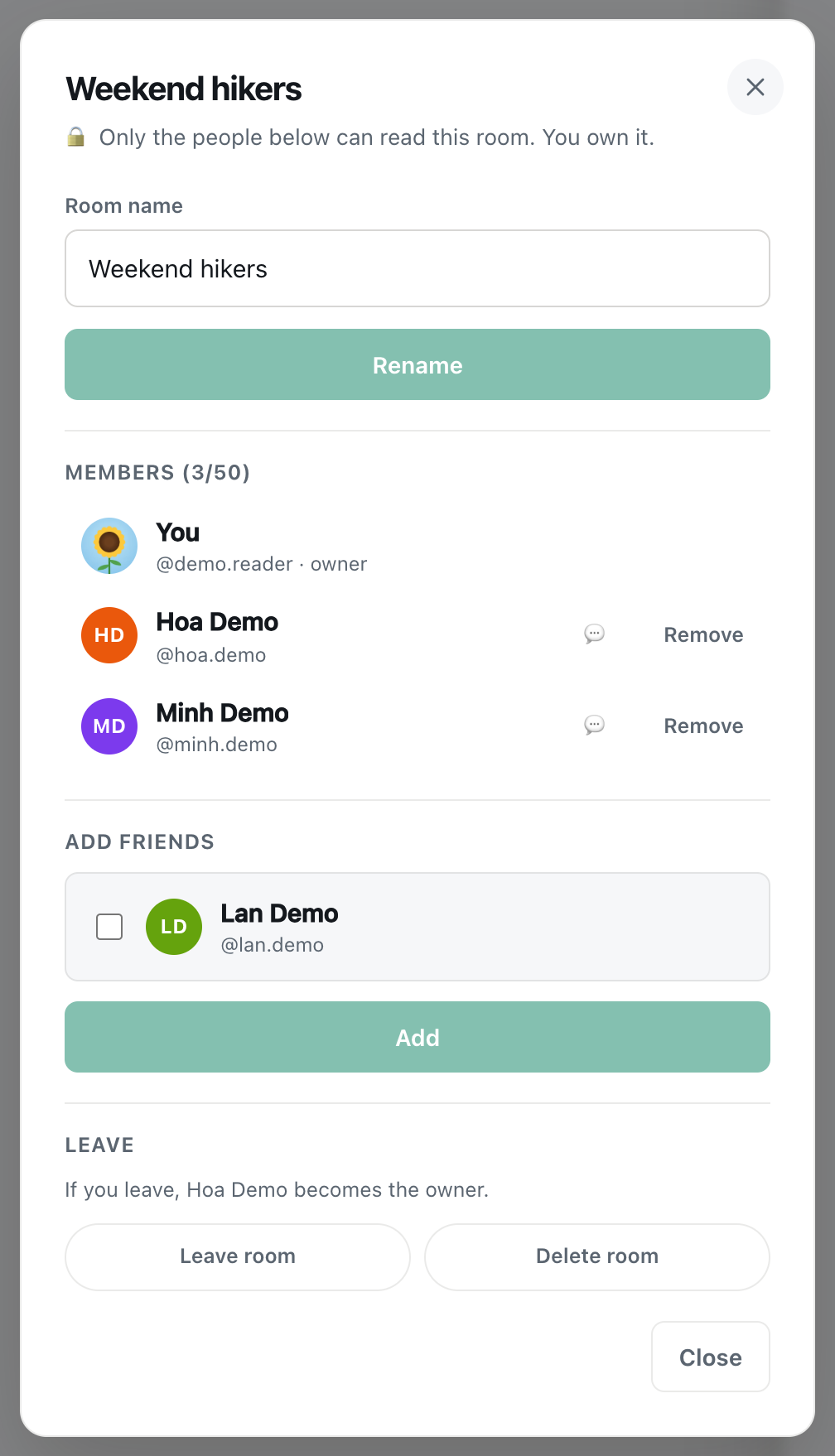
A screenshot of a private room's settings as the owner sees them. Members see only the member list and Leave.
To close the settings, press Close or the × at the top, or click outside the dialog. On a phone, the back gesture closes it too, and a second back closes the room.
Seeing who's in the room
The Members heading counts the people in the room against the limit, for example Members (3/50). A private room holds up to 50 people, including the owner.
- The owner is listed first, with owner after their username. Everyone else follows in the order they joined.
- Your own row says You instead of your name.
- Each row shows a photo, a full name and a @username. So everyone you add to a room can see the usernames of everyone else in it, not only their names.
- The speech-bubble button next to each person (its label is Message privately) closes the settings and opens a one-to-one chat with them. It works the same as tapping a name in a room. See private chats: how to message someone one to one.
How to add people to a private room
Only the owner can add people, and only people who are already the owner's accepted friends. That rule is what stops anyone being pulled into a room by a stranger.
- Open the room's settings.
- Under Add friends, tick the friends you want in the room. The list only shows friends who aren't in the room already.
- The button under the list changes from Add to, for example, Add 1. Press it.
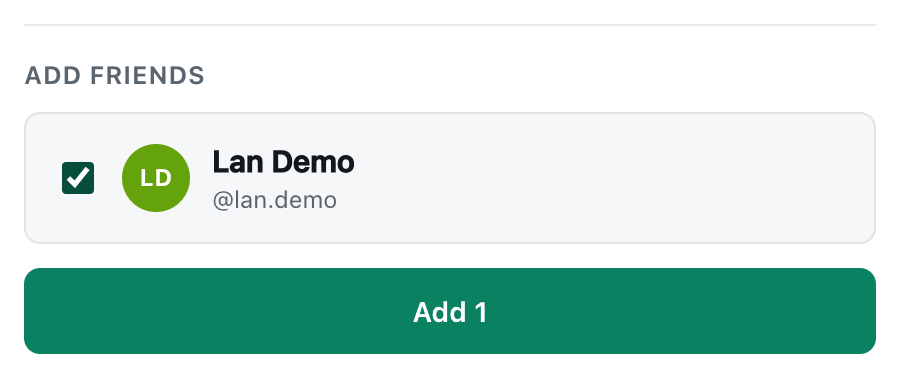
A screenshot of adding a friend to a room. The button counts how many people you've ticked.
What happens next:
- They're in straight away. There's no invitation to accept. The room appears in their sidebar under Private rooms, and the member count goes up for everyone.
- They can read the whole history. Someone you add can scroll back through every message sent in the room, including everything from before they joined. Before adding someone to an established room, think about whether there's anything in it you wouldn't want them to read.
- They get the same rights as every member. They can write, react, message other members privately and leave whenever they like.
Sometimes the Add friends section has nobody to tick. It tells you why:
- Only friends can be added. Add some friends first. You don't have any accepted friends yet. See friend requests: adding, accepting, declining and removing friends.
- All your friends are already here. Everyone you're friends with is in the room.
- The room is full. It has 50 members. Remove someone, or start a second room.
When a member wants to bring in someone new, they have to ask the owner, and the owner has to be friends with that person too. A member can't add people themselves.
How to remove someone from a private room
The owner can remove anyone except themselves. To take yourself out, use Leave room instead.
- Open the room's settings and find the person under Members.
- Press Remove next to them. The button changes colour and says Remove?.
- Press Remove? to confirm. If you change your mind, click or tap anywhere else and the button goes back to Remove.
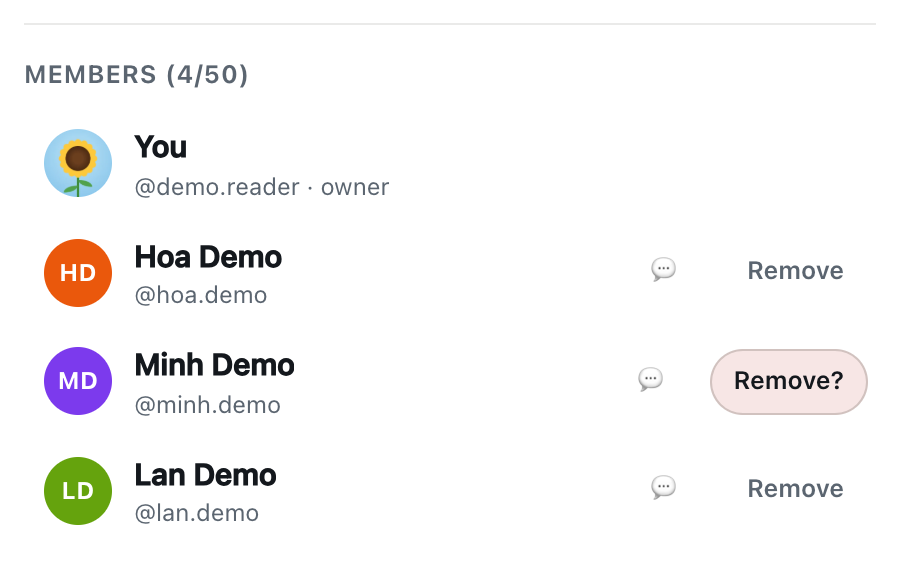
A screenshot of the second press that confirms removing someone. Nothing happens until you press it.
For the person you removed:
- Messages stop at once. They don't receive anything sent after they were removed.
- The room disappears from their sidebar, and they can't open it or read its history any more.
- If they have the room open, it closes and they see a notice saying You are no longer in that room. There's no other message, and the room doesn't announce it to the other members, who just see one member fewer.
- Their earlier messages stay. Messages can't be deleted, so what they wrote while they were in the room is still there for everyone else.

A screenshot of what someone sees if they have the room open when they are removed, or when the room is deleted.
You can add someone back later, as long as you're still friends. They'll see the full history again, including everything said while they were away.
Removing a friend doesn't remove them from your rooms. Unfriending someone and removing them from a private room are separate. If you want both, do both.
How to rename a private room
- Open the room's settings. As the owner, the Room name field is at the top.
- Change the name. It can be up to 48 characters, and emoji are fine.
- Press Rename. It stays greyed out until the name is different from the current one, and while the field is empty. When it's done, you see Renamed.
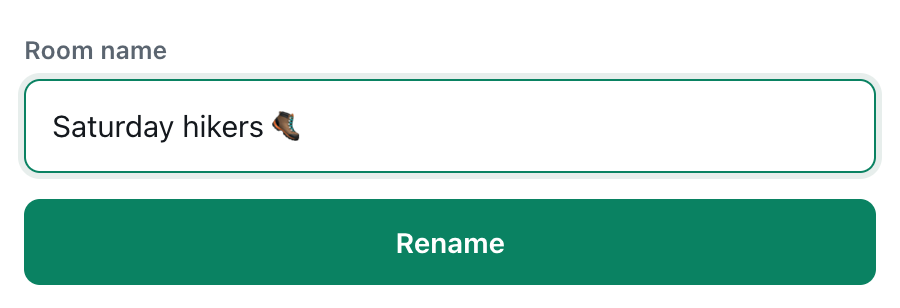
A screenshot of renaming a room. The Rename button only lights up once the name is different.
The new name shows up for every member straight away: in their sidebar, at the top of the room and in the message box, which says Message followed by the room's name. Nobody is told that the name changed, so if you rename a busy room, it's kind to say so in a message.
A good room name is short and says what the room is for, like "Flat 4B" or "Saturday football". The sidebar is narrow and shows the name next to a preview of the latest message, so the first few words matter most.
How to leave a private room
Anyone can leave a room, owner or member.
- Open the room's settings and scroll to Leave.
- Read the line under the heading. It tells you what leaving will do (see below).
- Press Leave room. The button changes to Really leave?.
- Press Really leave? to confirm. To change your mind, click anywhere else.
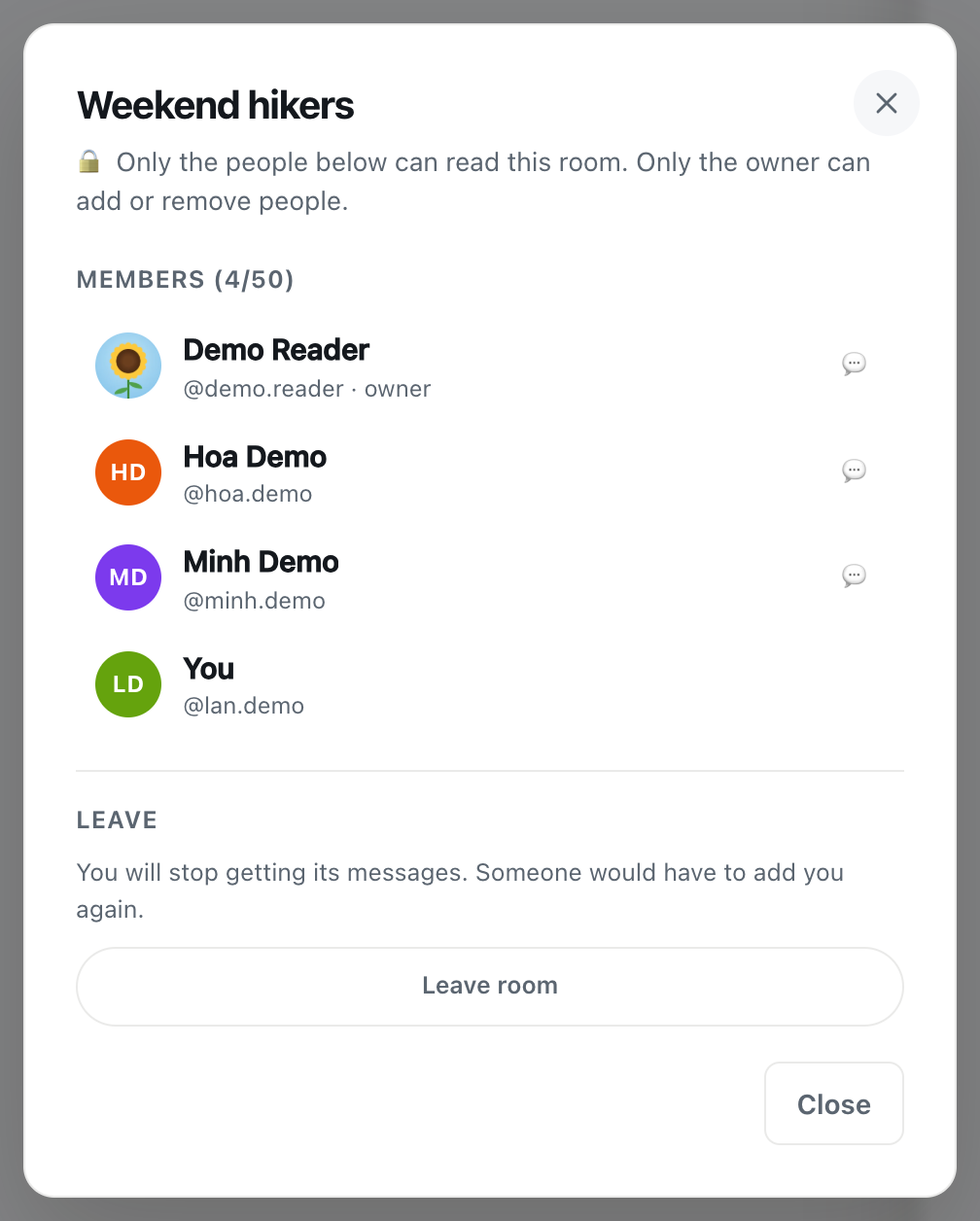
A screenshot of the same room's settings as a member sees them. There's no Rename, Remove or Add friends.
The line under Leave depends on who you are:
- As a member, it says You will stop getting its messages. Someone would have to add you again.
- As the owner of a room with other people in it, it names who will take over, for example If you leave, Hoa Demo becomes the owner.
- As the owner and the only person left, it says You are the only one here — leaving deletes the room.
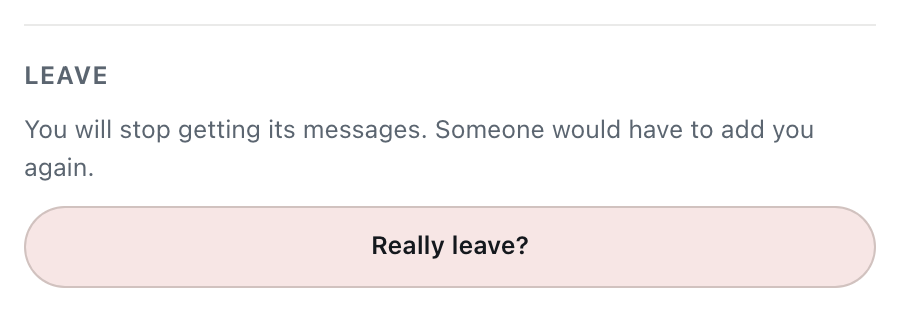
A screenshot of the second press that confirms leaving a room.
Once you've left, the room disappears from your sidebar and you stop getting its messages. The messages you wrote stay in the room for the others. The only way back in is for the owner to add you again, and they can only do that while you're friends.
Handing a room on to someone else
There's no "make owner" button. When the owner leaves, the room passes automatically to the member who has been in it the longest, and the room keeps going as before. The new owner gets the Room name, Remove, Add friends and Delete room controls in the room's settings.
So, to hand a room on:
- Open the settings and check the line under Leave. It names the person who will become the owner.
- Tell the group in a message, so the new owner isn't surprised.
- Press Leave room, then Really leave?.
If you want to stay in the room as a member afterwards, ask the new owner to add you back. You'll need to be their friend.
How to delete a private room
Only the owner can delete a room, and it deletes it for everyone.
- Open the room's settings and scroll to Leave.
- Press Delete room. The button changes to Delete for everyone?.
- Press Delete for everyone? to confirm.
The room and all its messages are deleted for every member. It disappears from everyone's sidebar, and anyone who has it open sees You are no longer in that room. This can't be undone, and there's no way to get the messages back.
Leave or delete? If the others might want to carry on without you, leave: the room and its history stay, and someone else becomes the owner. Delete only when the room has served its purpose for everyone, such as a group made to plan one event.
Managing a private room on a phone
It all works the same way on a phone. Open the menu at the top left, tap the room under Private rooms, and it fills the screen. The people icon at the top opens the settings, which you can scroll to reach Leave. The back gesture closes the settings, then the room, and takes you back to the location room you were in.
An example: a hiking group over a season
- Demo Reader created "Weekend hikers" for Minh and Hoa in the spring.
- In June, Lan joins the group. Demo Reader and Lan become friends, then Demo Reader ticks Lan under Add friends and presses Add 1. Lan scrolls back and finds the route everyone shared in May.
- The group starts walking on Saturdays only, so Demo Reader renames the room "Saturday hikers 🥾" and posts a message to say so.
- In the autumn, Demo Reader moves to another city and leaves the room. The Leave section says Hoa will become the owner, which suits everyone. Hoa now adds new people.
- Next spring, Hoa adds Demo Reader back for a reunion walk.
If something goes wrong
- There's no Room name, Remove or Add friends in the settings. You're a member, not the owner. The owner is the one marked owner in the member list. Ask them.
- "Only the room’s owner can do that." or "Only the room’s owner can remove people." Ownership changed while you had the settings open, or you're signed in to a different account. Close the settings and open them again.
- A friend isn't in the Add friends list. They're already in the room, your friend request is still waiting for them to accept, or you're no longer friends.
- "You can only add people who are your friends." Someone you ticked stopped being your friend while the dialog was open. Close it, open it again and try once more.
- "A room holds at most 50 people." The room is full. Remove someone who no longer takes part, or make a second room.
- "That room does not exist, or you are not in it." The room was deleted, you were removed, or you're signed in to another account.
- A room has vanished from your sidebar. You were removed, the owner deleted it, or you're chatting as a guest. Guests don't have a Private rooms section at all, so log in to the account you created the room with.
No comments yet. Start the conversation.